Build your AI Glasses app using the Jetpack Compose Glimmer UI framework for augmented experiences that work across AI Glasses. Jetpack Compose Glimmer is one of the first UI frameworks to be optimized for transparent displays and the AI glasses form-factor.
1. Decide on user journeys
Focus on critical user journeys (CUJs) that are compatible with the AI glasses form factor's glanceable principles. That could be expressed with minimal UI or audio only while allowing the user to stay present in their surroundings. To find opportunities, consider starting entry points in your current app that would benefit from Glasses.
For example, a user may benefit with hands-free, turn-by-turn walking directions to help them navigate to their destination.
The chosen user journey should also account for safety, comfort, and performance principles. For example, don't choose tasks that would require the user's camera for unnecessarily long periods or infringe on their privacy.
Learn about foundational principles.

Do
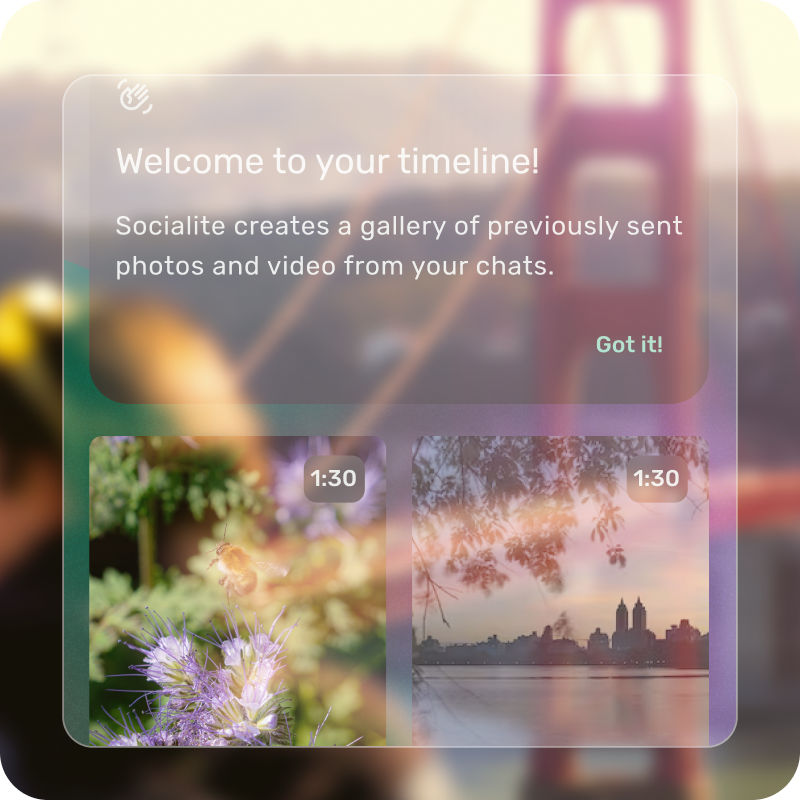
Don't
2. Minimize & Translate
For display mode UI, start with a CUJ from your core app:
Optimize layouts for focus: Layouts prioritize essential information, reducing the number of actions and visual elements to maintain user focus.
Use depth for hierarchy: Depth is used to communicate element priority.
Design from the bottom up: When building mocks, start from the bottom, laying out components upward.
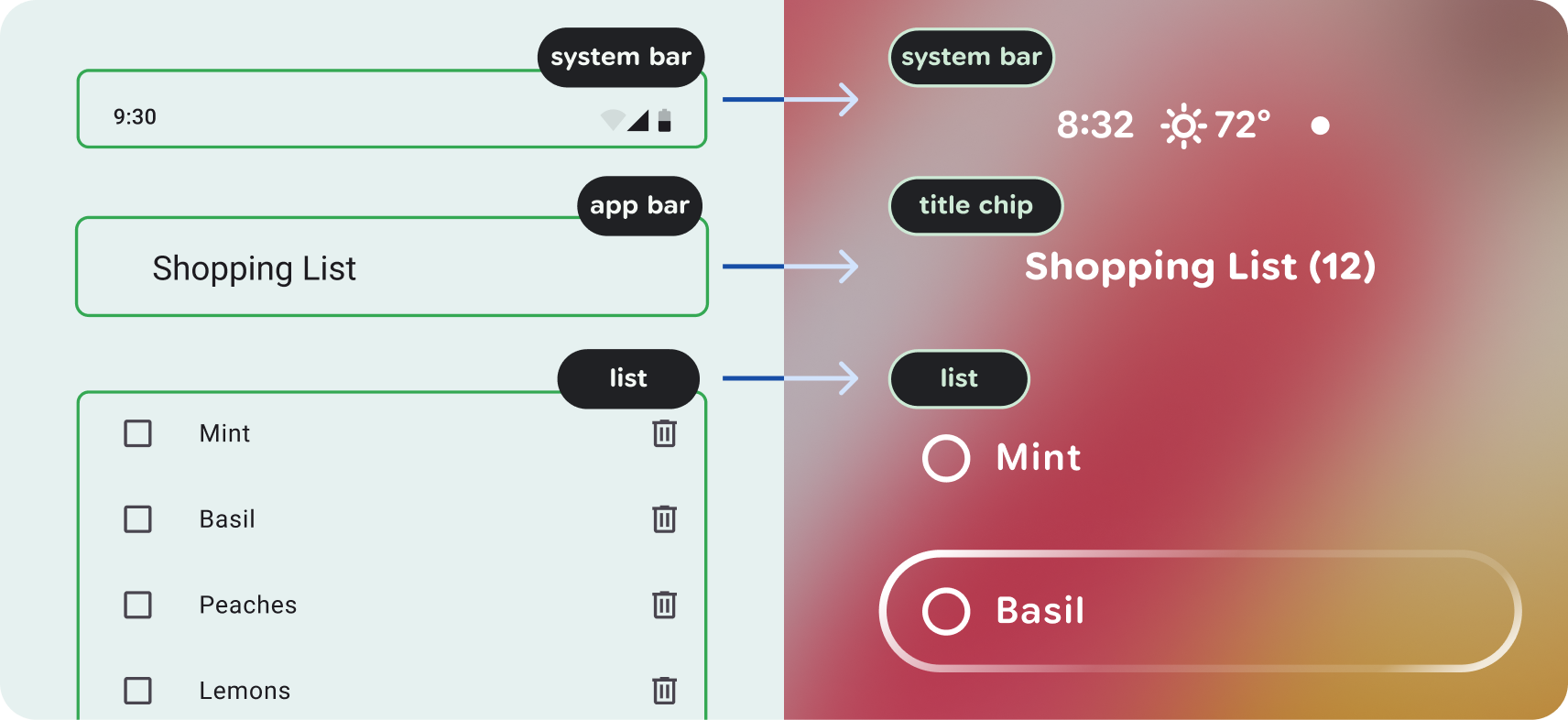
Translate visual components: For display AI glasses, use Jetpack Compose Glimmer components and layout patterns.
Read more on components and app view.
3. Audio flow & cues
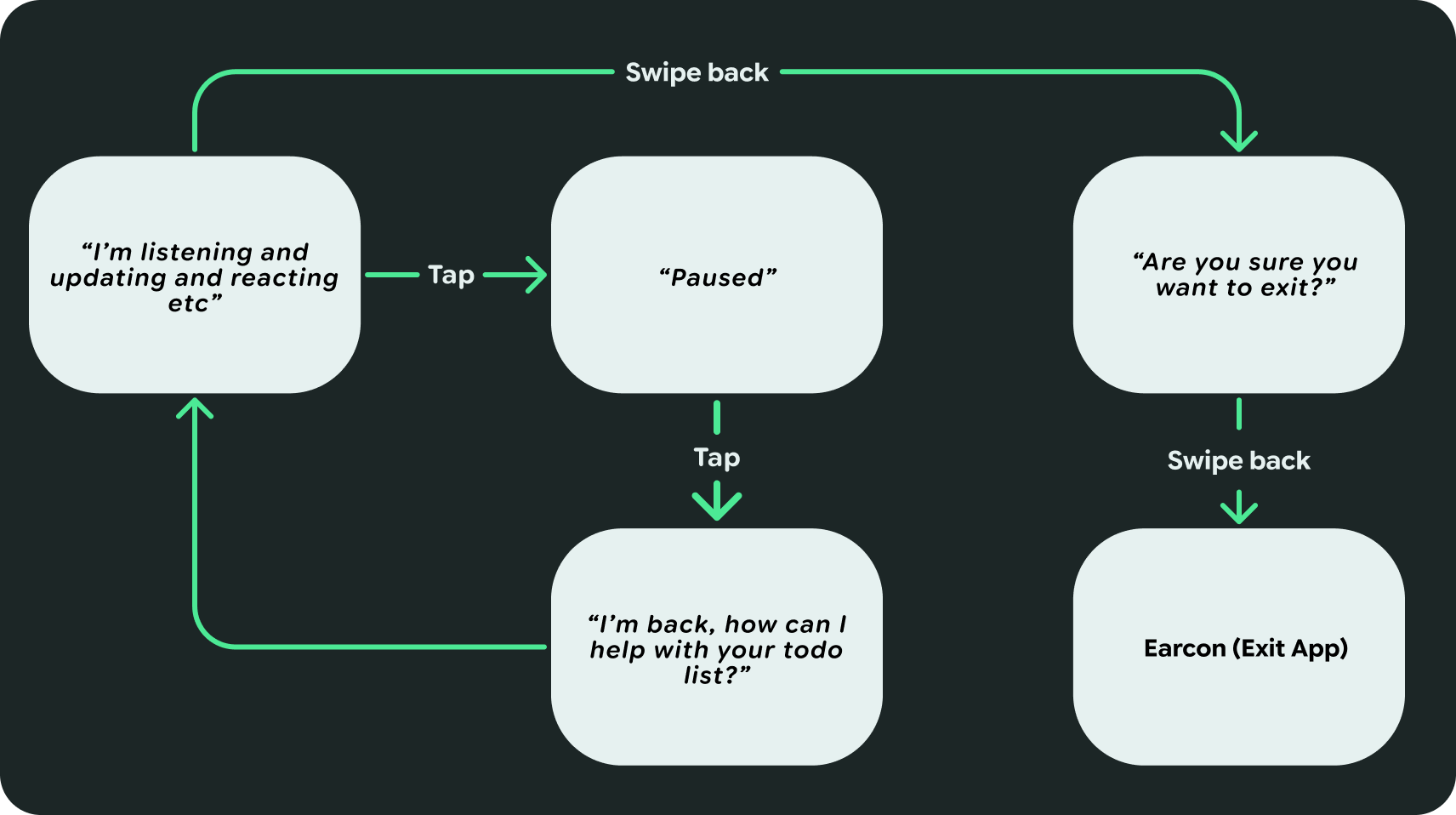
Get conversational with the Audio. While audio should make up a large part of your AI Glasses app without overwhelming the user, you also need to account for an audio-only experience for certain devices. You can do this by creating an audio-only flow map to describe this experience. Notate interactions and feedback with audio cues and dialogue.
4. Map input controls
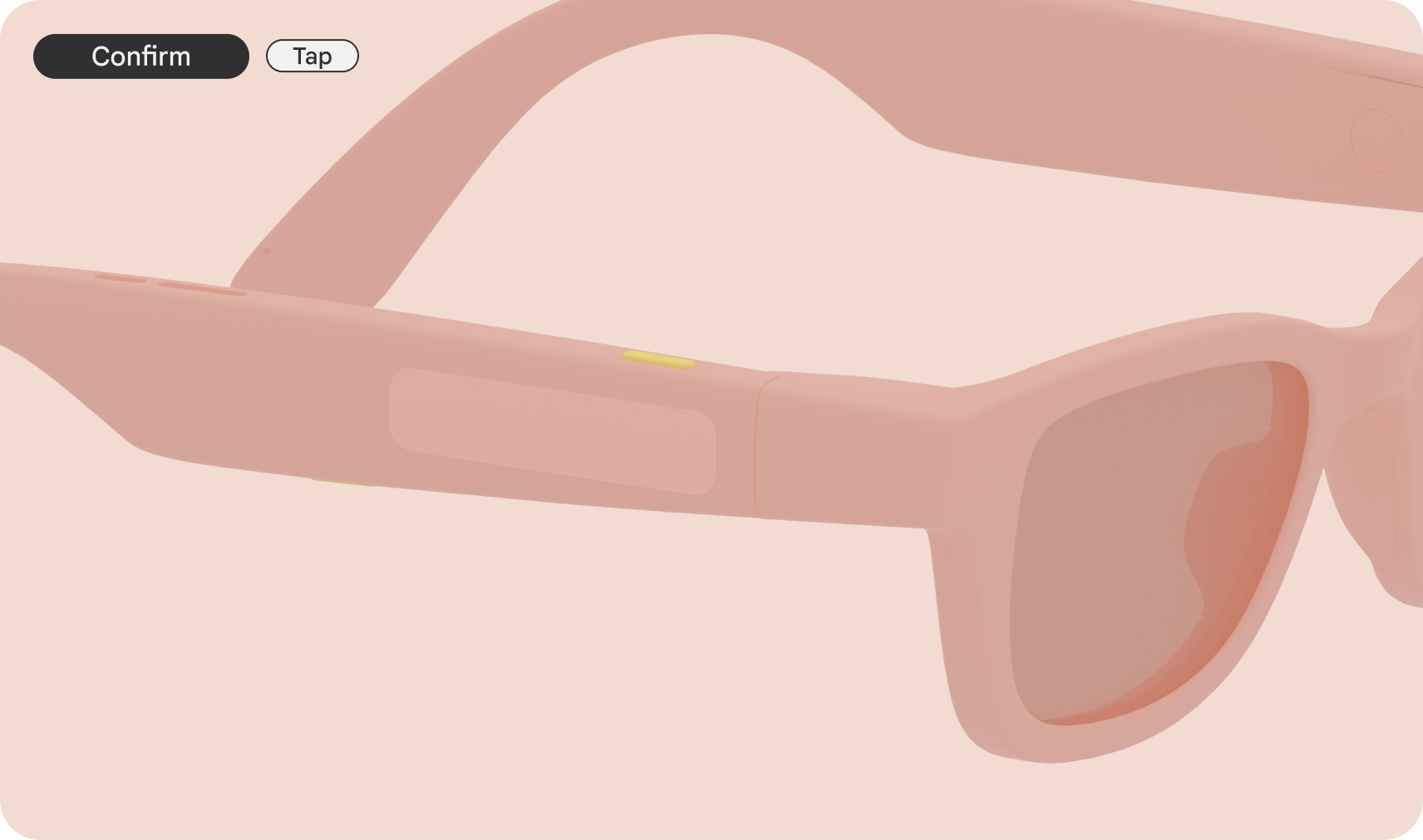
Make sure to map out the inputs for the device controls and gestures. You can start by translating basic app interactions, like tap, to a trackpad tap.
5. Consider SysUI
Account for other system interfaces.
Your app will appear in the home and other system features, like notifications if used. These can appear in the system bar.

6. Additional states
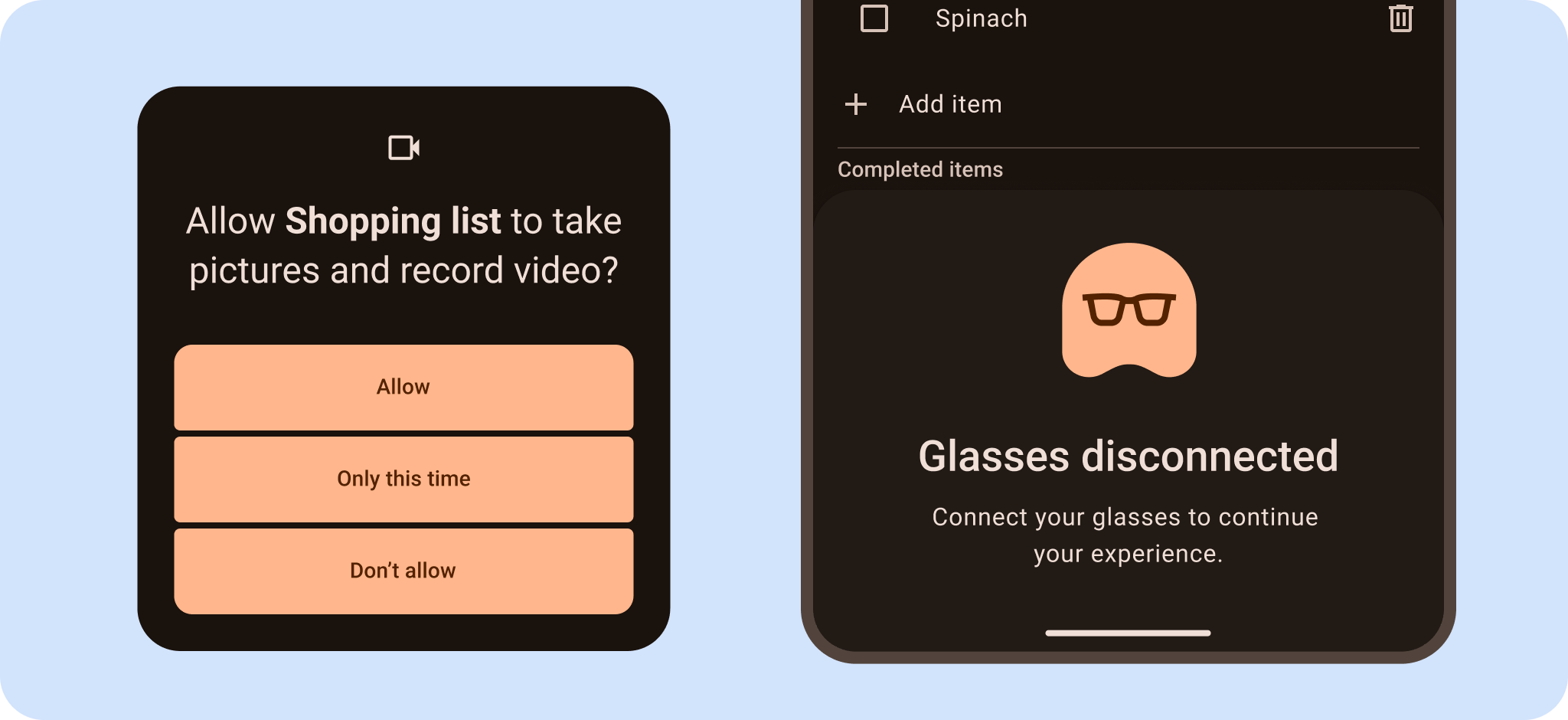
Your app will encounter different scenarios on AI glasses, such as connection or permission issues. Account for these different states both within your core app and glasses app.
Make sure to ask for device feature permissions.
Remember, you will need to consider these through visual UI and audio. For example, give audio feedback to communicate that they should complete a permission flow on their mobile device or to read out errors.