
An anchor is a locked virtual point to a physical object. Spatial anchors can be presented to users as visual markers.
You can use anchors across a wide range of use cases to represent points derived from your app's content, AI-generated markers, or even user-generated points. Anchors are most useful for pinned objects, like a point of interest or identifying an object for the user.
User comfort
Unlike other spatial UI that will move with the user's head movement, anchors remain locked to a specific spot, even when the user moves around.
When using spatial anchors, consider how they will interact with the rest of your user's spatial environment. Try to avoid sizing and orientation that will make the user back up or be unsure of anchor placement.
Markers
Markers are UI affordances attached to the objects in the user's field of vision. A spatial marker has multiple forms, including dot, icon, or drawing.
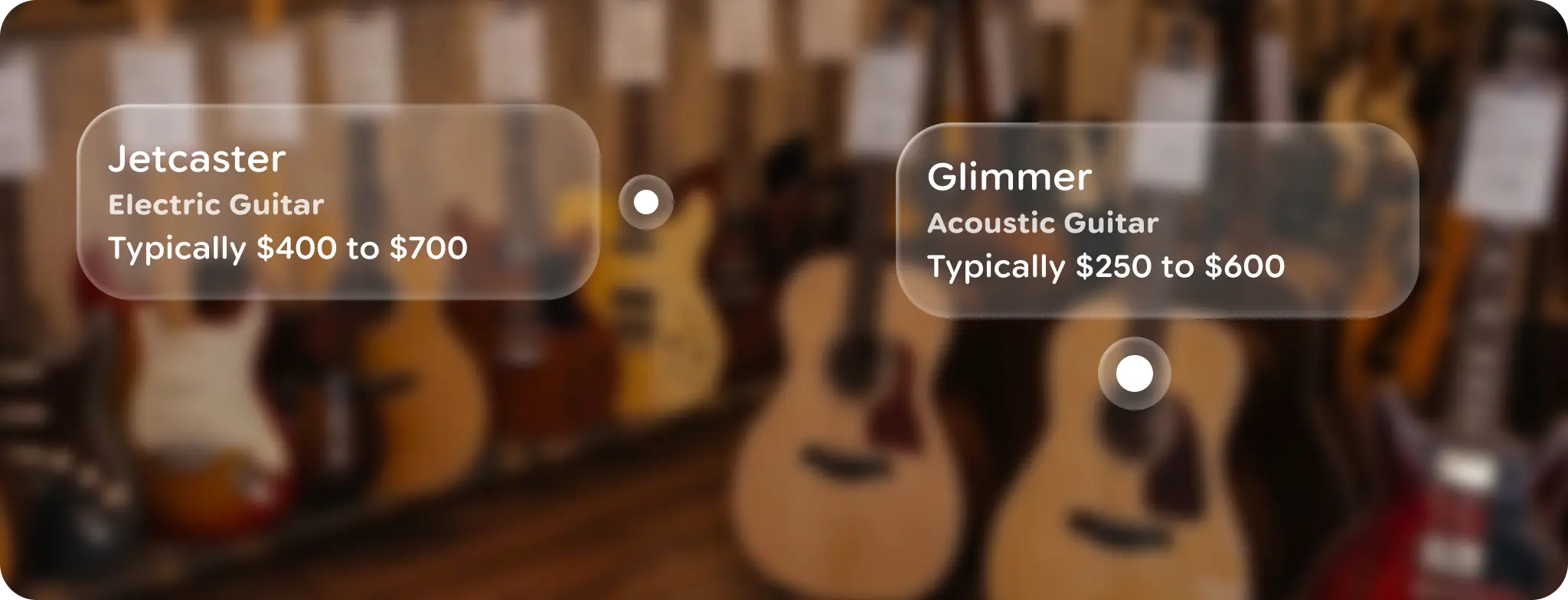
Icon markers
An icon marker is a small dot like UI element that marks objects of interest in the user's environment. Read more on icon markers.
Glimmer UI
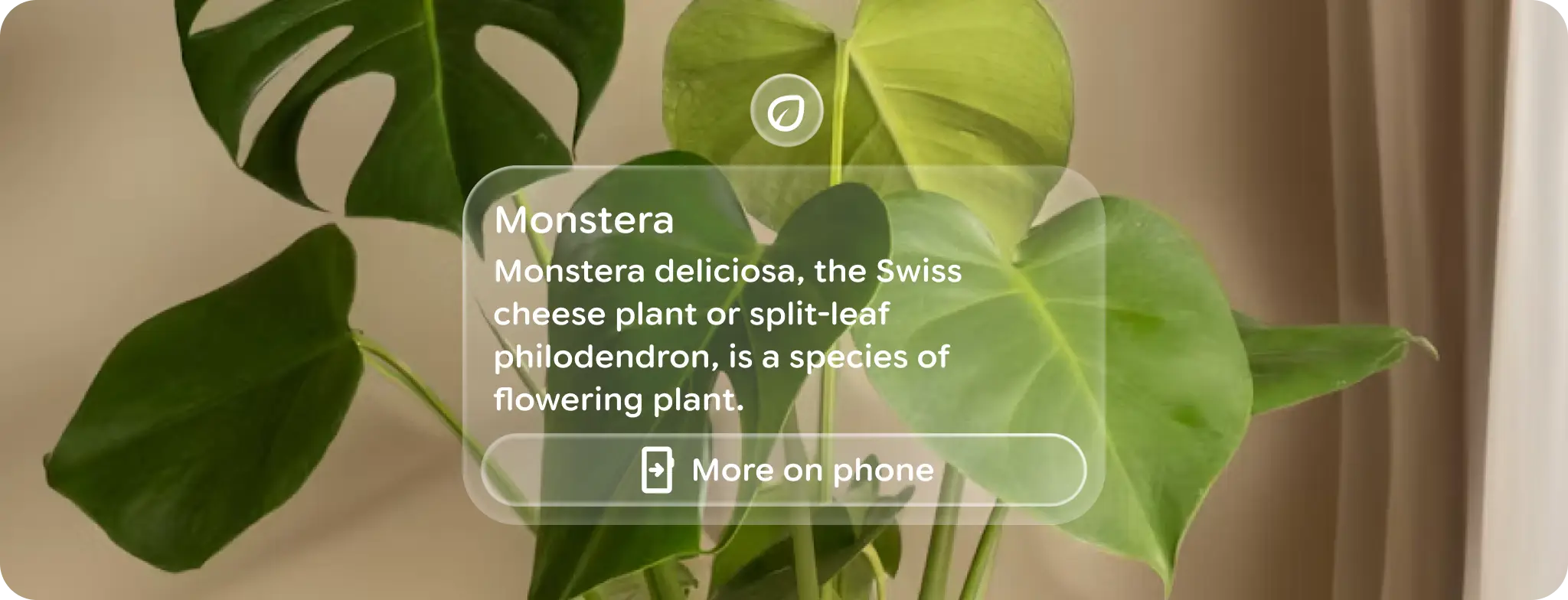
Markers can be tied to other UI, like Jetpack Compose Glimmer components.
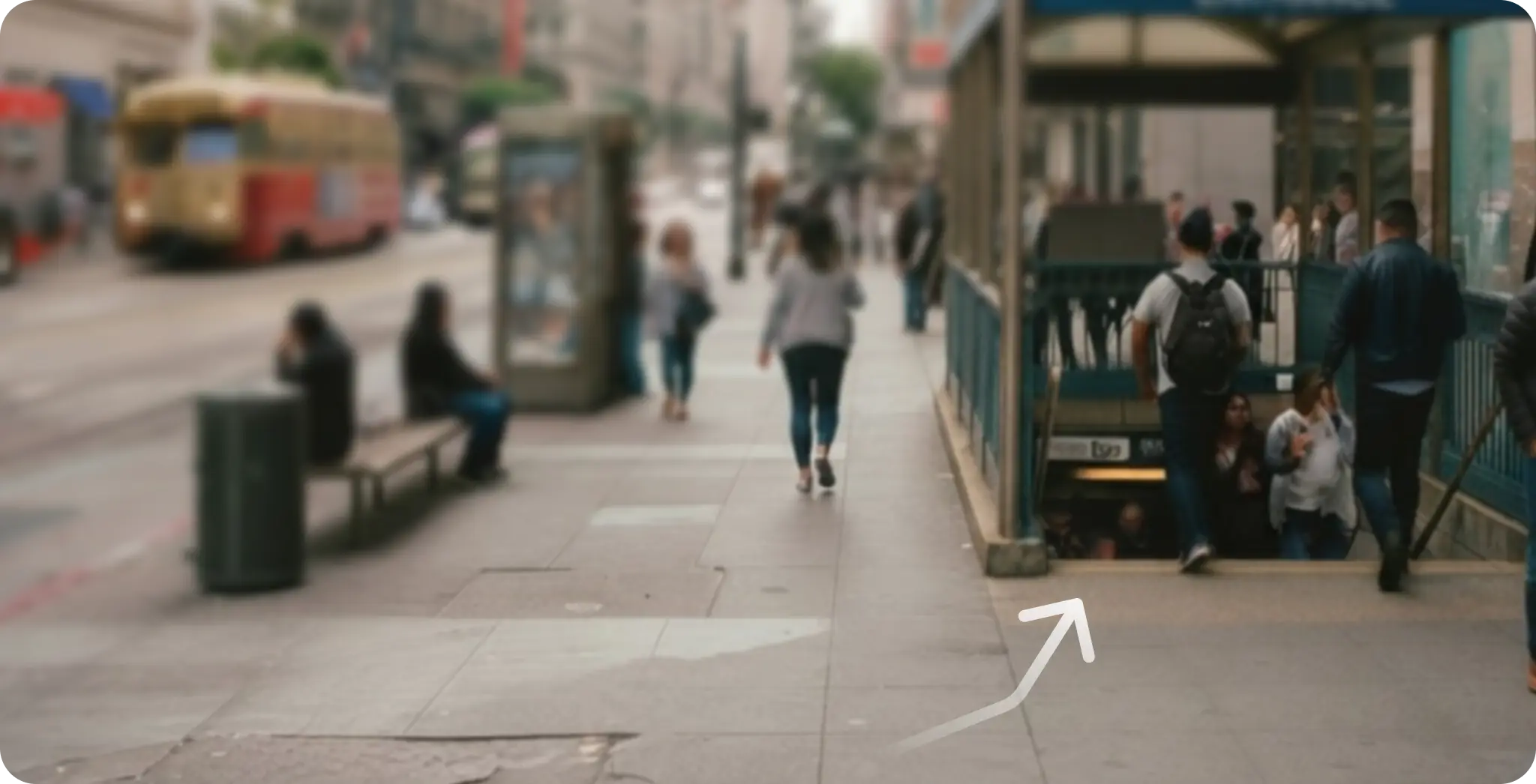
Drawing
Drawing markers are drawn at runtime and glimmer themed to provide greater visual help than a dot or frame can provide. For example, a directional is present on display to show the user where to look or navigate.
Behaviors
Markers, and any attached UI, should behave as spatial UI, meaning the actual distance of the marked object should be reflected in the size of the UI, using a constant angular DP size.
Elements can also respond to the user's movement, either rotating towards them while being affected by gravity or only partial rotation.
Clustering
Clearly define markers to avoid visual clutter, and limit the number of markers within view. If multiple markers are needed, cluster them together as one, more-prominent marker that can be progressively viewed.
Anchor target
Markers have an average angular target angular target size of 7°.
The hand-based raycasting cursor will only show near an active target. If the target is small, then the user can struggle to get their hand in the right orientation to have the cursor show up at all. In this case a cursor catcher can be used to help targeting. A cursor catcher is a blank target behind smaller targets that will show the cursor and aid targeting small targets.