

借助展开的大显示屏和独特的折叠状态,我们能够在可折叠设备上打造全新用户体验。如需在 Jetpack Compose 中让应用具备折叠感知能力,请使用 Compose Material 3 Adaptive 库,它为可折叠设备的窗口功能(如折叠边、合页和设备姿态)提供了一些 API。如果应用具备折叠感知能力,就能调整其布局,避免将重要内容放在折叠边或合页区域,并将折叠边或合页用作自然分隔符。
了解设备是否支持桌面或图书折叠状态等配置,有助于决定是否支持不同的布局或提供特定功能。
窗口信息
在 Jetpack Compose 中,使用 collectFoldingFeaturesAsState() 可组合函数来观察窗口折叠信息。collectFoldingFeaturesAsState() 从 WindowInfoTracker 中收集当前窗口折叠功能,并将其放入包含 FoldingFeature 对象列表的 Compose State 中。
由于 collectFoldingFeaturesAsState() 会返回一个 Compose State,因此每当设备折叠状态或姿态发生变化时,您的可组合函数都会自动重组,而无需手动进行生命周期管理或流收集:
@Composable
fun FoldAwareScreen() {
    val foldingFeatures by collectFoldingFeaturesAsState()

    // Access folding features for the current window.
    val foldFeature = foldingFeatures.firstOrNull()
    if (foldFeature != null) {
        // Adapt layout based on the fold feature.
    }
}
可折叠设备显示屏的功能
由 collectFoldingFeaturesAsState()(DisplayFeature 的子类型)返回的 FoldingFeature 元素列表提供了有关可折叠设备显示屏的信息,其中包括以下属性:
state:设备的折叠状态,即FLAT或HALF_OPENEDorientation:折叠边或铰链的方向,即HORIZONTAL或VERTICALisSeparating:折叠边或铰链是否创建了两个逻辑显示区域,即 true 或 false
HALF_OPENED 的可折叠设备始终将 isSeparating 报告为 true,因为屏幕被分为两个显示区域。此外,当应用跨两块屏幕时,isSeparating 在双屏设备上始终为 true。
FoldingFeature bounds 属性(继承自 DisplayFeature)表示折叠功能的边界矩形(如折叠边或铰链)。可以使用边界将元素放到与功能相关的屏幕上:
@Composable
fun FoldFeatureDemo() {
    val foldingFeatures by collectFoldingFeaturesAsState()
    val foldFeature = foldingFeatures.firstOrNull()

    if (foldFeature != null) {
        val isSeparating = foldFeature.isSeparating
        val occlusionType = foldFeature.occlusionType
        val bounds = foldFeature.bounds
        // Use bounds and properties to position content.
    }
}
桌面姿态
利用 FoldingFeature 对象中包含的信息,您的应用可以支持桌面模式等姿势。在这种模式下,手机置于平面上、铰链处于水平位置,可折叠屏幕处于半开状态。
桌面姿势让用户无需拿着手机就能轻松操作手机。桌面姿势适合在观看媒体内容、拍照和进行视频通话时使用。
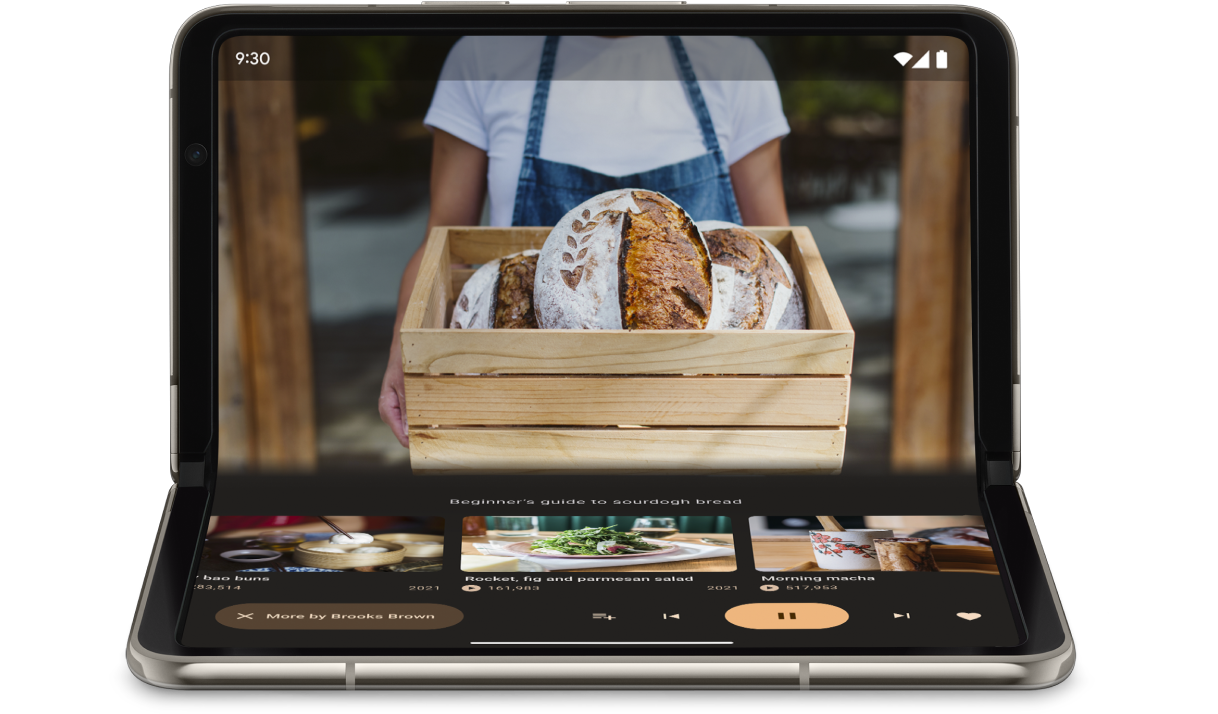
使用 collectFoldingFeaturesAsState() 中的 FoldingFeature.State 和 FoldingFeature.Orientation 确定设备是否处于桌面模式:
@Composable
fun TabletopContent() {
    val foldingFeatures by collectFoldingFeaturesAsState()
    val foldFeature = foldingFeatures.firstOrNull()

    val isTableTopPosture = foldFeature != null &&
        foldFeature.state == FoldingFeature.State.HALF_OPENED &&
        foldFeature.orientation == FoldingFeature.Orientation.HORIZONTAL

    if (isTableTopPosture) {
        // Tabletop layout: separate content and controls across the fold.
    } else {
        // Standard layout.
    }
}
或者,您也可以通过检查 currentWindowAdaptiveInfoV2() 返回的 Posture 属性来确定窗口是否处于桌面姿态:
val adaptiveInfo = currentWindowAdaptiveInfoV2()
val isTabletop = adaptiveInfo.windowPosture.isTabletop
确定设备处于桌面模式后,应相应地更新应用布局。对于媒体应用,这通常意味着将播放媒体置于折线上方,控件和补充内容置于下方,从而提供免触摸观看或收听体验。
示例
MediaPlayerActivity应用:了解如何使用 Media3 Exoplayer 和 WindowManager 创建具备折叠感知能力的视频播放器。使用 Jetpack WindowManager 优化可折叠设备上的相机应用 Codelab:了解如何为摄影应用实现桌面姿态。在屏幕的上半部分(首屏)显示取景器,在下半部分显示控件。
图书模式
可折叠设备的另一种独特的折叠状态是图书模式。在这种模式下,设备处于半开状态,并且铰链是垂直的。图书模式非常适合阅读电子书。在可像装订版书籍一样打开的大屏可折叠设备上,图书姿势会采用双页布局,为您带来如同阅读纸质图书一般的体验。
如果您想在免触摸拍照时以不同的宽高比拍摄照片,也可以使用该模式进行摄影。
您可以采用与桌面姿势相同的技术实现图书姿势。检查折叠功能应用的屏幕方向是否为垂直,而非水平:
@Composable
fun BookContent() {
    val foldingFeatures by collectFoldingFeaturesAsState()
    val foldFeature = foldingFeatures.firstOrNull()

    val isBookPosture = foldFeature != null &&
        foldFeature.state == FoldingFeature.State.HALF_OPENED &&
        foldFeature.orientation == FoldingFeature.Orientation.VERTICAL

    if (isBookPosture) {
        // Book posture layout: two-page layout across the vertical fold.
    } else {
        // Standard single-page layout.
    }
}
窗口大小变化
应用的显示区域可能会因设备配置变更(例如设备折叠或展开、旋转,或在多窗口模式下调整大小)而发生变化。
如需检索当前的窗口大小类别并适应 Jetpack Compose 中的大小变化,请使用 Compose Material 3 Adaptive 库中的 currentWindowAdaptiveInfoV2() 可组合函数。currentWindowAdaptiveInfoV2() 返回一个 WindowAdaptiveInfo 实例,该实例提供当前窗口的 WindowSizeClass(默认支持大型和超大型断点),以及设备的 windowPosture:
@Composable
fun AdaptiveApp() {
    val adaptiveInfo = currentWindowAdaptiveInfoV2()
    val windowSizeClass = adaptiveInfo.windowSizeClass

    when {
        windowSizeClass.isWidthAtLeastBreakpoint(
            WIDTH_DP_EXPANDED_LOWER_BOUND
        ) -> {
            // Expanded layout
        }
        windowSizeClass.isWidthAtLeastBreakpoint(
            WIDTH_DP_MEDIUM_LOWER_BOUND
        ) -> {
            // Medium layout
        }
        else -> {
            // Compact layout
        }
    }
}
请参阅使用窗口大小类别。
其他资源
如需详细了解折叠感知布局和可折叠设备,请参阅以下资源:
示例
- Jetpack WindowManager 示例:如何使用 Jetpack WindowManager 库的示例
- Jetcaster:使用 Compose 实现桌面模式