

আপনার অ্যাপের মধ্যে সংবেদনশীল তথ্য বা প্রিমিয়াম কন্টেন্ট সুরক্ষিত রাখার একটি পদ্ধতি হল বায়োমেট্রিক যাচাইকরণের অনুরোধ করা, যেমন মুখ শনাক্তকরণ বা ফিঙ্গারপ্রিন্ট শনাক্তকরণ ব্যবহার করা। আপনার অ্যাপে বায়োমেট্রিক লগ-ইন ফ্লো কীভাবে কাজ করে তা এই নির্দেশিকায় ব্যাখ্যা করা হয়েছে।
সাধারণ নিয়ম হিসেবে, কোনও ডিভাইসে প্রথমবার সাইন-ইন করার জন্য আপনার ক্রেডেনশিয়াল ম্যানেজার ব্যবহার করা উচিত। পরবর্তীকালে আবার যাচাই করার জন্য বায়োমেট্রিক প্রম্পট, অথবা ক্রেডেনশিয়াল ম্যানেজার ব্যবহার করা যেতে পারে। বায়োমেট্রিক প্রম্পট ব্যবহার করার সুবিধা হল যে এটি আরও কাস্টমাইজেশন বিকল্প অফার করে, যেখানে ক্রেডেনশিয়াল ম্যানেজার দুটি ফ্লো জুড়ে একটি একক বাস্তবায়ন অফার করে।
আপনার অ্যাপ যে ধরনের যাচাইকরণ পদ্ধতি ব্যবহার করে তা ঘোষণা করুন
আপনার অ্যাপে কোন ধরনের যাচাইকরণ কাজ করে তা নির্ধারণ করতে, BiometricManager.Authenticators
ইন্টারফেস ব্যবহার করুন। সিস্টেম আপনাকে নিম্নলিখিত ধরনের যাচাইকরণ ঘোষণা করতে
দেয়:
BIOMETRIC_STRONG- Class 3 বায়োমেট্রিক ব্যবহার করে যাচাইকরণ, যা Android-এর সাথে মানানসই সংজ্ঞা পৃষ্ঠায় সংজ্ঞায়িত করা হয়েছে।
BIOMETRIC_WEAK- ক্লাস ২ বায়োমেট্রিক ব্যবহার করে যাচাইকরণ, যা Android-এর সাথে মানানসই সংজ্ঞা পৃষ্ঠায় সংজ্ঞায়িত করা হয়েছে।
DEVICE_CREDENTIAL- স্ক্রিন লক ক্রেডেনশিয়াল ব্যবহার করে যাচাইকরণ – ব্যবহারকারীর পিন, প্যাটার্ন বা পাসওয়ার্ড।
প্রমাণীকরণকারী ব্যবহার করা শুরু করতে, ব্যবহারকারীকে একটি পিন, প্যাটার্ন বা পাসওয়ার্ড তৈরি করতে হবে। ব্যবহারকারীর কাছে আগে থেকে কোনও বায়োমেট্রিক না থাকলে, বায়োমেট্রিক এনরোলমেন্ট ফ্লো তাকে একটি তৈরি করার জন্য প্রম্পট করে।
আপনার অ্যাপ যে ধরনের বায়োমেট্রিক যাচাইকরণ গ্রহণ করে তা নির্ধারণ করতে, একটি
যাচাইকরণের ধরন বা
setAllowedAuthenticators()
পদ্ধতিতে ধরনের বিটওয়াইজ কম্বিনেশন পাস করুন। নিচে দেওয়া কোড স্নিপেট থেকে বোঝা যায় যে কীভাবে ক্লাস ৩ বায়োমেট্রিক বা স্ক্রিন লক
ক্রেডেনশিয়াল ব্যবহার করে যাচাইকরণ করা যায়।
Kotlin
// Lets the user authenticate using either a Class 3 biometric or
// their lock screen credential (PIN, pattern, or password).
promptInfo = BiometricPrompt.PromptInfo.Builder()
        .setTitle("Biometric login for my app")
        .setSubtitle("Log in using your biometric credential")
        .setAllowedAuthenticators(BIOMETRIC_STRONG or DEVICE_CREDENTIAL)
        .build()
জাভা
// Lets user authenticate using either a Class 3 biometric or
// their lock screen credential (PIN, pattern, or password).
promptInfo = new BiometricPrompt.PromptInfo.Builder()
        .setTitle("Biometric login for my app")
        .setSubtitle("Log in using your biometric credential")
        .setAllowedAuthenticators(BIOMETRIC_STRONG | DEVICE_CREDENTIAL)
        .build();
Android 10 (API লেভেল 29) ও এর আগের যেকোনও ভার্সনে
এইসব যাচাইকারী ধরনের কম্বিনেশন কাজ করে না: DEVICE_CREDENTIAL এবং
BIOMETRIC_STRONG | DEVICE_CREDENTIAL. Android 10 এবং তার আগের ভার্সনে পিন,
প্যাটার্ন বা পাসওয়ার্ড আছে কিনা তা চেক করতে,
KeyguardManager.isDeviceSecure()
পদ্ধতি ব্যবহার করুন।
বায়োমেট্রিক যাচাইকরণ উপলভ্য আছে কিনা তা চেক করুন
আপনার অ্যাপ কোন কোন যাচাইকরণ এলিমেন্ট সাপোর্ট করে তা ঠিক করার পরে, এইসব এলিমেন্ট উপলভ্য আছে কিনা তা চেক করুন। এটি করতে,
setAllowedAuthenticators() পদ্ধতি ব্যবহার করে আপনি যে ধরনের বিটওয়াইজ কম্বিনেশন ঘোষণা করেছেন,
সেটিই canAuthenticate() পদ্ধতিতে
পাস করুন।
প্রয়োজন হলে, ACTION_BIOMETRIC_ENROLL ইনটেন্ট
অ্যাকশন চালু করুন। ইনটেন্ট এক্সট্রাতে, আপনার অ্যাপ গ্রহণ করে এমন
অথেন্টিকেটরদের সেট প্রদান করুন। এই ইনটেন্ট ব্যবহারকারীকে এমন
যাচাইকারী ডিভাইসের জন্য ক্রেডেনশিয়াল রেজিস্টার করতে প্রম্পট করে যা আপনার অ্যাপ গ্রহণ করে।
Kotlin
val biometricManager = BiometricManager.from(this)
when (biometricManager.canAuthenticate(BIOMETRIC_STRONG or DEVICE_CREDENTIAL)) {
    BiometricManager.BIOMETRIC_SUCCESS ->
        Log.d("MY_APP_TAG", "App can authenticate using biometrics.")
    BiometricManager.BIOMETRIC_ERROR_NO_HARDWARE ->
        Log.e("MY_APP_TAG", "No biometric features available on this device.")
    BiometricManager.BIOMETRIC_ERROR_HW_UNAVAILABLE ->
        Log.e("MY_APP_TAG", "Biometric features are currently unavailable.")
    BiometricManager.BIOMETRIC_ERROR_NONE_ENROLLED -> {
        // Prompts the user to create credentials that your app accepts.
        val enrollIntent = Intent(Settings.ACTION_BIOMETRIC_ENROLL).apply {
            putExtra(Settings.EXTRA_BIOMETRIC_AUTHENTICATORS_ALLOWED,
                BIOMETRIC_STRONG or DEVICE_CREDENTIAL)
        }
        startActivityForResult(enrollIntent, REQUEST_CODE)
    }
}
জাভা
BiometricManager biometricManager = BiometricManager.from(this);
switch (biometricManager.canAuthenticate(BIOMETRIC_STRONG | DEVICE_CREDENTIAL)) {
    case BiometricManager.BIOMETRIC_SUCCESS:
        Log.d("MY_APP_TAG", "App can authenticate using biometrics.");
        break;
    case BiometricManager.BIOMETRIC_ERROR_NO_HARDWARE:
        Log.e("MY_APP_TAG", "No biometric features available on this device.");
        break;
    case BiometricManager.BIOMETRIC_ERROR_HW_UNAVAILABLE:
        Log.e("MY_APP_TAG", "Biometric features are currently unavailable.");
        break;
    case BiometricManager.BIOMETRIC_ERROR_NONE_ENROLLED:
        // Prompts the user to create credentials that your app accepts.
        final Intent enrollIntent = new Intent(Settings.ACTION_BIOMETRIC_ENROLL);
        enrollIntent.putExtra(Settings.EXTRA_BIOMETRIC_AUTHENTICATORS_ALLOWED,
                BIOMETRIC_STRONG | DEVICE_CREDENTIAL);
        startActivityForResult(enrollIntent, REQUEST_CODE);
        break;
}
ব্যবহারকারী কীভাবে যাচাই করেছেন তা নির্ধারণ করা
ব্যবহারকারী যাচাই করার পরে, আপনি
getAuthenticationType() কল করে ব্যবহারকারী ডিভাইস ক্রেডেনশিয়াল বা বায়োমেট্রিক ক্রেডেনশিয়াল ব্যবহার করে যাচাই করেছেন কিনা তা চেক করতে পারবেন।
লগ-ইন প্রম্পট দেখান
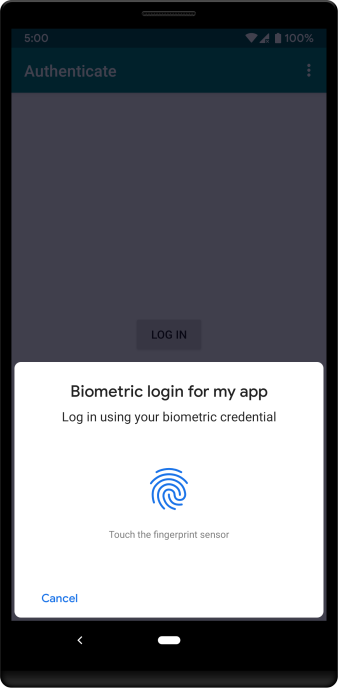
বায়োমেট্রিক ক্রেডেনশিয়াল ব্যবহার করে ব্যবহারকারীকে যাচাই করার অনুরোধ করে এমন সিস্টেম প্রম্পট দেখাতে, বায়োমেট্রিক লাইব্রেরি ব্যবহার করুন। এই সিস্টেম-প্রদত্ত ডায়ালগ, এটি ব্যবহার করে এমন সব অ্যাপ জুড়ে একই রকম থাকে, যা ব্যবহারকারীর অভিজ্ঞতাকে আরও বিশ্বাসযোগ্য করে তোলে। ১ নম্বর ছবিতে একটি উদাহরণ ডায়ালগ দেখানো হয়েছে।
Biometric লাইব্রেরি ব্যবহার করে আপনার অ্যাপে বায়োমেট্রিক যাচাইকরণ যোগ করতে, নিচে উল্লেখ করা ধাপগুলি সম্পূর্ণ করুন:
আপনার অ্যাপ মডিউলের
build.gradleফাইলে,androidx.biometricলাইব্রেরির উপর ডিপেন্ডেন্সি যোগ করুন।যে অ্যাক্টিভিটি বা ফ্র্যাগমেন্টে বায়োমেট্রিক লগ-ইন ডায়ালগ হোস্ট করা হয়, সেখানে নিম্নলিখিত কোড স্নিপেটে দেখানো লজিক ব্যবহার করে ডায়ালগটি দেখান:
Kotlin
private lateinit var executor: Executor
private lateinit var biometricPrompt: BiometricPrompt
private lateinit var promptInfo: BiometricPrompt.PromptInfo

override fun onCreate(savedInstanceState: Bundle?) {
    super.onCreate(savedInstanceState)
    setContentView(R.layout.activity_login)
    executor = ContextCompat.getMainExecutor(this)
    biometricPrompt = BiometricPrompt(this, executor,
            object : BiometricPrompt.AuthenticationCallback() {
        override fun onAuthenticationError(errorCode: Int,
                errString: CharSequence) {
            super.onAuthenticationError(errorCode, errString)
            Toast.makeText(applicationContext,
                "Authentication error: $errString", Toast.LENGTH_SHORT)
                .show()
        }

        override fun onAuthenticationSucceeded(
                result: BiometricPrompt.AuthenticationResult) {
            super.onAuthenticationSucceeded(result)
            Toast.makeText(applicationContext,
                "Authentication succeeded!", Toast.LENGTH_SHORT)
                .show()
        }

        override fun onAuthenticationFailed() {
            super.onAuthenticationFailed()
            Toast.makeText(applicationContext, "Authentication failed",
                Toast.LENGTH_SHORT)
                .show()
        }
    })

    promptInfo = BiometricPrompt.PromptInfo.Builder()
            .setTitle("Biometric login for my app")
            .setSubtitle("Log in using your biometric credential")
            .setNegativeButtonText("Use account password")
            .build()

    // Prompt appears when user clicks "Log in".
    // Consider integrating with the keystore to unlock cryptographic operations,
    // if needed by your app.
    val biometricLoginButton =
            findViewById<Button>(R.id.biometric_login)
    biometricLoginButton.setOnClickListener {
        biometricPrompt.authenticate(promptInfo)
    }
}
জাভা
private Executor executor;
private BiometricPrompt biometricPrompt;
private BiometricPrompt.PromptInfo promptInfo;

@Override
protected void onCreate(Bundle savedInstanceState) {
    super.onCreate(savedInstanceState);
    setContentView(R.layout.activity_login);
    executor = ContextCompat.getMainExecutor(this);
    biometricPrompt = new BiometricPrompt(MainActivity.this,
            executor, new BiometricPrompt.AuthenticationCallback() {
        @Override
        public void onAuthenticationError(int errorCode,
                @NonNull CharSequence errString) {
            super.onAuthenticationError(errorCode, errString);
            Toast.makeText(getApplicationContext(),
                "Authentication error: " + errString, Toast.LENGTH_SHORT)
                .show();
        }

        @Override
        public void onAuthenticationSucceeded(
                @NonNull BiometricPrompt.AuthenticationResult result) {
            super.onAuthenticationSucceeded(result);
            Toast.makeText(getApplicationContext(),
                "Authentication succeeded!", Toast.LENGTH_SHORT).show();
        }

        @Override
        public void onAuthenticationFailed() {
            super.onAuthenticationFailed();
            Toast.makeText(getApplicationContext(), "Authentication failed",
                Toast.LENGTH_SHORT)
                .show();
        }
    });

    promptInfo = new BiometricPrompt.PromptInfo.Builder()
            .setTitle("Biometric login for my app")
            .setSubtitle("Log in using your biometric credential")
            .setNegativeButtonText("Use account password")
            .build();

    // Prompt appears when user clicks "Log in".
    // Consider integrating with the keystore to unlock cryptographic operations,
    // if needed by your app.
    Button biometricLoginButton = findViewById(R.id.biometric_login);
    biometricLoginButton.setOnClickListener(view -> {
            biometricPrompt.authenticate(promptInfo);
    });
}
যাচাইকরণের উপর নির্ভর করে এমন ক্রিপ্টোগ্রাফিক সমাধান ব্যবহার করুন
আপনার অ্যাপের মধ্যে সংবেদনশীল তথ্য আরও সুরক্ষিত করতে, আপনি CryptoObject-এর ইনস্ট্যান্স ব্যবহার করে আপনার বায়োমেট্রিক যাচাইকরণ ওয়ার্কফ্লোতে ক্রিপ্টোগ্রাফি অন্তর্ভুক্ত করতে পারেন।
ফ্রেমওয়ার্ক নিম্নলিখিত ক্রিপ্টোগ্রাফিক অবজেক্টে কাজ করে:
Signature,
Cipher,
Mac এবং
KeyAgreement.
ব্যবহারকারী বায়োমেট্রিক প্রম্পট ব্যবহার করে যাচাইকরণ সম্পূর্ণ করার পরে, আপনার অ্যাপ
ক্রিপ্টোগ্রাফিক অপারেশন করতে পারে। যেমন, আপনি যদি কোনও
Cipher অবজেক্ট ব্যবহার করে যাচাই করেন, তাহলে আপনার অ্যাপ কোনও
SecretKey অবজেক্ট ব্যবহার করে এনক্রিপশন ও ডিক্রিপশন করতে পারবে।
ডেটা এনক্রিপ্ট করার জন্য Cipher অবজেক্ট এবং
SecretKey অবজেক্ট ব্যবহারের উদাহরণ নিম্নলিখিত বিভাগে দেওয়া হল। প্রতিটি উদাহরণে নিম্নলিখিত পদ্ধতিগুলি
ব্যবহার করা হয়:
Kotlin
private fun generateSecretKey(keyGenParameterSpec: KeyGenParameterSpec) {
    val keyGenerator = KeyGenerator.getInstance(
            KeyProperties.KEY_ALGORITHM_AES, "AndroidKeyStore")
    keyGenerator.init(keyGenParameterSpec)
    keyGenerator.generateKey()
}

private fun getSecretKey(): SecretKey {
    val keyStore = KeyStore.getInstance("AndroidKeyStore")

    // Before the keystore can be accessed, it must be loaded.
    keyStore.load(null)
    return keyStore.getKey(KEY_NAME, null) as SecretKey
}

private fun getCipher(): Cipher {
    return Cipher.getInstance(KeyProperties.KEY_ALGORITHM_AES + "/"
            + KeyProperties.BLOCK_MODE_CBC + "/"
            + KeyProperties.ENCRYPTION_PADDING_PKCS7)
}
জাভা
private void generateSecretKey(KeyGenParameterSpec keyGenParameterSpec) {
    KeyGenerator keyGenerator = KeyGenerator.getInstance(
            KeyProperties.KEY_ALGORITHM_AES, "AndroidKeyStore");
    keyGenerator.init(keyGenParameterSpec);
    keyGenerator.generateKey();
}

private SecretKey getSecretKey() {
    KeyStore keyStore = KeyStore.getInstance("AndroidKeyStore");

    // Before the keystore can be accessed, it must be loaded.
    keyStore.load(null);
    return ((SecretKey)keyStore.getKey(KEY_NAME, null));
}

private Cipher getCipher() {
    return Cipher.getInstance(KeyProperties.KEY_ALGORITHM_AES + "/"
            + KeyProperties.BLOCK_MODE_CBC + "/"
            + KeyProperties.ENCRYPTION_PADDING_PKCS7);
}
শুধুমাত্র বায়োমেট্রিক ক্রেডেনশিয়াল ব্যবহার করে যাচাইকরণ করুন
আপনার অ্যাপ যদি এমন কোনও সিক্রেট কী ব্যবহার করে যা আনলক করার জন্য বায়োমেট্রিক ক্রেডেনশিয়াল প্রয়োজন হয়, তাহলে আপনার অ্যাপ কী অ্যাক্সেস করার আগে ব্যবহারকারীকে প্রতিবার বায়োমেট্রিক ক্রেডেনশিয়াল দিয়ে পরিচয় যাচাই করতে হবে।
ব্যবহারকারী বায়োমেট্রিক ক্রেডেনশিয়াল ব্যবহার করে যাচাই করার পরেই শুধু সংবেদনশীল তথ্য এনক্রিপ্ট করতে, নিচের ধাপগুলি সম্পূর্ণ করুন:
নিচে উল্লেখ করা
KeyGenParameterSpecকনফিগারেশন ব্যবহার করে একটি কী তৈরি করুন:Kotlin
generateSecretKey(KeyGenParameterSpec.Builder(
        KEY_NAME,
        KeyProperties.PURPOSE_ENCRYPT or KeyProperties.PURPOSE_DECRYPT)
        .setBlockModes(KeyProperties.BLOCK_MODE_CBC)
        .setEncryptionPaddings(KeyProperties.ENCRYPTION_PADDING_PKCS7)
        .setUserAuthenticationRequired(true)
        // Invalidate the keys if the user has registered a new biometric
        // credential, such as a new fingerprint. Can call this method only
        // on Android 7.0 (API level 24) or higher. The variable
        // "invalidatedByBiometricEnrollment" is true by default.
        .setInvalidatedByBiometricEnrollment(true)
        .build())
জাভা
generateSecretKey(new KeyGenParameterSpec.Builder(
        KEY_NAME,
        KeyProperties.PURPOSE_ENCRYPT | KeyProperties.PURPOSE_DECRYPT)
        .setBlockModes(KeyProperties.BLOCK_MODE_CBC)
        .setEncryptionPaddings(KeyProperties.ENCRYPTION_PADDING_PKCS7)
        .setUserAuthenticationRequired(true)
        // Invalidate the keys if the user has registered a new biometric
        // credential, such as a new fingerprint. Can call this method only
        // on Android 7.0 (API level 24) or higher. The variable
        // "invalidatedByBiometricEnrollment" is true by default.
        .setInvalidatedByBiometricEnrollment(true)
        .build());
এমন বায়োমেট্রিক যাচাইকরণ ওয়ার্কফ্লো শুরু করুন যাতে একটি সাইফার অন্তর্ভুক্ত থাকে:
Kotlin
biometricLoginButton.setOnClickListener {
    // Exceptions are unhandled within this snippet.
    val cipher = getCipher()
    val secretKey = getSecretKey()
    cipher.init(Cipher.ENCRYPT_MODE, secretKey)
    biometricPrompt.authenticate(promptInfo,
            BiometricPrompt.CryptoObject(cipher))
}
জাভা
biometricLoginButton.setOnClickListener(view -> {
    // Exceptions are unhandled within this snippet.
    Cipher cipher = getCipher();
    SecretKey secretKey = getSecretKey();
    cipher.init(Cipher.ENCRYPT_MODE, secretKey);
    biometricPrompt.authenticate(promptInfo,
            new BiometricPrompt.CryptoObject(cipher));
});
আপনার বায়োমেট্রিক যাচাইকরণ কলব্যাকের মধ্যে, সংবেদনশীল তথ্য এনক্রিপ্ট করতে গোপন 'কী' ব্যবহার করুন:
Kotlin
override fun onAuthenticationSucceeded(
        result: BiometricPrompt.AuthenticationResult) {
    val encryptedInfo: ByteArray = result.cryptoObject.cipher?.doFinal(
        // plaintext-string text is whatever data the developer would like
        // to encrypt. It happens to be plain-text in this example, but it
        // can be anything
            plaintext-string.toByteArray(Charset.defaultCharset())
    )
    Log.d("MY_APP_TAG", "Encrypted information: " +
            Arrays.toString(encryptedInfo))
}
জাভা
@Override
public void onAuthenticationSucceeded(
        @NonNull BiometricPrompt.AuthenticationResult result) {
    // NullPointerException is unhandled; use Objects.requireNonNull().
    byte[] encryptedInfo = result.getCryptoObject().getCipher().doFinal(
        // plaintext-string text is whatever data the developer would like
        // to encrypt. It happens to be plain-text in this example, but it
        // can be anything
            plaintext-string.getBytes(Charset.defaultCharset()));
    Log.d("MY_APP_TAG", "Encrypted information: " +
            Arrays.toString(encryptedInfo));
}
বায়োমেট্রিক বা লক স্ক্রিন ক্রেডেনশিয়াল ব্যবহার করে যাচাই করুন
আপনি একটি গোপন 'কী' ব্যবহার করতে পারেন যা বায়োমেট্রিক ক্রেডেনশিয়াল বা লক স্ক্রিন ক্রেডেনশিয়াল (পিন, প্যাটার্ন বা পাসওয়ার্ড) ব্যবহার করে যাচাইকরণের অনুমতি দেয়। এই কী কনফিগার করার সময়, মেয়াদকালের সময়সীমা উল্লেখ করুন। এই সময়সীমার মধ্যে, ব্যবহারকারীকে আবার যাচাই না করেই আপনার অ্যাপ একাধিক ক্রিপ্টোগ্রাফিক অপারেশন সম্পন্ন করতে পারে।
ব্যবহারকারী বায়োমেট্রিক বা লক স্ক্রিন ক্রেডেনশিয়াল ব্যবহার করে যাচাই করার পরে সংবেদনশীল তথ্য এনক্রিপ্ট করতে, নিম্নলিখিত ধাপগুলি সম্পূর্ণ করুন:
এমন একটি 'কী' তৈরি করুন যা নিম্নলিখিত
KeyGenParameterSpecকনফিগারেশন ব্যবহার করে:Kotlin
generateSecretKey(KeyGenParameterSpec.Builder(
        KEY_NAME,
        KeyProperties.PURPOSE_ENCRYPT or KeyProperties.PURPOSE_DECRYPT)
        .setBlockModes(KeyProperties.BLOCK_MODE_CBC)
        .setEncryptionPaddings(KeyProperties.ENCRYPTION_PADDING_PKCS7)
        .setUserAuthenticationRequired(true)
        .setUserAuthenticationParameters(VALIDITY_DURATION_SECONDS,
                ALLOWED_AUTHENTICATORS)
        .build())
জাভা
generateSecretKey(new KeyGenParameterSpec.Builder(
        KEY_NAME,
        KeyProperties.PURPOSE_ENCRYPT | KeyProperties.PURPOSE_DECRYPT)
        .setBlockModes(KeyProperties.BLOCK_MODE_CBC)
        .setEncryptionPaddings(KeyProperties.ENCRYPTION_PADDING_PKCS7)
        .setUserAuthenticationRequired(true)
        .setUserAuthenticationParameters(VALIDITY_DURATION_SECONDS,
                ALLOWED_AUTHENTICATORS)
        .build());
ব্যবহারকারী যাচাই করার
VALIDITY_DURATION_SECONDSসময়ের মধ্যে সংবেদনশীল তথ্য এনক্রিপ্ট করুন:Kotlin
private fun encryptSecretInformation() {
    // Exceptions are unhandled for getCipher() and getSecretKey().
    val cipher = getCipher()
    val secretKey = getSecretKey()
    try {
        cipher.init(Cipher.ENCRYPT_MODE, secretKey)
        val encryptedInfo: ByteArray = cipher.doFinal(
            // plaintext-string text is whatever data the developer would
            // like to encrypt. It happens to be plain-text in this example,
            // but it can be anything
                plaintext-string.toByteArray(Charset.defaultCharset()))
        Log.d("MY_APP_TAG", "Encrypted information: " +
                Arrays.toString(encryptedInfo))
    } catch (e: InvalidKeyException) {
        Log.e("MY_APP_TAG", "Key is invalid.")
    } catch (e: UserNotAuthenticatedException) {
        Log.d("MY_APP_TAG", "The key's validity timed out.")
        biometricPrompt.authenticate(promptInfo)
    }
জাভা
private void encryptSecretInformation() {
    // Exceptions are unhandled for getCipher() and getSecretKey().
    Cipher cipher = getCipher();
    SecretKey secretKey = getSecretKey();
    try {
        // NullPointerException is unhandled; use Objects.requireNonNull().
        ciper.init(Cipher.ENCRYPT_MODE, secretKey);
        byte[] encryptedInfo = cipher.doFinal(
            // plaintext-string text is whatever data the developer would
            // like to encrypt. It happens to be plain-text in this example,
            // but it can be anything
                plaintext-string.getBytes(Charset.defaultCharset()));
    } catch (InvalidKeyException e) {
        Log.e("MY_APP_TAG", "Key is invalid.");
    } catch (UserNotAuthenticatedException e) {
        Log.d("MY_APP_TAG", "The key's validity timed out.");
        biometricPrompt.authenticate(promptInfo);
    }
}
auth-per-use কী ব্যবহার করে যাচাইকরণ
আপনি BiometricPrompt-এর ইনস্ট্যান্সের মধ্যে অথ-পার-ইউজ কী-এর জন্য সহায়তা প্রদান করতে পারেন। এই ধরনের কী
আপনার অ্যাপকে সেই কী দ্বারা সুরক্ষিত ডেটা অ্যাক্সেস করতে
হলে, প্রতিবার ব্যবহারকারীকে বায়োমেট্রিক ক্রেডেনশিয়াল বা ডিভাইস
ক্রেডেনশিয়াল দেখাতে হয়। প্রতিবার ব্যবহারের জন্য অথেন্টিকেশন কী, বেশি মূল্যের ট্রানজ্যাকশনের জন্য উপযোগী হতে পারে, যেমন
বড় পেমেন্ট করা বা কোনও ব্যক্তির স্বাস্থ্য বিষয়ক রেকর্ড আপডেট করা।
ব্যবহার-প্রতি-অনুমতি কী-এর সাথে BiometricPrompt অবজেক্ট অ্যাসোসিয়েট করতে, নিম্নলিখিত কোডের
মতো কোড যোগ করুন:
Kotlin
val authPerOpKeyGenParameterSpec =
        KeyGenParameterSpec.Builder("myKeystoreAlias", key-purpose)
    // Accept either a biometric credential or a device credential.
    // To accept only one type of credential, include only that type as the
    // second argument.
    .setUserAuthenticationParameters(0 /* duration */,
            KeyProperties.AUTH_BIOMETRIC_STRONG or
            KeyProperties.AUTH_DEVICE_CREDENTIAL)
    .build()
জাভা
KeyGenParameterSpec authPerOpKeyGenParameterSpec =
        new KeyGenParameterSpec.Builder("myKeystoreAlias", key-purpose)
    // Accept either a biometric credential or a device credential.
    // To accept only one type of credential, include only that type as the
    // second argument.
    .setUserAuthenticationParameters(0 /* duration */,
            KeyProperties.AUTH_BIOMETRIC_STRONG |
            KeyProperties.AUTH_DEVICE_CREDENTIAL)
    .build();
ব্যবহারকারীর স্পষ্ট অ্যাকশন ছাড়াই যাচাইকরণ করুন
ডিফল্ট হিসেবে, সিস্টেমের জন্য ব্যবহারকারীদের একটি নির্দিষ্ট অ্যাকশন করতে হবে, যেমন তাদের বায়োমেট্রিক ক্রেডেনশিয়াল গ্রহণ করার পরে একটি বোতাম টিপুন। আপনার অ্যাপ যদি কেনাকাটা করার মতো কোনও সংবেদনশীল বা বেশি ঝুঁকিযুক্ত অ্যাকশন কনফার্ম করার জন্য ডায়ালগ দেখায়, তাহলে এই কনফিগারেশনটি পছন্দসই।
তবে, আপনার অ্যাপ যদি কম-ঝুঁকির অ্যাকশনের জন্য বায়োমেট্রিক যাচাইকরণ ডায়ালগ দেখায়, তাহলে আপনি সিস্টেমকে একটি ইঙ্গিত দিতে পারেন যে ব্যবহারকারীকে
যাচাইকরণ কনফার্ম করতে হবে না। এই ইঙ্গিতটি ব্যবহারকারীকে আপনার অ্যাপে কন্টেন্ট আরও দ্রুত দেখতে দিতে পারে
প্যাসিভ মডালিটি ব্যবহার করে পুনরায় যাচাইকরণ করার পরে, যেমন ফেস- বা
আইরিস-ভিত্তিক শনাক্তকরণ। এই ইঙ্গিত প্রদান করতে, false-কে
setConfirmationRequired() পদ্ধতিতে পাস করুন।
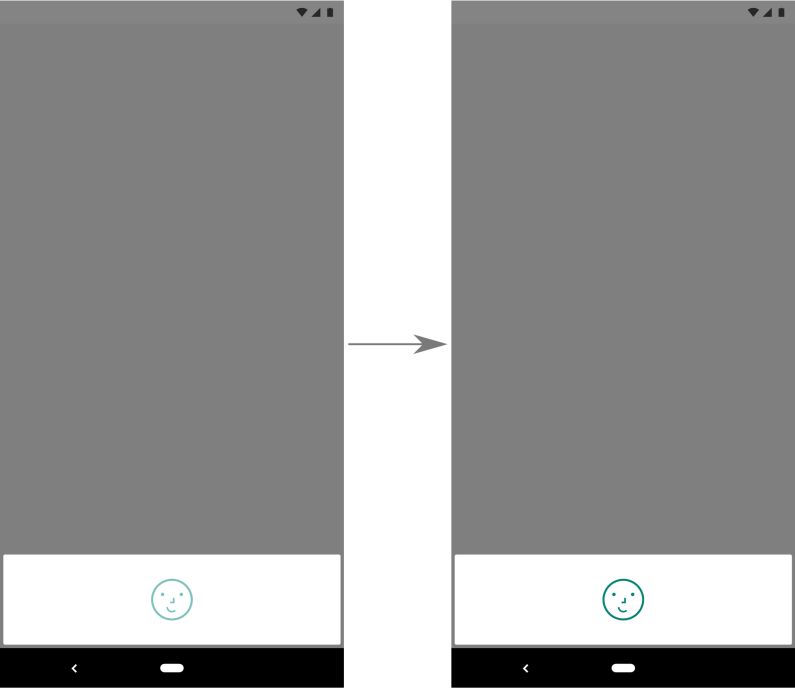
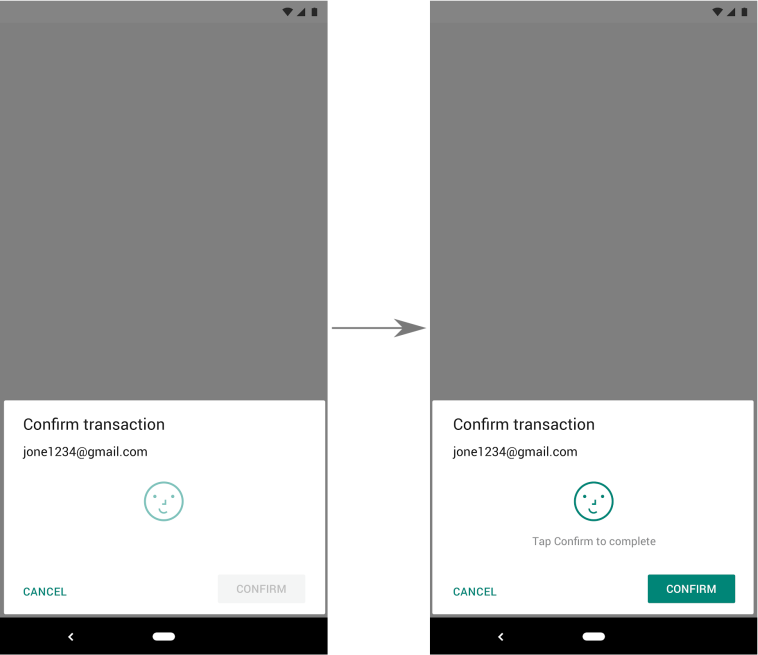
ছবি ২-এ একই ডায়ালগের দুটি ভার্সন দেখানো হয়েছে। একটি ভার্সনে ব্যবহারকারীকে স্পষ্ট অ্যাকশন নিতে হয়, অন্য ভার্সনে তা লাগে না।
নিচের কোড স্নিপেট থেকে জানা যায় যে কীভাবে এমন একটি ডায়ালগ দেখানো যায় যার জন্য যাচাইকরণ প্রসেস সম্পূর্ণ করতে কোনও স্পষ্ট ব্যবহারকারীর অ্যাকশন প্রয়োজন হয় না:
Kotlin
// Lets the user authenticate without performing an action, such as pressing a
// button, after their biometric credential is accepted.
promptInfo = BiometricPrompt.PromptInfo.Builder()
        .setTitle("Biometric login for my app")
        .setSubtitle("Log in using your biometric credential")
        .setNegativeButtonText("Use account password")
        .setConfirmationRequired(false)
        .build()
জাভা
// Lets the user authenticate without performing an action, such as pressing a
// button, after their biometric credential is accepted.
promptInfo = new BiometricPrompt.PromptInfo.Builder()
        .setTitle("Biometric login for my app")
        .setSubtitle("Log in using your biometric credential")
        .setNegativeButtonText("Use account password")
        .setConfirmationRequired(false)
        .build();
বায়োমেট্রিক নয় এমন ক্রেডেনশিয়াল ব্যবহার করার অনুমতি দিন
আপনি যদি চান যে আপনার অ্যাপ বায়োমেট্রিক বা ডিভাইস ক্রেডেনশিয়াল ব্যবহার করে যাচাইকরণের অনুমতি দিক, তাহলে আপনি ঘোষণা করতে পারেন যে আপনার অ্যাপ ডিভাইস ক্রেডেনশিয়াল সাপোর্ট করে। এর জন্য আপনাকে setAllowedAuthenticators()-এ পাস করা ভ্যালুর সেটে DEVICE_CREDENTIAL অন্তর্ভুক্ত করতে হবে।
আপনার অ্যাপ বর্তমানে এই ক্ষমতা প্রদান করতে
createConfirmDeviceCredentialIntent()
বা setDeviceCredentialAllowed()
ব্যবহার করলে, setAllowedAuthenticators() ব্যবহার করা শুরু করুন।
অতিরিক্ত রিসোর্স
Android-এ বায়োমেট্রিক যাচাইকরণ সম্পর্কে আরও জানতে, নিম্নলিখিত সম্পদ দেখুন।