

Android มีเครื่องมือและ API ที่หลากหลายซึ่งช่วยคุณสร้างการทดสอบสำหรับหน้าจอและหน้าต่างขนาดต่างๆ ได้
DeviceConfigurationOverride
คอมโพสได้ DeviceConfigurationOverride ช่วยให้คุณลบล้าง
แอตทริบิวต์การกำหนดค่าเพื่อทดสอบหน้าจอและหน้าต่างหลายขนาดในเลย์เอาต์ Compose
การลบล้าง ForcedSize จะปรับเลย์เอาต์ให้พอดีกับพื้นที่ว่าง
ซึ่งช่วยให้คุณเรียกใช้การทดสอบ UI ในหน้าจอทุกขนาดได้ ตัวอย่างเช่น คุณสามารถใช้ฟอร์มแฟกเตอร์โทรศัพท์ขนาดเล็กเพื่อเรียกใช้การทดสอบ UI ทั้งหมด รวมถึงการทดสอบ UI สำหรับโทรศัพท์ขนาดใหญ่ อุปกรณ์แบบพับได้ และแท็บเล็ต
   DeviceConfigurationOverride(
        DeviceConfigurationOverride.ForcedSize(DpSize(1280.dp, 800.dp))
    ) {
        MyScreen() // Will be rendered in the space for 1280dp by 800dp without clipping.
    }
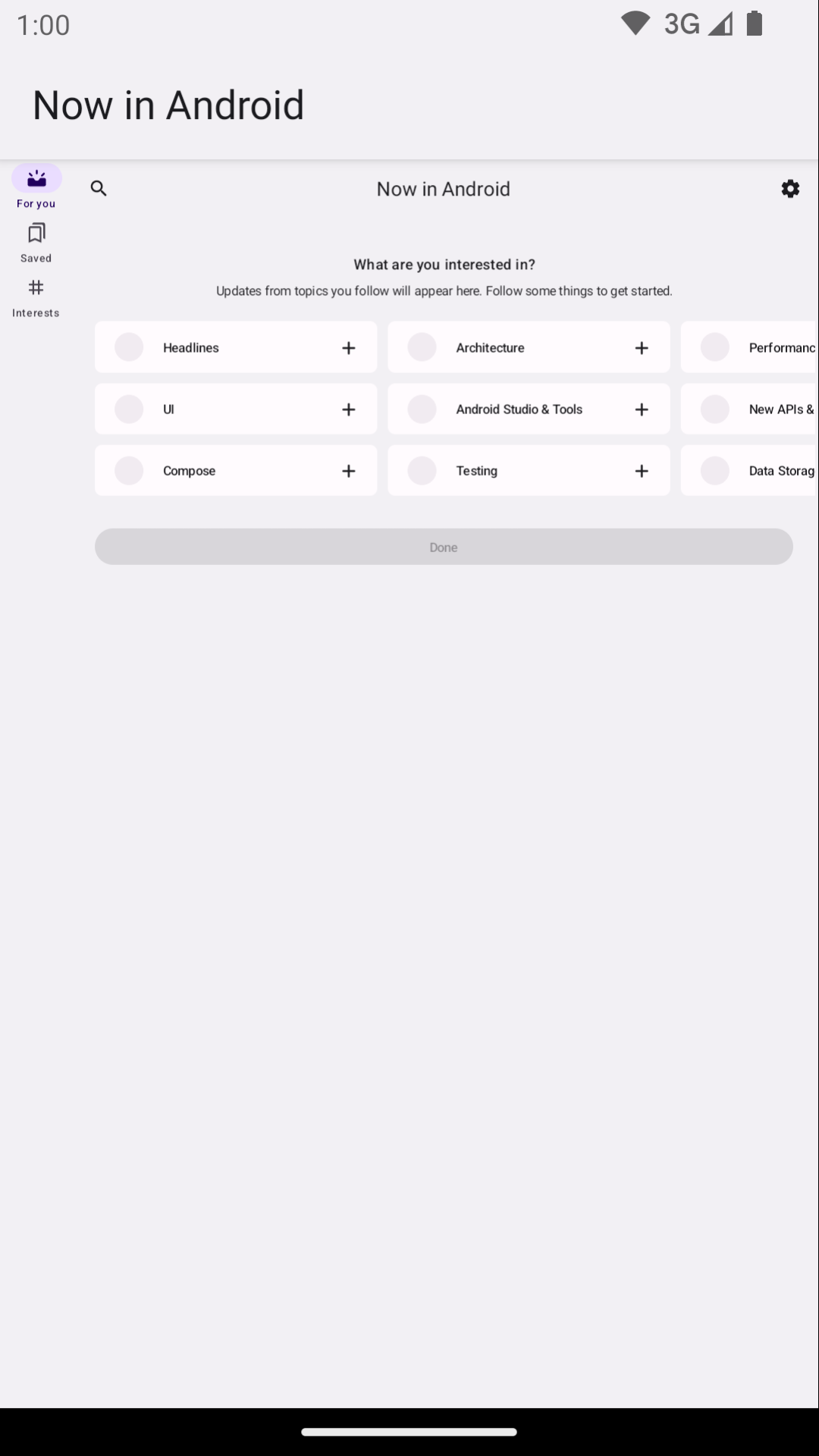
นอกจากนี้ คุณยังใช้คอมโพสได้นี้เพื่อตั้งค่าการปรับขนาดแบบอักษร ธีม และพร็อพเพอร์ตี้อื่นๆ ที่คุณอาจต้องการทดสอบในหน้าต่างขนาดต่างๆ ได้ด้วย
Robolectric
ใช้ Robolectric เพื่อเรียกใช้การทดสอบ UI ที่อิงตาม Compose หรือ View ใน JVM ในเครื่อง โดยไม่จำเป็นต้องใช้อุปกรณ์หรือโปรแกรมจำลอง คุณสามารถกำหนดค่า Robolectric ให้ใช้หน้าจอขนาดที่เฉพาะเจาะจง รวมถึงพร็อพเพอร์ตี้ที่มีประโยชน์อื่นๆ ได้
@RunWith(RobolectricTestRunner::class)
// Configure Robolectric to use a very large screen size that can fit all of the test sizes.
// This allows enough room to render the content under test without clipping or scaling.
@Config(qualifiers = "w1000dp-h1000dp-480dpi")
class NiaAppScreenSizesScreenshotTests { ... }
นอกจากนี้ คุณยังตั้งค่าตัวระบุจากเนื้อหาการทดสอบได้ดังที่แสดงในข้อมูลโค้ดจาก ตัวอย่าง Now in Android ต่อไปนี้
val (width, height, dpi) = ...

// Set qualifiers from specs.
RuntimeEnvironment.setQualifiers("w${width}dp-h${height}dp-${dpi}dpi")
โปรดทราบว่า RuntimeEnvironment.setQualifiers() จะอัปเดตทรัพยากรของระบบและแอปพลิเคชันด้วยการกำหนดค่าใหม่ แต่จะไม่ทริกเกอร์การดำเนินการใดๆ ในกิจกรรมหรือคอมโพเนนต์อื่นๆ ที่ใช้งานอยู่
อ่านเพิ่มเติมได้ในเอกสารประกอบการกำหนดค่าอุปกรณ์ Robolectric
อุปกรณ์ที่มีการจัดการโดย Gradle
ปลั๊กอิน Android Gradle สำหรับอุปกรณ์ที่มีการจัดการโดย Gradle (GMD) ช่วยให้คุณกำหนดข้อมูลจำเพาะของโปรแกรมจำลองและอุปกรณ์จริงที่ การทดสอบ Instrumented Test จะทำงาน สร้างข้อมูลจำเพาะสำหรับอุปกรณ์ที่มีหน้าจอขนาดต่างๆ เพื่อใช้กลยุทธ์การทดสอบที่ต้องเรียกใช้การทดสอบบางรายการในหน้าจอขนาดที่เฉพาะเจาะจง การใช้ GMD กับการผสานรวมอย่างต่อเนื่อง (CI) ช่วยให้มั่นใจได้ว่าการทดสอบที่เหมาะสมจะทำงานเมื่อจำเป็น โดยการจัดเตรียมและเปิดใช้โปรแกรมจำลอง รวมถึงลดความซับซ้อนของการตั้งค่า CI
android {
    testOptions {
        managedDevices {
            devices {
                // Run with ./gradlew nexusOneApi30DebugAndroidTest.
                nexusOneApi30(com.android.build.api.dsl.ManagedVirtualDevice) {
                    device = "Nexus One"
                    apiLevel = 30
                    // Use the AOSP ATD image for better emulator performance
                    systemImageSource = "aosp-atd"
                }
                // Run with ./gradlew  foldApi34DebugAndroidTest.
                foldApi34(com.android.build.api.dsl.ManagedVirtualDevice) {
                    device = "Pixel Fold"
                    apiLevel = 34
                    systemImageSource = "aosp-atd"
                }
            }
        }
    }
}
ดูตัวอย่าง GMD หลายรายการได้ในโปรเจ็กต์ testing-samples
Firebase Test Lab
ใช้ Firebase Test Lab (FTL) หรือบริการฟาร์มอุปกรณ์ที่คล้ายกันเพื่อเรียกใช้การทดสอบในอุปกรณ์จริงที่เฉพาะเจาะจงซึ่งคุณอาจไม่มีสิทธิ์เข้าถึง เช่น อุปกรณ์แบบพับได้หรือแท็บเล็ตขนาดต่างๆ Firebase Test Lab เป็นบริการแบบ ชำระเงิน ที่มีแพ็กเกจฟรี นอกจากนี้ FTL ยังรองรับการเรียกใช้การทดสอบในโปรแกรมจำลองด้วย บริการเหล่านี้ช่วยปรับปรุงความน่าเชื่อถือและความเร็วของการทดสอบ Instrumented Test เนื่องจากสามารถจัดเตรียมอุปกรณ์และโปรแกรมจำลองล่วงหน้าได้
ดูข้อมูลเกี่ยวกับการใช้ FTL กับ GMD ได้ที่หัวข้อ ปรับขนาดการทดสอบด้วย อุปกรณ์ที่มีการจัดการโดย Gradle
การกรองการทดสอบด้วยตัวเรียกใช้การทดสอบ
กลยุทธ์การทดสอบที่เหมาะสมไม่ควรยืนยันสิ่งเดียวกัน 2 ครั้ง ดังนั้นการทดสอบ UI ส่วนใหญ่จึงไม่จำเป็นต้องทำงานในอุปกรณ์หลายเครื่อง โดยปกติแล้ว คุณจะกรองการทดสอบ UI โดยเรียกใช้การทดสอบทั้งหมดหรือส่วนใหญ่ในฟอร์มแฟกเตอร์โทรศัพท์ และเรียกใช้การทดสอบเพียงบางส่วนในอุปกรณ์ที่มีหน้าจอขนาดต่างๆ
คุณสามารถใส่คำอธิบายประกอบการทดสอบบางรายการให้ทำงานเฉพาะกับอุปกรณ์บางเครื่อง แล้วส่ง อาร์กิวเมนต์ไปยัง AndroidJUnitRunner โดยใช้คำสั่งที่เรียกใช้การ ทดสอบ
ตัวอย่างเช่น คุณสามารถสร้างคำอธิบายประกอบต่างๆ ได้ดังนี้
annotation class TestExpandedWidth
annotation class TestCompactWidth
และใช้คำอธิบายประกอบเหล่านั้นในการทดสอบต่างๆ ดังนี้
class MyTestClass {

    @Test
    @TestExpandedWidth
    fun myExample_worksOnTablet() {
        ...
    }

    @Test
    @TestCompactWidth
    fun myExample_worksOnPortraitPhone() {
        ...
    }

}
จากนั้นคุณสามารถใช้พร็อพเพอร์ตี้ android.testInstrumentationRunnerArguments.annotation เมื่อเรียกใช้การทดสอบเพื่อกรองการทดสอบที่เฉพาะเจาะจง ตัวอย่างเช่น หากคุณใช้อุปกรณ์ที่มีการจัดการโดย Gradle
$ ./gradlew pixelTabletApi30DebugAndroidTest -Pandroid.testInstrumentationRunnerArguments.annotation='com.sample.TestExpandedWidth'
หากคุณไม่ได้ใช้ GMD และจัดการโปรแกรมจำลองใน CI ก่อนอื่นให้ตรวจสอบว่าโปรแกรมจำลองหรืออุปกรณ์ที่ถูกต้องพร้อมและเชื่อมต่ออยู่ จากนั้นส่งพารามิเตอร์ไปยังคำสั่ง Gradle คำสั่งใดคำสั่งหนึ่งเพื่อเรียกใช้การทดสอบ Instrumented Test
$ ./gradlew connectedAndroidTest -Pandroid.testInstrumentationRunnerArguments.annotation='com.sample.TestExpandedWidth'
โปรดทราบว่า Espresso Device (ดูส่วนถัดไป) ยังสามารถกรองการทดสอบโดยใช้พร็อพเพอร์ตี้ของอุปกรณ์ได้ด้วย
Espresso Device
ใช้ Espresso Device เพื่อดำเนินการในโปรแกรมจำลองในการทดสอบโดยใช้การทดสอบ Instrumented Test ทุกประเภท รวมถึงการทดสอบ Espresso, Compose หรือ UI Automator การดำเนินการเหล่านี้อาจรวมถึงการตั้งค่าขนาดหน้าจอหรือการสลับสถานะหรือท่าทางของอุปกรณ์แบบพับได้ ตัวอย่างเช่น คุณสามารถควบคุมโปรแกรมจำลองอุปกรณ์แบบพับได้และตั้งค่าเป็นโหมดวางบนโต๊ะ นอกจากนี้ Espresso Device ยังมีกฎและคำอธิบายประกอบของ JUnit เพื่อกำหนดให้ใช้ฟีเจอร์บางอย่างด้วย
@RunWith(AndroidJUnit4::class)
class OnDeviceTest {

    @get:Rule(order=1) val activityScenarioRule = activityScenarioRule<MainActivity>()

    @get:Rule(order=2) val screenOrientationRule: ScreenOrientationRule =
        ScreenOrientationRule(ScreenOrientation.PORTRAIT)

    @Test
    fun tabletopMode_playerIsDisplayed() {
        // Set the device to tabletop mode.
        onDevice().setTabletopMode()
        onView(withId(R.id.player)).check(matches(isDisplayed()))
    }
}
โปรดทราบว่า Espresso Device ยังอยู่ในระยะอัลฟ่าและมีข้อกำหนดดังต่อไปนี้
- ปลั๊กอิน Android Gradle เวอร์ชัน 8.3 ขึ้นไป
- โปรแกรมจำลองของ Android เวอร์ชัน 33.1.10 ขึ้นไป
- อุปกรณ์เสมือน Android ที่ใช้ API ระดับ 24 ขึ้นไป
กรองการทดสอบ
Espresso Device สามารถอ่านพร็อพเพอร์ตี้ของอุปกรณ์ที่เชื่อมต่อเพื่อช่วยให้คุณกรองการทดสอบโดยใช้ คำอธิบายประกอบได้ หากไม่เป็นไปตามข้อกำหนดที่มีคำอธิบายประกอบ ระบบจะข้ามการทดสอบ
คำอธิบายประกอบ RequiresDeviceMode
คุณสามารถใช้คำอธิบายประกอบ RequiresDeviceMode หลายครั้งเพื่อระบุ
การทดสอบที่จะทำงานก็ต่อเมื่ออุปกรณ์รองรับค่า DeviceMode _ทั้งหมด_
class OnDeviceTest {
    ...
    @Test
    @RequiresDeviceMode(TABLETOP)
    @RequiresDeviceMode(BOOK)
    fun tabletopMode_playerIdDisplayed() {
        // Set the device to tabletop mode.
        onDevice().setTabletopMode()
        onView(withId(R.id.player)).check(matches(isDisplayed()))
    }
}
คำอธิบายประกอบ RequiresDisplay
คำอธิบายประกอบ RequiresDisplay ช่วยให้คุณระบุความกว้างและความสูงของ
หน้าจออุปกรณ์ได้โดยใช้ คลาสขนาด ซึ่งกำหนดบัคเก็ตมิติข้อมูล
ตาม คลาสขนาดหน้าต่าง อย่างเป็นทางการ
class OnDeviceTest {
    ...
    @Test
    @RequiresDisplay(EXPANDED, COMPACT)
    fun myScreen_expandedWidthCompactHeight() {
        ...
    }
}
ปรับขนาดจอแสดงผล
ใช้เมธอด setDisplaySize() เพื่อปรับขนาดหน้าจอ
ในรันไทม์ ใช้เมธอดร่วมกับคลาส DisplaySizeRule ซึ่งจะช่วยให้มั่นใจได้ว่าระบบจะเลิกทำการเปลี่ยนแปลงใดๆ ที่เกิดขึ้นระหว่างการทดสอบก่อนที่จะเริ่มการทดสอบครั้งถัดไป
@RunWith(AndroidJUnit4::class)
class ResizeDisplayTest {

    @get:Rule(order = 1) val activityScenarioRule = activityScenarioRule<MainActivity>()

    // Test rule for restoring device to its starting display size when a test case finishes.
    @get:Rule(order = 2) val displaySizeRule: DisplaySizeRule = DisplaySizeRule()

    @Test
    fun resizeWindow_compact() {
        onDevice().setDisplaySize(
            widthSizeClass = WidthSizeClass.COMPACT,
            heightSizeClass = HeightSizeClass.COMPACT
        )
        // Verify visual attributes or state restoration.
    }
}
เมื่อคุณปรับขนาดจอแสดงผลด้วย setDisplaySize() จะไม่มีผลต่อความหนาแน่น
ของอุปกรณ์ ดังนั้นหากมิติข้อมูลไม่พอดีกับอุปกรณ์เป้าหมาย การทดสอบ
จะล้มเหลวโดยมี UnsupportedDeviceOperationException หากต้องการป้องกันไม่ให้เรียกใช้การทดสอบในกรณีนี้ ให้ใช้คำอธิบายประกอบ RequiresDisplay เพื่อกรองการทดสอบออก
@RunWith(AndroidJUnit4::class)
class ResizeDisplayTest {

    @get:Rule(order = 1) var activityScenarioRule = activityScenarioRule<MainActivity>()

    // Test rule for restoring device to its starting display size when a test case finishes.
    @get:Rule(order = 2) var displaySizeRule: DisplaySizeRule = DisplaySizeRule()

    /**
     * Setting the display size to EXPANDED would fail in small devices, so the [RequiresDisplay]
     * annotation prevents this test from being run on devices outside the EXPANDED buckets.
     */
    @RequiresDisplay(
        widthSizeClass = WidthSizeClassEnum.EXPANDED,
        heightSizeClass = HeightSizeClassEnum.EXPANDED
    )
    @Test
    fun resizeWindow_expanded() {
        onDevice().setDisplaySize(
            widthSizeClass = WidthSizeClass.EXPANDED,
            heightSizeClass = HeightSizeClass.EXPANDED
        )
        // Verify visual attributes or state restoration.
    }
}
StateRestorationTester
คลาส StateRestorationTester ใช้เพื่อทดสอบการคืนค่าสถานะ
สำหรับคอมโพเนนต์ที่คอมโพสได้โดยไม่ต้องสร้างกิจกรรมขึ้นใหม่ ซึ่งจะทำให้การทดสอบเร็วขึ้นและเชื่อถือได้มากขึ้น เนื่องจากกระบวนการสร้างกิจกรรมขึ้นใหม่เป็นกระบวนการที่ซับซ้อนซึ่งมีกลไกการซิงโครไนซ์หลายรายการ
@Test
fun compactDevice_selectedEmailEmailRetained_afterConfigChange() {
    val stateRestorationTester = StateRestorationTester(composeTestRule)

    // Set content through the StateRestorationTester object.
    stateRestorationTester.setContent {
        MyApp()
    }

    // Simulate a config change.
    stateRestorationTester.emulateSavedInstanceStateRestore()
}
ไลบรารีการทดสอบหน้าต่าง
ไลบรารีการทดสอบหน้าต่างมีฟังก์ชันยูทิลิตีที่จะช่วยคุณเขียนการทดสอบที่อาศัย หรือยืนยันฟีเจอร์ที่เกี่ยวข้องกับการจัดการหน้าต่าง เช่น การฝัง กิจกรรมหรือฟีเจอร์ของอุปกรณ์แบบพับได้ อาร์ติแฟกต์พร้อมใช้งานผ่านที่เก็บ Maven ของ Google
ตัวอย่างเช่น คุณสามารถใช้ฟังก์ชัน FoldingFeature() เพื่อสร้าง
ที่กำหนดเอง FoldingFeature ซึ่งคุณสามารถใช้ในการดูตัวอย่าง Compose ได้ ใน Java,
ให้ใช้ฟังก์ชัน createFoldingFeature()
ในการดูตัวอย่าง Compose คุณอาจใช้ FoldingFeature ในลักษณะต่อไปนี้
@Preview(showBackground = true, widthDp = 480, heightDp = 480)
@Composable private fun FoldablePreview() =
    MyApplicationTheme {
        ExampleScreen(
            displayFeatures = listOf(FoldingFeature(Rect(0, 240, 480, 240)))
        )
 }
นอกจากนี้ คุณยังจำลองฟีเจอร์จอแสดงผลในการทดสอบ UI ได้โดยใช้
TestWindowLayoutInfo() ฟังก์ชัน
ตัวอย่างต่อไปนี้จำลอง FoldingFeature ที่มี
HALF_OPENED
บานพับแนวตั้งอยู่ตรงกลางหน้าจอ จากนั้นตรวจสอบว่า
เลย์เอาต์เป็นไปตามที่คาดไว้หรือไม่
Compose
import androidx.window.layout.FoldingFeature.Orientation.Companion.VERTICAL
import androidx.window.layout.FoldingFeature.State.Companion.HALF_OPENED
import androidx.window.testing.layout.FoldingFeature
import androidx.window.testing.layout.TestWindowLayoutInfo
import androidx.window.testing.layout.WindowLayoutInfoPublisherRule

@RunWith(AndroidJUnit4::class)
class MediaControlsFoldingFeatureTest {

    @get:Rule(order=1)
    val composeTestRule = createAndroidComposeRule<ComponentActivity>()

    @get:Rule(order=2)
    val windowLayoutInfoPublisherRule = WindowLayoutInfoPublisherRule()

    @Test
    fun foldedWithHinge_foldableUiDisplayed() {
        composeTestRule.setContent {
            MediaPlayerScreen()
        }

        val hinge = FoldingFeature(
            activity = composeTestRule.activity,
            state = HALF_OPENED,
            orientation = VERTICAL,
            size = 2
        )

        val expected = TestWindowLayoutInfo(listOf(hinge))
        windowLayoutInfoPublisherRule.overrideWindowLayoutInfo(expected)

        composeTestRule.waitForIdle()

        // Verify that the folding feature is detected and media controls shown.
        composeTestRule.onNodeWithTag("MEDIA_CONTROLS").assertExists()
    }
}
มุมมอง
import androidx.window.layout.FoldingFeature.Orientation
import androidx.window.layout.FoldingFeature.State
import androidx.window.testing.layout.FoldingFeature
import androidx.window.testing.layout.TestWindowLayoutInfo
import androidx.window.testing.layout.WindowLayoutInfoPublisherRule

@RunWith(AndroidJUnit4::class)
class MediaControlsFoldingFeatureTest {

    @get:Rule(order=1)
    val activityRule = ActivityScenarioRule(MediaPlayerActivity::class.java)

    @get:Rule(order=2)
    val windowLayoutInfoPublisherRule = WindowLayoutInfoPublisherRule()

    @Test
    fun foldedWithHinge_foldableUiDisplayed() {
        activityRule.scenario.onActivity { activity ->
            val feature = FoldingFeature(
                activity = activity,
                state = State.HALF_OPENED,
                orientation = Orientation.VERTICAL)
            val expected = TestWindowLayoutInfo(listOf(feature))
            windowLayoutInfoPublisherRule.overrideWindowLayoutInfo(expected)
        }

        // Verify that the folding feature is detected and media controls shown.
        onView(withId(R.id.media_controls)).check(matches(isDisplayed()))
    }
}
ดูตัวอย่างเพิ่มเติมได้ในโปรเจ็กต์ WindowManager
แหล่งข้อมูลเพิ่มเติม
เอกสารประกอบ
ตัวอย่าง
- ตัวอย่าง WindowManager
- ตัวอย่าง Espresso Device
- Now In Android
- ใช้การทดสอบภาพหน้าจอเพื่อยืนยันหน้าจอขนาดต่างๆ
Codelab