
This document describes how to detect and deliver one-time products in your game after players purchase them with Play Points in the Google Play app.
Once users redeem their Play Points for a one-time product in the Google Play app, the items should be delivered immediately in your game. The following displays how a user purchases items with Play Points.
| 1. Click Play Points. | 2. Click the Use tab to view items. | 3. Select an item and click Use Points to complete the purchase. | 4. Receive the item. |
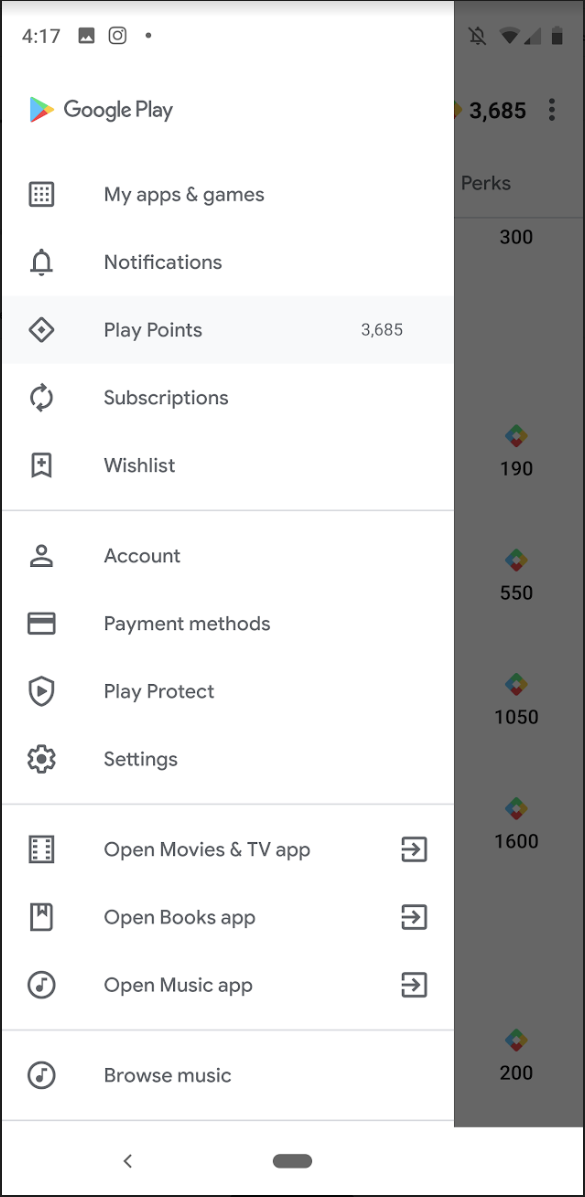
|
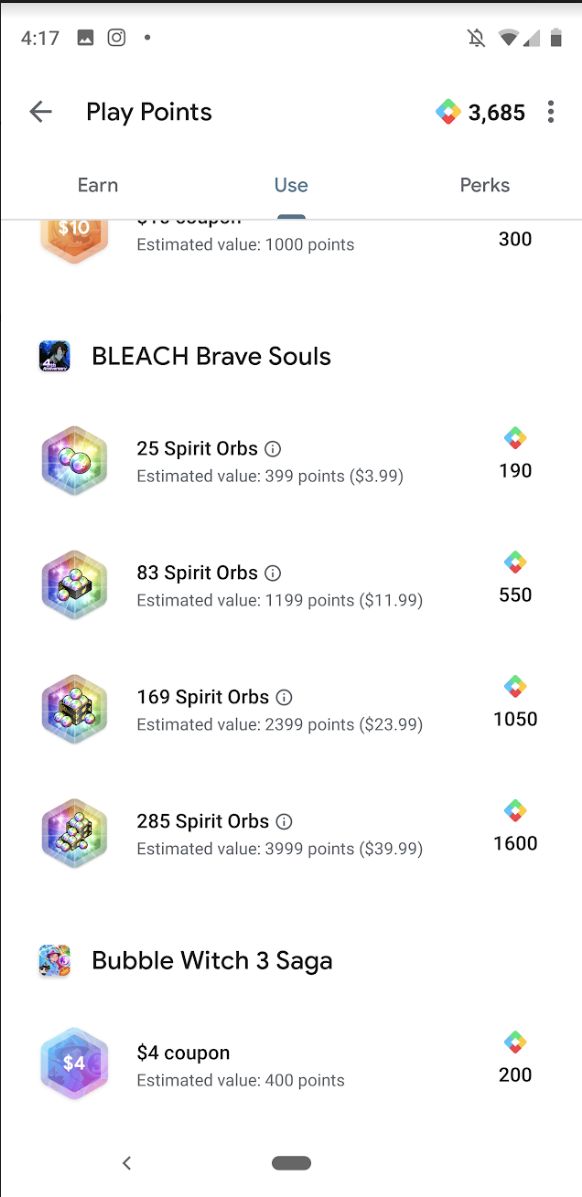
|
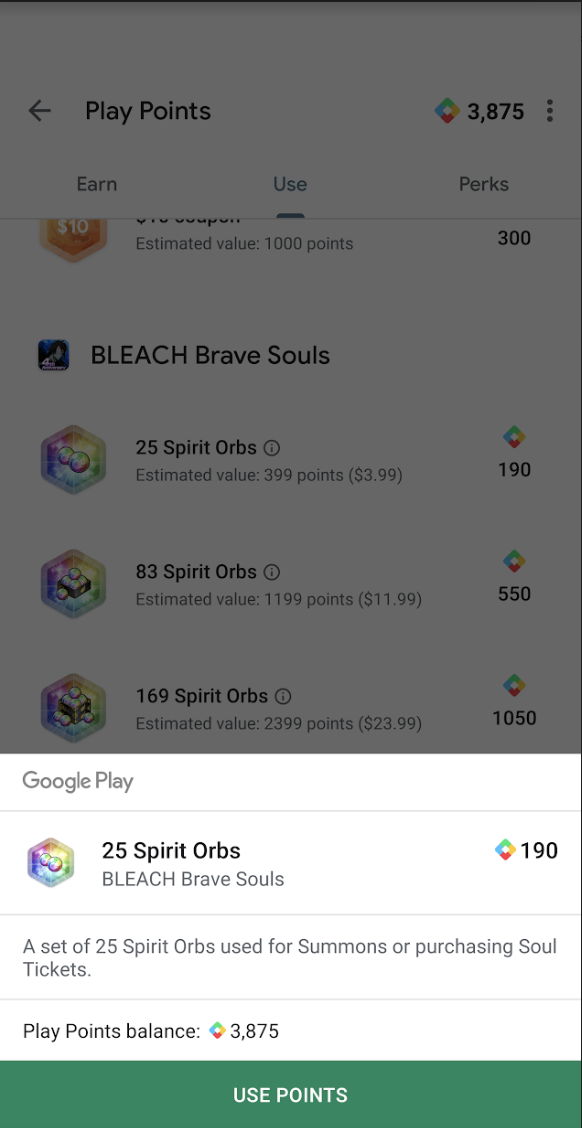
|
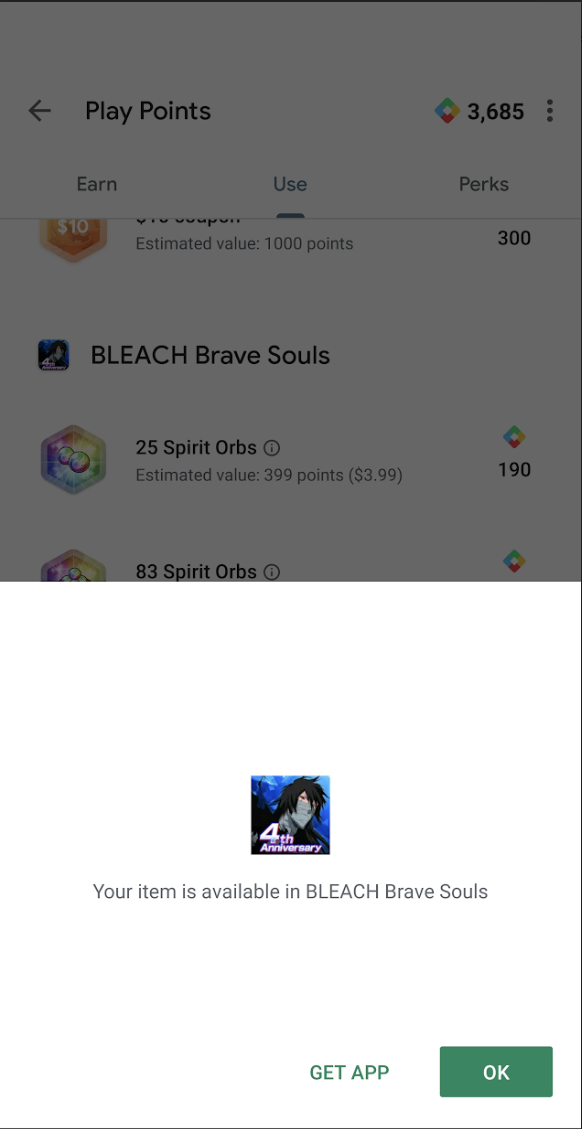
|
In the example, the game is not running while the product is purchased. Users can also exchange Play Points for products when the game isn't installed on their device. Because of this, you must design your game to handle in-app item delivery from outside of the in-game store.
Before you get started
Before you detect and deliver a one-time product, you must create the product and Play Points promotions.
Delivery requirements
When you deliver one-time products in your game using a Play Points promotion, you must follow the requirements in this section.
Delivery timing
When a player exchanges Play Points for a one-time product, use Google Play Billing Library to deliver the item in a timely manner.
Delivery message
Once a user returns to your game after purchasing a one-time product outside of the game, you must display a confirmation that the product was successfully granted within the game. The message should come in the form of a dialog or an in-game message. Users shouldn't have to take any additional steps to receive the item.
Here's the required messaging format:
A clear message that the item has been received.
Refer to the item name clearly and refer to "Play Points" to ensure users can distinguish it from other content they receive.
The name of the item must also include the correct denomination of the item if there are similar items with multiple denominations.
The dialog, message, or in-game notification should be visible to the user until the user clicks a confirmation such as, Continue or OK. There should not be a cancel button, as this message is only meant to notify users of the item they have received in-game. If there is no confirmation button, then the message should be visible to users for at least 3 seconds before disappearing to ensure users know they have received their item.
Here's an example message:
"Item received! You just got 100 Gems with Play Points. Continue."
Users should see an animation or some visual confirmation displaying the increase in their balance of in-game currency. If the item is a durable or consumable in-app item, users should be directed to where the item has been unlocked or is available within the game.
Detect items received outside of the game
If your game uses Google Play's billing system, see Detect and process purchases to detect one-time products that are received outside of the game.
Display a delivery confirmation
When users redeem Play Points and receive an exchange item, they expect the game to show an in-game message, or use some kind of notification to let them know that the game correctly received and processed the item. See Notify the User to acknowledge the successful purchase.
Updates for specific game engines
Here are some considerations to make for specific game engines:
If your game is built with Unity, we recommend that you verify whether the IAP implementation you're using already supports Play Points promotions.
If your game is built with Cocos2d-x or Unreal Engine (C/C++), you will most likely need to write the JNI code that calls Java APIs from your C/C++ code.
Server-side best practices
This section contains server-side best practices to use for Play Points promotions:
If you call
Purchases.products: geton your server, verify whether you need to handle Play rewards exchange items and other one-time products separately based on theproductIdvalues.If you use
Onetimeproducts: liston your server, verify whether you need to separate Play rewards exchange items from other one-time products byproductIdvalues.Review the following best practices to verify whether you need to make additional changes:
- Reference:
- Implement server-side signature verification.
- Ensure that the
purchaseTokenandorderIdvalues are unique and have not been used before.
Troubleshooting
This section contains recommendations for scenarios that can result in customer inquiries.
Multiple user accounts
If a user has multiple Google Accounts on their device and they redeem Play
Points on the wrong account, Google cannot transfer the items to the other
accounts. Likewise, your app can't transfer the item by calling the
getPurchases() method. In this scenario, consider manually providing the
in-app items to the user using your customer support operations.
Delayed or missing items
If players experience delayed or missing rewards items, see the troubleshooting guide for in-app purchases in the Google Play help documentation.