
Concepts and Jetpack Compose implementation
Resources are the additional files and static content that your code uses, such as bitmaps, layout definitions, user interface strings, animation instructions, and more.
Always externalize app resources such as images and strings from your code, so that you can maintain them independently. Also, provide alternative resources for specific device configurations by grouping them in specially named resource directories. At runtime, Android uses the appropriate resource based on the current configuration. For example, you might want to provide a different UI layout depending on the screen size or different strings depending on the language setting.
Once you externalize your app resources, you can access them using resource IDs
that are generated in your project's R class. This document shows you how to
group the resources in your Android project. It also shows you how to provide
alternative resources for specific device configurations and then access them
from your app code or other XML files.
Group resource types
Place each type of resource in a specific subdirectory of your project's res/
directory. For example, here's the file hierarchy for a simple project:
MyProject/
    src/
        MyActivity.java
    res/
        drawable/
            graphic.png
        layout/
            main.xml
            info.xml
        mipmap/
            icon.png
        values/
            strings.xml
The res/ directory contains all the resources in its subdirectories: an image
resource, two layout resources, a mipmap/ directory for launcher icons, and a
string resource file. The resource directory names are important and are
described in table 1.
Table 1. Resource directories supported inside project res/ directory.
Directory |
Resource Type |
|
|
XML files that define Property animations. |
|
|
XML files that define Tween animations. Property animations can also be saved in this directory, but the |
|
|
XML files that define a state list of colors. For more information, see Color state list resource. |
|
|
Bitmap files (PNG, .
For more information, see Drawable resources. |
|
|
Drawable files for different launcher icon densities. For more information on managing launcher icons with |
|
|
XML files that define a user interface layout. For more information, see Layout resource. |
|
|
XML files that define app menus, such as an options menu, context menu, or submenu. For more information, see Menu resource. |
|
|
Arbitrary files to save in their raw form. To open these resources with a raw However, if you need access to the original filenames and file hierarchy, consider saving resources in the |
|
|
XML files that contain simple values, such as strings, integers, and colors. Whereas XML resource files in other Because each resource is defined with its own XML element, you can name the file whatever you want and place different resource types in one file. However, for clarity, you might want to place unique resource types in different files. For example, here are some filename conventions for resources you can create in this directory:
For more information, see String resources, Style resource, and More resource types. |
|
|
Arbitrary XML files that can be read at runtime by calling |
|
|
Font files with extensions such as TTF, OTF, or TTC or XML files that include a |
The resources that you save in the subdirectories defined in table 1 are your default resources. That is, these resources define the default design and content for your app. However, different types of Android-powered devices might call for different types of resources.
For example, you can provide different layout resources for devices that have larger than normal screens to take advantage of the extra screen space. You can also provide different string resources that translate the text in your user interface based on the device's language setting. To provide these different resources for different device configurations, you need to provide alternative resources in addition to your default resources.
Provide alternative resources
Most apps provide alternative resources to support specific device configurations. For instance, include alternative drawable resources for different screen densities and alternative string resources for different languages. At runtime, Android detects the current device configuration and loads the appropriate resources for your app.
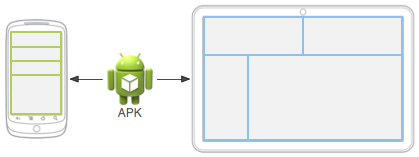
Figure 1. Two devices using different layout resources based on screen size.
To specify configuration-specific alternatives for a set of resources, do the following:
Create a new directory in
res/named in the form<resources_name>-<qualifier>.<resources_name>is the directory name of the corresponding default resources (defined in table 1).<qualifier>is a name that specifies an individual configuration for which these resources are to be used (defined in table 2).
You can append more than one
<qualifier>. Separate each one with a dash.Save the appropriate alternative resources in this new directory. The resource files must be named exactly the same as the default resource files.
For example, here are some default and alternative resources:
res/
    drawable/
        icon.png
        background.png
    drawable-hdpi/
        icon.png
        background.png
The hdpi qualifier indicates that the resources in that directory are for
devices with a high-density screen. The images in these drawable directories are
sized for specific screen densities, but the filenames are exactly the same.
This way, the resource ID that you use to reference the icon.png or
background.png image is always the same. Android selects the version of each
resource that best matches the current device by comparing the device
configuration information with the qualifiers in the resource directory name.
Table 2 lists the valid configuration qualifiers in order of precedence. You can add multiple qualifiers to one directory name by separating each qualifier with a dash. If you use multiple qualifiers for a resource directory, you must add them to the directory name in the order they are listed in the table.
Table 2. Configuration qualifier names.
Configuration |
Qualifier values |
Description |
MCC and MNC |
Examples:
|
The mobile country code (MCC), optionally followed by the mobile network code (MNC) from the SIM card in the device. For example, If the device uses a radio connection (that is, it's a GSM phone), the MCC and MNC values come from the SIM card. You can also use the MCC alone, for example, to include country-specific legal resources in your app. If you need to specify based on the language only, then use the language, script (optional), and region (optional) qualifier instead. If you use the MCC and MNC qualifier, do so with care and test that it works as expected. Also see the configuration fields |
Language, script (optional), and region (optional) |
Examples:
|
The language is defined by a two-letter ISO 639-2{:.external} language code, optionally followed by a two-letter ISO 3166-1-alpha-2{:.external} region code (preceded by lowercase The codes are not case-sensitive. The Android 7.0 (API level 24) introduced support for BCP 47 language tags{:.external}, which you can use to qualify language- and region-specific resources. A language tag is composed from a sequence of one or more subtags, each of which refines or narrows the range of language identified by the overall tag. For more information about language tags, see Tags for Identifying Languages{:.external}. To use a BCP 47 language tag, concatenate The language tag can change during the life of your app if users change their language in the system settings. For information about how this can affect your app during runtime, see Handle configuration changes. For a complete guide to localizing your app for other languages, see Localize your app. Also see the |
| Grammatical gender | masculinefeminineneuter |
The user's grammatical gender. Used for languages that have grammatical gender. For example, if you need to provide different resources for French speaking users, then you can use directories like the following:
See: Grammatical Inflection in Android. Also see the Added in API level 34. |
Layout direction |
|
The layout direction of your app. This can apply to any resource, such as layouts, drawables, or values. For example, if you want to provide a specific layout for the Arabic language and a generic layout for any other "right-to-left" language, like Persian or Hebrew, then you use directories like the following:
Note: To enable right-to-left layout features for your app, you must set Added in API level 17. |
Smallest width |
Examples:
etc. |
The shortest dimension of the screen area available to an app. Specifically, the app window's For example, if your layout requires that its smallest dimension of screen area be at least 600 dp at all times, then you can use this qualifier to create the layout resources in a Using smallest width to determine the general screen size is useful because width is often the driving factor in designing a layout. A UI often scrolls vertically, but has fairly hard constraints on the minimum space it needs horizontally. The available width is also the key factor in determining whether to use a one-pane layout for handsets or a multipane layout for tablets. Thus, you likely care most about what the smallest possible width is on each device. The smallest width of a device takes into account screen decorations and system UI. For example, if the device has persistent UI elements on the screen that account for space along the axis of the smallest width, the system declares the smallest width to be smaller than the actual screen size, because those are screen pixels not available for your UI. Some values you might use here for common screen sizes:
When your app provides multiple resource directories with different values for the Added in API level 13. Also see the For more information about designing for different screens using this qualifier, see Responsive/adaptive design with views. |
Available width and height |
Examples:
etc. |
Specifies the minimum available screen width or height (in Available width and height are often useful for determining whether to use a multipane layout, because even on a tablet device you often don't want the same multipane layout for portrait orientation as you do for landscape. Thus, you can use these to specify the minimum width and/or height required for the layout, instead of using both the screen size and orientation qualifiers together. When your app provides multiple resource directories with different values for these configurations, the system uses the one closest to (without exceeding) the device's current screen width. Closest to is determined by adding the differences between the actual screen width and the specified width to the difference between the actual screen height and the specified height, with unspecified heights and widths having a value of 0. The values exclude the area occupied by Window insets, so if the device has persistent UI elements on the edges of the display, the values for width and height are smaller than the real screen dimensions, even when the app is displayed edge to edge using Some vertical screen decorations that aren't fixed (such as a phone status bar that can be hidden when full screen) are not accounted for here, nor are window decorations like the title bar or action bar, so apps must be prepared to deal with a somewhat smaller space than they specify. Note: The system chooses the resource that matches both in width and height. Therefore a resource that specifies both is strongly preferred over one that specifies only one or the other. For example, if the actual screen is 720 dp wide by 1280 dp high and one resource is qualified with w720dp and another is qualified as w700dp-h1200dp, the latter is chosen even though the former is an exact match for what it specifies. Added in API level 13. Also see the For more information about designing for different screens using this qualifier, see Responsive/adaptive design with views. |
Screen size |
|
Note: Using a size qualifier does not imply that the resources are only for screens of that size. If you don't provide alternative resources with qualifiers that better match the current device configuration, the system can use whichever resources are the best match. Caution: If all your resources use a size qualifier that is larger than the current screen, the system doesn't use them and your app crashes at runtime. This happens, for example, if all layout resources are tagged with the Added in API level 4. Also see the For more information, see Screen compatibility overview. |
Screen aspect |
|
Added in API level 4. This is based purely on the aspect ratio of the screen (a Also see the |
Round screen |
|
Added in API level 23. Also see the |
Wide Color Gamut |
|
Added in API level 26. Also see the |
High Dynamic Range (HDR) |
|
Added in API level 26. Also see the |
Screen orientation |
|
This can change during the life of your app if the user rotates the screen. For information about how this affects your app during runtime, see Handle configuration changes. Also see the |
UI mode |
|
Added in API level 8; television added in API 13; appliance added in API 16; watch added in API 20; vrheadset added in API 26. For information about how your app can respond when the device is inserted into or removed from a dock, read Determine and monitor the docking state and type. This can change during the life of your app if the user places the device in a dock. You can enable or disable some of these modes using |
Night mode |
|
Added in API level 8. This can change during the life of your app if night mode is left in auto mode (default), in which case the mode changes based on the time of day. You can enable or disable this mode using |
Screen pixel density (dpi) |
|
There is a 3:4:6:8:12:16 scaling ratio between the six primary densities (ignoring the tvdpi density). So, a 9x9 bitmap in ldpi is 12x12 in mdpi, 18x18 in hdpi, 24x24 in xhdpi, and so on. Note: Using a density qualifier doesn't imply that the resources are only for screens of that density. If you don't provide alternative resources with qualifiers that better match the current device configuration, the system uses whichever resources are the best match. For more information about how to handle different screen densities and how Android might scale your bitmaps to fit the current density, see Screen compatibility overview. |
Touchscreen type |
|
Also see the |
Keyboard availability |
|
If you provide This can change during the life of your app if the user opens a hardware keyboard. For information about how this affects your app during runtime, see Handle configuration changes. Also see the configuration fields |
Primary text input method |
|
Also see the |
Navigation key availability |
|
This can change during the life of your app if the user reveals the navigation keys. For information about how this affects your app during runtime, see Handle configuration changes. Also see the |
Primary non-touch navigation method |
|
Also see the |
Platform version (API level) |
Examples:
etc. |
The API level supported by the device. For example, |
Qualifier name rules
Here are some rules about using configuration qualifier names:
- You can specify multiple qualifiers for a single set of resources, separated
by dashes. For example,
drawable-en-rUS-landapplies to US-English devices in landscape orientation. - The qualifiers must be in the order listed in table 2.
- Wrong:
drawable-hdpi-port/ - Correct:
drawable-port-hdpi/
- Wrong:
- Alternative resource directories can't be nested. For example, you can't
have
res/drawable/drawable-en/. - Values are case-insensitive. The resource compiler converts directory names to lowercase before processing to avoid problems on case-insensitive file systems. Any capitalization in the names is only to benefit readability.
- Only one value for each qualifier type is supported. For example, if you
want to use the same drawable files for Spain and France, you can't have a
directory named
drawable-es-fr/. Instead, you need two resource directories, such asdrawable-es/anddrawable-fr/, which contain the appropriate files. However, you aren't required to actually duplicate the files in both locations. Instead, you can create an alias to a resource, as described in the Create alias resources section.
After you save alternative resources into directories named with these qualifiers, Android automatically applies the resources in your app based on the current device configuration. Each time a resource is requested, Android checks for alternative resource directories that contain the requested resource file, then finds the best-matching resource.
If there are no alternative resources that match a particular device configuration, then Android uses the corresponding default resources—the set of resources for a particular resource type that doesn't include a configuration qualifier.
Create alias resources
When you have a resource that you'd like to use for more than one device configuration but you don't want to provide it as a default resource, you don't need to put the same resource in more than one alternative resource directory. Instead, you can create an alternative resource that acts as an alias for a resource saved in your default resource directory.
For example, imagine you have an app icon, icon.png, and need a unique version
of it for different locales. However, two locales, English-Canadian and
French-Canadian, need to use the same version. You don't need to copy the same
image into the resource directory for both English-Canadian and French-Canadian.
Instead, you can save the image that's used for both using any name other than
icon.png, such as icon_ca.png, and put it in the default res/drawable/
directory. Then create an icon.xml file in res/drawable-en-rCA/ and
res/drawable-fr-rCA/ that refers to the icon_ca.png resource using the
<bitmap> element. This lets you store just one version of the PNG file and two
small XML files that point to it. See the examples in the following sections
for details.
Drawable
To create an alias to an existing drawable, use the <drawable> element:
<?xml version="1.0" encoding="utf-8"?>
<resources>
  <drawable name="icon">@drawable/icon_ca</drawable>
</resources>
If you save this file as icon.xml in an alternative resource directory, such
as res/values-en-rCA/, it is compiled into a resource that you can reference
as R.drawable.icon, but is actually an alias for the R.drawable.icon_ca
resource, which is saved in res/drawable/.
Layout
To create an alias to an existing layout, use the <include> element, wrapped
in a <merge>:
<?xml version="1.0" encoding="utf-8"?>
<merge>
  <include layout="@layout/main_ltr"/>
</merge>
If you save this file as main.xml, it is compiled into a resource you can
reference as R.layout.main, but is actually an alias for the
R.layout.main_ltr resource.
Access your app resources
Once you provide a resource in your application, you can apply it by referencing
its resource ID. All resource IDs are defined in your project's R class, which
the aapt tool automatically generates.
When your application is compiled, aapt generates the R class, which
contains resource IDs for all the resources in your res/ directory. For each
type of resource, there is an R subclass, such as R.drawable for all
drawable resources. And for each resource of that type, there is a static
integer, for example, R.drawable.icon. This integer is the resource ID that
you can use to retrieve your resource.
Although the R class is where resource IDs are specified, you don't need to
look there to discover a resource ID. A resource ID is always composed of the
following:
- The resource type: each resource is grouped into a "type," such as
string, drawable, andlayout. For more information about the different types, see Resource types overview. - The resource name, which is either the filename excluding the extension or
the value in the XML
android:nameattribute, if the resource is a simple value, such as a string.
There are two ways you can access a resource:
- In code: using a static integer from a subclass of your
Rclass, such as:R.string.hellostringis the resource type andhellois the resource name. There are many Android APIs that can access your resources when you provide a resource ID in this format. For more information, see the Access resources in code section. - In XML: using a special XML syntax that corresponds to the resource ID
defined in your
Rclass, such as:@string/hellostringis the resource type andhellois the resource name. You can use this syntax in an XML resource any place where a value is expected that you provide in a resource. For more information, see the Access resources from XML section.
Access resources in code
You can use a resource in code by passing the resource ID as a method parameter.
For example, you can set an ImageView to use the
res/drawable/myimage.png resource using setImageResource:
Kotlin
val imageView = findViewById(R.id.myimageview) as ImageView
imageView.setImageResource(R.drawable.myimage)
Java
ImageView imageView = (ImageView) findViewById(R.id.myimageview);

imageView.setImageResource(R.drawable.myimage);
You can also retrieve individual resources using methods in Resources,
which you can get an instance of with getResources.
Syntax
Here's the syntax to reference a resource in code:
[<package_name>.]R.<resource_type>.<resource_name>
<package_name>is the name of the package in which the resource is located (not required when referencing resources from your own package).<resource_type>is theRsubclass for the resource type.<resource_name>is either the resource filename without the extension or theandroid:nameattribute value in the XML element, for simple values.
Use cases
There are many methods that accept a resource ID parameter, and you can retrieve
resources using methods in Resources. You can get an instance of
Resources using Context.getResources.
Here are some examples of accessing resources in code:
Kotlin
// Load a background for the current screen from a drawable resource.
window.setBackgroundDrawableResource(R.drawable.my_background_image)

// Set the Activity title by getting a string from the Resources object, because
//  this method requires a CharSequence rather than a resource ID.
window.setTitle(resources.getText(R.string.main_title))

// Load a custom layout for the current screen.
setContentView(R.layout.main_screen)

// Set a slide in animation by getting an Animation from the Resources object.
flipper.setInAnimation(AnimationUtils.loadAnimation(this,
        R.anim.hyperspace_in))

// Set the text on a TextView object using a resource ID.
val msgTextView = findViewById(R.id.msg) as TextView
msgTextView.setText(R.string.hello_message)
Java
// Load a background for the current screen from a drawable resource.
getWindow().setBackgroundDrawableResource(R.drawable.my_background_image) ;

// Set the Activity title by getting a string from the Resources object, because
//  this method requires a CharSequence rather than a resource ID.
getWindow().setTitle(getResources().getText(R.string.main_title));

// Load a custom layout for the current screen.
setContentView(R.layout.main_screen);

// Set a slide in animation by getting an Animation from the Resources object.
flipper.setInAnimation(AnimationUtils.loadAnimation(this,
        R.anim.hyperspace_in));

// Set the text on a TextView object using a resource ID.
TextView msgTextView = (TextView) findViewById(R.id.msg);
msgTextView.setText(R.string.hello_message);
Access resources from XML
You can define values for some XML attributes and elements using a reference to an existing resource. You often do this when creating layout files, to supply strings and images for your widgets.
For example, if you add a Button to your layout, use a string
resource for the button text:
<Button
  android:layout_width="fill_parent"
  android:layout_height="wrap_content"
  android:text="@string/submit" />
Syntax
Here is the syntax to reference a resource in an XML resource:
@[<package_name>:]<resource_type>/<resource_name>
<package_name>is the name of the package in which the resource is located (not required when referencing resources from the same package).<resource_type>is theRsubclass for the resource type.<resource_name>is either the resource filename without the extension or theandroid:nameattribute value in the XML element, for simple values.
Use cases
In some cases, you must use a resource for a value in XML, such as to apply a drawable image to a widget, but you can also use a resource in XML any place that accepts a simple value. For example, if you have the following resource file that includes a color resource and a string resource:
<?xml version="1.0" encoding="utf-8"?>
<resources>
  <color name="opaque_red">#f00</color>
  <string name="hello">Hello!</string>
</resources>
You can use these resources in the following layout file to set the text color and text string:
<?xml version="1.0" encoding="utf-8"?>
<EditText xmlns:android="http://schemas.android.com/apk/res/android"
  android:layout_width="fill_parent"
  android:layout_height="fill_parent"
  android:textColor="@color/opaque_red"
  android:text="@string/hello" />
In this case, you don't need to specify the package name in the resource reference, because the resources are from your own package. To reference a system resource, you need to include the package name, as shown in the following example:
<?xml version="1.0" encoding="utf-8"?>
<EditText xmlns:android="http://schemas.android.com/apk/res/android"
  android:layout_width="fill_parent"
  android:layout_height="fill_parent"
  android:textColor="@android:color/secondary_text_dark"
  android:text="@string/hello" />
You can even use resources in XML to create aliases. For example, you can create a drawable resource that is an alias for another drawable resource:
<?xml version="1.0" encoding="utf-8"?>
<bitmap xmlns:android="http://schemas.android.com/apk/res/android"
  android:src="@drawable/other_drawable" />
This sounds redundant, but can be very useful when using alternative resource. For more information, see the section about creating alias resources.
Reference style attributes
A style attribute resource lets you reference the value of an attribute in the currently applied theme. Referencing a style attribute lets you customize the look of UI elements by styling them to match standard variations supplied by the current theme, instead of supplying a hardcoded value. Referencing a style attribute essentially says, "Use the style that is defined by this attribute in the current theme."
To reference a style attribute, the name syntax is almost identical to the
normal resource format, but instead of the "at" symbol (@), use a question
mark (?). The resource type portion is optional. So the reference syntax is as
follows:
?[<package_name>:][<resource_type>/]<resource_name>
For example, here's how you can reference an attribute to set the text color to match the secondary text color of the system theme:
<EditText id="text"
  android:layout_width="fill_parent"
  android:layout_height="wrap_content"
  android:textColor="?android:textColorSecondary"
  android:text="@string/hello_world" />
Here, the android:textColor attribute specifies the name of a style attribute
in the current theme. Android now uses the value applied to the
android:textColorSecondary style attribute as the value for
android:textColor in this widget. Because the system resource tool knows that
an attribute resource is expected in this context, you don't need to explicitly
state the type, which is ?android:attr/textColorSecondary. You can exclude the
attr type.
Access original files
While uncommon, you might need to access your original files and directories. If
you do, then saving your files in res/ won't work for you, because the only
way to read a resource from res/ is with the resource ID. Instead, you can
save your resources in the assets/ directory.
Files saved in the assets/ directory are not given a resource ID, so you
can't reference them through the R class or from XML resources. Instead, you
can query files in the assets/ directory like a normal file system and read
raw data using AssetManager.
However, if all you require is the ability to read raw data (such as a video or
audio file), then save the file in the res/raw/ directory and read a stream of
bytes using openRawResource.
Access platform resources
Android contains a number of standard resources, such as styles, themes, and
layouts. To access these resources, qualify your resource reference with the
android package name. For example, Android provides a layout resource you can
use for list items in a ListAdapter:
Kotlin
listAdapter = ArrayAdapter(this, android.R.layout.simple_list_item_1, myarray)
Java
setListAdapter(new ArrayAdapter<String>(this, android.R.layout.simple_list_item_1, myarray));
In this example, simple_list_item_1 is a layout resource defined by the
platform for items in a ListView. You can use this instead of creating
your own layout for list items.
Provide the best device compatibility with resources
For your app to support multiple device configurations, it's very important that you always provide default resources for each type of resource that your app uses.
For example, if your app supports several languages, always include a values/
directory (in which your strings are saved) without a language and region
qualifier. If you instead put all your string files in directories that
have a language and region qualifier, then your app crashes when run on a device
set to a language that your strings don't support.
As long as you provide default values/ resources, then your app runs properly,
even if the user doesn't understand the language it presents. It's better than
crashing.
Likewise, if you provide different layout resources based on the screen
orientation, pick one orientation as your default. For example, instead of
providing layout resources in layout-land/ for landscape and layout-port/
for portrait, leave one as the default, such as layout/ for landscape and
layout-port/ for portrait.
Providing default resources is important not only because your app might run on a configuration you hadn't anticipated, but also because new versions of Android sometimes add configuration qualifiers that lower versions don't support. If you use a new resource qualifier, but maintain code compatibility with lower versions of Android, then when a lower version of Android runs your app, it crashes if you don't provide default resources, because it can't use the resources named with the new qualifier.
For example, if your minSdkVersion is set to 4, and you qualify all of
your drawable resources using night mode (night or notnight, which
were added in API level 8), then an API level 4 device can't access your
drawable resources and crashes. In this case, you probably want notnight to be
your default resources, so exclude that qualifier and put your drawable
resources in either drawable/ or drawable-night/.
In short, to provide the best device compatibility, always provide default resources for the resources your app needs to perform properly. Then create alternative resources for specific device configurations using configuration qualifiers.
There is one exception to this rule: If your app's minSdkVersion is 4 or
greater, you don't need default drawable resources when you provide
alternative drawable resources with the screen density qualifier. Even
without default drawable resources, Android can find the best match among the
alternative screen densities and scale the bitmaps as necessary. However, for
the best experience on all types of devices, provide alternative drawables for
all three types of density.