Set up Proxy with the Android Emulator

On the Android Emulator, you can use a proxy to debug application traffic or to access the internet from behind a corporate firewall. The emulator offers two distinct proxy mechanisms to support these different use cases: the Android System Proxy and the Emulator Proxy.

Choosing the Right Proxy

Before configuring a proxy, it's important to understand the two use cases. The Android System Proxy is for inspecting application traffic, while the Emulator Proxy is for navigating network restrictions. These two proxies are mutually exclusive; you can only have one enabled at a time.

Feature Android System Proxy Emulator Proxy
Primary Use Case App Debugging Firewall Bypass
Operating Layer Network Layer Application Layer
Configuration Android System Wi-Fi Settings UI Emulator Extended Controls UI or
-http-proxy flag.
HTTPS Debugging Yes - Allows tools like Charles Proxy to
intercept traffic when a certificate is
installed.
No - Creates a TCP tunnel, preventing
SSL inspection.
Handles Non-HTTP/HTTPS
Traffic
No - Primarily handles only HTTP and
HTTPS traffic.
Yes - Forwards all TCP traffic.

Use Case 1: Application Debugging with Android System Proxy

For debugging your application's network traffic, such as inspecting HTTPS requests with a tool like Charles Proxy, you should use the Android System Proxy.

This proxy operates at the application layer within the Android OS. It allows debugging tools to intercept and inspect traffic, but this requires installing the necessary security certificates on the emulated device.

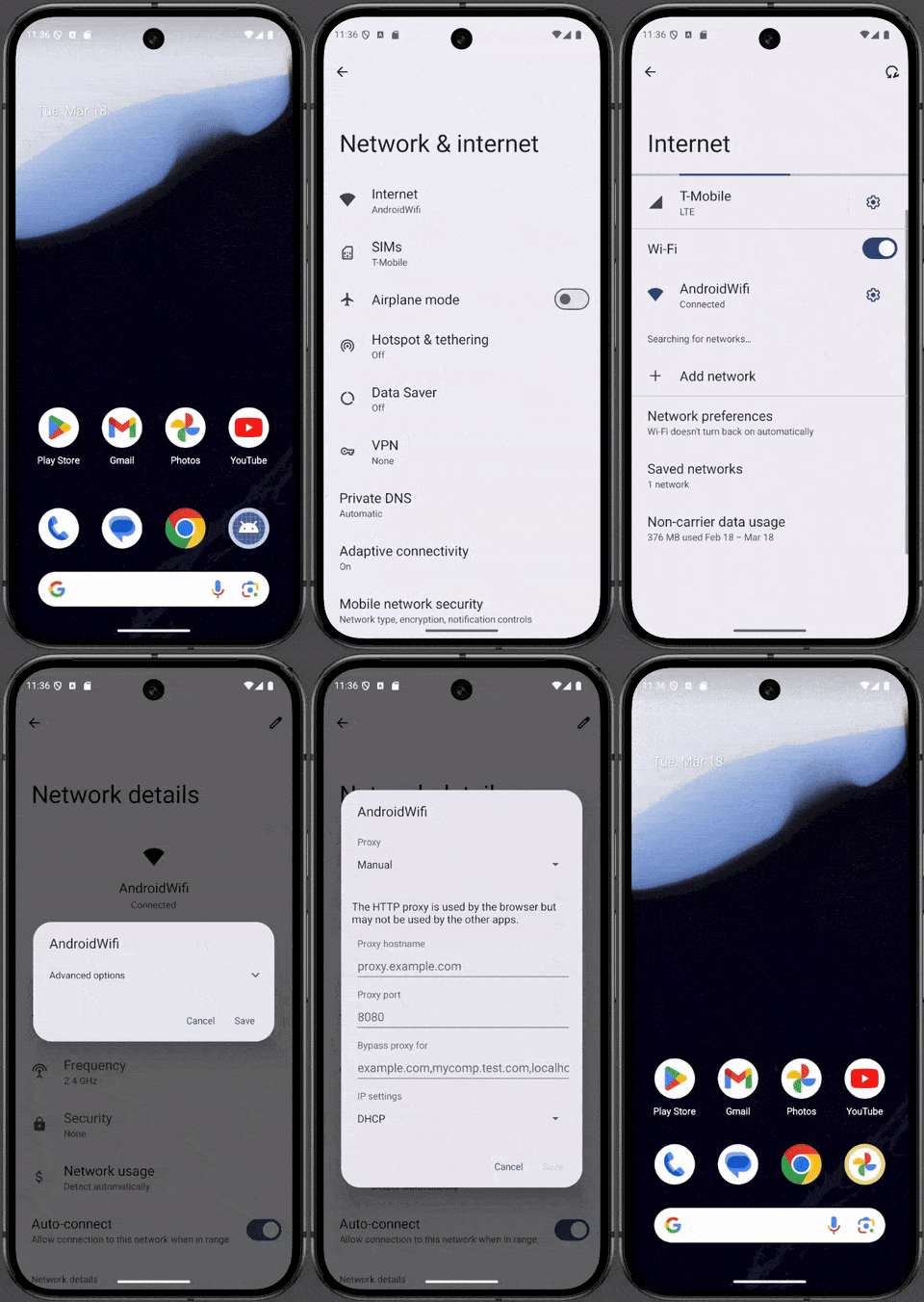
Set up Android System Proxy

Configuration

You can configure the Android System Proxy in two ways:

  1. Manual Configuration: In the emulator, go to Settings > Network & Internet > Wi-Fi, select your network, and manually enter the proxy settings.
  2. Automated Configuration: You can programmatically configure the Android System Proxy. This is done by creating an instrumentation test that uses a UI automation framework, such as UI Automator, to open the Android Settings app and apply the proxy configuration without manual intervention.

Use Case 2: Bypassing Corporate Firewalls with Emulator Proxy

On many corporate networks, direct connections to the internet are refused by network administrators and must instead pass through a specific proxy. To access external resources from within such a restricted network, you should use the Emulator Proxy.

This mechanism operates at a lower network level and routes all of the emulated device's TCP traffic through the specified proxy, making it ideal for firewall traversal. It transparently rewrites HTTP requests from the virtual device before sending them to the proxy, allowing them to work correctly.

Configuration

When using the emulator within Android Studio, you can configure a proxy with the settings in the Android Studio Menu ( Settings > Appearance & Behavior > System Settings > HTTP Proxy). You can find more details at Set up the Android Studio proxy in the Android Studio documentation.

When using the emulator as standalone (outside of Android Studio), you can configure the Emulator Proxy using one of the following methods:

  1. Command-Line Flag: Launch the emulator from the command line with the -http-proxy <proxy> flag. The <proxy> information can be specified in the format http://<machineName>:<port> or http://<username>:<password>@<machineName>:<port>.

    emulator -http-proxy http://<machineName>:<port>
    

    or

    emulator @MyAvd -http-proxy http://<username>:<password>@<machineName>:<port>
    
  2. Environment Variable: Define the http_proxy environment variable with your proxy settings. The emulator checks for this variable at startup and uses its value automatically if it is defined.

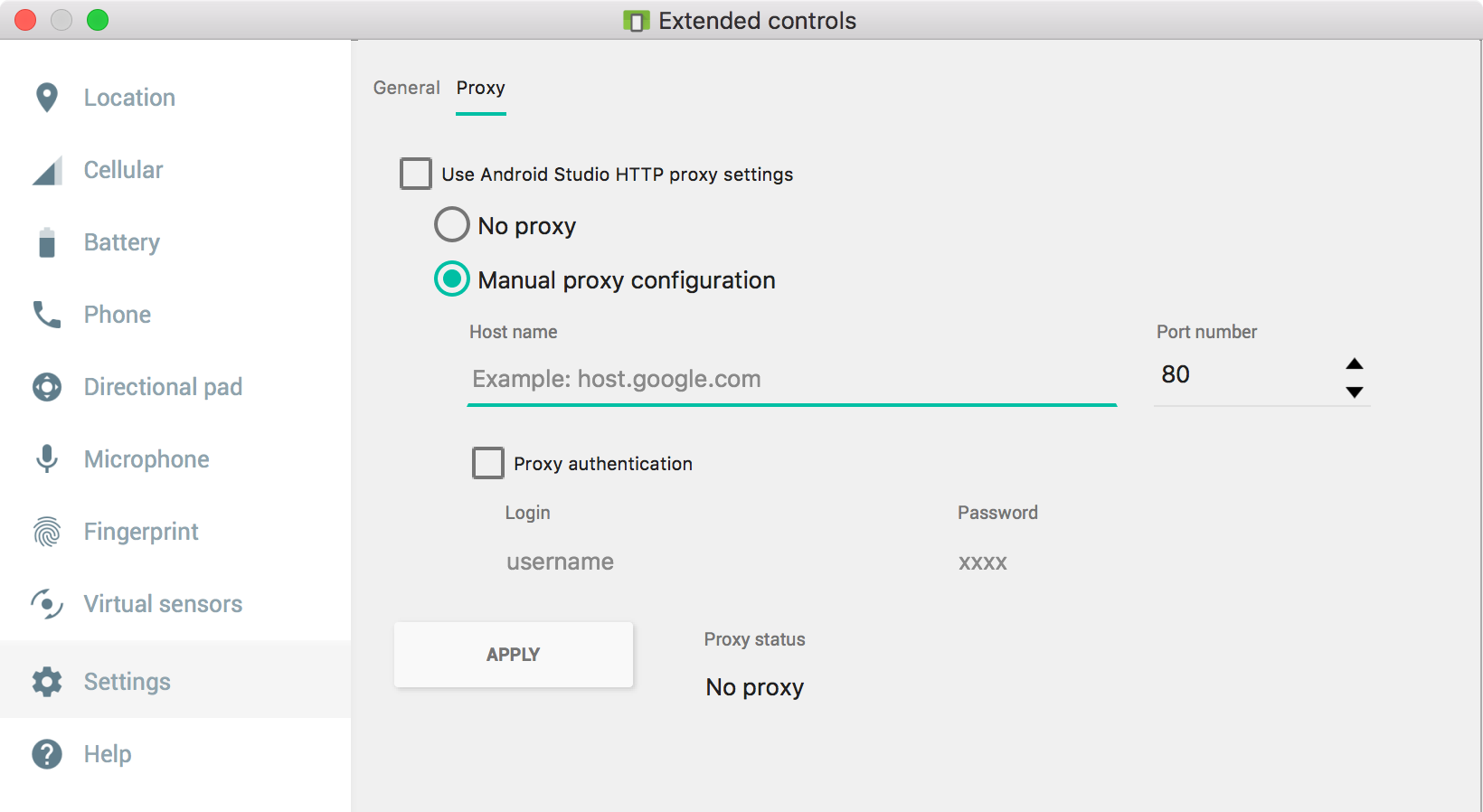
  3. Extended Controls: Open the emulator's Extended controls, navigate to Settings > Proxy, and manually enter your HTTP proxy configuration. The emulator saves these settings for the device and restores them on restart.

    Set up Emulator Proxy

The Emulator Proxy operates at the network layer. It tunnels HTTPS traffic over TCP, but this traffic is forwarded without decryption, which prevents HTTPS inspection. The Emulator Proxy doesn't support UDP redirection.

Interaction with Android Studio

Android Studio has its own proxy configuration dialog for downloading updates and libraries. When you launch an emulator from Android Studio, it will read the IDE's proxy settings one time to populate the Emulator Proxy configuration. However, these settings do not affect the Android System Proxy.