

Android TV 主畫面提供使用者介面,以頻道和節目表格的形式顯示推薦內容。每一列代表一個管道。頻道包含該頻道上每個節目的資訊卡:
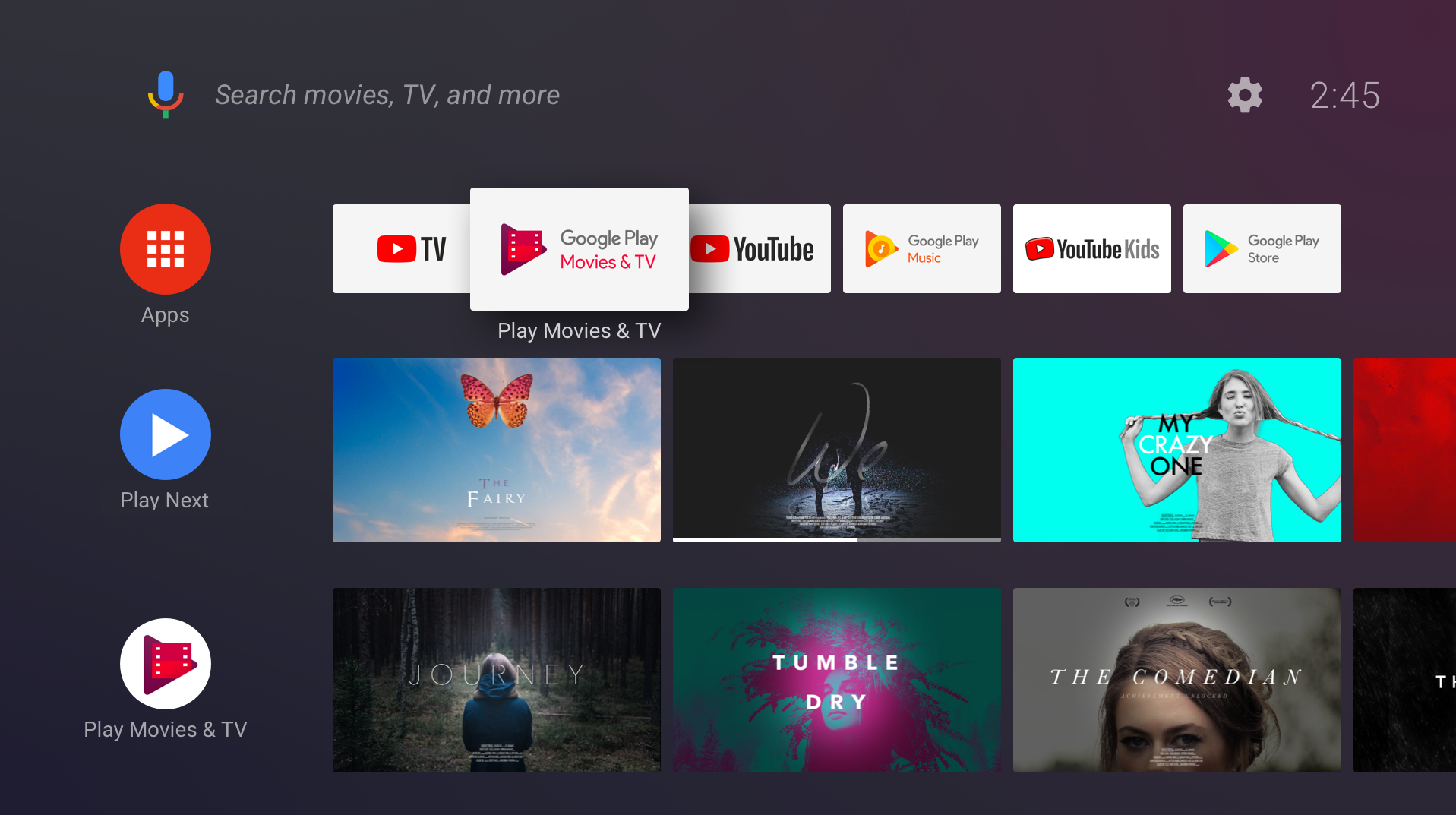
本文說明如何在主畫面中新增頻道和節目、更新內容、處理使用者動作,以及為使用者提供最佳體驗。(如要深入瞭解 API,請試用主畫面程式碼實驗室,並觀看 2017 年 I/O 大會 Android TV 研討會)
主畫面 UI
應用程式可以建立新頻道、新增、移除及更新頻道中的節目,以及控管頻道中的節目順序。舉例來說,應用程式可以建立名為「最新消息」的頻道,並顯示新節目的資訊卡。
應用程式無法控制頻道在主畫面中的顯示順序。應用程式建立新頻道時,主畫面會將該頻道新增至頻道清單底部。使用者可以重新排序、隱藏及顯示頻道。
「接著看」頻道
「接著看」頻道是主畫面上的第二列,位於應用程式列下方。系統建立並維護這個頻道。您的應用程式可在「接著看」頻道中新增節目,詳情請參閱「將節目新增至『接著看』頻道」。
應用程式管道
應用程式建立的所有管道都會遵循以下生命週期:
- 使用者在應用程式中發現頻道,並要求將頻道新增至主畫面。
- 應用程式建立頻道,並將其新增至
TvProvider(此時頻道不會顯示)。 - 應用程式要求系統顯示頻道。
- 系統會要求使用者核准新管道。
- 新頻道會顯示在主畫面的最後一列。
預設管道
應用程式可提供任意數量的頻道,供使用者新增至主畫面。使用者通常必須選取並核准每個頻道,頻道才會顯示在主畫面中。每個應用程式都可以選擇建立一個「預設」管道。預設頻道很特別,因為它會自動顯示在主畫面中,使用者不必明確要求。
必要條件
Android TV 主畫面會使用 Android 的 TvProvider API,管理應用程式建立的頻道和節目。如要存取供應商的資料,請在應用程式資訊清單中新增下列權限:
<uses-permission android:name="com.android.providers.tv.permission.WRITE_EPG_DATA" />
TvProvider 支援程式庫可讓您更輕鬆地使用供應器。將其新增至 build.gradle 檔案中的依附元件:
Groovy
implementation 'androidx.tvprovider:tvprovider:1.0.0'
Kotlin
implementation("androidx.tvprovider:tvprovider:1.0.0")
如要使用頻道和節目,請務必在程式中加入下列支援資料庫匯入項目:
Kotlin
import android.support.media.tv.Channel
import android.support.media.tv.TvContractCompat
import android.support.media.tv.ChannelLogoUtils
import android.support.media.tv.PreviewProgram
import android.support.media.tv.WatchNextProgram
Java
import android.support.media.tv.Channel;
import android.support.media.tv.TvContractCompat;
import android.support.media.tv.ChannelLogoUtils;
import android.support.media.tv.PreviewProgram;
import android.support.media.tv.WatchNextProgram;
頻道
應用程式建立的第一個管道會成為預設管道。預設頻道會自動顯示在主畫面中。您建立的所有其他頻道都必須由使用者選取並接受,才能顯示在主畫面中。
建立頻道
應用程式應要求系統僅在前景執行時顯示新加入的頻道。這樣一來,當使用者執行其他應用程式時,您的應用程式就不會顯示對話方塊,要求使用者核准新增頻道。如果您嘗試在背景執行時新增頻道,活動的 onActivityResult() 方法會傳回狀態碼 RESULT_CANCELED。
如要建立管道,請按照下列步驟操作:
建立頻道建構工具,並設定其屬性。請注意,管道類型必須是
TYPE_PREVIEW。視需要新增更多屬性。Kotlin
val builder = Channel.Builder()
// Every channel you create must have the type `TYPE_PREVIEW`
builder.setType(TvContractCompat.Channels.TYPE_PREVIEW)
        .setDisplayName("Channel Name")
        .setAppLinkIntentUri(uri)
Java
Channel.Builder builder = new Channel.Builder();
// Every channel you create must have the type `TYPE_PREVIEW`
builder.setType(TvContractCompat.Channels.TYPE_PREVIEW)
        .setDisplayName("Channel Name")
        .setAppLinkIntentUri(uri);
將頻道插入供應器:
Kotlin
var channelUri = context.contentResolver.insert(
        TvContractCompat.Channels.CONTENT_URI, builder.build().toContentValues())
Java
Uri channelUri = context.getContentResolver().insert(
        TvContractCompat.Channels.CONTENT_URI, builder.build().toContentValues());
您必須儲存頻道 ID,才能在稍後將節目新增至頻道。從傳回的 URI 擷取頻道 ID:
Kotlin
var channelId = ContentUris.parseId(channelUri)Java
long channelId = ContentUris.parseId(channelUri);你必須為頻道新增標誌。使用
Uri或Bitmap。標誌圖示應為 80dp x 80dp,且必須不透明。顯示在圓形遮罩下方: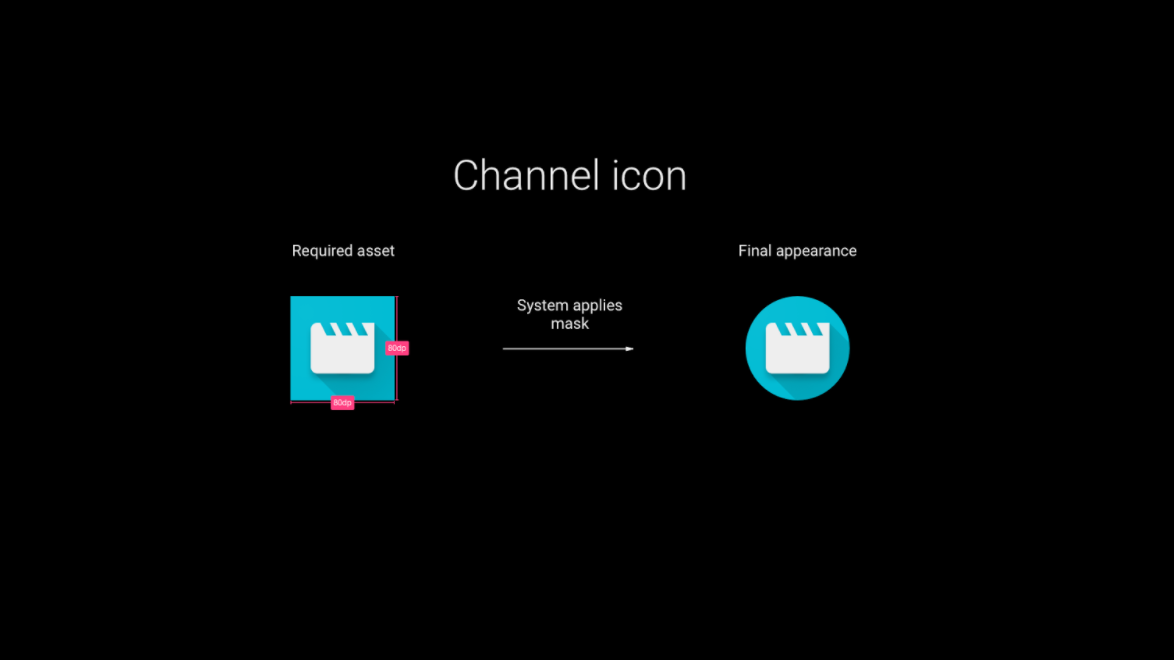
Kotlin
// Choose one or the other
storeChannelLogo(context: Context, channelId: Long, logoUri: Uri) // also works if logoUri is a URL
storeChannelLogo(context: Context, channelId: Long, logo: Bitmap)
Java
// Choose one or the other
storeChannelLogo(Context context, long channelId, Uri logoUri); // also works if logoUri is a URL
storeChannelLogo(Context context, long channelId, Bitmap logo);
建立預設頻道 (選用):應用程式建立第一個頻道時,您可以將其設為「預設頻道」,這樣一來,頻道就會立即顯示在主畫面中,使用者不需執行任何操作。除非使用者明確選取,否則不會顯示您建立的其他任何管道。
Kotlin
TvContractCompat.requestChannelBrowsable(context, channelId)Java
TvContractCompat.requestChannelBrowsable(context, channelId);在應用程式開啟前顯示預設管道。如要實現這項行為,請新增
BroadcastReceiver,監聽主畫面在應用程式安裝後傳送的android.media.tv.action.INITIALIZE_PROGRAMS動作:<receiver android:name=".RunOnInstallReceiver" android:exported="true"> <intent-filter> <action android:name="android.media.tv.action.INITIALIZE_PROGRAMS" /> <category android:name="android.intent.category.DEFAULT" /> </intent-filter> </receiver>在開發期間側載應用程式時,您可以透過 ADB 觸發意圖來測試這個步驟,其中 your.package.name/.YourReceiverName 是應用程式的
BroadcastReceiver:adb shell am broadcast -a android.media.tv.action.INITIALIZE_PROGRAMS -n \ your.package.name/.YourReceiverName在極少數情況下,應用程式可能會在使用者啟動應用程式時收到廣播。請確認程式碼不會嘗試多次新增預設頻道。
更新管道
更新管道的方式與建立管道非常相似。
使用另一個 Channel.Builder 設定需要變更的屬性。
使用 ContentResolver 更新頻道。請使用最初新增頻道時儲存的頻道 ID:
Kotlin
context.contentResolver.update(
        TvContractCompat.buildChannelUri(channelId),
        builder.build().toContentValues(),
        null,
        null
)
Java
context.getContentResolver().update(TvContractCompat.buildChannelUri(channelId),
    builder.build().toContentValues(), null, null);
如要更新頻道標誌,請使用 storeChannelLogo()。
刪除頻道
Kotlin
context.contentResolver.delete(TvContractCompat.buildChannelUri(channelId), null, null)
Java
context.getContentResolver().delete(TvContractCompat.buildChannelUri(channelId), null, null);
程式
節目是頻道中顯示的個別內容資訊卡。您可以將節目發布至應用程式的自訂頻道和系統管理的「接著看」頻道。
在應用程式頻道中新增節目
建立 PreviewProgram.Builder 並設定其屬性:
Kotlin
val builder = PreviewProgram.Builder()
builder.setChannelId(channelId)
        .setType(TvContractCompat.PreviewPrograms.TYPE_CLIP)
        .setTitle("Title")
        .setDescription("Program description")
        .setPosterArtUri(uri)
        .setIntentUri(uri)
        .setInternalProviderId(appProgramId)
Java
PreviewProgram.Builder builder = new PreviewProgram.Builder();
builder.setChannelId(channelId)
        .setType(TvContractCompat.PreviewPrograms.TYPE_CLIP)
        .setTitle("Title")
        .setDescription("Program description")
        .setPosterArtUri(uri)
        .setIntentUri(uri)
        .setInternalProviderId(appProgramId);
視計畫類型新增更多屬性。(如要查看各類型節目可用的屬性,請參閱下方的表格)。
將節目加入供應器:
Kotlin
var programUri = context.contentResolver.insert(TvContractCompat.PreviewPrograms.CONTENT_URI,
        builder.build().toContentValues())
Java
Uri programUri = context.getContentResolver().insert(TvContractCompat.PreviewPrograms.CONTENT_URI,
      builder.build().toContentValues());
擷取計畫 ID,以便日後參考:
Kotlin
val programId = ContentUris.parseId(programUri)
Java
long programId = ContentUris.parseId(programUri);
將節目新增至「接著看」頻道
如要在「接著看」頻道中插入節目,請參閱「在『接著看』頻道中新增節目」。
更新計畫
你可以變更節目的資訊。舉例來說,您可以更新電影的租借價格,或是更新進度列,顯示使用者的節目觀看進度。
請使用 PreviewProgram.Builder 設定您要變更的屬性,然後呼叫 getContentResolver().update,藉此更新節目。指定您當初新增節目時所儲存的節目 ID:
Kotlin
context.contentResolver.update(
        TvContractCompat.buildPreviewProgramUri(programId),
                builder.build().toContentValues(), null, null
)
Java
context.getContentResolver().update(TvContractCompat.buildPreviewProgramUri(programId),
    builder.build().toContentValues(), null, null);
刪除計畫
Kotlin
context.contentResolver
        .delete(TvContractCompat.buildPreviewProgramUri(programId), null, null)
Java
context.getContentResolver().delete(TvContractCompat.buildPreviewProgramUri(programId), null, null);
處理使用者動作
應用程式可提供 UI 來顯示及新增頻道,協助使用者探索內容。應用程式也應處理與主畫面中頻道的互動。
探索及新增頻道
應用程式可以提供 UI 元素,讓使用者選取及新增頻道 (例如要求新增頻道的按鈕)。
使用者要求特定頻道後,請執行這段程式碼,取得使用者權限,將頻道新增至主畫面 UI:
Kotlin
val intent = Intent(TvContractCompat.ACTION_REQUEST_CHANNEL_BROWSABLE)
intent.putExtra(TvContractCompat.EXTRA_CHANNEL_ID, channelId)
try {
  activity.startActivityForResult(intent, 0)
} catch (e: ActivityNotFoundException) {
  // handle error
}
Java
Intent intent = new Intent(TvContractCompat.ACTION_REQUEST_CHANNEL_BROWSABLE);
intent.putExtra(TvContractCompat.EXTRA_CHANNEL_ID, channelId);
try {
   activity.startActivityForResult(intent, 0);
} catch (ActivityNotFoundException e) {
  // handle error
}
系統會顯示對話方塊,要求使用者核准頻道。在活動的 onActivityResult 方法 (Activity.RESULT_CANCELED 或 Activity.RESULT_OK) 中處理要求結果。
Android TV 主畫面事件
當使用者與應用程式發布的節目和頻道互動時,主畫面會將意圖傳送至應用程式:
- 當使用者選取頻道的標誌時,主畫面會將儲存在頻道 APP_LINK_INTENT_URI 屬性中的
Uri傳送至應用程式。應用程式應直接啟動主要 UI 或與所選頻道相關的檢視畫面。 - 當使用者選取節目時,主畫面會將儲存在節目 INTENT_URI 屬性中的
Uri傳送至應用程式。應用程式應該會播放所選內容。 - 使用者可以表示對某個節目不再感興趣,並希望從主畫面 UI 中移除該節目。系統會從 UI 中移除節目,並將意圖 (android.media.tv.ACTION_PREVIEW_PROGRAM_BROWSABLE_DISABLED 或 android.media.tv.ACTION_WATCH_NEXT_PROGRAM_BROWSABLE_DISABLED) 傳送至擁有該節目的應用程式,並附上節目 ID。應用程式應從供應器中移除節目,且「不得」重新插入。
請務必為主畫面傳送的使用者互動 Uris 建立意圖篩選器,例如:
<receiver
   android:name=".WatchNextProgramRemoved"
   android:enabled="true"
   android:exported="true">
   <intent-filter>
       <action android:name="android.media.tv.ACTION_WATCH_NEXT_PROGRAM_BROWSABLE_DISABLED" />
   </intent-filter>
</receiver>
其他注意事項
- 許多電視應用程式會要求使用者登入。在這種情況下,監聽
android.media.tv.action.INITIALIZE_PROGRAMS的BroadcastReceiver應為未經驗證的使用者建議頻道內容。舉例來說,應用程式一開始可以顯示最佳內容或目前熱門的內容。使用者登入後,即可顯示個人化內容。這是應用程式在使用者登入前,向他們追加銷售的好機會。 - 如果應用程式不在前景,且您需要更新頻道或節目,請使用
JobScheduler排定工作 (請參閱JobScheduler和JobService)。 - 如果應用程式行為不當 (例如持續向供應器傳送垃圾資料),系統可能會撤銷應用程式的供應器權限。請務必使用 try-catch 子句包裝存取供應器的程式碼,以處理安全性例外狀況。
更新節目和頻道前,請先向供應商查詢需要更新和核對的資料。舉例來說,如果使用者想從 UI 中移除某個程式,就不需要更新該程式。請使用背景工作,在查詢現有資料後,將資料插入或更新至供應器,然後要求核准頻道。您可以在應用程式啟動時,以及應用程式需要更新資料時執行這項工作。
Kotlin
context.contentResolver
      .query(
          TvContractCompat.buildChannelUri(channelId),
              null, null, null, null).use({
                  cursor-> if (cursor != null and cursor.moveToNext()) {
                                val channel = Channel.fromCursor(cursor)
                                if (channel.isBrowsable()) {
                                    //update channel's programs
                                }
                            }
              })
Java
try (Cursor cursor = context.getContentResolver()
          .query(
              TvContractCompat.buildChannelUri(channelId),
              null,
              null,
              null,
              null)) {
                  if (cursor != null && cursor.moveToNext()) {
                      Channel channel = Channel.fromCursor(cursor);
                      if (channel.isBrowsable()) {
                          //update channel's programs
                      }
                  }
              }
請為所有圖片 (標誌、圖示、內容圖片) 使用不重複的 URI。更新圖片時,請務必使用不同的 URI。所有圖片都會快取。如果變更圖片時未變更 URI,系統會繼續顯示舊圖片。
請注意,系統不允許使用 WHERE 子句,且對含有 WHERE 子句的供應商發出的呼叫會擲回安全性例外狀況。
屬性
本節將分別說明頻道和節目屬性。
頻道屬性
請務必為每個管道指定下列屬性:
| 屬性 | 附註 |
|---|---|
| 類型 | 設為 TYPE_PREVIEW。 |
| DISPLAY_NAME | 設為頻道名稱。 |
| APP_LINK_INTENT_URI | 使用者選取頻道標誌後,系統會傳送意圖,啟動顯示頻道相關內容的活動。將這項屬性設為該活動意圖篩選器中使用的 URI。 |
此外,管道還有六個欄位保留供內部應用程式使用。這些欄位可用於儲存鍵或其他值,協助應用程式將頻道對應至內部資料結構:
- INTERNAL_PROVIDER_ID
- INTERNAL_PROVIDER_DATA
- INTERNAL_PROVIDER_FLAG1
- INTERNAL_PROVIDER_FLAG2
- INTERNAL_PROVIDER_FLAG3
- INTERNAL_PROVIDER_FLAG4
節目屬性
如要查看各類型節目的屬性,請參閱個別頁面:
程式碼範例
如要進一步瞭解如何建構與主畫面互動的應用程式,以及如何將頻道和節目新增至 Android TV 主畫面,請參閱主畫面程式碼實驗室。