

Android 14(API 级别 34)对画中画 (PiP) API 进行了一些增强,以支持多任务处理。虽然 Android 8.0(API 级别 26)中引入了 PiP 支持,但 Android TV 上并未广泛支持该功能,并且在 Android 13 之前,Google TV 上完全不支持该功能。电视上的多任务处理功能使用画中画模式,让两个不同的应用同时显示在屏幕上:一个以全屏模式运行,另一个以画中画模式运行。在这两种模式下运行的应用有不同的要求。
默认行为是 PiP 应用会覆盖全屏应用。这与标准的 Android 画中画行为非常相似。
请注意,在集成多任务处理功能时,您的应用必须按照 TV 应用质量指南声明其使用类型。
在 PiP 模式下运行应用
对于搭载 Android 14(API 级别 34)或更高版本的电视设备,请通过调用 enterPictureInPictureMode() 在 PiP 模式下运行应用。搭载较低版本 Android 的电视设备不支持画中画模式。
以下示例展示了如何实现按钮的逻辑以进入 PiP 模式:
Kotlin
override fun onViewCreated(view: View, savedInstanceState: Bundle?) { super.onViewCreated(view, savedInstanceState) pictureInPictureButton.visibility = if (requireActivity().packageManager.hasSystemFeature(FEATURE_PICTURE_IN_PICTURE)) { pictureInPictureButton.setOnClickListener { val aspectRatio = Rational(view.width, view.height) val params = PictureInPictureParams.Builder() .setAspectRatio(aspectRatio) .build() val result = requireActivity().enterPictureInPictureMode(params) } View.VISIBLE } else { View.GONE } }
Java
@Override
public void onViewCreated(@NonNull View view, @Nullable Bundle savedInstanceState) {
    super.onViewCreated(view, savedInstanceState);
    if (requireActivity().getPackageManager().hasSystemFeature(FEATURE_PICTURE_IN_PICTURE)) {
        pictureInPictureButton.setVisibility(View.VISIBLE);
        pictureInPictureButton.setOnClickListener(v -> {
            Rational aspectRatio = new Rational(view.getWidth(), view.getHeight());
            PictureInPictureParams params = new PictureInPictureParams.Builder()
                    .setAspectRatio(aspectRatio)
                    .setTitle("My Streaming App")
                    .setSubtitle("My On-Demand Content")
                    .build();
            Boolean result = requireActivity().enterPictureInPictureMode(params);
        });
    } else {
        pictureInPictureButton.setVisibility(View.GONE);
    }
}
仅当设备具有系统功能 FEATURE_PICTURE_IN_PICTURE 时,才会添加该操作。此外,当触发该操作时,画中画模式的宽高比会设置为与正在播放的视频的宽高比一致。
请务必添加标题和副标题,以便向用户提供有关此 PIP 的一般用途的信息。
与在 PiP 模式下运行的应用共存
当您的应用以全屏应用的形式运行时,可能需要进行调整以适应以画中画模式运行的其他应用。
保持畅通 API
在某些情况下,PiP 应用可能会覆盖全屏应用中的重要界面组件。为了缓解此问题,应用可以使用保持清晰 API 来识别不应被覆盖的关键界面组件。系统会尝试遵循这些请求,通过重新定位 PiP 窗口来避免遮盖这些组件。
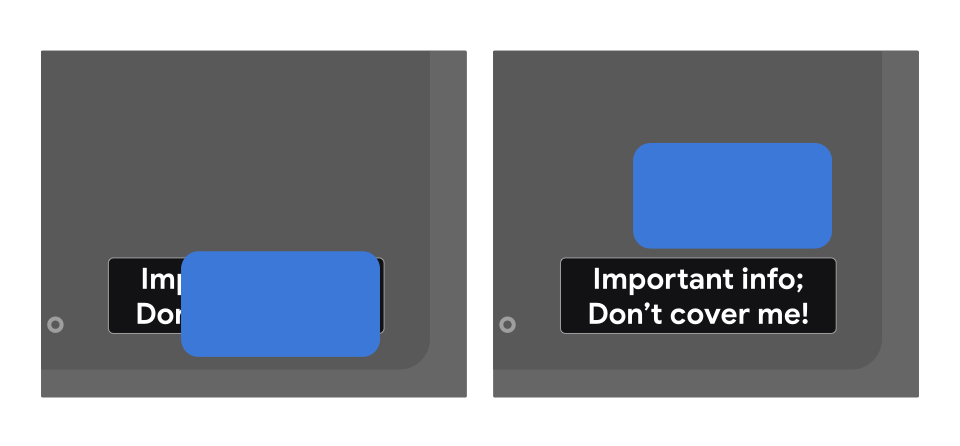
如需指定不应叠加某个视图,请在 XML 布局中使用 preferKeepClear,如以下示例所示:
<TextView
    android:id="@+id/important_text"
    android:layout_width="wrap_content"
    android:layout_height="wrap_content"
    android:preferKeepClear="true"
    android:text="@string/app_name"/>
您也可以使用 setPreferKeepClear() 以编程方式执行此操作:
Kotlin
private lateinit var binding: MyLayoutBinding

override fun onCreate(savedInstanceState: Bundle?) {
    super.onCreate(savedInstanceState)

    binding = MyLayoutBinding.inflate(layoutInflater)
    setContentView(binding.root)
    binding.importantText.isPreferKeepClear = true
}
Java
private MyLayoutBinding binding;

@Override
protected void onCreate(@Nullable Bundle savedInstanceState) {
    super.onCreate(savedInstanceState);

    binding = MyLayoutBinding.inflate(getLayoutInflater());
    setContentView(binding.getRoot());
    binding.importantText.setPreferKeepClear(true);
}
有时,您可能不需要清除整个 View,而只需要清除其中的一部分。setPreferKeepClearRects() 可用于指定不应叠加的 View 区域。不使用 View 的原生界面(例如 Flutter、Jetpack Compose 和 WebView)可能具有需要保持清晰的子部分。此 API 可用于这些情况。
使用类型
您的应用必须声明一个 com.google.android.tv.pip.category 的 meta-data 值属性,该属性与画中画模式的主要使用类型相对应。任何设置了 android:supportsPictureInPicture="true" 的 <activity> 都应声明此属性,并使用下表中的相关值。
不属于上述任何类别的用法(尤其是任何媒体内容播放)不允许在电视上以画中画模式使用。
| 值 | 说明 |
|---|---|
“communication” |
通信用例,例如视频通话或语音通话。 |
“smartHome” |
智能家居集成,例如联网门铃或婴儿监控器。 |
“health” |
健康类用例,例如健身追踪或健康监控。 |
“ticker” |
信息滚动条使用情形,例如实时体育赛事比分或新闻和股票信息滚动条。 |
多个值之间用竖线 (|) 分隔。例如:
<meta-data android:name="com.google.android.tv.pip.category" android:value="smartHome|health" />