

Compose 具有许多内置动画机制,您可能会不知如何选择。下面列出了常见的动画用例。如需详细了解可供您使用的各种 API 选项,请参阅完整的 Compose 动画文档。
为常见的可组合项属性添加动画效果
Compose 提供了便捷的 API,可让您解决许多常见的动画用例。本部分演示了如何为可组合项的常见属性添加动画效果。
为出现 / 消失添加动画效果
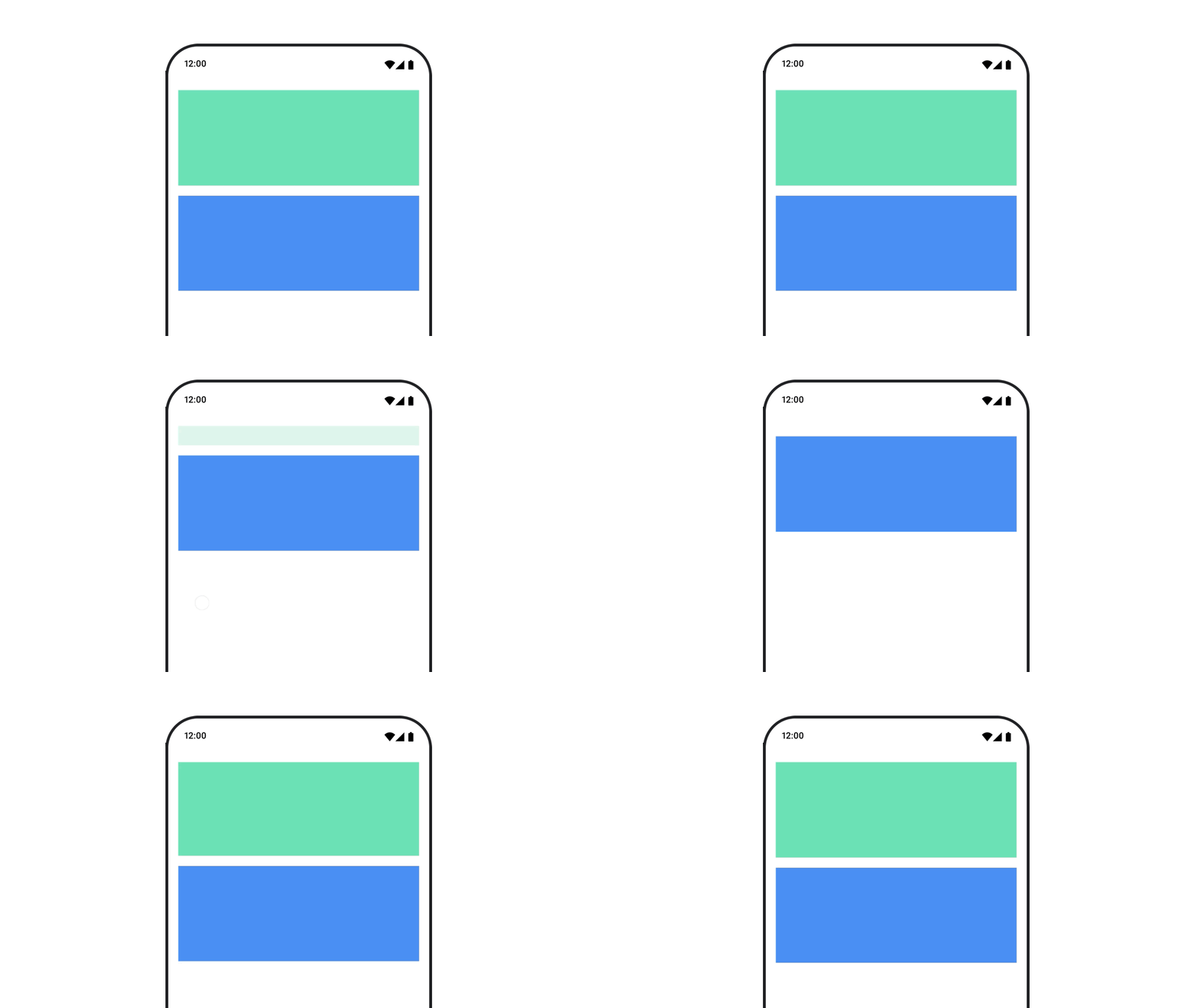
使用 AnimatedVisibility 隐藏或显示可组合项。AnimatedVisibility 中的子项可以使用 Modifier.animateEnterExit() 来实现自己的进入或退出过渡。
var visible by remember { mutableStateOf(true) } // Animated visibility will eventually remove the item from the composition once the animation has finished. AnimatedVisibility(visible) { // your composable here // ... }
借助 AnimatedVisibility 的 enter 和 exit 参数,您可以配置可组合项在出现和消失时的行为。如需了解详情,请参阅完整文档。
为可组合项的可见性添加动画效果的另一种方法是使用 animateFloatAsState 为 Alpha 值添加动画效果:
var visible by remember { mutableStateOf(true) } val animatedAlpha by animateFloatAsState( targetValue = if (visible) 1.0f else 0f, label = "alpha" ) Box( modifier = Modifier .size(200.dp) .graphicsLayer { alpha = animatedAlpha } .clip(RoundedCornerShape(8.dp)) .background(colorGreen) .align(Alignment.TopCenter) ) { }
不过,更改 Alpha 值时需要注意,可组合项仍会保留在组合中,并继续占用其布局所在的空间。这可能会导致屏幕阅读器和其他无障碍机制仍认为该项在屏幕上。另一方面,AnimatedVisibility 最终会从组合中移除该项。
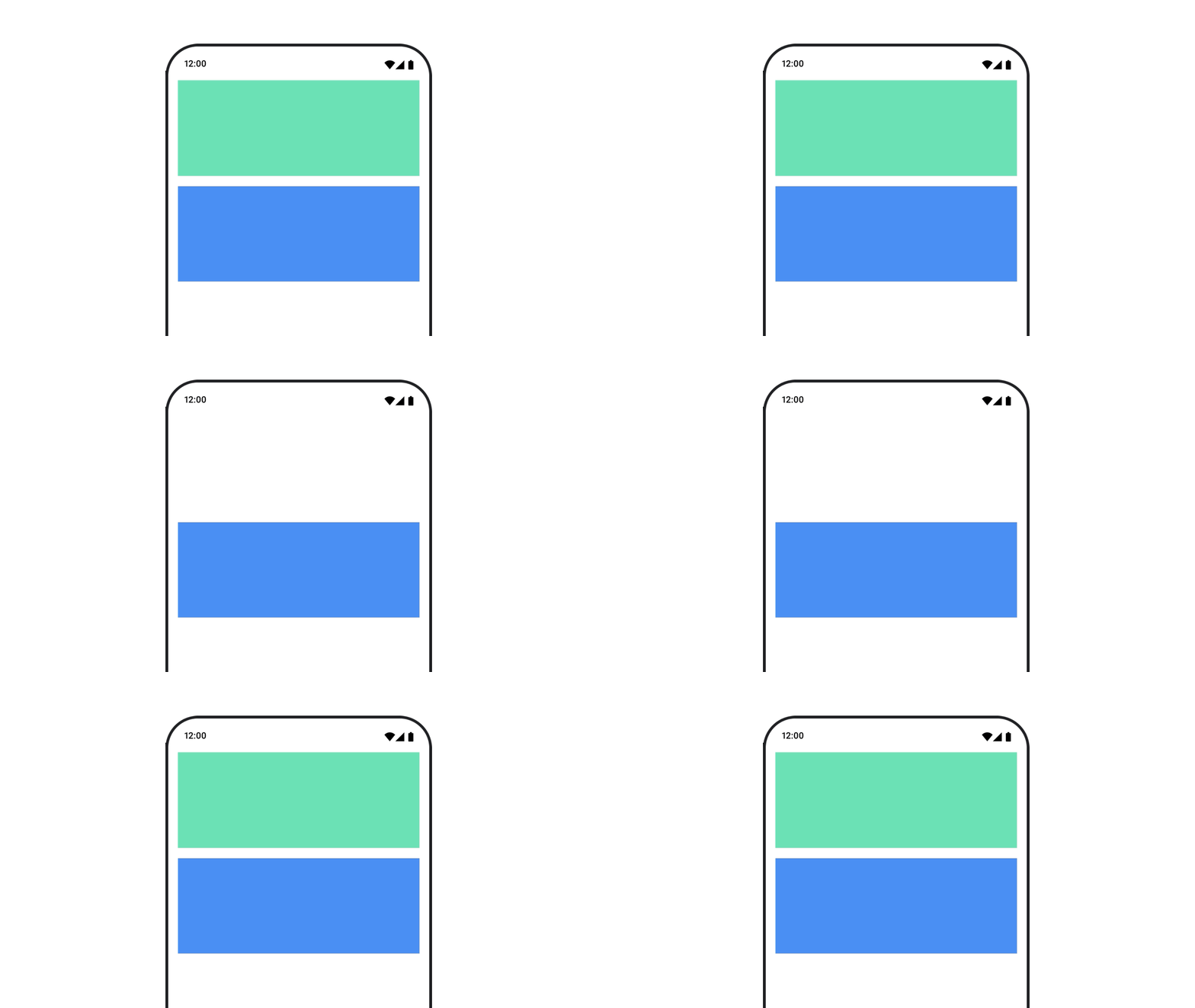
为背景颜色添加动画效果
val animatedColor by animateColorAsState( if (animateBackgroundColor) colorGreen else colorBlue, label = "color" ) Column( modifier = Modifier.drawBehind { drawRect(animatedColor) } ) { // your composable here }
此选项的性能高于使用 Modifier.background()。Modifier.background() 适用于一次性颜色设置,但在为颜色添加动画效果时,这可能会导致不必要的重组。
如需为背景颜色无限期地添加动画效果,请参阅重复动画部分。
为可组合项的大小添加动画效果
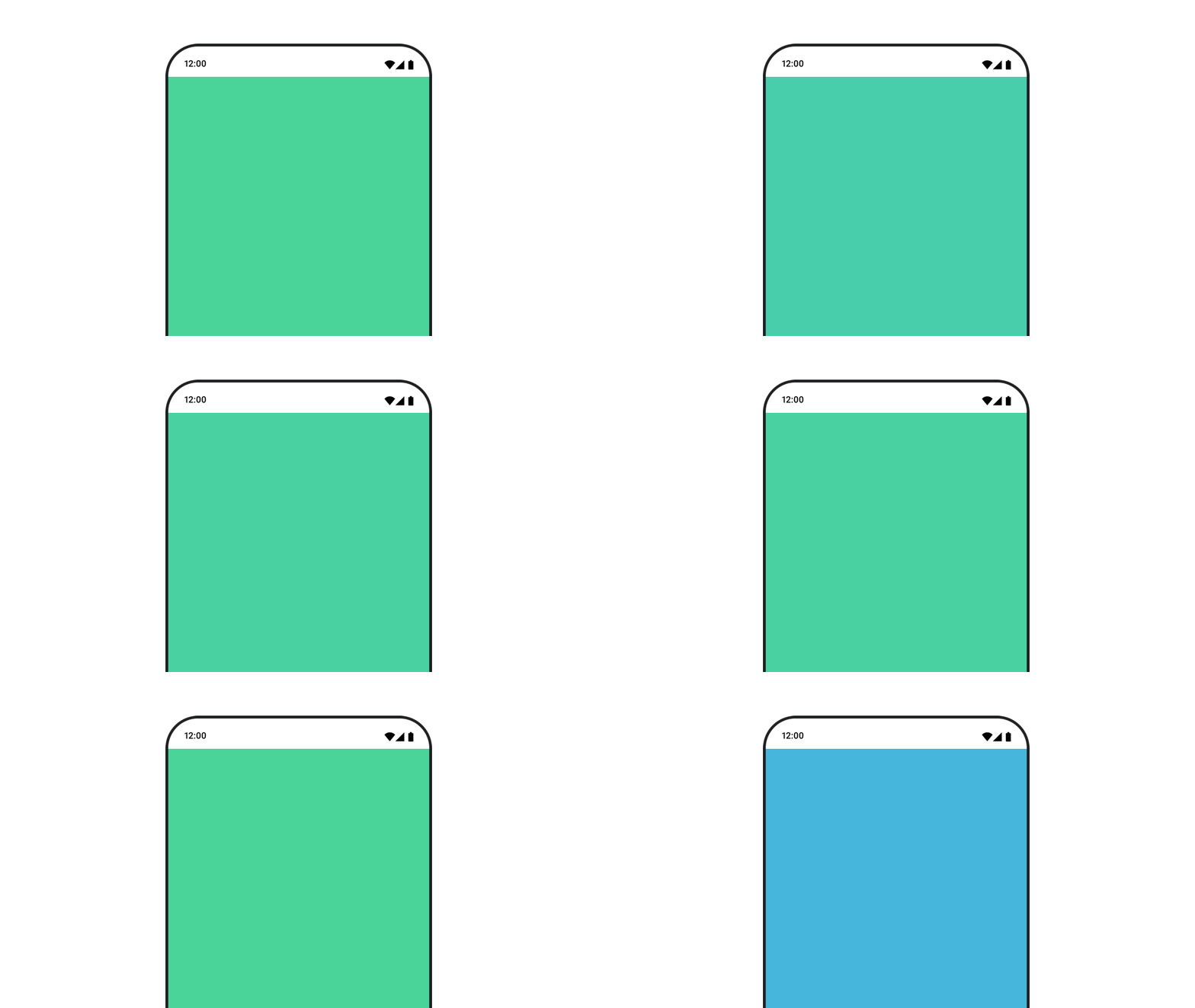
Compose 允许您通过几种不同的方式为可组合项的大小添加动画效果。使用 animateContentSize() 为可组合项大小变化添加动画效果。
例如,如果您的框包含可从一行扩展到多行的文本,您可以使用 Modifier.animateContentSize() 实现更平滑的过渡:
var expanded by remember { mutableStateOf(false) } Box( modifier = Modifier .background(colorBlue) .animateContentSize() .height(if (expanded) 400.dp else 200.dp) .fillMaxWidth() .clickable( interactionSource = remember { MutableInteractionSource() }, indication = null ) { expanded = !expanded } ) { }
您还可以使用 AnimatedContent 和 SizeTransform 来描述应如何更改大小。
为可组合项的位置添加动画效果
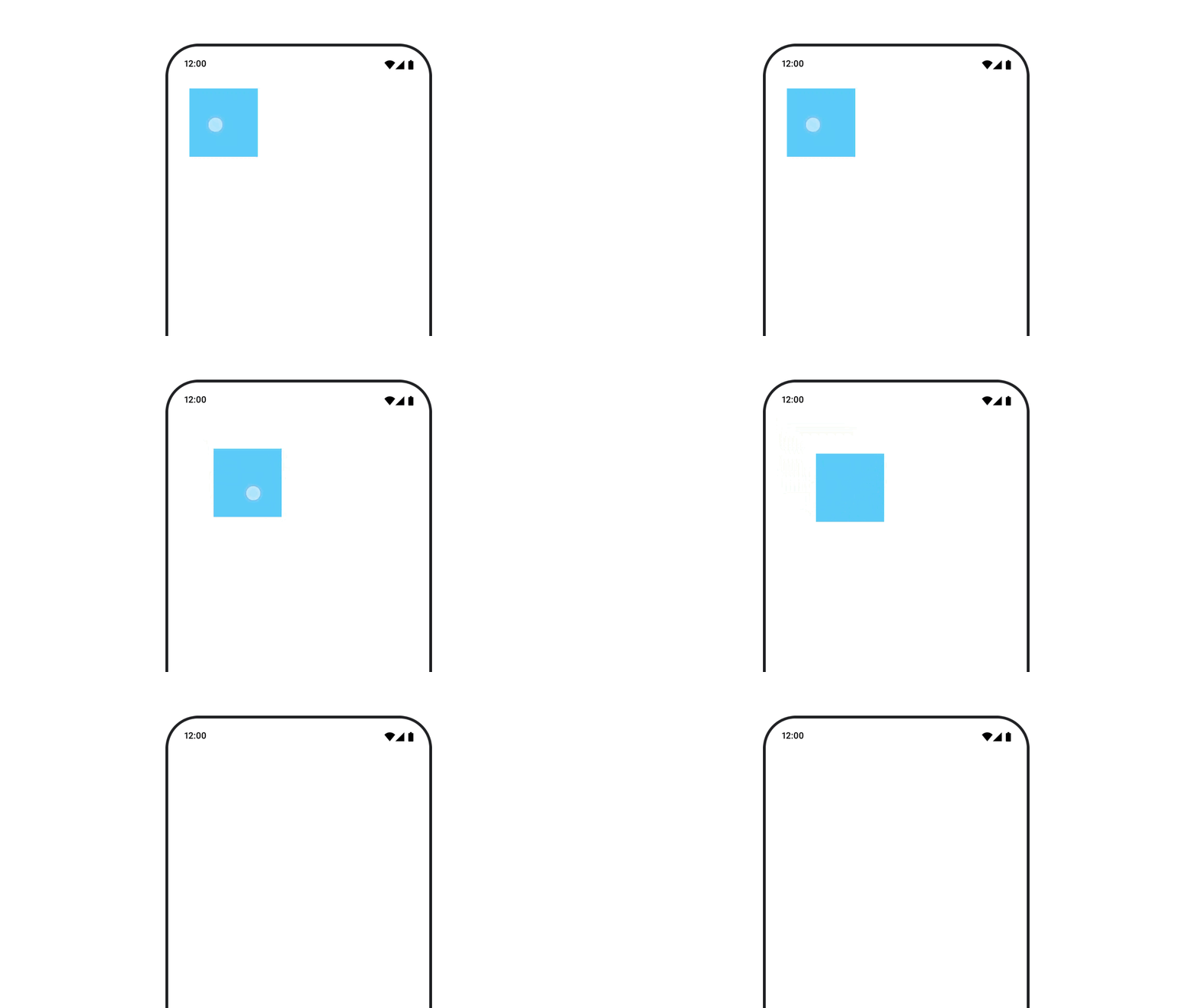
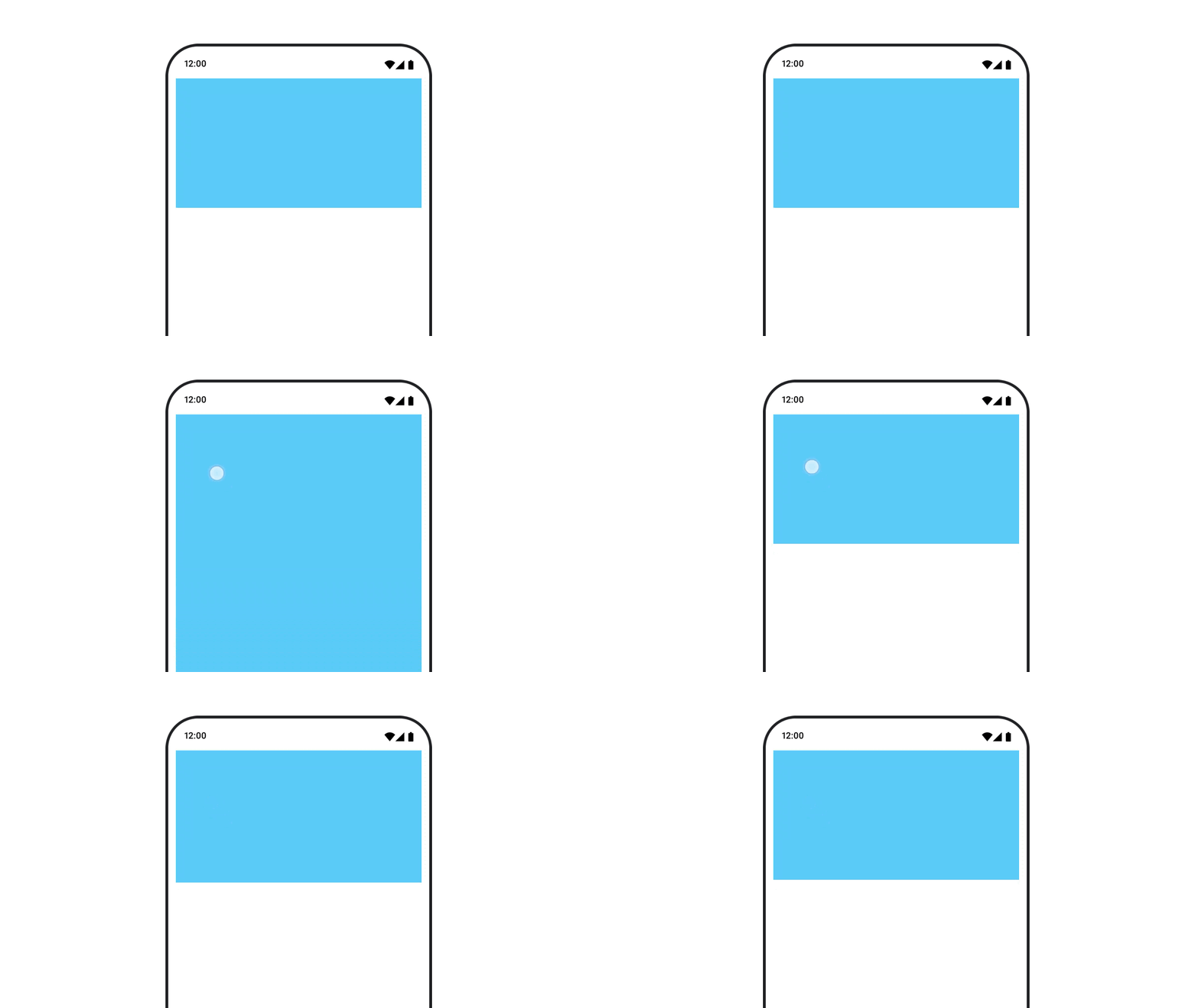
如需为可组合项的位置添加动画效果,请将 Modifier.offset{ } 与 animateIntOffsetAsState() 结合使用。
var moved by remember { mutableStateOf(false) } val pxToMove = with(LocalDensity.current) { 100.dp.toPx().roundToInt() } val offset by animateIntOffsetAsState( targetValue = if (moved) { IntOffset(pxToMove, pxToMove) } else { IntOffset.Zero }, label = "offset" ) Box( modifier = Modifier .offset { offset } .background(colorBlue) .size(100.dp) .clickable( interactionSource = remember { MutableInteractionSource() }, indication = null ) { moved = !moved } )
如果您想确保在为位置或大小添加动画效果时,可组合项不会在其他可组合项上方或下方绘制,请使用 Modifier.layout{ }。此修饰符会将大小和位置更改传播到父级,进而影响其他子级。
例如,如果您要移动 Column 中的 Box,并且其他子级需要在 Box 移动时移动,请使用 Modifier.layout{ } 添加偏移信息,如下所示:
var toggled by remember { mutableStateOf(false) } val interactionSource = remember { MutableInteractionSource() } Column( modifier = Modifier .padding(16.dp) .fillMaxSize() .clickable(indication = null, interactionSource = interactionSource) { toggled = !toggled } ) { val offsetTarget = if (toggled) { IntOffset(150, 150) } else { IntOffset.Zero } val offset = animateIntOffsetAsState( targetValue = offsetTarget, label = "offset" ) Box( modifier = Modifier .size(100.dp) .background(colorBlue) ) Box( modifier = Modifier .layout { measurable, constraints -> val offsetValue = if (isLookingAhead) offsetTarget else offset.value val placeable = measurable.measure(constraints) layout(placeable.width + offsetValue.x, placeable.height + offsetValue.y) { placeable.placeRelative(offsetValue) } } .size(100.dp) .background(colorGreen) ) Box( modifier = Modifier .size(100.dp) .background(colorBlue) ) }
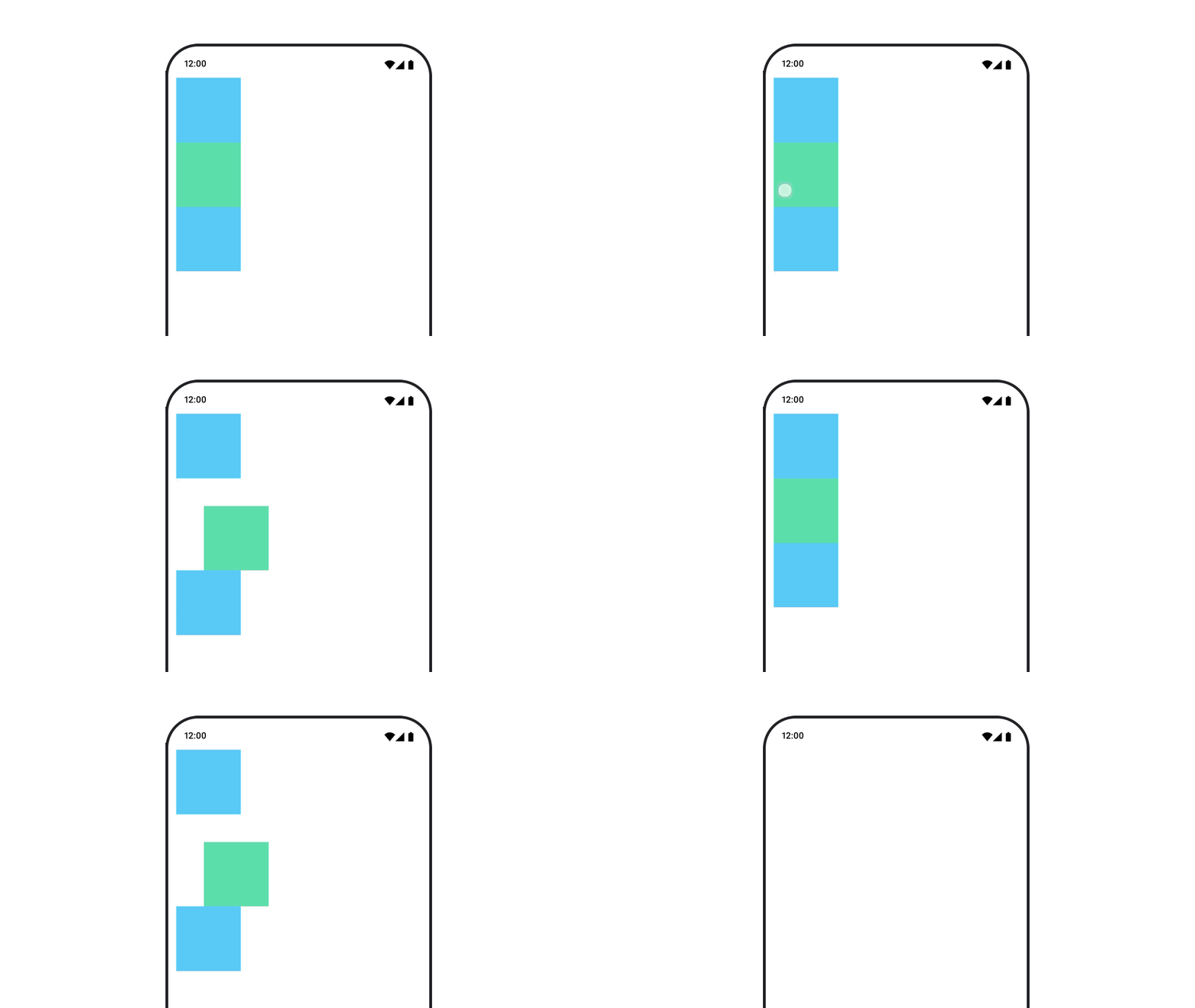
Modifier.layout{ }为可组合项的内边距添加动画效果
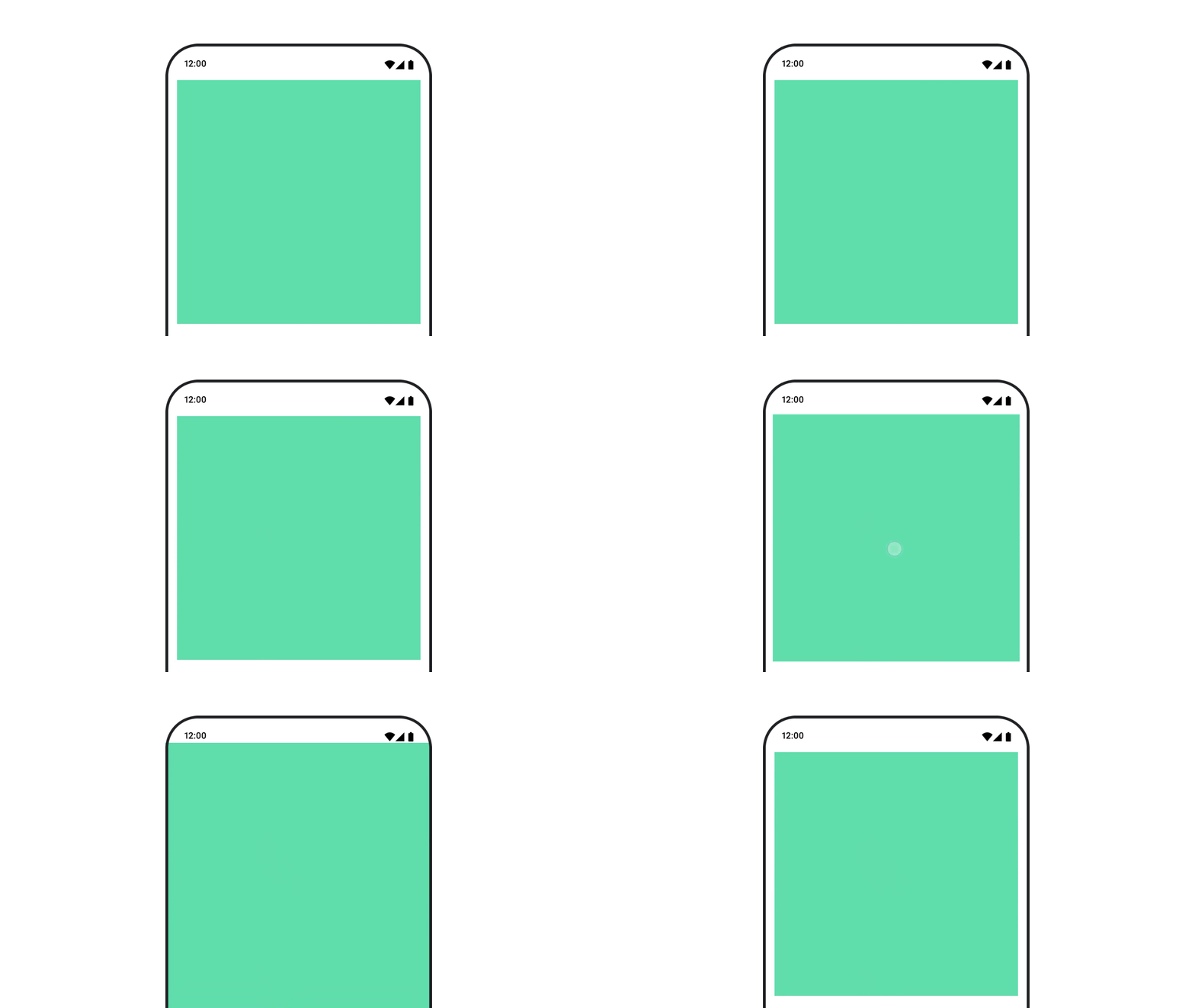
如需为可组合项的内边距添加动画效果,请将 animateDpAsState 与 Modifier.padding() 结合使用:
var toggled by remember { mutableStateOf(false) } val animatedPadding by animateDpAsState( if (toggled) { 0.dp } else { 20.dp }, label = "padding" ) Box( modifier = Modifier .aspectRatio(1f) .fillMaxSize() .padding(animatedPadding) .background(Color(0xff53D9A1)) .clickable( interactionSource = remember { MutableInteractionSource() }, indication = null ) { toggled = !toggled } )
为可组合项的高度添加动画效果
如需为可组合项的高度添加动画效果,请将 animateDpAsState 与 Modifier.graphicsLayer{ } 结合使用。对于一次性提升,请使用 Modifier.shadow()。如果您要为阴影添加动画效果,使用 Modifier.graphicsLayer{ } 修饰符是性能更高的选项。
val mutableInteractionSource = remember { MutableInteractionSource() } val pressed = mutableInteractionSource.collectIsPressedAsState() val elevation = animateDpAsState( targetValue = if (pressed.value) { 32.dp } else { 8.dp }, label = "elevation" ) Box( modifier = Modifier .size(100.dp) .align(Alignment.Center) .graphicsLayer { this.shadowElevation = elevation.value.toPx() } .clickable(interactionSource = mutableInteractionSource, indication = null) { } .background(colorGreen) ) { }
或者,使用 Card 可组合项,并针对每个状态将高度属性设置为不同的值。
为文本缩放、平移或旋转添加动画效果
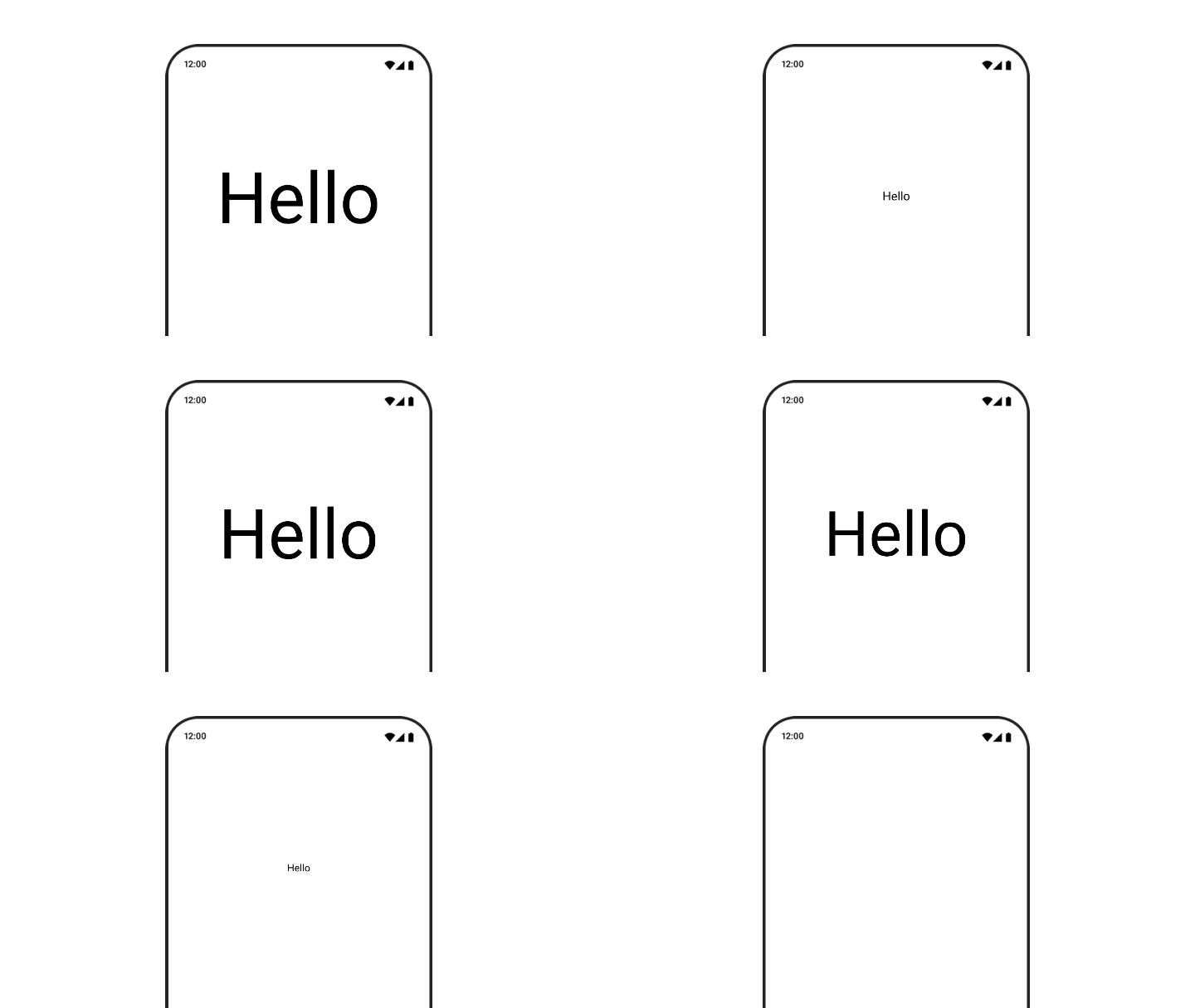
为文本的缩放、平移或旋转添加动画效果时,请将 TextStyle 上的 textMotion 参数设置为 TextMotion.Animated。这可确保文本动画之间的过渡更加流畅。使用 Modifier.graphicsLayer{ } 平移、旋转或缩放文本。
val infiniteTransition = rememberInfiniteTransition(label = "infinite transition") val scale by infiniteTransition.animateFloat( initialValue = 1f, targetValue = 8f, animationSpec = infiniteRepeatable(tween(1000), RepeatMode.Reverse), label = "scale" ) Box(modifier = Modifier.fillMaxSize()) { Text( text = "Hello", modifier = Modifier .graphicsLayer { scaleX = scale scaleY = scale transformOrigin = TransformOrigin.Center } .align(Alignment.Center), // Text composable does not take TextMotion as a parameter. // Provide it via style argument but make sure that we are copying from current theme style = LocalTextStyle.current.copy(textMotion = TextMotion.Animated) ) }
为文字颜色添加动画效果
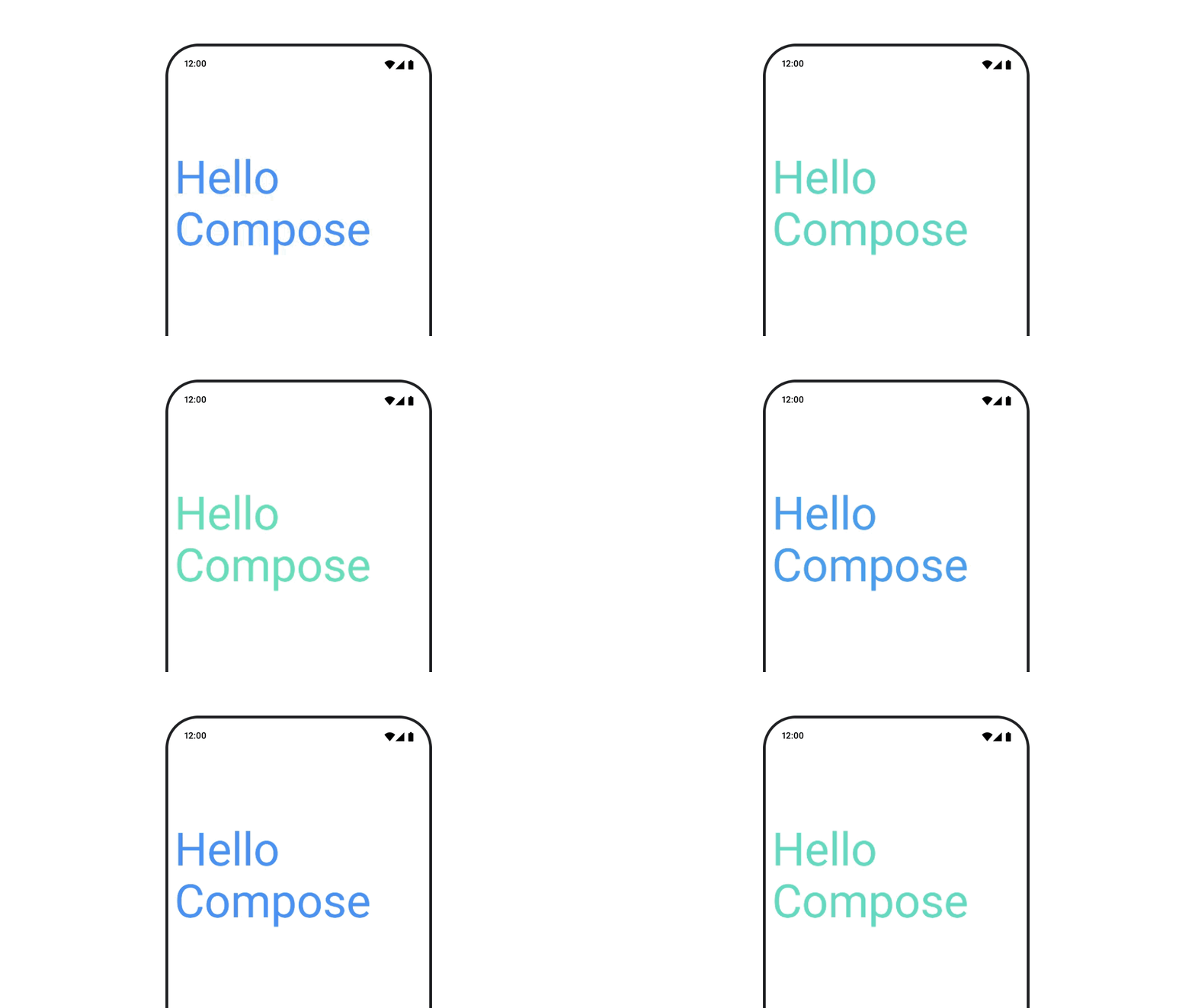
如需为文本颜色添加动画效果,请在 BasicText 可组合项中使用 color lambda:
val infiniteTransition = rememberInfiniteTransition(label = "infinite transition") val animatedColor by infiniteTransition.animateColor( initialValue = Color(0xFF60DDAD), targetValue = Color(0xFF4285F4), animationSpec = infiniteRepeatable(tween(1000), RepeatMode.Reverse), label = "color" ) BasicText( text = "Hello Compose", color = { animatedColor }, // ... )
在不同类型的内容之间切换
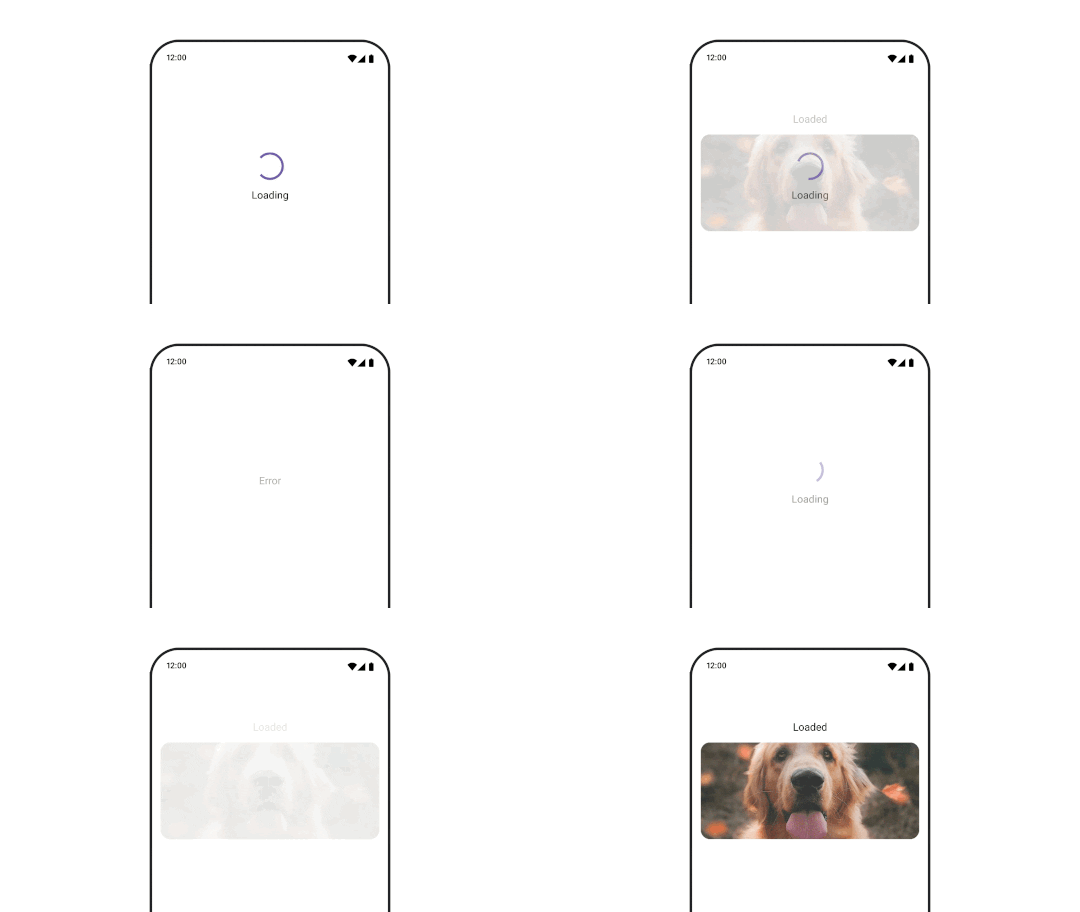
使用 AnimatedContent 可在不同的可组合项之间添加动画效果,如果您只想在可组合项之间添加标准淡入淡出效果,请使用 Crossfade。
var state by remember { mutableStateOf(UiState.Loading) } AnimatedContent( state, transitionSpec = { fadeIn( animationSpec = tween(3000) ) togetherWith fadeOut(animationSpec = tween(3000)) }, modifier = Modifier.clickable( interactionSource = remember { MutableInteractionSource() }, indication = null ) { state = when (state) { UiState.Loading -> UiState.Loaded UiState.Loaded -> UiState.Error UiState.Error -> UiState.Loading } }, label = "Animated Content" ) { targetState -> when (targetState) { UiState.Loading -> { LoadingScreen() } UiState.Loaded -> { LoadedScreen() } UiState.Error -> { ErrorScreen() } } }
您可以自定义 AnimatedContent,以显示许多不同类型的进入和退出过渡。如需了解详情,请参阅有关
AnimatedContent 的文档,或阅读 这篇有关
AnimatedContent 的博文。
在导航到不同目的地时显示动画效果
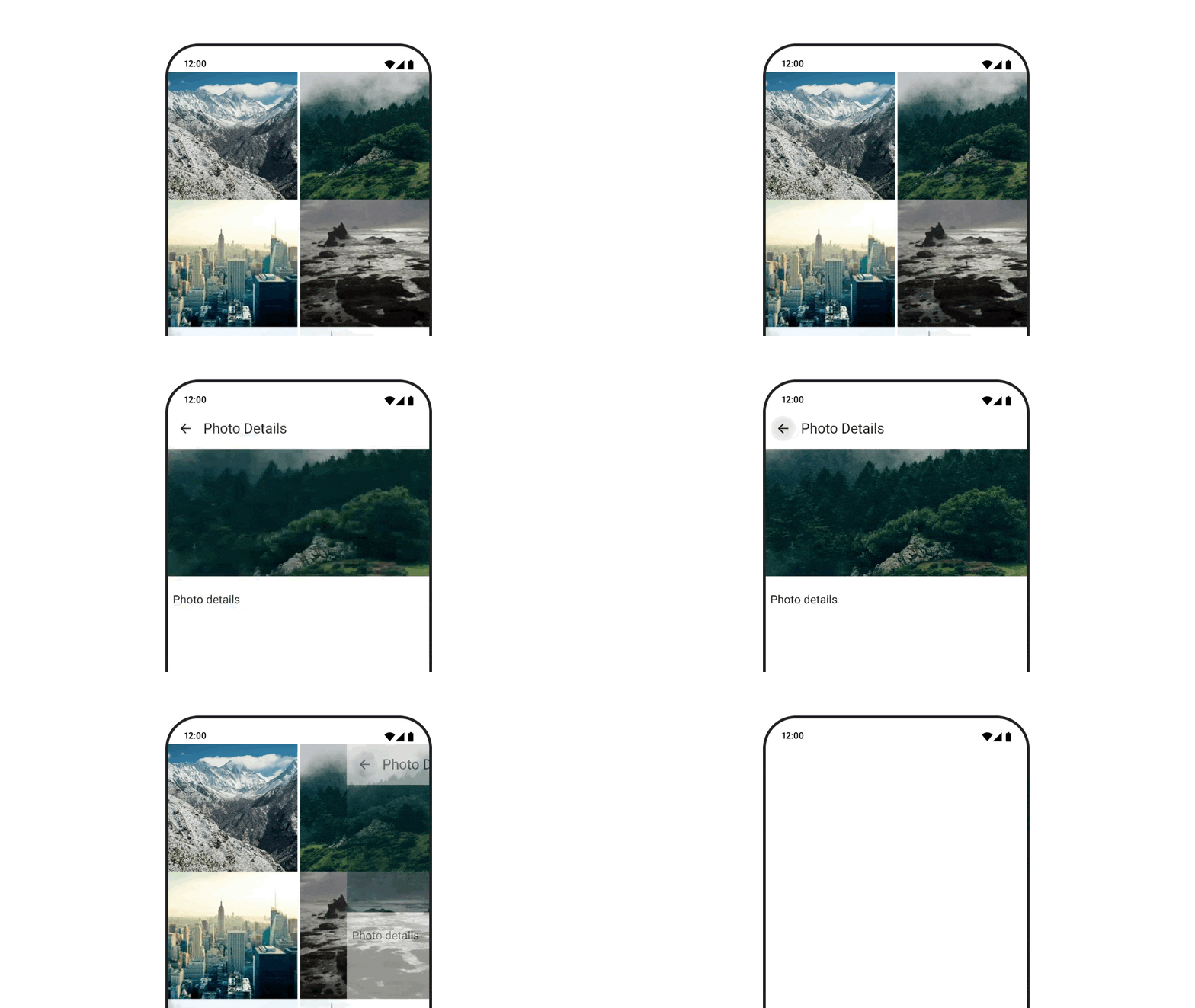
如需在使用 navigation-compose 工件时为可组合项之间的过渡添加动画效果,请在可组合项上指定 enterTransition 和 exitTransition。您还可以在顶层 NavHost 中设置要用于所有目的地的默认动画:
val navController = rememberNavController() NavHost( navController = navController, startDestination = "landing", enterTransition = { EnterTransition.None }, exitTransition = { ExitTransition.None } ) { composable("landing") { ScreenLanding( // ... ) } composable( "detail/{photoUrl}", arguments = listOf(navArgument("photoUrl") { type = NavType.StringType }), enterTransition = { fadeIn( animationSpec = tween( 300, easing = LinearEasing ) ) + slideIntoContainer( animationSpec = tween(300, easing = EaseIn), towards = AnimatedContentTransitionScope.SlideDirection.Start ) }, exitTransition = { fadeOut( animationSpec = tween( 300, easing = LinearEasing ) ) + slideOutOfContainer( animationSpec = tween(300, easing = EaseOut), towards = AnimatedContentTransitionScope.SlideDirection.End ) } ) { backStackEntry -> ScreenDetails( // ... ) } }
进入和退出过渡效果有许多不同的类型,可对传入和传出内容应用不同的效果,如需了解详情,请参阅文档。
重复播放动画
将 rememberInfiniteTransition 与 infiniteRepeatable
animationSpec 搭配使用,可让动画持续重复。更改 RepeatModes 以指定其应如何来回移动。
使用 repeatable 可重复执行设定的次数。
val infiniteTransition = rememberInfiniteTransition(label = "infinite") val color by infiniteTransition.animateColor( initialValue = Color.Green, targetValue = Color.Blue, animationSpec = infiniteRepeatable( animation = tween(1000, easing = LinearEasing), repeatMode = RepeatMode.Reverse ), label = "color" ) Column( modifier = Modifier.drawBehind { drawRect(color) } ) { // your composable here }
在可组合项启动时开始动画
LaunchedEffect 会在可组合项进入组合时运行。它会在可组合项启动时开始播放动画,您可以使用它来驱动动画状态更改。将 Animatable 与 animateTo 方法搭配使用,以便在启动时开始动画:
val alphaAnimation = remember { Animatable(0f) } LaunchedEffect(Unit) { alphaAnimation.animateTo(1f) } Box( modifier = Modifier.graphicsLayer { alpha = alphaAnimation.value } )
创建依序动画
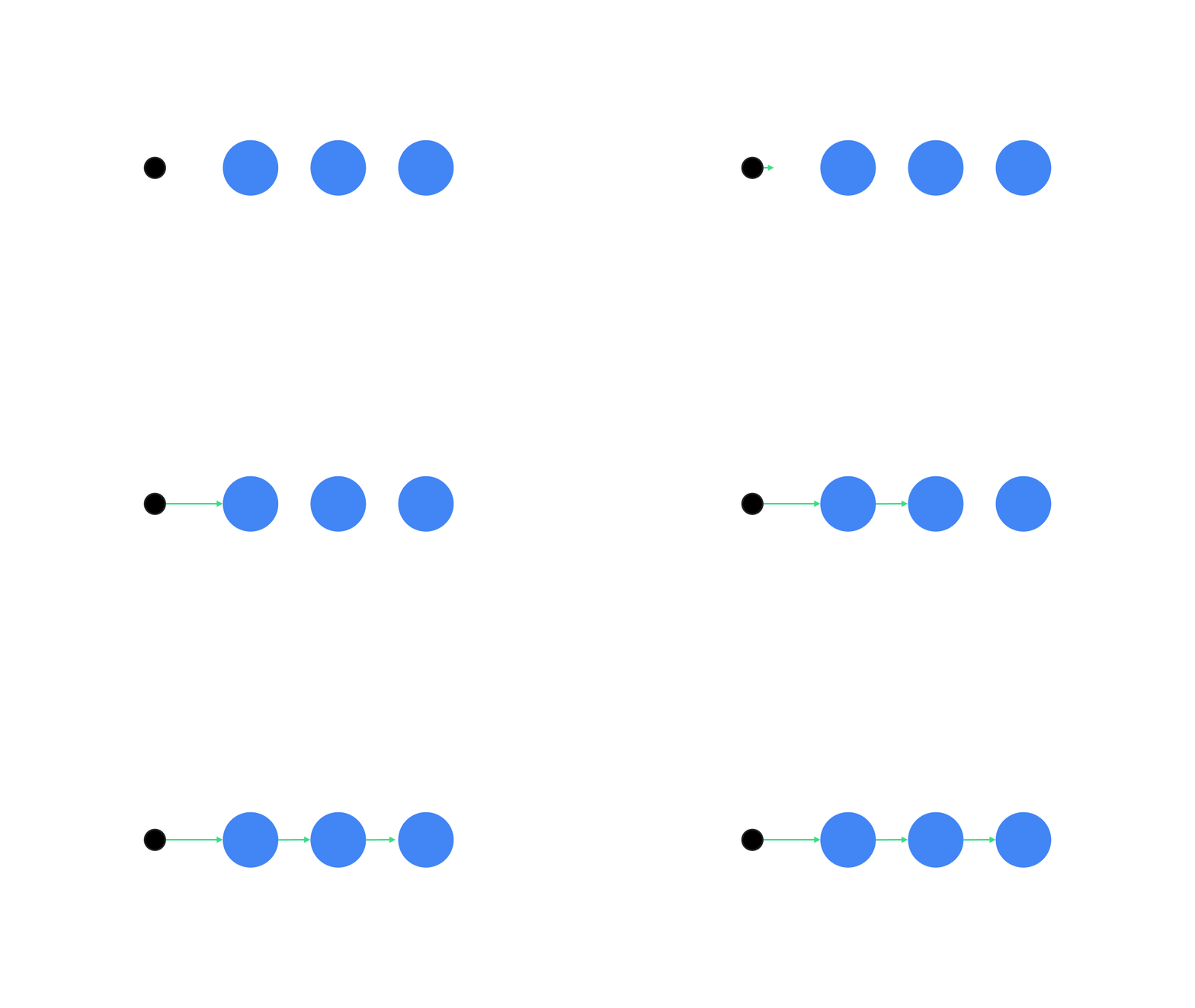
使用 Animatable 协程 API 执行依序或并发动画。在 Animatable 上依次调用 animateTo 会导致每个动画都等待上一个动画完成后再继续。
这是因为它是一个挂起函数。
val alphaAnimation = remember { Animatable(0f) } val yAnimation = remember { Animatable(0f) } LaunchedEffect("animationKey") { alphaAnimation.animateTo(1f) yAnimation.animateTo(100f) yAnimation.animateTo(500f, animationSpec = tween(100)) }
创建并发动画
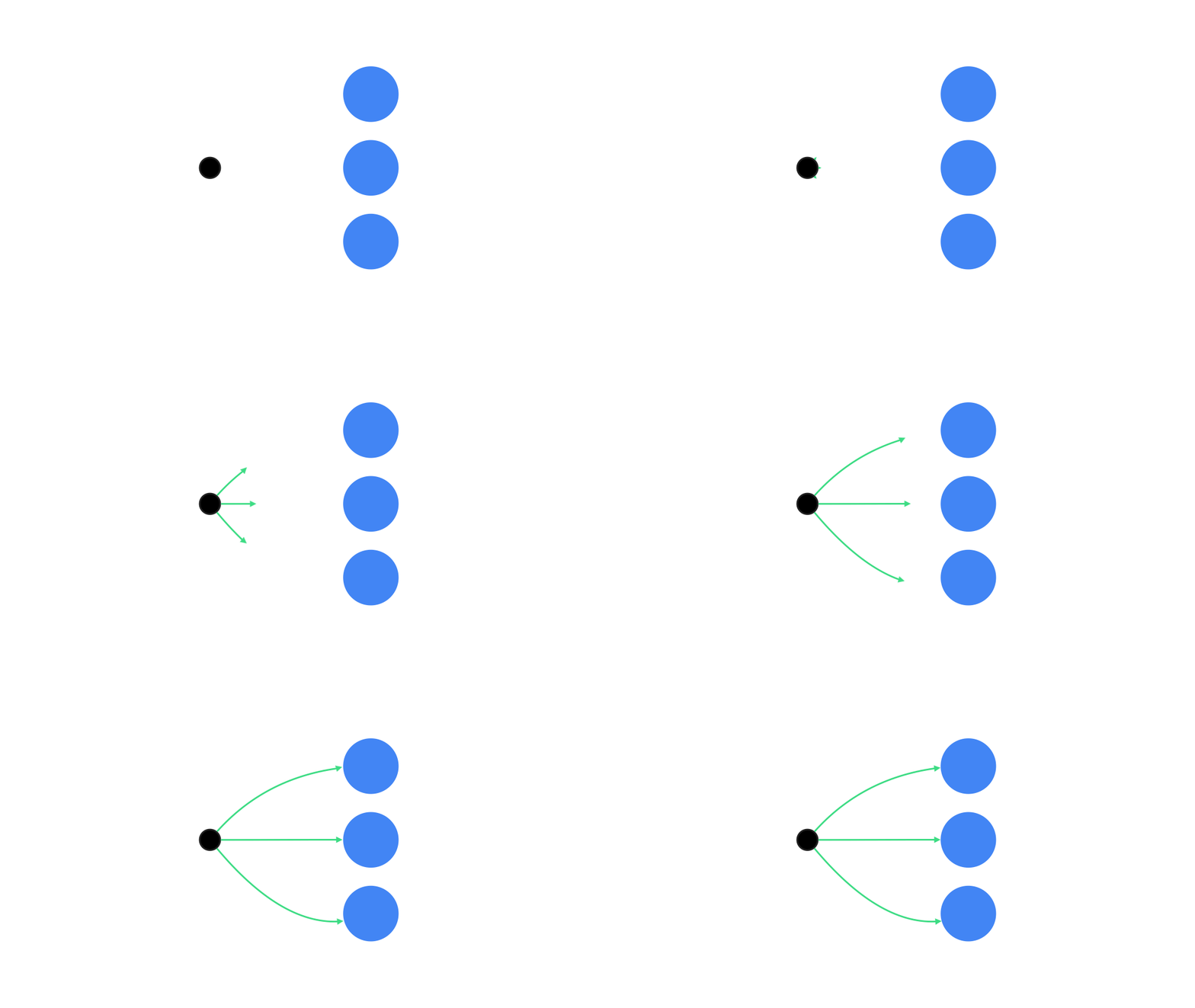
使用协程 API(Animatable#animateTo() 或 animate)或 Transition API 来实现并发动画。如果您在协程上下文中使用多个 launch 函数,则会同时启动动画:
val alphaAnimation = remember { Animatable(0f) } val yAnimation = remember { Animatable(0f) } LaunchedEffect("animationKey") { launch { alphaAnimation.animateTo(1f) } launch { yAnimation.animateTo(100f) } }
您可以使用 updateTransition API,通过同一状态同时驱动许多不同的属性动画。以下示例为由状态更改控制的两个属性(rect 和 borderWidth)添加动画效果:
var currentState by remember { mutableStateOf(BoxState.Collapsed) } val transition = updateTransition(currentState, label = "transition") val rect by transition.animateRect(label = "rect") { state -> when (state) { BoxState.Collapsed -> Rect(0f, 0f, 100f, 100f) BoxState.Expanded -> Rect(100f, 100f, 300f, 300f) } } val borderWidth by transition.animateDp(label = "borderWidth") { state -> when (state) { BoxState.Collapsed -> 1.dp BoxState.Expanded -> 0.dp } }
优化动画性能
Compose 中的动画可能会导致性能问题。这是由动画的本质决定的:在屏幕上快速移动或更改像素,逐帧创建运动的错觉。
考虑 Compose 的不同阶段:组合、布局和绘制。如果动画会更改布局阶段,则需要重新布局和重新绘制所有受影响的可组合项。如果动画在绘制阶段发生,则默认情况下,其性能要高于在布局阶段运行动画,因为总体上需要执行的工作较少。
为确保应用在添加动画效果时尽可能少地执行操作,请尽可能选择 Modifier 的 lambda 版本。这样会跳过重组,并在组合阶段之外执行动画,否则请使用 Modifier.graphicsLayer{ },因为此修饰符始终在绘制阶段运行。如需了解详情,请参阅性能文档中的延迟读取部分。
更改动画时间设置
默认情况下,Compose 会对大多数动画使用弹簧动画。弹簧动画或基于物理特性的动画感觉更自然。它们也是可中断的,因为它们考虑的是对象的当前速度,而不是固定时间。如果您想替换默认设置,之前演示的所有 Animation API 都能够设置 animationSpec,以便自定义动画的运行方式,无论您是希望动画在特定时长内执行,还是希望动画更具弹性。
以下是不同 animationSpec 选项的摘要:
spring:基于物理特性的动画,所有动画的默认设置。您可以更改 stiffness 或 dampingRatio,以实现不同的动画外观和风格。tween(between 的缩写):基于时长的动画,使用Easing函数在两个值之间添加动画效果。keyframes:用于指定动画中特定关键点的值的规范。repeatable:基于时长的规范,运行特定次数,由RepeatMode指定。infiniteRepeatable:基于时长的规范,会一直运行。snap:立即跳转到结束值,不播放任何动画。
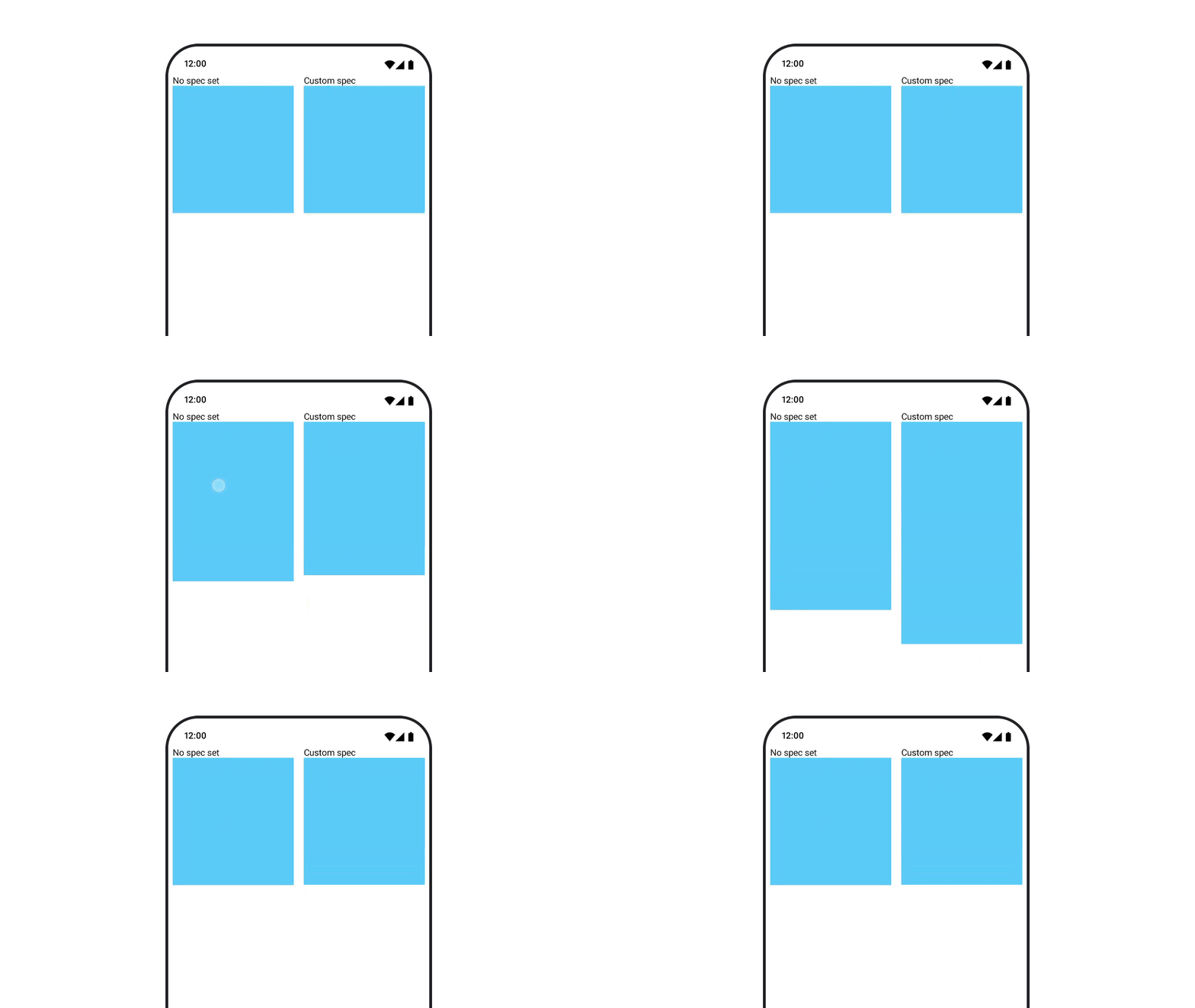
如需详细了解 animationSpecs,请参阅完整文档。
其他资源
如需查看 Compose 中有趣动画的更多示例,请参阅以下内容: