
Many apps perform legitimate work when their UI is no longer visible, such as
downloading large asset packs, synchronizing local databases, streaming audio,
recording exercise workouts, or maintaining a connected-device session. When
this background work runs inside the same OS process as your foreground UI and
graphics engine, the entire process stays at an elevated importance level
(oom_score_adj between 0 and 250) together with all of the memory that the
UI allocated.
This page explains why that hurts your own app as well as the rest of the
device, how to move background work into a dedicated lightweight
process using android:process, and how to verify the
memory savings using adb shell and Perfetto.
Why single-process work retains UI memory
Android manages memory and process termination at the granularity of an OS
process (pid), not individual components (Activity, Service, or
BroadcastReceiver). The Activity Manager (OomAdjuster) assigns each process
a single oom_score_adj value that reflects the most important active
component or incoming binding in that process:
- When the user interacts with your
Activity, the process runs in theTOPstate (oom_score_adj = 0). - When the user navigates away and your app has no active background
components, the process moves to the
PREV(oom_score_adj = 700) orCACHED(oom_score_adj >= 900) bucket. In the cached bucket, the platform freezes the process with the cgroup v2 freezer, compacts its memory withCachedAppOptimizer, and letslmkdterminate the process first under memory pressure. - However, if the same process also runs a foreground service (such as
the
dataSync,mediaPlayback,connectedDevice, orlocationtypes, atoom_score_adj = 200) or hosts a service that the system or another important client binds to, the entire process stays at that elevated priority even after theActivityis stopped.
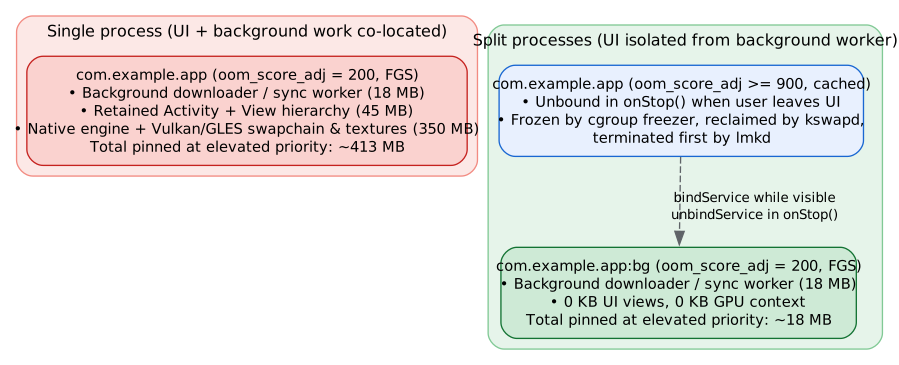
When a heavy UI process stays at oom_score_adj = 200, several large categories
of memory remain resident:
- Stopped
Activityand view hierarchy: Unless theActivityis explicitly finished, itsWindow, view tree, layout structures, and view state remain reachable on the Java heap while the user is in another app. - Native graphics contexts and GPU allocations: The standard
HardwareRendererkeeps its GPU context and caches while a stoppedActivitylives in a process that isn't cached. Apps and game engines that create their own Vulkan (VkDevice,VkSwapchainKHR, descriptor pools, pipeline caches) or OpenGL ES (EGLContext, textures, vertex buffers) contexts also retain their driver structures, shader programs, and graphics buffers unless the engine explicitly tears down the graphics device when stopped. - Heap fragmentation and runtime overhead: Even when an app releases
caches in
onTrimMemory, partially populated native allocator pages, dirty Zygote copy-on-write pages, loaded shared libraries (.so), and runtime metadata remain resident in the process's private memory. Because the process is above the cached threshold (oom_score_adj < 900), the platform doesn't freeze it or run cached-app compaction on it. For a closer look at this effect with bound services, see Co-locating a bound service with a memory-intensive UI.
How a lean background process protects your app
Holding foreground-sized memory in a background state puts your own background work at risk:
- Background memory limits are tighter than foreground limits. In Android 17 and higher, the Memory Limiter applies a smaller not visible memory limit to your app while none of its processes shows a visible UI, including while a foreground service runs. The limit covers all processes of your app together. If the process that runs your foreground service still holds its UI and graphics memory, that memory counts against the smaller limit. When your app exceeds the limit, the kernel throttles it while reclaiming its pages, which slows down the download, sync, or playback that's running. If your app keeps allocating after swap is exhausted, the system terminates it. To check whether your app was affected, see App memory limits.
- Larger processes are terminated first under memory pressure. When
lmkdmust free memory and is configured to choose the heaviest process in an importance bucket (ro.lmk.kill_heaviest_task), a foreground service process that also holds hundreds of MB of UI memory is terminated before smaller processes at the same importance, and your background work stops with it. See kswapd and lmkd interaction. - Cached UI state can be frozen, compacted, and written back to flash. Allowing your foreground UI state to move into a cached process lets the OS freeze the process, compact its memory into zRAM, and write its cold pages back to flash storage. Its resident memory footprint shrinks while your UI state stays intact, giving both your background work and your cached UI the best chance to survive until the user returns.
- Per-process memory budgets become practical. A process that runs only background work has a small, predictable working set, so you can give it a tight memory budget without constraining your UI.
Running a second process might look like it increases your app's total memory footprint, because a second runtime has a small baseline cost. That comparison holds only if a single process could completely free all of its UI and graphics state whenever it transitions to background work, which apps and UI toolkits can't do reliably in practice. Letting the OS freeze, compact, and write back a separate cached UI process uses much less physical memory in the common case, keeps your app within the not visible limit, and reduces low-memory terminations for your app and across the device.
Isolate background work in a dedicated process
To eliminate UI and graphics residency during background work, run long-lived background components in a dedicated lightweight process while keeping your UI and graphics engine in the main process:
| Process | Manifest declaration | Hosted components | State when user leaves UI during background work |
|---|---|---|---|
| Main UI process | Default (com.example.app) |
Activity, UI views, image caches, Vulkan or OpenGL ES
renderer, audio and scene engine
|
Drops to PREV and then CACHED
(oom_score_adj >= 900). Frozen, compacted, and written
back to flash.
|
| Background worker process | android:process=":bg" |
Foreground Service, background asset downloader, sync
worker, or connected-device manager
|
Runs at FGS (oom_score_adj = 200) with only
the worker's own heap and code, and no UI views or GPU contexts.
|
Declare the process and memory budgets
Assign your background Service to a private subprocess by setting
android:process=":bg" in AndroidManifest.xml. The leading colon (:)
creates a private process scoped to your app's UID.
In Android 17 QPR2 (API level 37.2) and higher, combine process splitting with
per-process app memory budgets inside the
<processes> block so the operating system enforces a tight working-set
ceiling on the background worker without constraining your foreground UI
process:
<manifest xmlns:android="http://schemas.android.com/apk/res/android">

    <application
        android:name=".HeavyApplication"
        android:label="@string/app_name">

        <!-- App-wide budgets that cover every process, including :bg -->
        <memory-budget android:maxMb="512" />
        <memory-budget
            android:maxMb="128"
            android:state="background" />

        <processes>
            <!-- Tight budget for the headless background worker process -->
            <process android:process=":bg">
                <memory-budget android:maxMb="32" />
            </process>
        </processes>

        <activity
            android:name=".MainActivity"
            android:exported="true" />

        <service
            android:name=".AssetDownloadService"
            android:process=":bg"
            android:foregroundServiceType="dataSync"
            android:exported="false" />

    </application>
</manifest>
Memory use in :bg counts against both its own budget and the app-wide
budget. On devices running versions earlier than Android 17 QPR2, the system
ignores <memory-budget>, while android:process=":bg" works on all API
levels.
Gate initialization in Application.onCreate
Android instantiates your Application class and calls Application.onCreate
in every process spawned for your package. A common pitfall when adopting
android:process=":bg" is leaving heavy UI toolkits, image-loading pools,
analytics SDKs, or native engine initialization (System.loadLibrary) inside an
unguarded Application.onCreate method. Doing so inflates the :bg process
with the same baseline footprint you're trying to avoid.
Check Application.getProcessName, which is available
in Android 9 (API level 28) and higher, inside onCreate and initialize only
the dependencies required by the current process:
Kotlin
class HeavyApplication : Application() {
    override fun onCreate() {
        super.onCreate()
        val processName = Application.getProcessName()
        if (processName != null && processName.endsWith(BG_PROCESS_SUFFIX)) {
            initBackgroundWorkerProcess()
            return
        }
        initMainUiProcess()
    }

    private fun initBackgroundWorkerProcess() {
        // Initialize only lightweight HTTP, storage, and sync primitives.
        // Avoid loading native rendering libraries or allocating UI caches.
    }

    private fun initMainUiProcess() {
        // Initialize UI frameworks, image caches, and native engines.
        System.loadLibrary("heavy_engine_jni")
    }

    companion object {
        private const val BG_PROCESS_SUFFIX = ":bg"
    }
}
Java
public final class HeavyApplication extends Application {
    private static final String BG_PROCESS_SUFFIX = ":bg";

    @Override
    public void onCreate() {
        super.onCreate();
        String processName = Application.getProcessName();
        if (processName != null && processName.endsWith(BG_PROCESS_SUFFIX)) {
            initBackgroundWorkerProcess();
            return;
        }
        initMainUiProcess();
    }

    private void initBackgroundWorkerProcess() {
        // Initialize only lightweight HTTP, storage, and sync primitives.
        // Avoid loading native rendering libraries or allocating UI caches.
    }

    private void initMainUiProcess() {
        // Initialize UI frameworks, image caches, and native engines.
        System.loadLibrary("heavy_engine_jni");
    }
}
Libraries that initialize through a content provider, such as Jetpack App
Startup, initialize only in the main process, because a content provider
declared without android:process runs in the main process. If code in :bg
depends on such a library, initialize it explicitly in
initBackgroundWorkerProcess.
If you build with a game engine such as Unity, implement the background service
in a plain Android library or plugin written in Java or Kotlin that doesn't
reference engine classes such as UnityPlayer. The :bg process then never
loads the engine native libraries. To confirm, check that
adb shell cat /proc/<pid>/maps for the :bg process doesn't list
libunity.so or libil2cpp.so.
Communicate without pinning the UI process
When the user has MainActivity open while AssetDownloadService runs in
:bg, the UI often needs to display live download progress. Process importance
flows from a client to the process that hosts the service or content provider
it uses, so the direction of each dependency matters:
- The UI binding to the worker is safe. When
MainActivitybinds toAssetDownloadService, the system raises:bgto the importance of the visible UI. When the user leaves, the UI process becomes cached and the binding no longer elevates anything. - The worker depending on the UI process isn't safe. If code in
:bgbinds to a service or queries a content provider that runs in the main process, the system raises the main process to the worker's elevated importance, and the UI memory stays pinned again. Have the UI register a callback with the worker instead, such as aMessengeror an AIDL callback interface. Passing a binder object as a callback doesn't change the importance of either process.
Unregister the callback before you unbind, so that the worker never calls into the UI process after the system freezes it. The following example binds to the worker only while the UI is visible:
Kotlin
class MainActivity : Activity() {
    private var downloadService: IBinder? = null

    private val downloadConnection = object : ServiceConnection {
        override fun onServiceConnected(
                name: ComponentName,
                service: IBinder
        ) {
            downloadService = service
            // Register a Messenger or AIDL callback for progress updates.
        }

        override fun onServiceDisconnected(name: ComponentName) {
            // The binding stays active and reconnects if the worker restarts.
            downloadService = null
        }
    }

    override fun onStart() {
        super.onStart()
        val intent = Intent(this, AssetDownloadService::class.java)
        bindService(intent, downloadConnection, Context.BIND_AUTO_CREATE)
    }

    override fun onStop() {
        super.onStop()
        if (downloadService != null) {
            // Unregister the progress callback here, before unbinding.
            downloadService = null
        }
        // Unbind the ServiceConnection even if onServiceConnected hasn't run
        // yet.
        unbindService(downloadConnection)
    }
}
Java
public final class MainActivity extends Activity {
    private IBinder downloadService;

    private final ServiceConnection downloadConnection =
            new ServiceConnection() {
                @Override
                public void onServiceConnected(
                        ComponentName name, IBinder service) {
                    downloadService = service;
                    // Register a Messenger or AIDL callback for progress
                    // updates.
                }

                @Override
                public void onServiceDisconnected(ComponentName name) {
                    // The binding stays active and reconnects if the worker
                    // restarts.
                    downloadService = null;
                }
            };

    @Override
    protected void onStart() {
        super.onStart();
        Intent intent = new Intent(this, AssetDownloadService.class);
        bindService(intent, downloadConnection, Context.BIND_AUTO_CREATE);
    }

    @Override
    protected void onStop() {
        super.onStop();
        if (downloadService != null) {
            // Unregister the progress callback here, before unbinding.
            downloadService = null;
        }
        // Unbind the ServiceConnection even if onServiceConnected hasn't run
        // yet.
        unbindService(downloadConnection);
    }
}
For more about how binding flags affect oom_score_adj across processes, see
Service bindings and process states.
Coordinate shared on-disk state safely
Because the main process and :bg run in separate address spaces with separate
runtimes and file descriptors:
- SQLite and Room: Use write-ahead logging (the default journal mode in
Room on most devices) so that both processes can read and write the
database concurrently. Don't call
enableMultiInstanceInvalidationfrom:bg. Room hosts its invalidation service in the main process, so the worker would bind to the main process and keep the UI memory at the elevated importance of the worker. Instead, have the worker report changes through the callback that the UI registers, and have the UI requery the database when it starts. - Preferences: Don't share
SharedPreferencesacross processes. Use DataStore in multi-process code or pass state explicitly through IPC. - Asset files: Write downloaded asset packs to a staging file in
:bg, callfdatasyncand thenposix_fadvise(fd, 0, 0, POSIX_FADV_DONTNEED)in:bgafter writing (as shown in Return memory pages to the OS), and atomically rename the file into place. Let the UI pick up the result when it next starts and binds to the worker, rather than calling into a UI process that might be frozen.
Observe the effect in adb shell
You can verify that splitting your foreground and background processes isolates
elevated memory usage by inspecting Activity Manager process states and
dumpsys meminfo after navigating to the Home screen. The sample output in
this section comes from the MemoryLab sample app, which runs the same 64 MB
native allocation in its UI process in both configurations and hosts its split
foreground service in a :remote process.
1. Compare process states and OOM scores
Start the background workload, press the Home button so the Activity stops,
and query Activity Manager:
adb shell dumpsys activity processes com.example.app | grep -E "Proc #|oom:|state:"
In a single-process architecture, the main process stays elevated even though
its Activity is stopped. For about 15 seconds after the user leaves, Activity
Manager keeps a process that runs a foreground service at oom_score_adj = 50
(fg-service-act) and then lowers it to 200 (fg-service). The following
output was captured 20 seconds after pressing Home:
    Proc #1: prcp     F/S/FGS  ---NFUATI  t: 0 13794:com.android.memorylab/u0a284 (fg-service)
        oom: max=1001 curRaw=200 setRaw=200 cur=200 set=200
        state: cur=FGS  set=FGS   lastRss=0.00 lastCachedRss=0.00
In a split-process architecture, only the worker process stays at
oom_score_adj = 200, while the main UI process drops to PREV
(oom_score_adj = 700) and later to the cached bucket
(oom_score_adj >= 900):
    Proc #3: prcp     F/S/FGS  ---NFUATI  t: 0 13544:com.android.memorylab:remote/u0a284 (fg-service)
        oom: max=1001 curRaw=200 setRaw=200 cur=200 set=200
        state: cur=FGS  set=FGS   lastRss=0.00 lastCachedRss=0.00
    Proc #1: prev     b/ /LAST -------TI  t: 0 13312:com.android.memorylab/u0a284 (previous)
        oom: max=1001 curRaw=700 setRaw=700 cur=700 set=700
        state: cur=LAST set=LAST  lastRss=0.00 lastCachedRss=0.00
After the previous-app timeout expires, the main process moves to the cached
bucket (cch, oom_score_adj = 900, previous-expired) and loses all of its
process capabilities (---------), including implicit CPU time (I). At that
point the system freezes it and can compact or reclaim it at any time without
interrupting the worker process.
2. Compare dumpsys meminfo across processes
Compare the dumpsys meminfo summary of the elevated worker
against the UI process:
adb shell dumpsys meminfo com.example.app:bg
adb shell dumpsys meminfo com.example.app
Sample App Summary output for the MemoryLab worker process at
oom_score_adj = 200:
 App Summary
                       Pss(KB)                        Rss(KB)
                        ------                         ------
           Java Heap:      380                          13840
         Native Heap:     1548                           2832
                Code:      132                          55816
               Stack:      200                            208
            Graphics:        0                              0
       Private Other:      496
              System:     1926
             Unknown:                                    4168

           TOTAL PSS:     4682            TOTAL RSS:    76864       TOTAL SWAP PSS:      441
Sample App Summary output for the MemoryLab UI process at
oom_score_adj = 700, which holds the 64 MB native allocation in
Private Other:
 App Summary
                       Pss(KB)                        Rss(KB)
                        ------                         ------
           Java Heap:     1316                          19816
         Native Heap:    30408                          31596
                Code:     3148                         115796
               Stack:      656                            664
            Graphics:        0                              0
       Private Other:    67044
              System:    13687
             Unknown:                                   71092

           TOTAL PSS:   116259            TOTAL RSS:   238964       TOTAL SWAP PSS:      259
The worker process needs less than 5 MB of PSS, because it shares most of
its code and runtime pages with the Zygote. In an app that renders with Vulkan
or OpenGL ES, the Graphics row of the UI process also includes GPU memory.
This sample was captured on a Cuttlefish virtual device with software
rendering, so Graphics is 0 in both processes.
3. Inspect per-process cgroup accounting
Each process under your UID has its own cgroup v2 directory inside a parent
cgroup for your app. The following command lists oom_score_adj,
memory.current, and the app-wide memory.high for every process of your
app:
adb shell '
  for PID in $(pidof com.example.app com.example.app:bg); do
    CG=/sys/fs/cgroup$(sed -n "s/^0:://p" /proc/$PID/cgroup)
    echo "pid=$PID ($(tr -d "\0" < /proc/$PID/cmdline))" \
      "adj=$(cat /proc/$PID/oom_score_adj)" \
      "memory.current=$(cat $CG/memory.current)" \
      "app.memory.high=$(cat ${CG%/*}/memory.high)"
  done
'
Sample output for MemoryLab after pressing Home:
pid=15301 (com.android.memorylab) adj=700 memory.current=103260160 app.memory.high=966787072
pid=16518 (com.android.memorylab:remote) adj=200 memory.current=3608576 app.memory.high=966787072
The worker process is charged less than 4 MB, while the UI process is
charged about 98 MB. Each process has its own memory.current, but the
Memory Limiter sets its limit on the parent cgroup that contains all processes
of your app. Both lines show the same app.memory.high of 966,787,072 bytes,
which is the 922 MB not visible limit in the following output.
To see the visible and not visible limits that the Memory Limiter applies on the device, run the following command:
adb shell am memory-limiter status
Sample output from a device with 4 GB of RAM, where the not visible limit is half of the visible limit:
Memory limiter
  enabled                  limits=true              killing=true             ignored=none
  visible:                 memHigh=1843MB           memMax=2048MB            swapMax=1024MB
  not-visible:             memHigh=922MB            memMax=1024MB            swapMax=1024MB
Observe the effect in Perfetto
Perfetto lets you visualize the timeline of oom_score_adj and RSS across both
processes as the user moves from the foreground UI to the Home screen while
background work continues.
1. Record a trace
Record a 15-second trace that captures process memory counters, GPU memory, and
oom_score_adj changes while starting a background job in your app and
navigating to the Home screen:
adb shell perfetto -c - --txt -o /data/misc/perfetto-traces/process-splitting.perfetto-trace <<'EOF'
buffers: {
  size_kb: 32768
  fill_policy: DISCARD
}
data_sources: {
  config {
    name: "linux.process_stats"
    process_stats_config {
      scan_all_processes_on_start: true
      proc_stats_poll_ms: 250
    }
  }
}
data_sources: {
  config {
    name: "android.gpu.memory"
  }
}
data_sources: {
  config {
    name: "linux.ftrace"
    ftrace_config {
      ftrace_events: "oom/oom_score_adj_update"
      ftrace_events: "gpu_mem/gpu_mem_total"
    }
  }
}
duration_ms: 15000
EOF
adb pull /data/misc/perfetto-traces/process-splitting.perfetto-trace
2. Inspect process tracks in the Perfetto UI
Open the trace in the Perfetto UI and expand the process groups
for com.example.app and com.example.app:bg:
- Pin the
oom_score_adjandmem.rss.anontracks for both processes so they appear side by side at the top of the timeline. - Locate the timestamp where the user presses Home:
- In the worker process,
oom_score_adjstays at200andmem.rss.anonstays flat and small. - In the UI process,
oom_score_adjrises from0to200, stays there for about a second while theActivitystops, and then rises to700(PREV). After the previous-app timeout, it moves to the cached range, where the system can compact and reclaim its memory without affecting the worker.
- In the worker process,
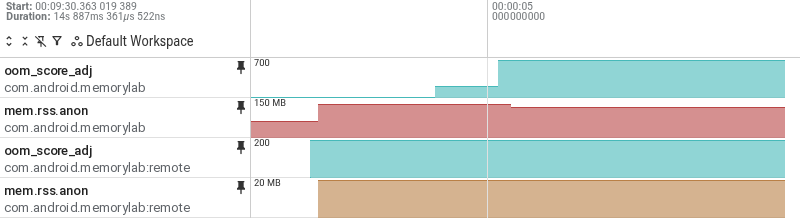
In Figure 2, the UI process briefly stays at 200 while its Activity stops
and then rises to 700, while the worker stays at 200 with about 19 MB
of anonymous RSS. For comparison, Figure 3 shows a 35-second trace of the
co-located configuration, where the single process stays at 50 and then 200
with all of its UI memory.

To explore these views, open the split trace and the co-located trace in the Perfetto UI.
3. Query elevated memory footprint with PerfettoSQL
Run the following PerfettoSQL query in the Query (SQL) tab to measure the
average anonymous and file RSS held by each process of your app at each
oom_score_adj level:
INCLUDE PERFETTO MODULE android.memory.process;

SELECT
  process_name,
  score AS oom_score_adj,
  ROUND(SUM(dur) / 1e9, 2) AS duration_sec,
  ROUND(SUM(anon_rss * dur) / SUM(dur) / 1048576.0, 1) AS avg_anon_mb,
  ROUND(SUM(file_rss * dur) / SUM(dur) / 1048576.0, 1) AS avg_file_mb
FROM memory_oom_score_with_rss_and_swap_per_process
WHERE process_name GLOB 'com.example.app*'
GROUP BY process_name, score
ORDER BY process_name, score;
Sample output for the split trace in Figure 2:
process_name                  oom_score_adj  duration_sec  avg_anon_mb  avg_file_mb
com.android.memorylab                     0          4.11         93.3        110.4
com.android.memorylab                   200          1.06        126.8        110.5
com.android.memorylab                   700          9.72        115.1        110.5
com.android.memorylab:remote              0          0.01         NULL         NULL
com.android.memorylab:remote            200         12.87         18.9         53.7
Sample output for the co-located trace in Figure 3:
process_name           oom_score_adj  duration_sec  avg_anon_mb  avg_file_mb
com.android.memorylab              0          4.10         96.0        110.4
com.android.memorylab             50         16.04        117.6        110.5
com.android.memorylab            200         14.68        116.5        110.6
In the split configuration, only about 19 MB of anonymous memory stays at
oom_score_adj = 200 after the first second. In the co-located configuration,
about 117 MB stays at 50 and then 200 for as long as the foreground
service runs.
← Return memory pages to the OS | ↑ Up