

В Compose есть множество встроенных механизмов анимации, и выбрать подходящий может быть непросто. Ниже приведён список распространённых сценариев использования анимации. Для получения более подробной информации о полном наборе доступных вам параметров API ознакомьтесь с полной документацией по анимации в Compose .
Анимировать общие составные свойства
Compose предоставляет удобные API, позволяющие решать множество распространенных задач анимации. В этом разделе показано, как анимировать распространенные свойства объекта Compose.
Анимированное появление/исчезновение
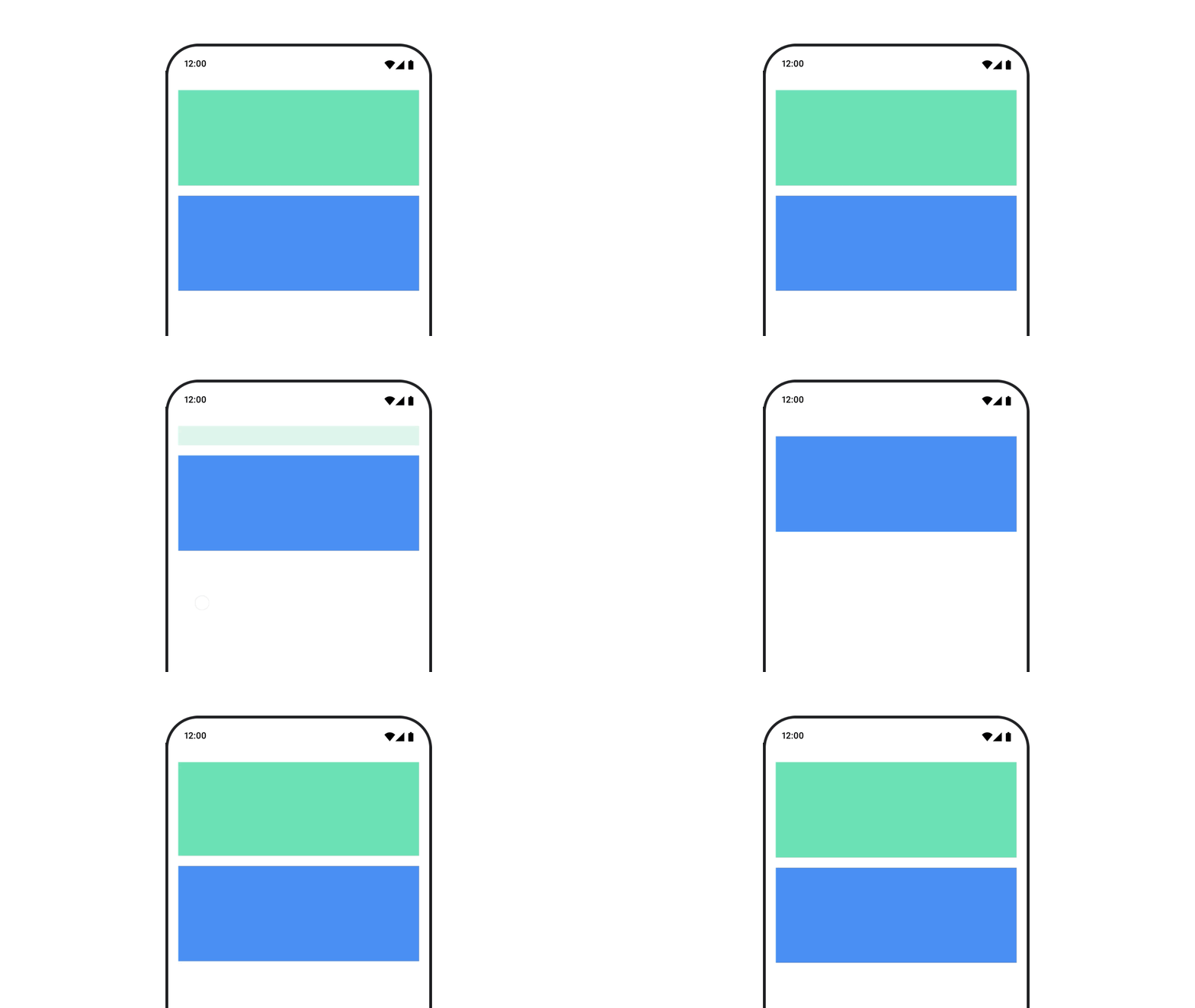
Используйте AnimatedVisibility для скрытия или отображения Composable. Дочерние элементы внутри AnimatedVisibility могут использовать Modifier.animateEnterExit() для собственных переходов при входе или выходе.
var visible by remember { mutableStateOf(true) } // Animated visibility will eventually remove the item from the composition once the animation has finished. AnimatedVisibility(visible) { // your composable here // ... }
Параметры ввода и вывода AnimatedVisibility позволяют настроить поведение составного элемента при его появлении и исчезновении. Для получения дополнительной информации ознакомьтесь с полной документацией .
Ещё один вариант анимации видимости составного элемента — анимация альфа-канала во времени с помощью animateFloatAsState :
var visible by remember { mutableStateOf(true) } val animatedAlpha by animateFloatAsState( targetValue = if (visible) 1.0f else 0f, label = "alpha" ) Box( modifier = Modifier .size(200.dp) .graphicsLayer { alpha = animatedAlpha } .clip(RoundedCornerShape(8.dp)) .background(colorGreen) .align(Alignment.TopCenter) ) { }
Однако изменение альфа-канала имеет тот недостаток, что элемент композиции остается в ней и продолжает занимать пространство, в котором он расположен. Это может привести к тому, что программы чтения с экрана и другие механизмы обеспечения доступности будут по-прежнему считать элемент отображаемым на экране. С другой стороны, AnimatedVisibility в конечном итоге удаляет элемент из композиции.
Анимированный цвет фона
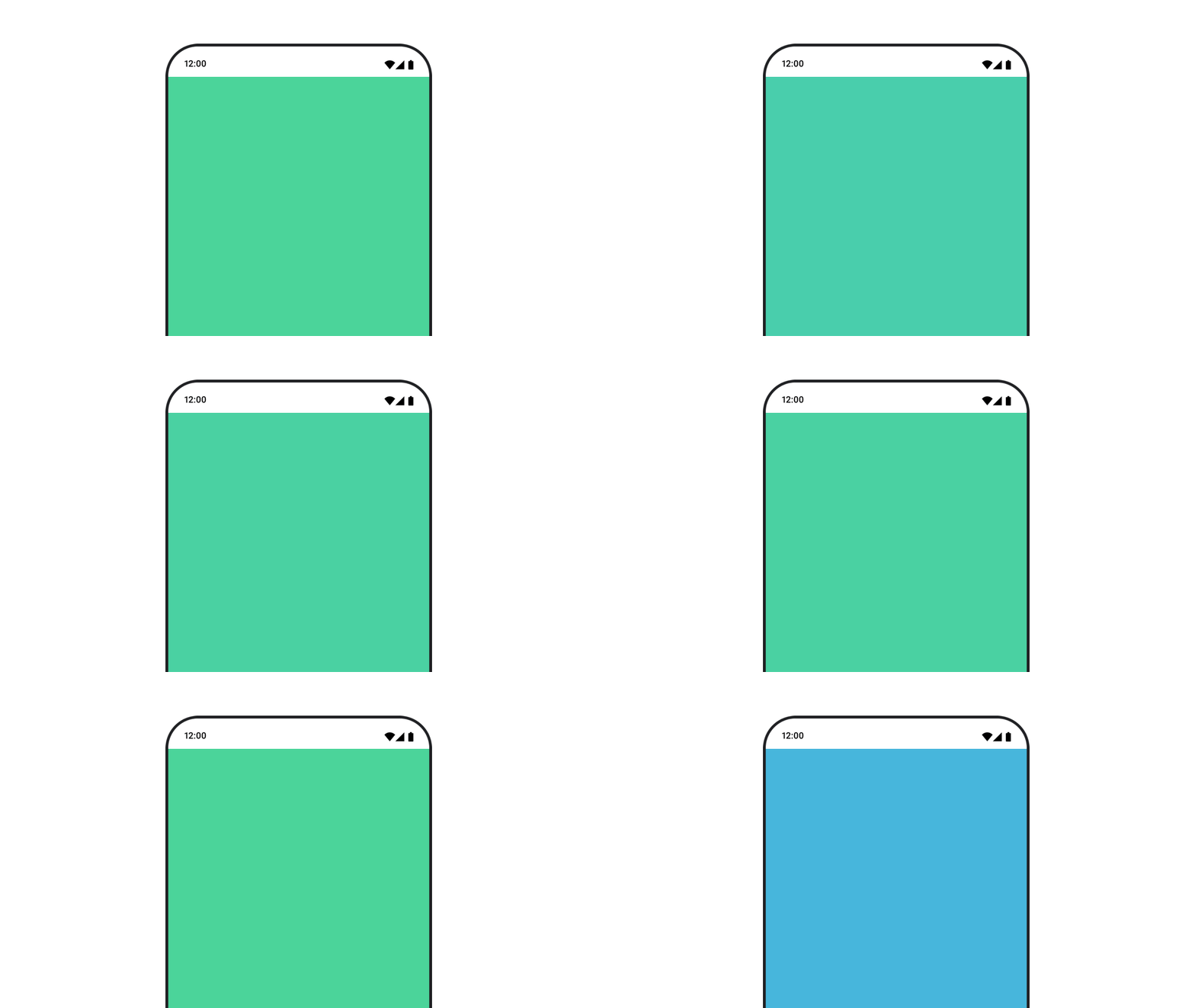
val animatedColor by animateColorAsState( if (animateBackgroundColor) colorGreen else colorBlue, label = "color" ) Column( modifier = Modifier.drawBehind { drawRect(animatedColor) } ) { // your composable here }
Этот вариант более производительный, чем использование Modifier.background() . Modifier.background() приемлем для однократной настройки цвета, но при анимации цвета во времени это может привести к большему количеству перекомпозиций, чем необходимо.
Для бесконечной анимации цвета фона см. раздел «Повторение анимации» .
Анимировать размер составного элемента
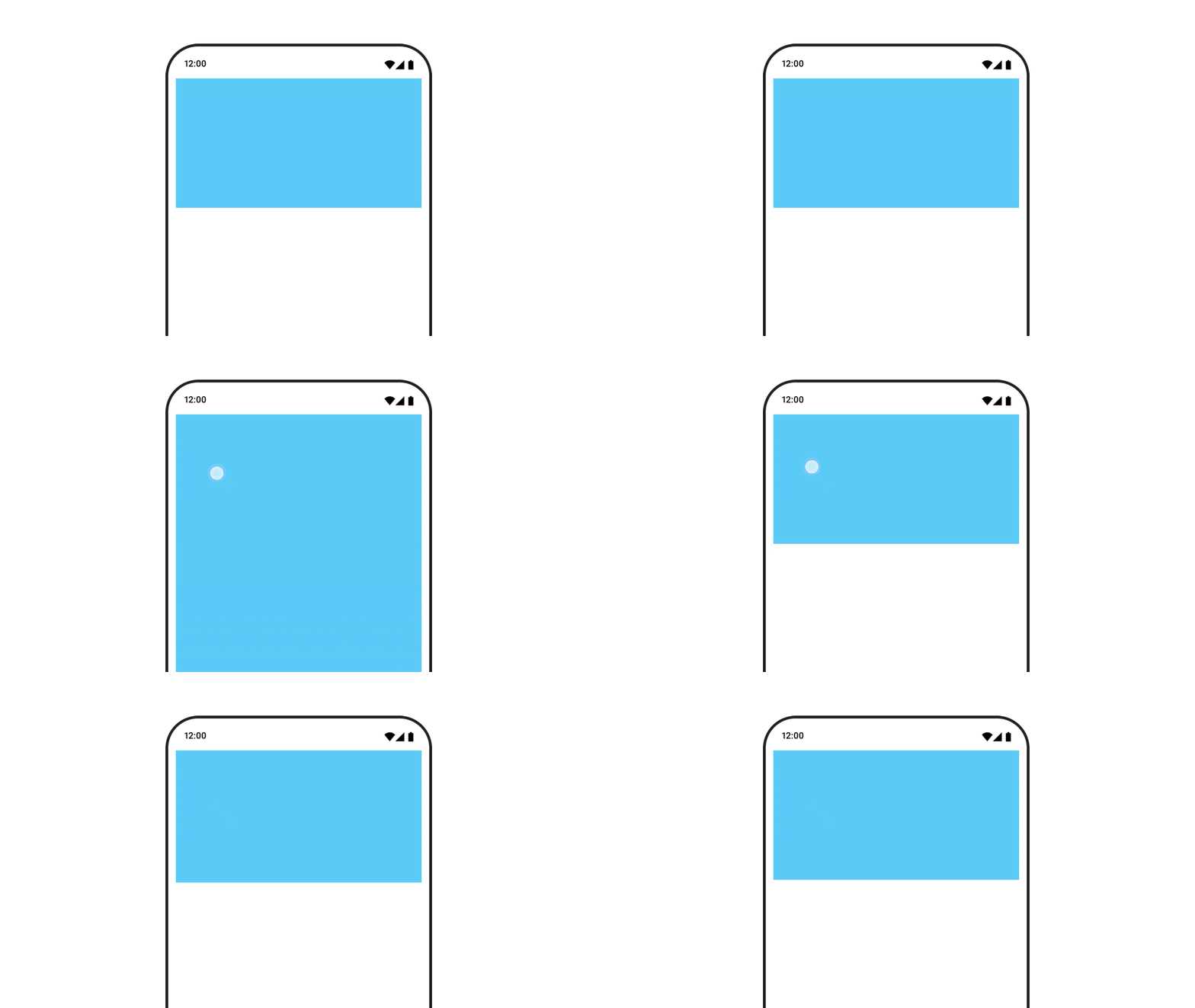
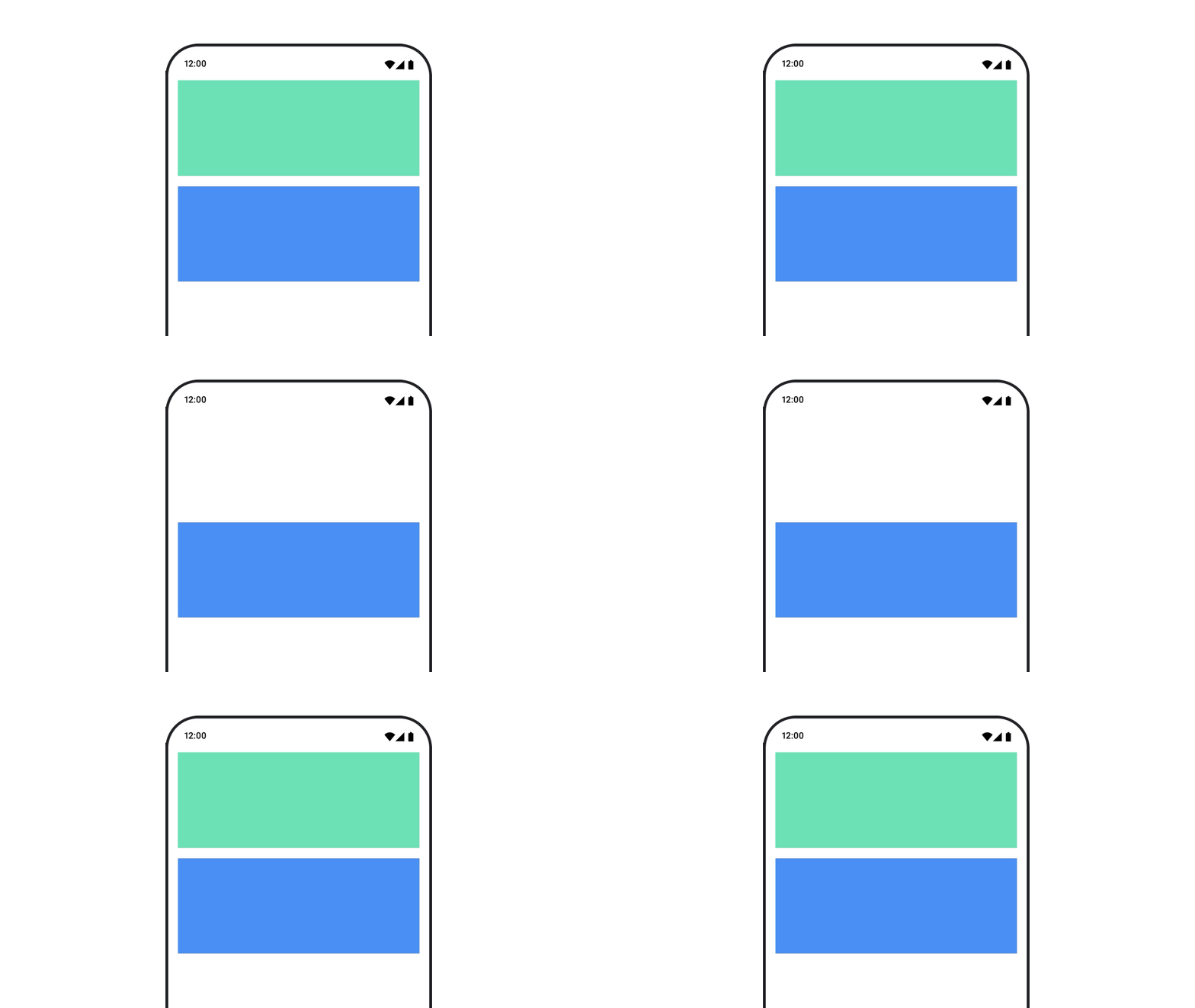
Compose позволяет анимировать изменение размера элементов, которые можно комбинировать, несколькими способами. Используйте animateContentSize() для анимации между изменениями размера элементов.
Например, если у вас есть блок с текстом, который может разворачиваться из одной строки в несколько, вы можете использовать Modifier.animateContentSize() для более плавного перехода:
var expanded by remember { mutableStateOf(false) } Box( modifier = Modifier .background(colorBlue) .animateContentSize() .height(if (expanded) 400.dp else 200.dp) .fillMaxWidth() .clickable( interactionSource = remember { MutableInteractionSource() }, indication = null ) { expanded = !expanded } ) { }
Также можно использовать AnimatedContent с SizeTransform для описания того, как должны происходить изменения размера.
Анимированное положение составного объекта
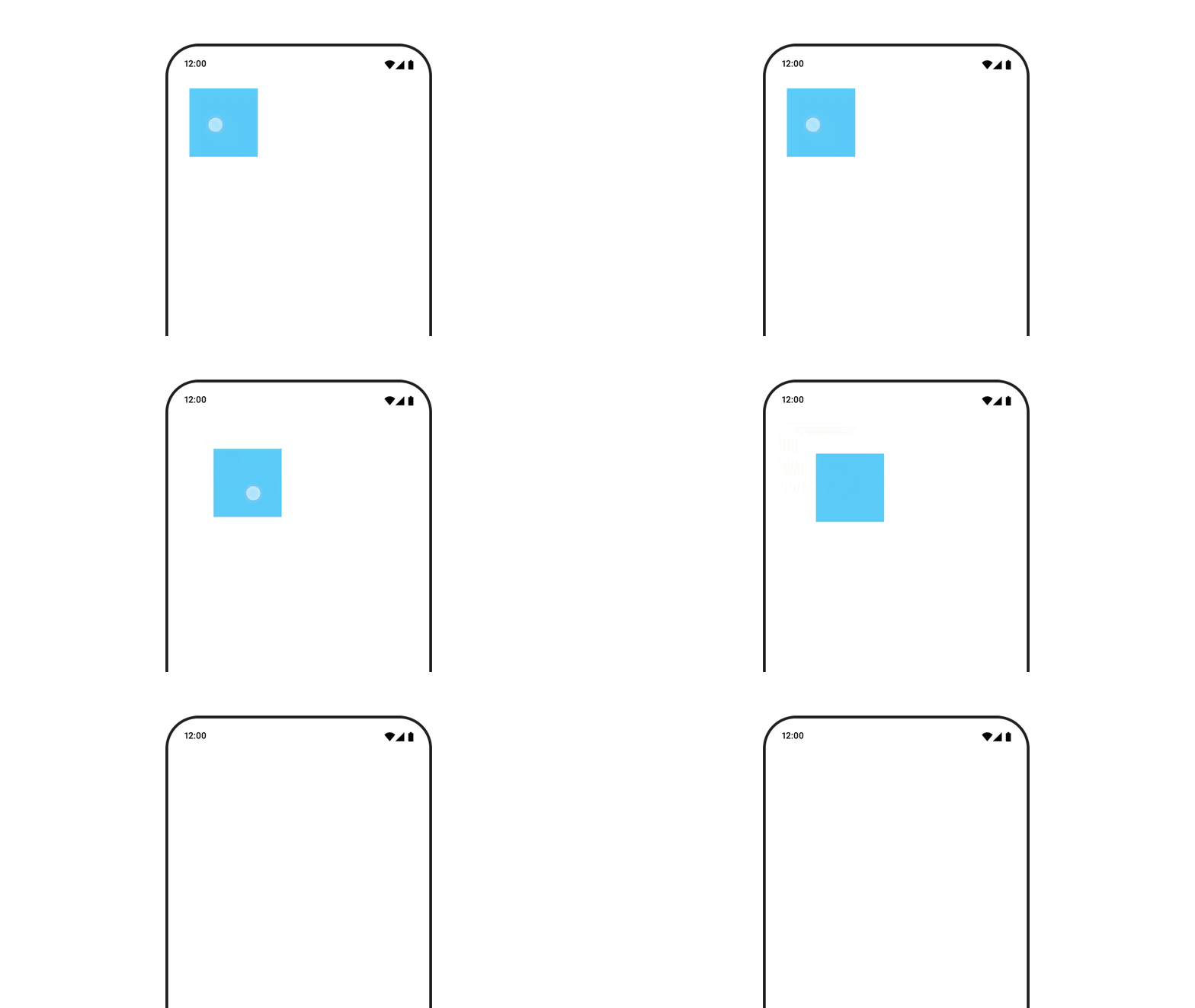
Для анимации положения составного объекта используйте Modifier.offset{ } в сочетании с animateIntOffsetAsState() .
var moved by remember { mutableStateOf(false) } val pxToMove = with(LocalDensity.current) { 100.dp.toPx().roundToInt() } val offset by animateIntOffsetAsState( targetValue = if (moved) { IntOffset(pxToMove, pxToMove) } else { IntOffset.Zero }, label = "offset" ) Box( modifier = Modifier .offset { offset } .background(colorBlue) .size(100.dp) .clickable( interactionSource = remember { MutableInteractionSource() }, indication = null ) { moved = !moved } )
Если вы хотите гарантировать, что элементы, являющиеся составными, не будут отображаться поверх или под другими элементами при анимации положения или размера, используйте Modifier.layout{ } . Этот модификатор передает изменения размера и положения родительскому элементу, что затем влияет на другие дочерние элементы.
Например, если вы перемещаете Box внутри Column , и другие дочерние элементы должны перемещаться вместе с Box , укажите информацию о смещении с помощью Modifier.layout{ } следующим образом:
var toggled by remember { mutableStateOf(false) } val interactionSource = remember { MutableInteractionSource() } Column( modifier = Modifier .padding(16.dp) .fillMaxSize() .clickable(indication = null, interactionSource = interactionSource) { toggled = !toggled } ) { val offsetTarget = if (toggled) { IntOffset(150, 150) } else { IntOffset.Zero } val offset = animateIntOffsetAsState( targetValue = offsetTarget, label = "offset" ) Box( modifier = Modifier .size(100.dp) .background(colorBlue) ) Box( modifier = Modifier .layout { measurable, constraints -> val offsetValue = if (isLookingAhead) offsetTarget else offset.value val placeable = measurable.measure(constraints) layout(placeable.width + offsetValue.x, placeable.height + offsetValue.y) { placeable.placeRelative(offsetValue) } } .size(100.dp) .background(colorGreen) ) Box( modifier = Modifier .size(100.dp) .background(colorBlue) ) }
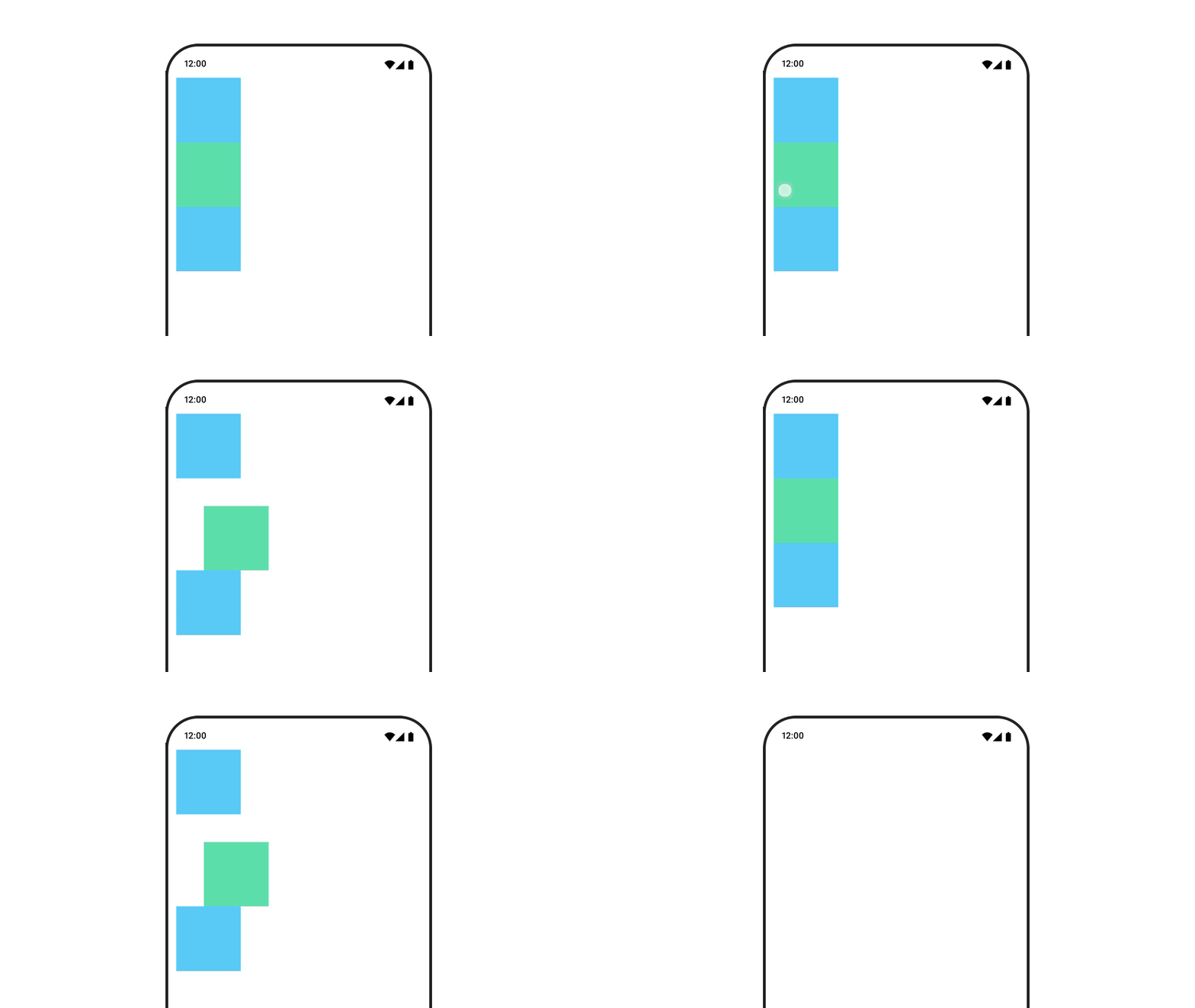
Modifier.layout{ }Анимированное отступы в составном элементе
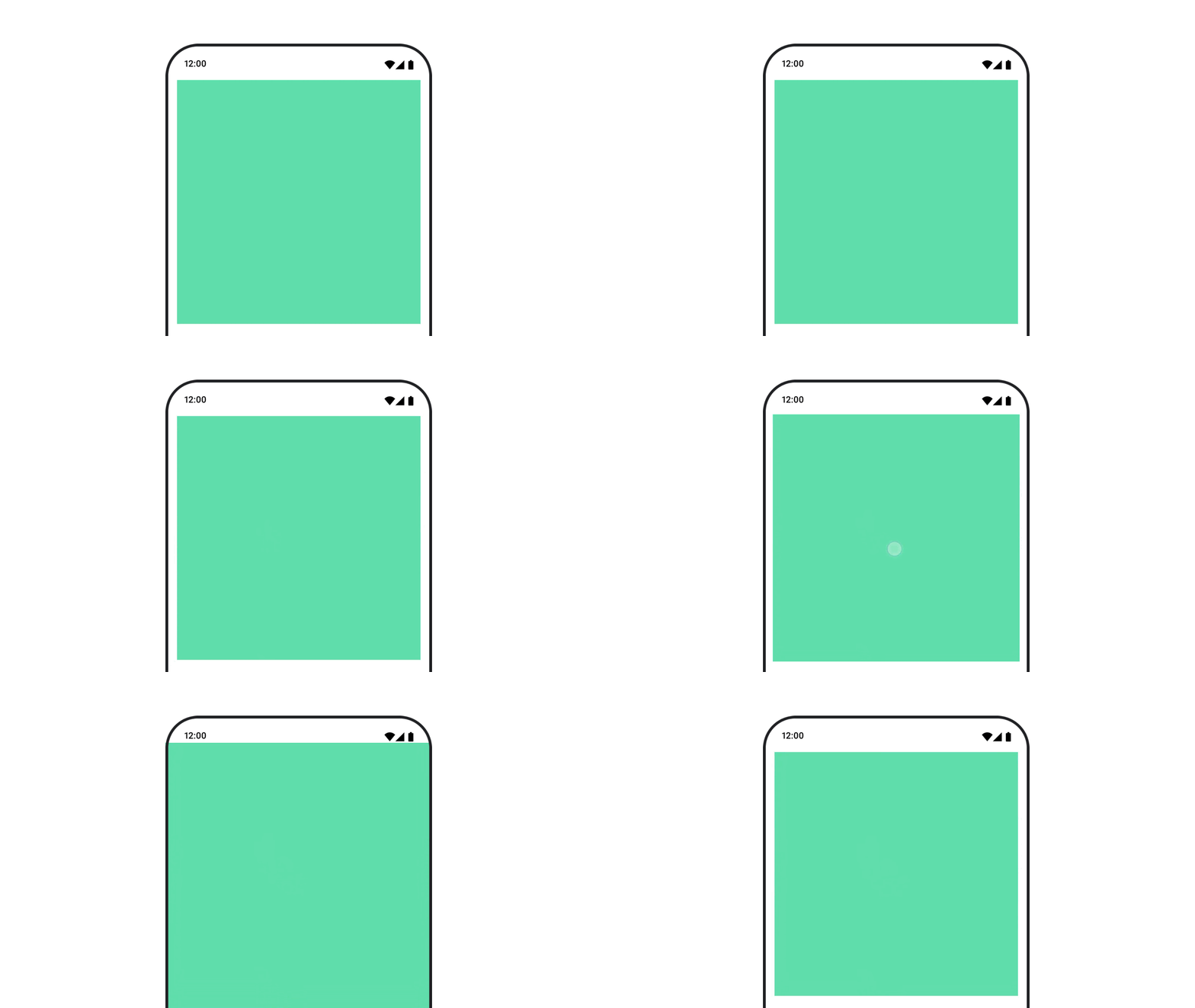
Для анимации отступов составного элемента используйте animateDpAsState в сочетании с Modifier.padding() :
var toggled by remember { mutableStateOf(false) } val animatedPadding by animateDpAsState( if (toggled) { 0.dp } else { 20.dp }, label = "padding" ) Box( modifier = Modifier .aspectRatio(1f) .fillMaxSize() .padding(animatedPadding) .background(Color(0xff53D9A1)) .clickable( interactionSource = remember { MutableInteractionSource() }, indication = null ) { toggled = !toggled } )
Анимированное возвышение составного объекта
Для анимации изменения высоты составного объекта используйте animateDpAsState в сочетании с Modifier.graphicsLayer{ } . Для однократных изменений высоты используйте Modifier.shadow() . Если вы анимируете тень, использование модификатора Modifier.graphicsLayer{ } будет более производительным вариантом.
val mutableInteractionSource = remember { MutableInteractionSource() } val pressed = mutableInteractionSource.collectIsPressedAsState() val elevation = animateDpAsState( targetValue = if (pressed.value) { 32.dp } else { 8.dp }, label = "elevation" ) Box( modifier = Modifier .size(100.dp) .align(Alignment.Center) .graphicsLayer { this.shadowElevation = elevation.value.toPx() } .clickable(interactionSource = mutableInteractionSource, indication = null) { } .background(colorGreen) ) { }
В качестве альтернативы можно использовать составной элемент Card и установить для свойства elevation разные значения для каждого штата.
Анимируйте масштабирование, перемещение или вращение текста.
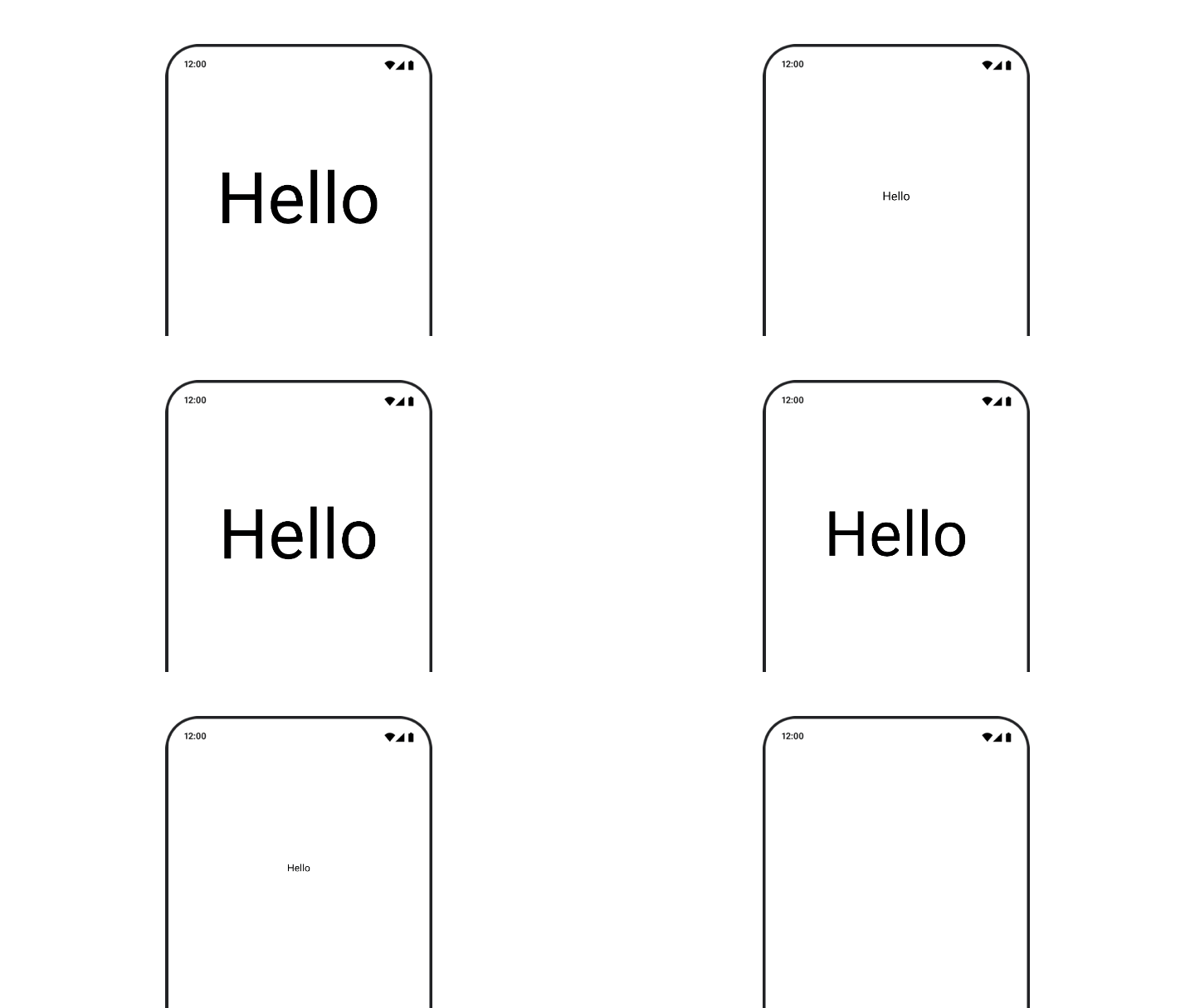
При анимации масштабирования, перемещения или вращения текста установите параметр textMotion в TextStyle в TextMotion.Animated . Это обеспечит более плавные переходы между анимациями текста. Используйте Modifier.graphicsLayer{ } для перемещения, вращения или масштабирования текста.
val infiniteTransition = rememberInfiniteTransition(label = "infinite transition") val scale by infiniteTransition.animateFloat( initialValue = 1f, targetValue = 8f, animationSpec = infiniteRepeatable(tween(1000), RepeatMode.Reverse), label = "scale" ) Box(modifier = Modifier.fillMaxSize()) { Text( text = "Hello", modifier = Modifier .graphicsLayer { scaleX = scale scaleY = scale transformOrigin = TransformOrigin.Center } .align(Alignment.Center), // Text composable does not take TextMotion as a parameter. // Provide it via style argument but make sure that we are copying from current theme style = LocalTextStyle.current.copy(textMotion = TextMotion.Animated) ) }
Анимированный цвет текста
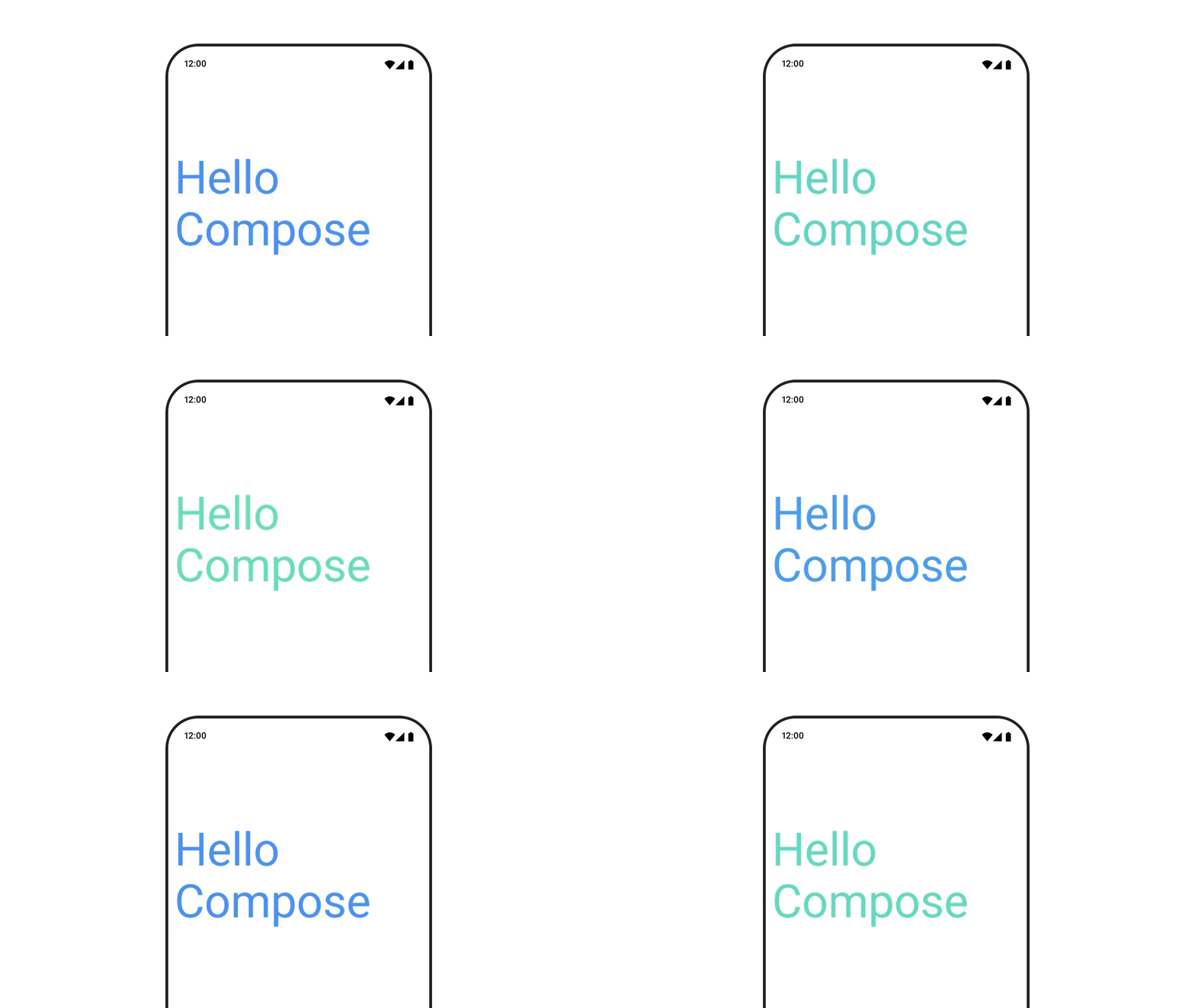
Для анимации цвета текста используйте лямбда-функцию color в компоненте BasicText :
val infiniteTransition = rememberInfiniteTransition(label = "infinite transition") val animatedColor by infiniteTransition.animateColor( initialValue = Color(0xFF60DDAD), targetValue = Color(0xFF4285F4), animationSpec = infiniteRepeatable(tween(1000), RepeatMode.Reverse), label = "color" ) BasicText( text = "Hello Compose", color = { animatedColor }, // ... )
Переключайтесь между различными типами контента
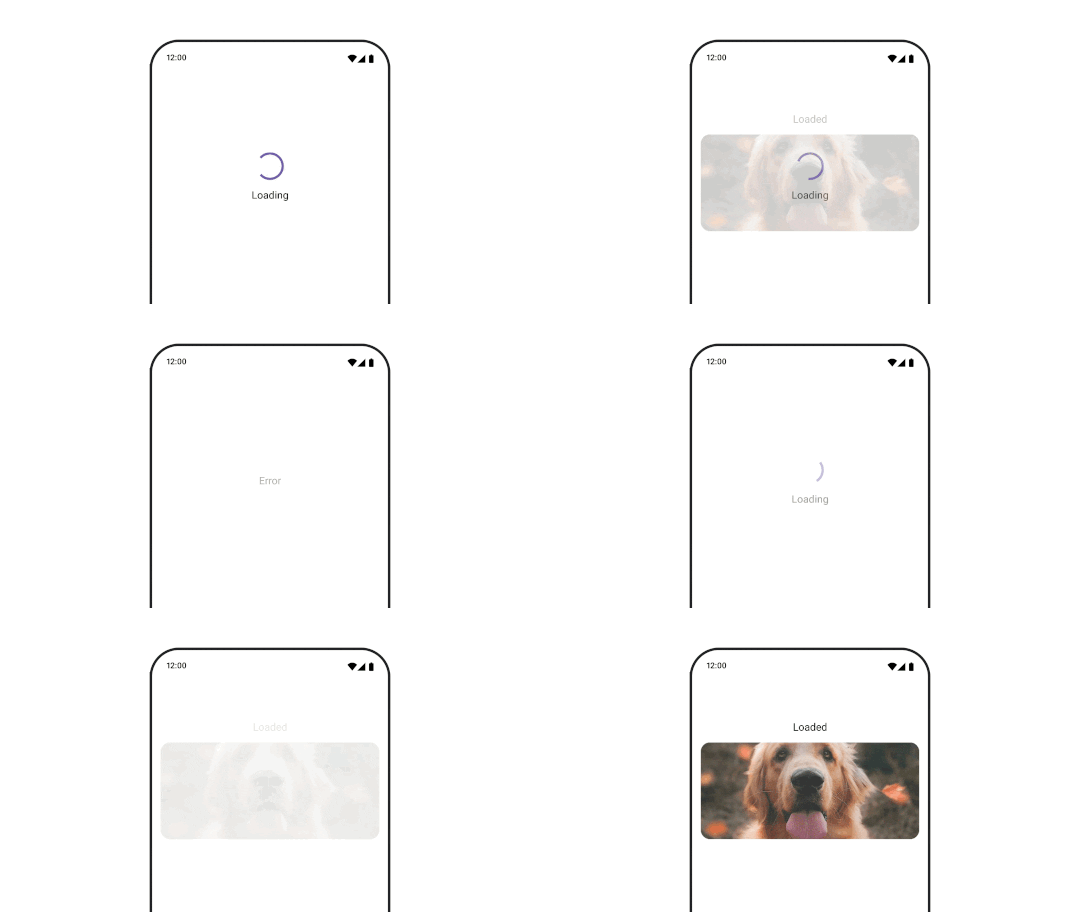
Используйте AnimatedContent для анимации перехода между различными компонентами; если вам нужен просто стандартный эффект затухания между компонентами, используйте Crossfade .
var state by remember { mutableStateOf(UiState.Loading) } AnimatedContent( state, transitionSpec = { fadeIn( animationSpec = tween(3000) ) togetherWith fadeOut(animationSpec = tween(3000)) }, modifier = Modifier.clickable( interactionSource = remember { MutableInteractionSource() }, indication = null ) { state = when (state) { UiState.Loading -> UiState.Loaded UiState.Loaded -> UiState.Error UiState.Error -> UiState.Loading } }, label = "Animated Content" ) { targetState -> when (targetState) { UiState.Loading -> { LoadingScreen() } UiState.Loaded -> { LoadedScreen() } UiState.Error -> { ErrorScreen() } } }
AnimatedContent можно настроить для отображения множества различных типов переходов при появлении и исчезновении контента. Для получения дополнительной информации ознакомьтесь с документацией по AnimatedContent или прочтите эту статью в блоге, посвященную AnimatedContent .
Анимируйте перемещение между различными пунктами назначения.
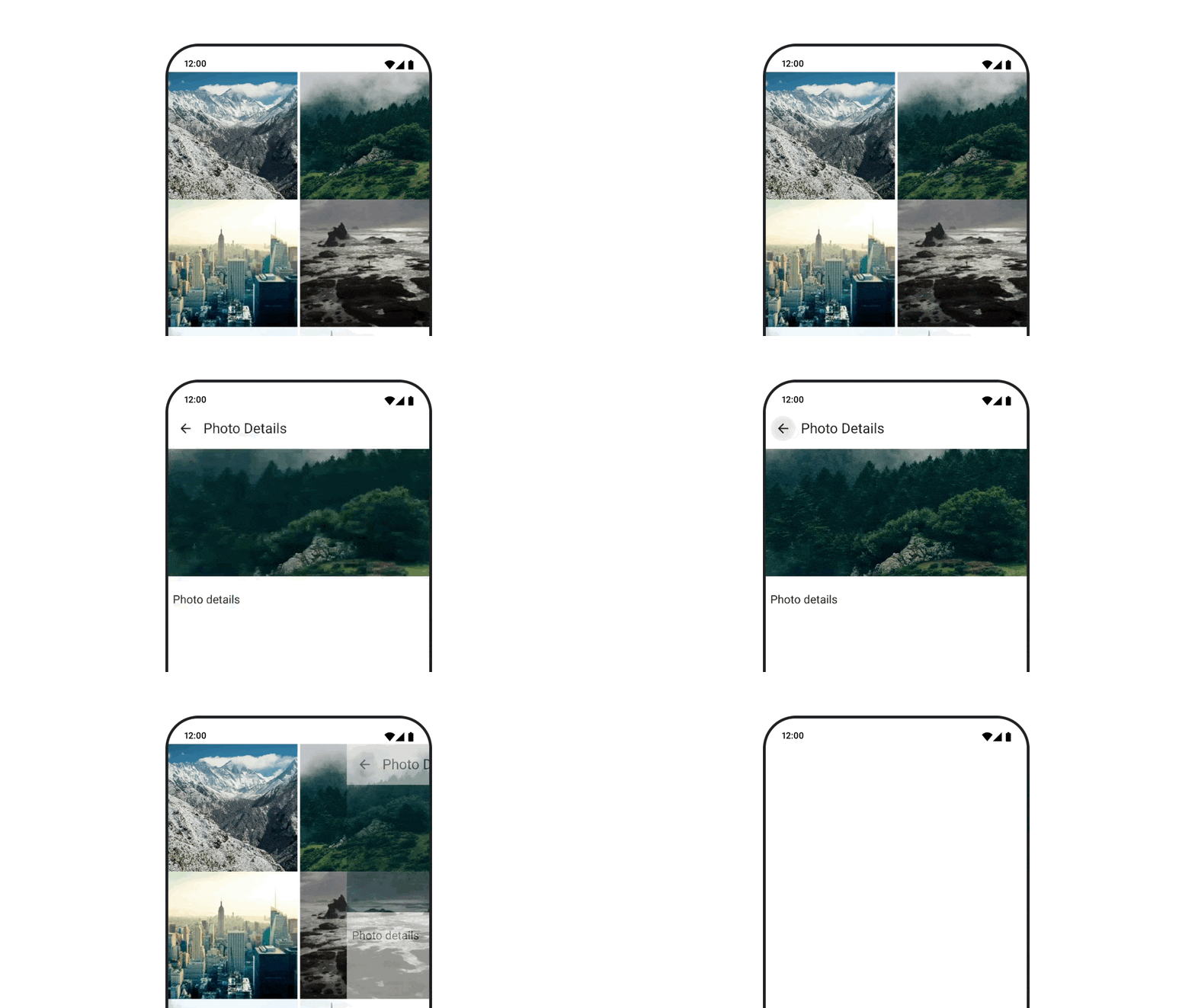
Для анимации переходов между компонентами при использовании артефакта navigation-compose укажите параметры enterTransition и exitTransition для каждого компонента. Вы также можете установить анимацию по умолчанию для всех пунктов назначения на верхнем уровне NavHost :
val navController = rememberNavController() NavHost( navController = navController, startDestination = "landing", enterTransition = { EnterTransition.None }, exitTransition = { ExitTransition.None } ) { composable("landing") { ScreenLanding( // ... ) } composable( "detail/{photoUrl}", arguments = listOf(navArgument("photoUrl") { type = NavType.StringType }), enterTransition = { fadeIn( animationSpec = tween( 300, easing = LinearEasing ) ) + slideIntoContainer( animationSpec = tween(300, easing = EaseIn), towards = AnimatedContentTransitionScope.SlideDirection.Start ) }, exitTransition = { fadeOut( animationSpec = tween( 300, easing = LinearEasing ) ) + slideOutOfContainer( animationSpec = tween(300, easing = EaseOut), towards = AnimatedContentTransitionScope.SlideDirection.End ) } ) { backStackEntry -> ScreenDetails( // ... ) } }
Существует множество различных типов переходов при входе и выходе, которые применяют разные эффекты к входящему и исходящему контенту; подробнее см. в документации .
Повторить анимацию
Используйте rememberInfiniteTransition с infiniteRepeatable animationSpec для непрерывного повторения анимации. Измените RepeatModes , чтобы указать, как должна происходить анимация вперед и назад.
Используйте repeatable для повторения заданного количества раз.
val infiniteTransition = rememberInfiniteTransition(label = "infinite") val color by infiniteTransition.animateColor( initialValue = Color.Green, targetValue = Color.Blue, animationSpec = infiniteRepeatable( animation = tween(1000, easing = LinearEasing), repeatMode = RepeatMode.Reverse ), label = "color" ) Column( modifier = Modifier.drawBehind { drawRect(color) } ) { // your composable here }
Запустить анимацию при запуске составного элемента
LaunchedEffect срабатывает, когда в композицию добавляется компонент. Он запускает анимацию при запуске компонента, и вы можете использовать его для управления изменением состояния анимации. Использование Animatable с методом animateTo для запуска анимации при запуске:
val alphaAnimation = remember { Animatable(0f) } LaunchedEffect(Unit) { alphaAnimation.animateTo(1f) } Box( modifier = Modifier.graphicsLayer { alpha = alphaAnimation.value } )
Создавайте последовательные анимации
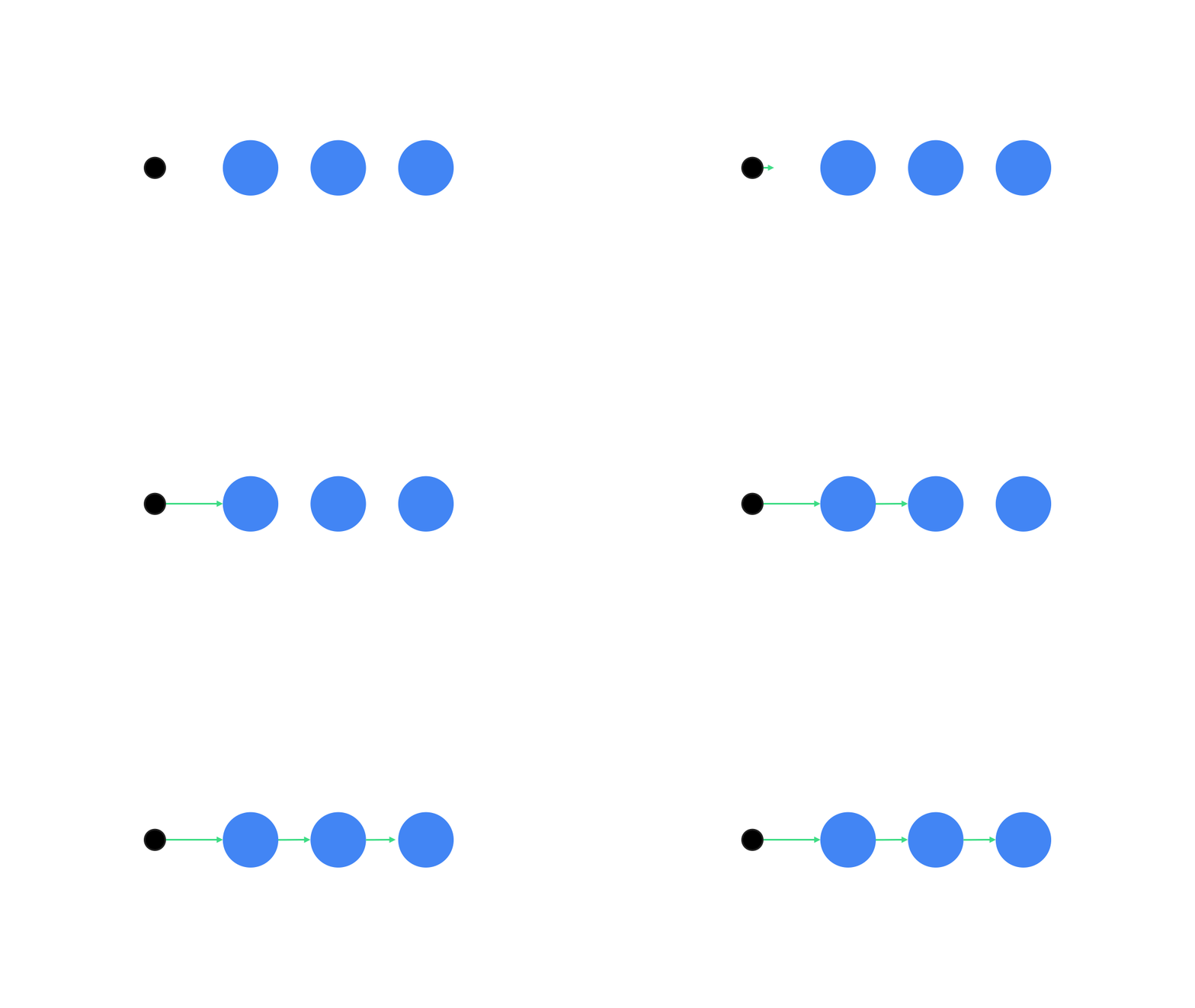
Используйте API сопрограмм Animatable для выполнения последовательных или параллельных анимаций. Вызов функции animateTo для Animatable один за другим приводит к тому, что каждая анимация ожидает завершения предыдущих анимаций, прежде чем продолжить выполнение. Это связано с тем, что это функция приостановки.
val alphaAnimation = remember { Animatable(0f) } val yAnimation = remember { Animatable(0f) } LaunchedEffect("animationKey") { alphaAnimation.animateTo(1f) yAnimation.animateTo(100f) yAnimation.animateTo(500f, animationSpec = tween(100)) }
Создание параллельных анимаций
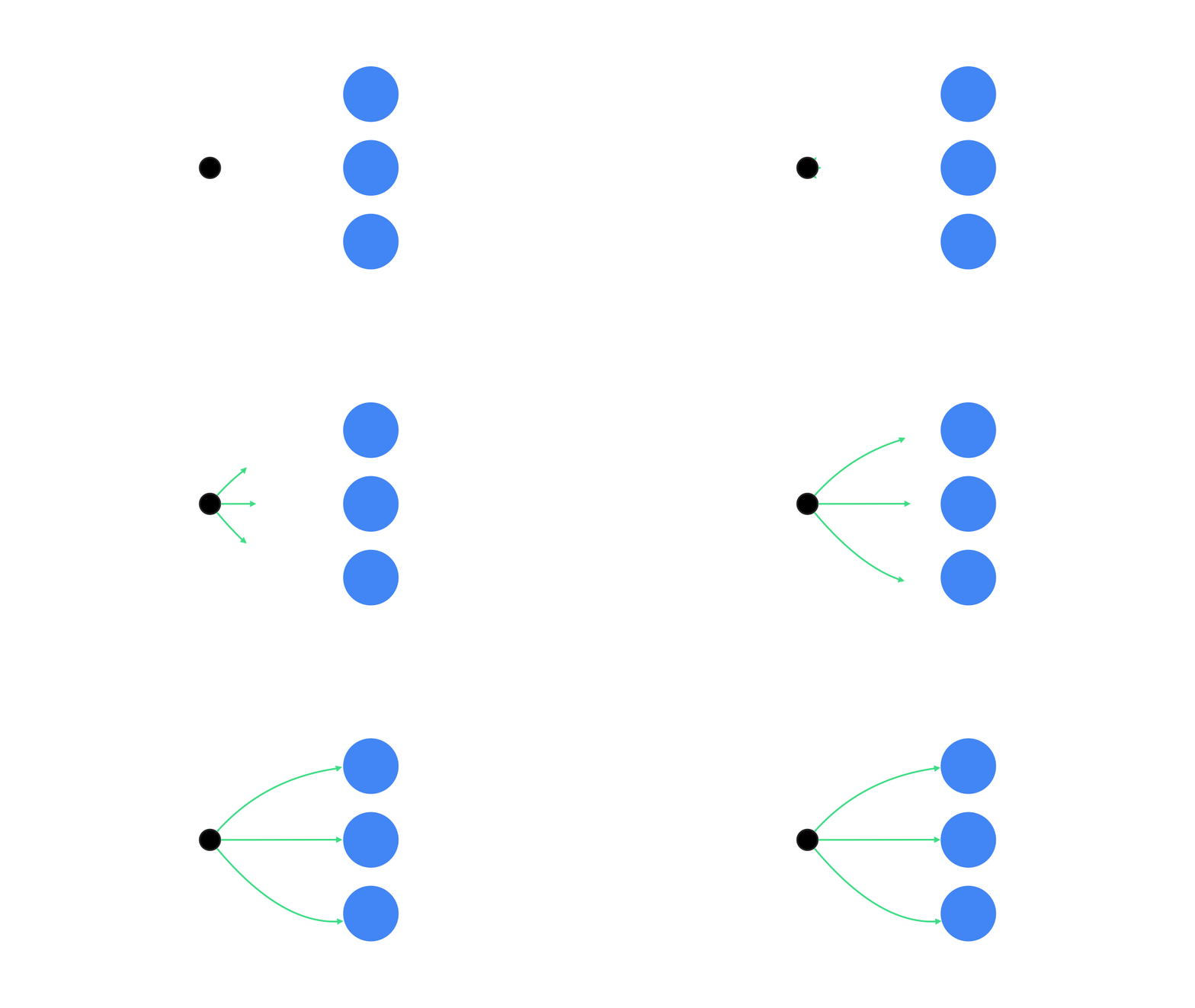
Для одновременного запуска анимаций используйте API сопрограмм ( Animatable#animateTo() или animate ) или API Transition . Если вы используете несколько функций запуска в контексте сопрограммы, анимации запускаются одновременно:
val alphaAnimation = remember { Animatable(0f) } val yAnimation = remember { Animatable(0f) } LaunchedEffect("animationKey") { launch { alphaAnimation.animateTo(1f) } launch { yAnimation.animateTo(100f) } }
Вы можете использовать API updateTransition , чтобы с помощью одного и того же состояния одновременно управлять анимацией множества различных свойств. В следующем примере анимируются два свойства, управляемые изменением состояния: rect и borderWidth :
var currentState by remember { mutableStateOf(BoxState.Collapsed) } val transition = updateTransition(currentState, label = "transition") val rect by transition.animateRect(label = "rect") { state -> when (state) { BoxState.Collapsed -> Rect(0f, 0f, 100f, 100f) BoxState.Expanded -> Rect(100f, 100f, 300f, 300f) } } val borderWidth by transition.animateDp(label = "borderWidth") { state -> when (state) { BoxState.Collapsed -> 1.dp BoxState.Expanded -> 0.dp } }
Оптимизация производительности анимации
Анимация в Compose может вызывать проблемы с производительностью. Это связано с самой природой анимации: быстрое перемещение или изменение пикселей на экране, кадр за кадром, для создания иллюзии движения.
Рассмотрим различные фазы композиции : композиция, компоновка и отрисовка. Если анимация изменяется на фазе компоновки, это потребует перекомпоновки и перерисовки всех затронутых элементов. Если анимация выполняется на фазе отрисовки, она по умолчанию более производительна, чем анимация на фазе компоновки, поскольку ей приходится выполнять меньше работы в целом.
Чтобы ваше приложение выполняло как можно меньше действий во время анимации, по возможности выбирайте лямбда-версию Modifier . Это позволит избежать перекомпозиции и выполнить анимацию вне фазы композиции; в противном случае используйте Modifier.graphicsLayer{ } , поскольку этот модификатор всегда выполняется в фазе отрисовки. Для получения дополнительной информации об этом см. раздел «Отложенное чтение» в документации по производительности.
Изменить время анимации
По умолчанию Compose использует пружинную анимацию для большинства анимаций. Пружинная, или основанная на физике, анимация ощущается более естественно. Она также прерываема, поскольку учитывает текущую скорость объекта, а не фиксированное время. Если вы хотите переопределить настройки по умолчанию, все ранее продемонстрированные API анимации позволяют установить animationSpec для настройки режима выполнения анимации: например, хотите ли вы, чтобы она выполнялась в течение определенного времени или была более пружинистой.
Ниже приведено краткое описание различных параметров animationSpec :
-
spring: Физически обоснованная анимация, используемая по умолчанию для всех анимаций. Вы можете изменить жесткость или коэффициент демпфирования, чтобы добиться другого внешнего вида и ощущения анимации. -
tween(сокращенно от " между "): анимация, основанная на длительности, плавно переключается между двумя значениями с помощью функцииEasing. -
keyframes: Спецификация для задания значений в определенных ключевых точках анимации. -
repeatable: Спецификация, основанная на продолжительности, которая выполняется определенное количество раз, задаваемое параметромRepeatMode. -
infiniteRepeatable: Спецификация, основанная на продолжительности, которая выполняется бесконечно. -
snap: Мгновенно фиксирует значение в конечной точке без какой-либо анимации.
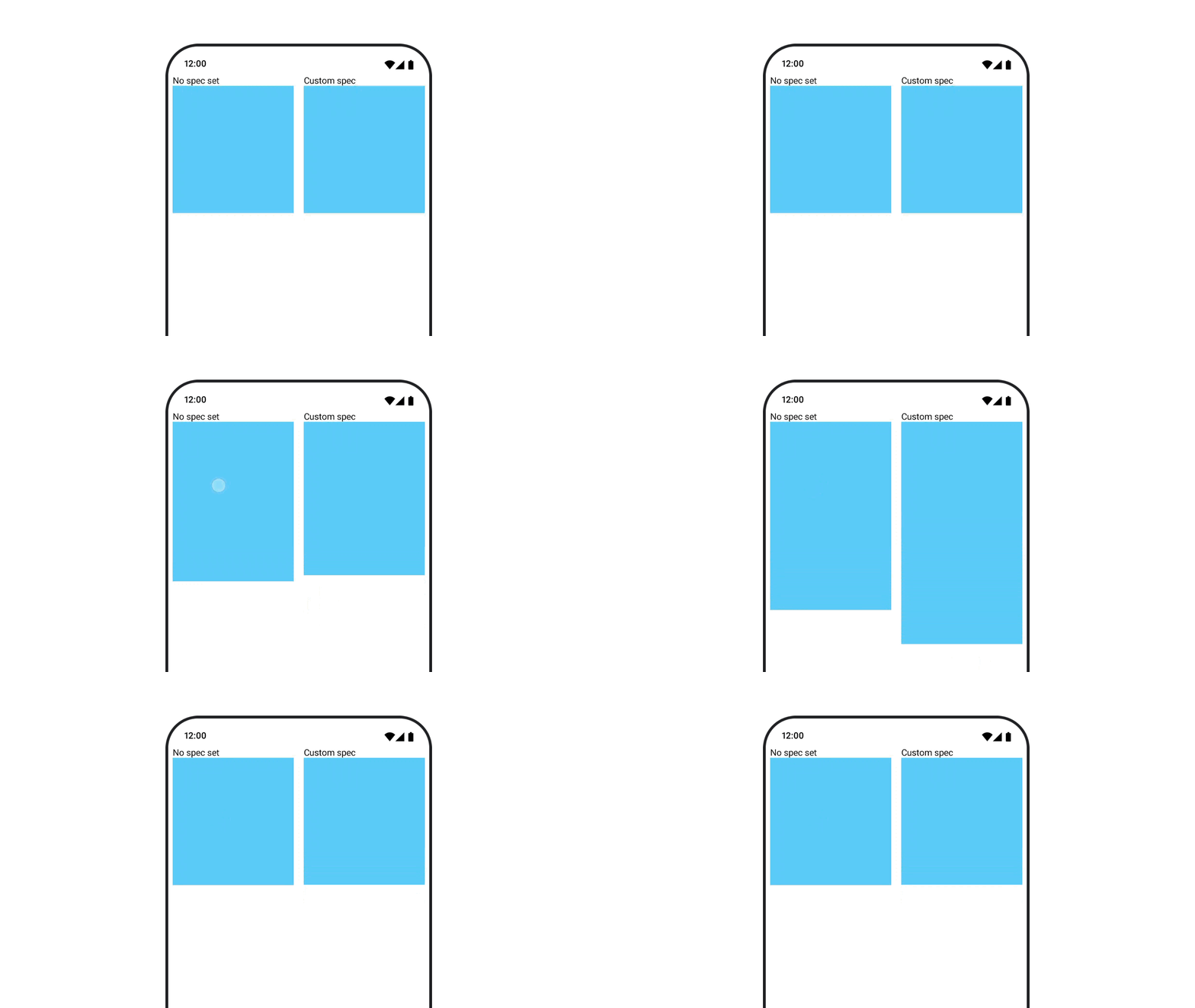
Для получения более подробной информации об animationSpecs ознакомьтесь с полной документацией.
Дополнительные ресурсы
Больше примеров забавных анимаций в Compose вы найдете по следующим ссылкам:
- 5 быстрых анимаций в Compose
- Как заставить медузу двигаться в Compose
- Настройка
AnimatedContentв Compose - Плавное освоение функций плавного перехода в Compose