

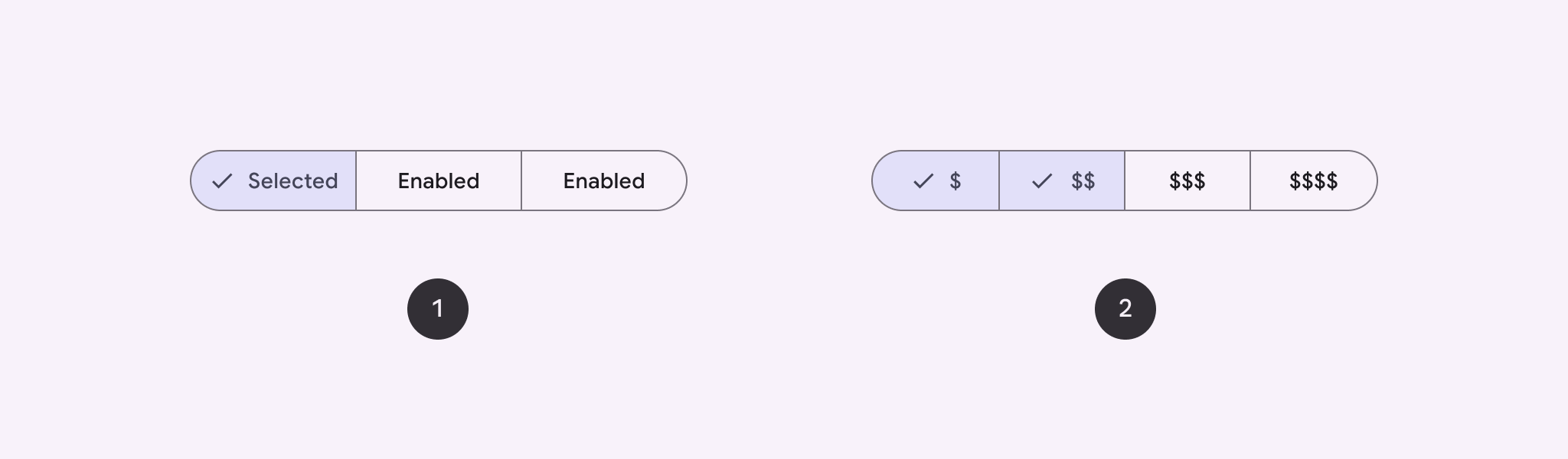
ใช้ปุ่มแบบแบ่งกลุ่มเพื่อให้ผู้ใช้เลือกจากชุดตัวเลือกที่อยู่เคียงข้างกัน ปุ่มแบบแบ่งกลุ่มมี 2 ประเภท ได้แก่
- ปุ่มเลือกรายการเดียว: ให้ผู้ใช้เลือกได้ 1 ตัวเลือก
- ปุ่มเลือกหลายรายการ: ช่วยให้ผู้ใช้เลือกรายการได้ระหว่าง 2-5 รายการ สำหรับตัวเลือกที่ซับซ้อนมากขึ้นหรือมีมากกว่า 5 รายการ ให้ใช้ชิป
แพลตฟอร์ม API
ใช้เลย์เอาต์ SingleChoiceSegmentedButtonRow และ MultiChoiceSegmentedButtonRow เพื่อสร้างปุ่มแบบแบ่งกลุ่ม เลย์เอาต์เหล่านี้จะจัดตำแหน่งและปรับขนาด SegmentedButton อย่างถูกต้อง และมีพารามิเตอร์หลักต่อไปนี้ร่วมกัน
space: ปรับการซ้อนทับระหว่างปุ่มcontent: มีเนื้อหาของแถวปุ่มที่แบ่งกลุ่ม ซึ่งโดยปกติจะเป็นลำดับของSegmentedButton
สร้างปุ่มแบบแบ่งกลุ่มที่เลือกได้รายการเดียว
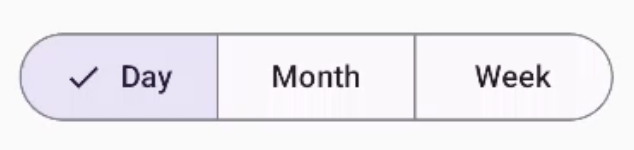
ตัวอย่างนี้แสดงวิธีสร้างปุ่มแบบแบ่งกลุ่มที่เลือกได้รายการเดียว
@Composable fun SingleChoiceSegmentedButton(modifier: Modifier = Modifier) { var selectedIndex by remember { mutableIntStateOf(0) } val options = listOf("Day", "Month", "Week") SingleChoiceSegmentedButtonRow { options.forEachIndexed { index, label -> SegmentedButton( shape = SegmentedButtonDefaults.itemShape( index = index, count = options.size ), onClick = { selectedIndex = index }, selected = index == selectedIndex, label = { Text(label) } ) } } }
ประเด็นสำคัญเกี่ยวกับโค้ด
- เริ่มต้นตัวแปร
selectedIndexโดยใช้rememberและmutableIntStateOfเพื่อติดตามดัชนีปุ่มที่เลือก - กำหนดรายการ
optionsที่แสดงป้ายกำกับปุ่ม SingleChoiceSegmentedButtonRowให้คุณเลือกปุ่มได้เพียงปุ่มเดียว- สร้าง
SegmentedButtonสำหรับแต่ละตัวเลือกภายในลูปforEachIndexedดังนี้shapeกำหนดรูปร่างของปุ่มตามดัชนีและจำนวนตัวเลือกทั้งหมดโดยใช้SegmentedButtonDefaults.itemShapeonClickอัปเดตselectedIndexด้วยดัชนีของปุ่มที่คลิกselectedตั้งค่าสถานะการเลือกของปุ่มตามselectedIndexlabelแสดงป้ายกำกับปุ่มโดยใช้ ComposableText
ผลลัพธ์
สร้างปุ่มแบบแบ่งกลุ่มที่เลือกได้หลายรายการ
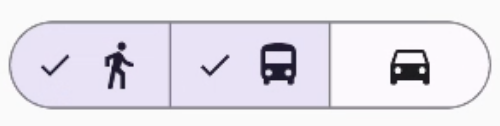
ตัวอย่างนี้แสดงวิธีสร้างปุ่มแบบแบ่งกลุ่มที่มีหลายตัวเลือกพร้อมไอคอนที่ให้ผู้ใช้เลือกได้หลายตัวเลือก
@Composable fun MultiChoiceSegmentedButton(modifier: Modifier = Modifier) { val selectedOptions = remember { mutableStateListOf(false, false, false) } val options = listOf("Walk", "Ride", "Drive") MultiChoiceSegmentedButtonRow { options.forEachIndexed { index, label -> SegmentedButton( shape = SegmentedButtonDefaults.itemShape( index = index, count = options.size ), checked = selectedOptions[index], onCheckedChange = { selectedOptions[index] = !selectedOptions[index] }, icon = { SegmentedButtonDefaults.Icon(selectedOptions[index]) }, label = { when (label) { "Walk" -> Icon( imageVector = Icons.AutoMirrored.Filled.DirectionsWalk, contentDescription = "Directions Walk" ) "Ride" -> Icon( imageVector = Icons.Default.DirectionsBus, contentDescription = "Directions Bus" ) "Drive" -> Icon( imageVector = Icons.Default.DirectionsCar, contentDescription = "Directions Car" ) } } ) } } }
ประเด็นสำคัญเกี่ยวกับโค้ด
- โค้ดจะเริ่มต้นตัวแปร
selectedOptionsโดยใช้rememberและmutableStateListOfซึ่งจะติดตามสถานะที่เลือกของแต่ละปุ่ม - โค้ดใช้
MultiChoiceSegmentedButtonRowเพื่อใส่ปุ่ม - ภายในลูป
forEachIndexedโค้ดจะสร้างSegmentedButtonสำหรับแต่ละตัวเลือก ดังนี้shapeกำหนดรูปร่างของปุ่มตามดัชนีและจำนวนตัวเลือกทั้งหมดcheckedจะตั้งค่าสถานะที่เลือกของปุ่มตามค่าที่เกี่ยวข้องในselectedOptionsonCheckedChangeจะสลับสถานะที่เลือกของรายการที่เกี่ยวข้องในselectedOptionsเมื่อมีการคลิกปุ่มiconแสดงไอคอนตามSegmentedButtonDefaults.Iconและสถานะที่เลือกของปุ่มlabelแสดงไอคอนที่สอดคล้องกับป้ายกำกับ โดยใช้ ComposableIconที่มีเวกเตอร์รูปภาพและคำอธิบายเนื้อหาที่เหมาะสม
ผลลัพธ์
แหล่งข้อมูลเพิ่มเติม
- Material 3: ปุ่มแบ่งกลุ่ม