良好的視覺設計是應用程式成功的關鍵,而色彩配置是設計的主要元素。Palette 程式庫是 Jetpack 程式庫,可從圖片中擷取醒目顏色,打造出視覺效果出色的應用程式。
您可以使用 Palette 程式庫設計版面配置主題,並將自訂顏色套用至應用程式中的視覺元素。舉例來說,您可以使用調色盤,根據歌曲的專輯封面建立顏色協調的片頭字幕,或在應用程式的背景圖片變更時調整工具列顏色。Palette 物件可讓您存取 Bitmap 圖片中的顏色,同時提供點陣圖中的六種主要顏色設定檔,做為設計選擇的參考。
設定程式庫
如要使用 Palette 程式庫,請將以下內容新增至 build.gradle:
Kotlin
android {
    compileSdkVersion(36)
    ...
}

dependencies {
    ...
    implementation("androidx.palette:palette:1.0.0")
}
Groovy
android {
    compileSdkVersion 36
    ...
}

dependencies {
    ...
    implementation 'androidx.palette:palette:1.0.0'
}
建立調色盤
Palette 物件可讓您存取圖片中的主要顏色,以及疊加文字的對應顏色。您可以使用調色盤設計應用程式的樣式,並根據指定的來源圖片動態變更應用程式的色彩配置。
如要建立調色盤,請先從 Bitmap 例項化 Palette.Builder。接著,您可以使用 Palette.Builder 自訂調色盤,然後再產生調色盤。本節說明如何從點陣圖圖片生成及自訂調色盤。
產生 Palette 例項
使用 from(Bitmap bitmap) 方法產生 Palette 例項,先從 Bitmap 建立 Palette.Builder。
建構工具可以同步或非同步生成調色盤。如要在與呼叫方法相同的執行緒上建立調色盤,請使用同步調色盤產生功能。如果您在其他執行緒上以非同步方式產生調色盤,請使用 onGenerated() 方法,在調色盤建立後立即存取。
下列程式碼片段提供這兩種調色盤生成方式的範例方法:
Kotlin
// Generate palette synchronously and return it.
fun createPaletteSync(bitmap: Bitmap): Palette = Palette.from(bitmap).generate()

// Generate palette asynchronously and use it on a different thread using onGenerated().
fun createPaletteAsync(bitmap: Bitmap) {
    Palette.from(bitmap).generate { palette ->
        // Use generated instance.
    }
}
Java
// Generate palette synchronously and return it.
public Palette createPaletteSync(Bitmap bitmap) {
  Palette p = Palette.from(bitmap).generate();
  return p;
}

// Generate palette asynchronously and use it on a different thread using onGenerated().
public void createPaletteAsync(Bitmap bitmap) {
  Palette.from(bitmap).generate(new PaletteAsyncListener() {
    public void onGenerated(Palette p) {
      // Use generated instance.
    }
  });
}
如需持續為已排序的圖片或物件清單產生調色盤,建議您快取 Palette 執行個體,以免 UI 效能降低。請勿在主執行緒上建立調色盤。
自訂調色盤
Palette.Builder 可讓您自訂調色盤,包括選擇產生的調色盤中包含多少顏色、建構工具使用圖片的哪個區域產生調色盤,以及調色盤中包含哪些顏色。舉例來說,您可以篩除黑色,或確保產生器只使用圖片的上半部來產生調色盤。
使用 Palette.Builder 類別中的下列方法,微調調色盤的大小和顏色:
addFilter()- 這個方法會新增篩選條件,指出產生的調色盤允許哪些顏色。傳入您自己的
Palette.Filter,並修改其isAllowed()方法,以決定要從調色盤中篩選哪些顏色。 maximumColorCount()- 這個方法會設定調色盤中的顏色數量上限。預設值為 16,最佳值則取決於來源圖片。如果是風景照,最佳值介於 8 到 16 之間,而有人臉的相片通常介於 24 到 32 之間。
Palette.Builder需要較長時間才能產生顏色較多的調色盤。 setRegion()- 這個方法會指出建構工具在建立調色盤時,會使用點陣圖的哪個區域。只有在從點陣圖產生調色盤時,才能使用這個方法,而且不會影響原始圖片。
addTarget()- 這個方法可讓您在建構工具中新增
Target色彩設定檔,自行進行色彩比對。如果預設的Target不足,進階開發人員可以使用Target.Builder建立自己的Target。
擷取色彩設定檔
Palette 程式庫會根據 Material Design 標準,從圖片中擷取常用的色彩設定檔。每個設定檔都由 Target 定義,而從點陣圖圖片中擷取的顏色會根據飽和度、亮度和數量 (由顏色代表的點陣圖像素數量),針對每個設定檔進行評分。對於每個設定檔,分數最高的顏色會定義該圖片的色彩設定檔。
根據預設,Palette 物件包含指定圖片中的 16 種主要顏色。產生調色盤時,您可以使用 Palette.Builder 自訂顏色數量。擷取更多顏色可為每個顏色設定檔提供更多潛在相符項目,但也會導致 Palette.Builder 在產生調色盤時花費更多時間。
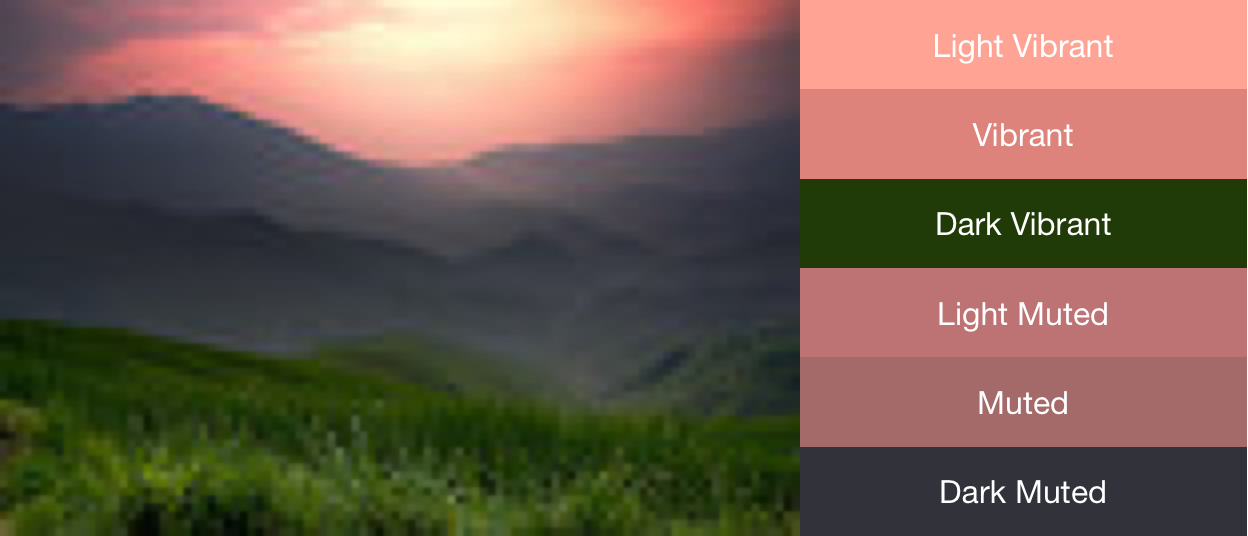
Palette 程式庫會嘗試擷取下列六種顏色設定檔:
- Light Vibrant
- 繽紛
- Dark Vibrant
- 淺色 (靜音)
- 已略過
- 深色柔和
Palette 中的每個 get<Profile>Color() 方法都會傳回與該特定設定檔相關聯的調色盤顏色,其中 <Profile> 會替換為六個顏色設定檔之一的名稱。舉例來說,取得深色鮮豔色彩設定檔的方法是 getDarkVibrantColor()。由於並非所有圖片都包含所有色彩設定檔,因此請提供要傳回的預設顏色。
圖 1 顯示相片和 get<Profile>Color() 方法對應的色彩設定檔。
使用色票建立色彩配置
Palette 類別也會為每個色彩設定檔產生 Palette.Swatch 物件。Palette.Swatch 物件包含該設定檔的相關顏色,以及該顏色的像素數量。
色票提供其他方法,可存取色彩設定檔的更多資訊,例如 HSL 值和像素母體。您可以使用色票,透過 getBodyTextColor() 和 getTitleTextColor() 方法建立更全面的色彩配置和應用程式主題。這些方法會傳回適合用於色票顏色的顏色。
Palette 的每個 get<Profile>Swatch() 方法都會傳回與該特定設定檔相關聯的色票,其中 <Profile> 會替換為六個色彩設定檔之一的名稱。雖然調色盤的 get<Profile>Swatch() 方法不需要預設值參數,但如果圖片中沒有特定設定檔,則會傳回 null。因此,請先確認色票不是空值,再使用。舉例來說,如果 Vibrant 色樣不是空值,下列程式碼會從調色盤取得標題文字顏色:
Kotlin
val vibrant = myPalette.vibrantSwatch
// In Kotlin, check for null before accessing properties on the vibrant swatch.
val titleColor = vibrant?.titleTextColor
Java
Palette.Swatch vibrant = myPalette.getVibrantSwatch();
if(vibrant != null){
    int titleColor = vibrant.getTitleTextColor();
    // ...
}
如要存取調色盤中的所有顏色,getSwatches() 方法會傳回從圖片產生的所有色票清單,包括標準的六種色彩設定檔。
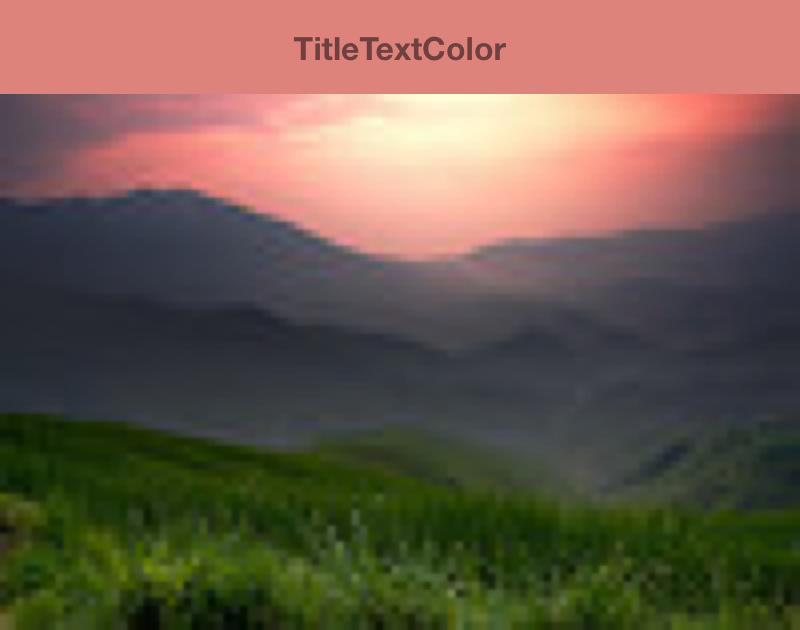
下列程式碼片段使用上述程式碼片段的方法,同步產生調色盤、取得其鮮豔色票,並變更工具列的顏色,以符合點陣圖圖片。圖 2 顯示產生的圖片和工具列。
Kotlin
// Set the background and text colors of a toolbar given a bitmap image to
// match.
fun setToolbarColor(bitmap: Bitmap) {
    // Generate the palette and get the vibrant swatch.
    val vibrantSwatch = createPaletteSync(bitmap).vibrantSwatch

    // Set the toolbar background and text colors.
    // Fall back to default colors if the vibrant swatch isn't available.
    with(findViewById<Toolbar>(R.id.toolbar)) {
        setBackgroundColor(vibrantSwatch?.rgb ?:
                ContextCompat.getColor(context, R.color.default_title_background))
        setTitleTextColor(vibrantSwatch?.titleTextColor ?:
                ContextCompat.getColor(context, R.color.default_title_color))
    }
}
Java
// Set the background and text colors of a toolbar given a bitmap image to
// match.
public void setToolbarColor(Bitmap bitmap) {
    // Generate the palette and get the vibrant swatch.
    // See the createPaletteSync() method from the preceding code snippet.
    Palette p = createPaletteSync(bitmap);
    Palette.Swatch vibrantSwatch = p.getVibrantSwatch();

    Toolbar toolbar = (Toolbar) findViewById(R.id.toolbar);

    // Load default colors.
    int backgroundColor = ContextCompat.getColor(getContext(),
        R.color.default_title_background);
    int textColor = ContextCompat.getColor(getContext(),
        R.color.default_title_color);

    // Check that the Vibrant swatch is available.
    if(vibrantSwatch != null){
        backgroundColor = vibrantSwatch.getRgb();
        textColor = vibrantSwatch.getTitleTextColor();
    }

    // Set the toolbar background and text colors.
    toolbar.setBackgroundColor(backgroundColor);
        toolbar.setTitleTextColor(textColor);
}