

Android-এর বিভিন্ন ভার্সনে আপনার বিজ্ঞপ্তি যাতে সবচেয়ে ভাল দেখায়, তার জন্য বিজ্ঞপ্তি তৈরি করতে স্ট্যান্ডার্ড বিজ্ঞপ্তি টেমপ্লেট ব্যবহার করুন। আপনি বিজ্ঞপ্তিতে আরও কন্টেন্ট দিতে চাইলে, এক্সপ্যান্ডেবল বিজ্ঞপ্তি টেমপ্লেট ব্যবহার করার কথা বিবেচনা করুন।
তবে, সিস্টেম টেমপ্লেট আপনার প্রয়োজন পূরণ না করলে, বিজ্ঞপ্তির জন্য আপনি নিজের লেআউট ব্যবহার করতে পারবেন।
কন্টেন্ট এরিয়ার জন্য কাস্টম লেআউট তৈরি করা
আপনার কাস্টম লেআউটের প্রয়োজন হলে, আপনি বিজ্ঞপ্তিতে
NotificationCompat.DecoratedCustomViewStyle প্রয়োগ করতে পারেন। এই
API আপনাকে কন্টেন্ট এরিয়ার জন্য কাস্টম লেআউট প্রদান করতে দেয়, যেটি সাধারণত
শীর্ষক ও টেক্সট কন্টেন্ট দ্বারা পূর্ণ থাকে, এর পাশাপাশি
বিজ্ঞপ্তি আইকন, টাইমস্ট্যাম্প, সাব-টেক্সট ও অ্যাকশন বোতামের জন্য সিস্টেম ডেকোরেশন ব্যবহার করা হয়।
এই API, এক্সপ্যান্ডেবল বিজ্ঞপ্তি টেমপ্লেট-এর মতোই কাজ করে, এটি নিম্নলিখিত উপায়ে বেসিক বিজ্ঞপ্তি লেআউটের উপর ভিত্তি করে তৈরি করা হয়:
NotificationCompat.Builder-এর সাহায্যে প্রাথমিক বিজ্ঞপ্তি তৈরি করুন।setStyle()কল করুন, এটিNotificationCompat.DecoratedCustomViewStyle-এর ইনস্ট্যান্স পাস করছে।RemoteViews-এর ইনস্ট্যান্স হিসেবে আপনার কাস্টম লেআউট ইনফ্লেট করুন।- সঙ্কুচিত বিজ্ঞপ্তির লেআউট সেট করতে
setCustomContentView()কল করুন। - বিকল্প হিসেবে, বড় করা বিজ্ঞপ্তির জন্য অন্য লেআউট সেট করতে
setCustomBigContentView()কল করুন।
লেআউট তৈরি করা
আপনার small এবং large লেআউট প্রয়োজন। এই উদাহরণের জন্য, small লেআউট
এইরকম দেখতে হতে পারে:
<LinearLayout xmlns:android="http://schemas.android.com/apk/res/android" android:layout_width="match_parent" android:layout_height="wrap_content" android:orientation="vertical"> <TextView android:id="@+id/notification_title" style="@style/TextAppearance.Compat.Notification.Title" android:layout_width="wrap_content" android:layout_height="0dp" android:layout_weight="1" android:text="Small notification, showing only a title" /> </LinearLayout>
এবং large লেআউটটি এর মতো দেখতে হতে পারে:
<LinearLayout xmlns:android="http://schemas.android.com/apk/res/android" android:layout_width="match_parent" android:layout_height="300dp" android:orientation="vertical"> <TextView android:id="@+id/notification_title" style="@style/TextAppearance.Compat.Notification.Title" android:layout_width="wrap_content" android:layout_height="wrap_content" android:layout_weight="1" android:text="Large notification, showing a title and a body." /> <TextView android:id="@+id/notification_body" style="@style/TextAppearance.Compat.Notification.Line2" android:layout_width="wrap_content" android:layout_height="wrap_content" android:layout_weight="1" android:text="This is the body. The height is manually forced to 300dp." /> </LinearLayout>
বিজ্ঞপ্তি তৈরি করে দেখান
লেআউট রেডি হয়ে গেলে, আপনি নিম্নলিখিত উদাহরণে দেখানো পদ্ধতিতে সেগুলি ব্যবহার করতে পারবেন:
val notificationManager = getSystemService(Context.NOTIFICATION_SERVICE) as NotificationManager // Get the layouts to use in the custom notification. val notificationLayout = RemoteViews(packageName, R.layout.notification_small) val notificationLayoutExpanded = RemoteViews(packageName, R.layout.notification_large) // Apply the layouts to the notification. val customNotification = NotificationCompat.Builder(context, CHANNEL_ID) .setSmallIcon(R.drawable.notification_icon) .setStyle(NotificationCompat.DecoratedCustomViewStyle()) .setCustomContentView(notificationLayout) .setCustomBigContentView(notificationLayoutExpanded) .build() notificationManager.notify(666, customNotification)
মনে রাখবেন, ডিভাইস ও ভার্সন অনুযায়ী বিজ্ঞপ্তির ব্যাকগ্রাউন্ডের রঙ আলাদা আলাদা হতে পারে।
আপনার কাস্টম লেআউটে টেক্সটের জন্য
TextAppearance_Compat_Notification এবং শিরোনামের জন্য
TextAppearance_Compat_Notification_Title-এর মতো সাপোর্ট লাইব্রেরি স্টাইল প্রয়োগ করুন,
যেমনটি নিম্নলিখিত উদাহরণে দেখানো হয়েছে। এইসব স্টাইল কালার ভেরিয়েশনের সাথে মানিয়ে নেয়, তাই
আপনার টেক্সট কালো-এর উপর কালো বা সাদা-এর উপর সাদা হয়ে যায় না।
<TextView
    android:layout_width="wrap_content"
    android:layout_height="match_parent"
    android:layout_weight="1"
    android:text="@string/notification_title"
    android:id="@+id/notification_title"
    style="@style/TextAppearance.Compat.Notification.Title" />
আপনার RemoteViews অবজেক্টে ব্যাকগ্রাউন্ড ছবি সেট করা এড়িয়ে চলুন, কারণ আপনার টেক্সট
পড়া নাও যেতে পারে।
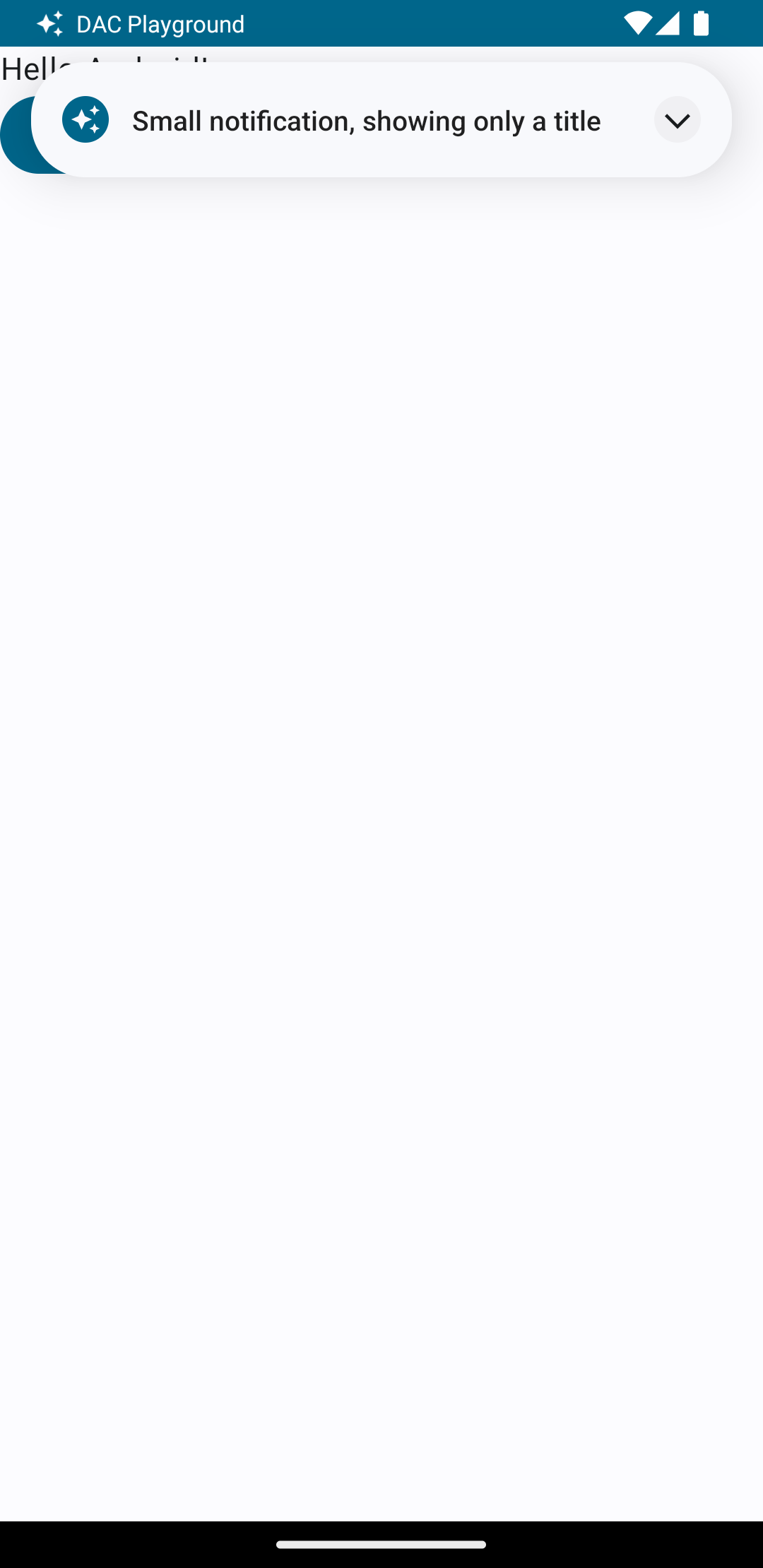
ব্যবহারকারী কোনও অ্যাপ ব্যবহার করার সময় আপনি বিজ্ঞপ্তি ট্রিগার করলে, ফলাফলটি ছবি ১-এর মতো হয়:
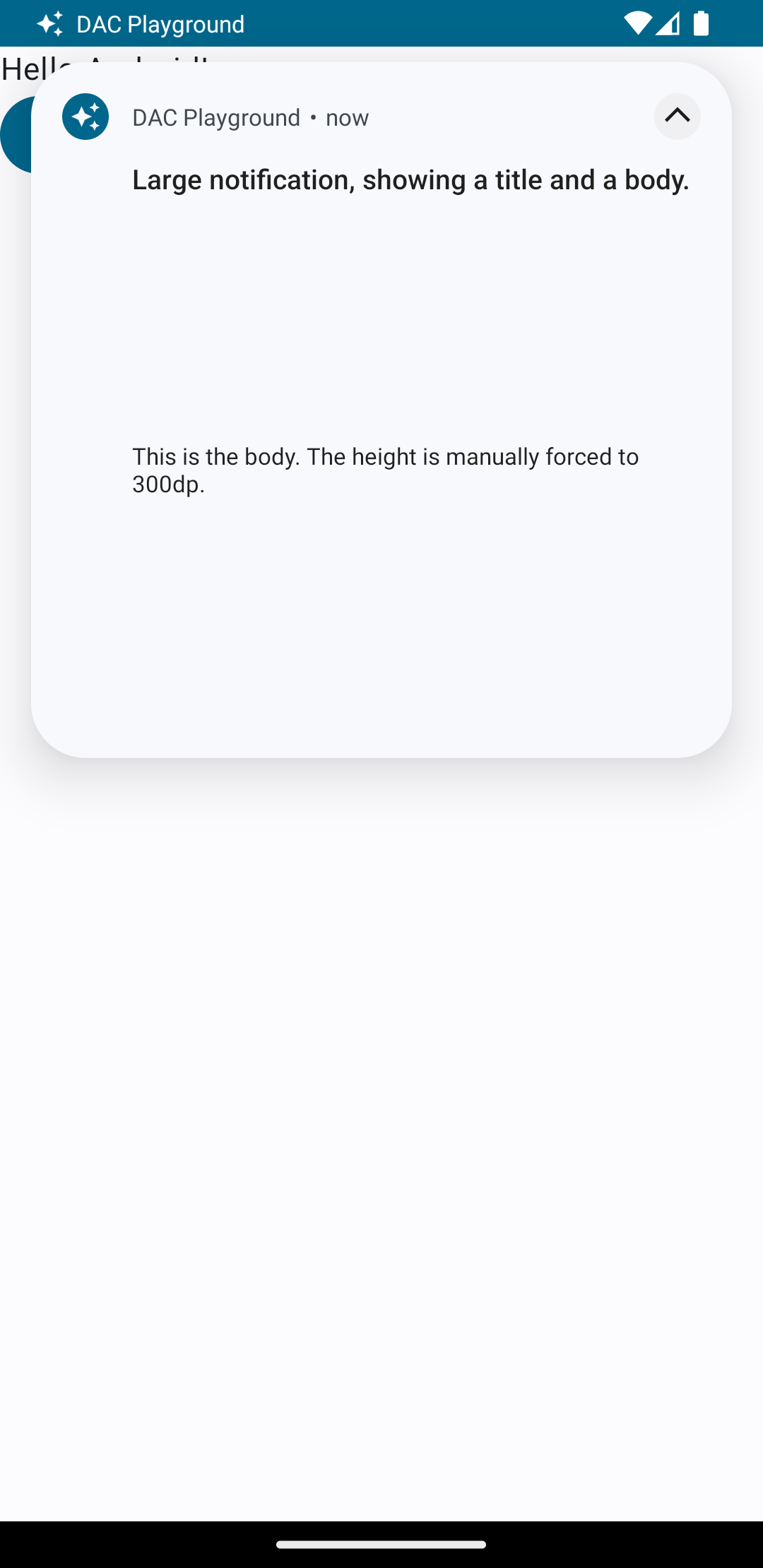
এক্সপ্যান্ডার তীরচিহ্নে ট্যাপ করলে বিজ্ঞপ্তিটি বড় হয়ে যায়, যেমনটি ২ নম্বর ছবিতে দেখানো হয়েছে:
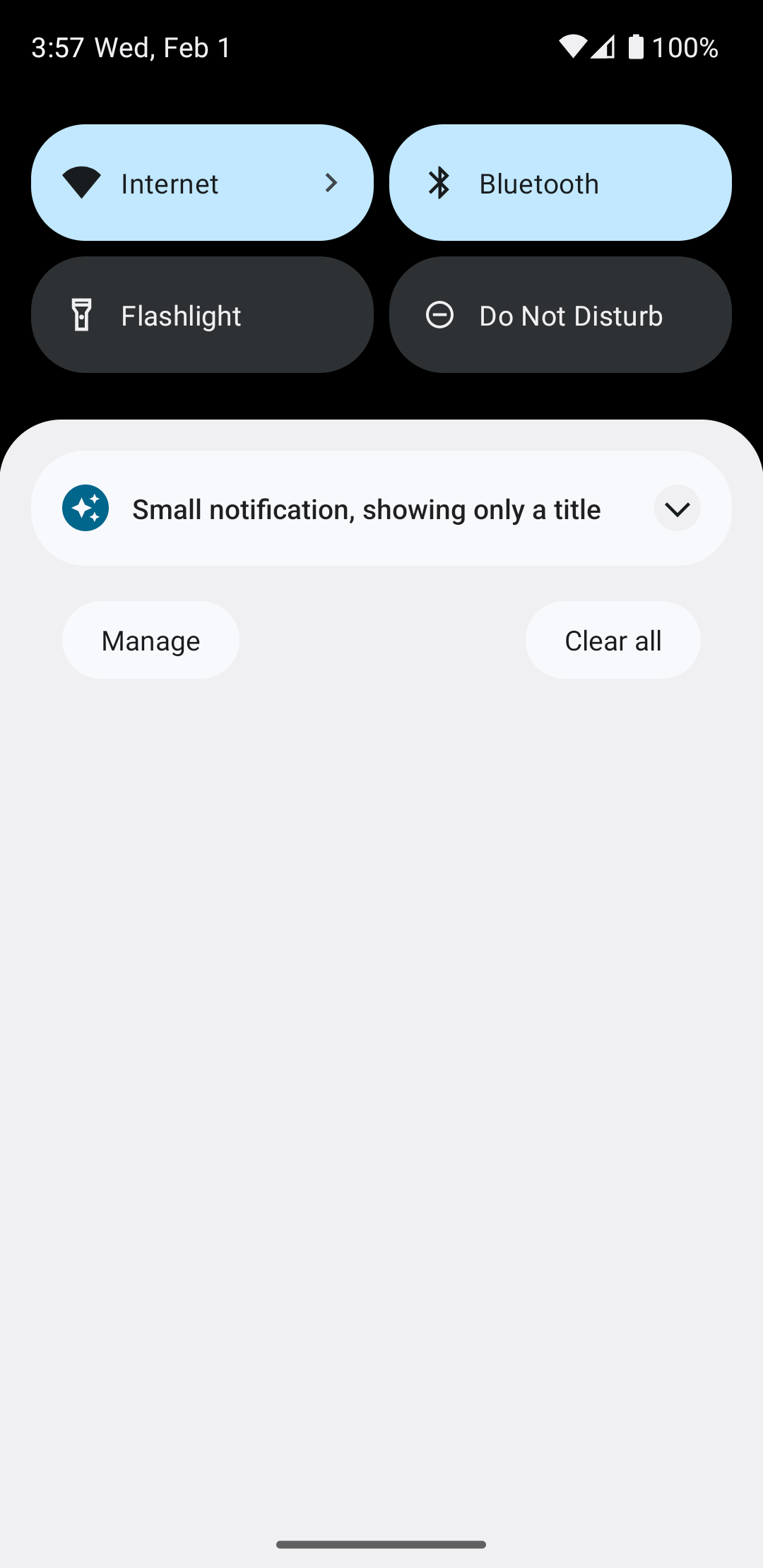
বিজ্ঞপ্তির টাইম-আউট শেষ হয়ে গেলে, বিজ্ঞপ্তিটি শুধুমাত্র সিস্টেম বারে দেখা যায়, যা ৩ নম্বর ছবির মতো দেখতে হয়:
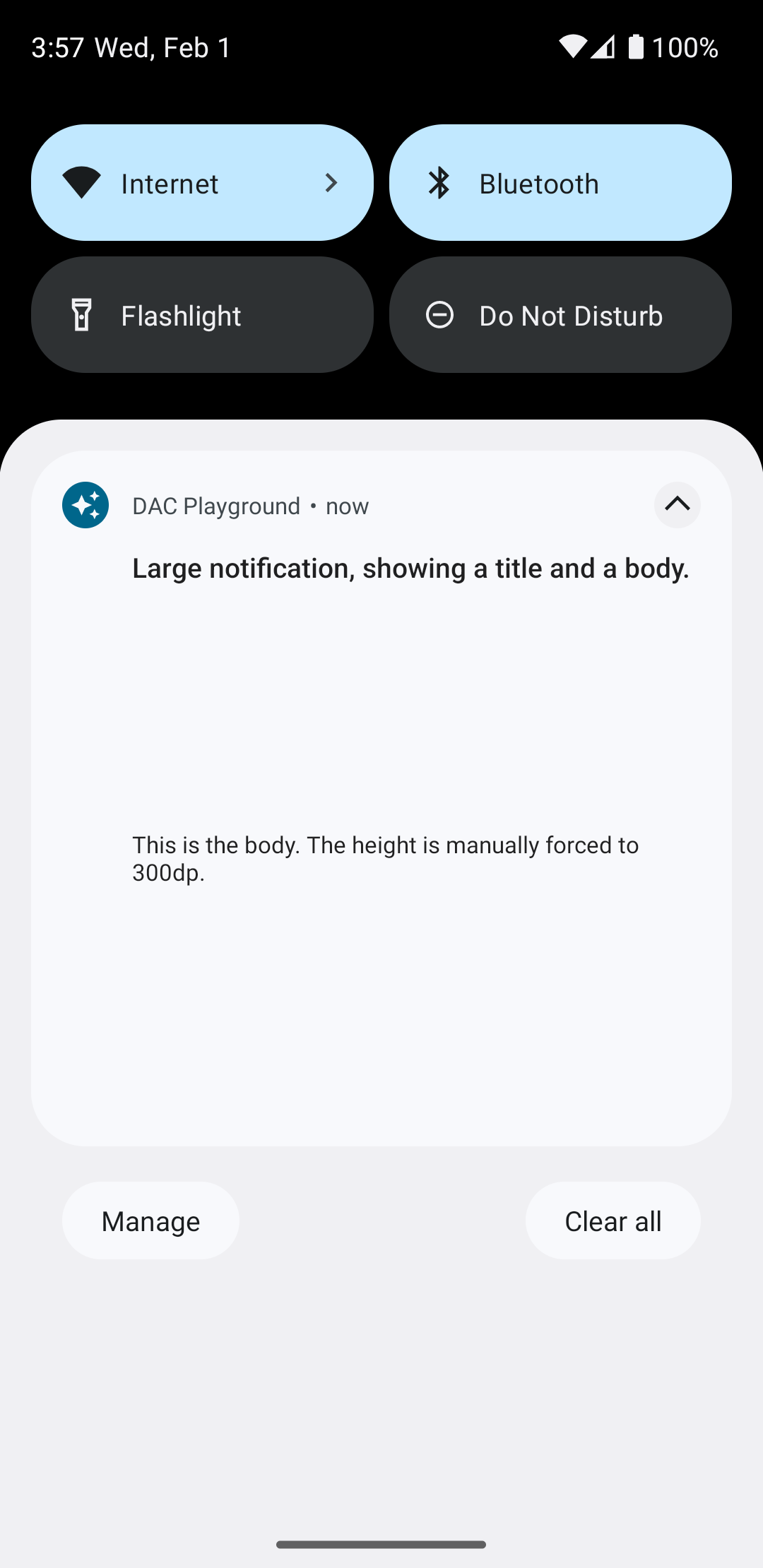
৪ নম্বর ছবিতে দেখানো হয়েছে যে, বড় করার তীরচিহ্নে ট্যাপ করলে বিজ্ঞপ্তিটি বড় হয়ে যায়:
সম্পূর্ণ কাস্টম বিজ্ঞপ্তি লেআউট তৈরি করুন
আপনি যদি স্ট্যান্ডার্ড বিজ্ঞপ্তি আইকন এবং হেডার দিয়ে আপনার বিজ্ঞপ্তি সাজাতে না চান, তাহলে আগের ধাপগুলি অনুসরণ করুন কিন্তু setStyle() কল করবেন না।