

Compose כולל פונקציות קומפוזביליות ומשתני שינוי מובְנים לטיפול בתרחישים נפוצים של אנימציה.
רכיבים מובנים של אנימציה
ב-Compose יש כמה פונקציות קומפוזביליות שמוסיפות אנימציה לשינויים בפריסה, בהופעה ובהיעלמות של התוכן.
הנפשה של הופעה והיעלמות
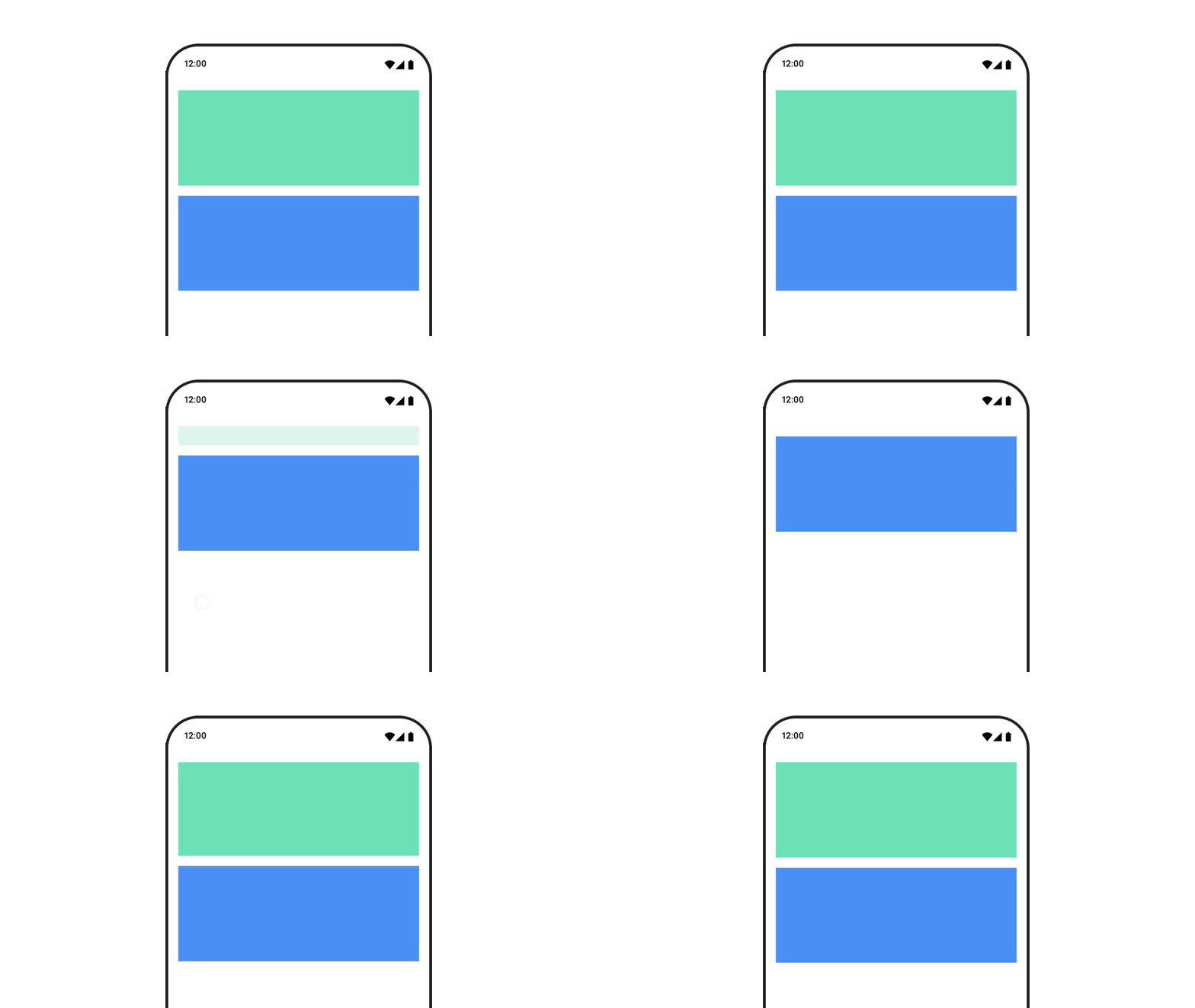
הרכיב הניתן לקומפוזיציה
AnimatedVisibility
מציג אנימציה של הופעת התוכן והיעלמותו.
var visible by remember { mutableStateOf(true) } // Animated visibility will eventually remove the item from the composition once the animation has finished. AnimatedVisibility(visible) { // your composable here // ... }
כברירת מחדל, התוכן מופיע בהדרגה ומתרחב, ונעלם בהדרגה ומתכווץ. כדי להתאים אישית את המעבר הזה, צריך לציין אובייקטים מסוג EnterTransition ו-ExitTransition.
var visible by remember { mutableStateOf(true) } val density = LocalDensity.current AnimatedVisibility( visible = visible, enter = slideInVertically { // Slide in from 40 dp from the top. with(density) { -40.dp.roundToPx() } } + expandVertically( // Expand from the top. expandFrom = Alignment.Top ) + fadeIn( // Fade in with the initial alpha of 0.3f. initialAlpha = 0.3f ), exit = slideOutVertically() + shrinkVertically() + fadeOut() ) { Text( "Hello", Modifier .fillMaxWidth() .height(200.dp) ) }
כמו שמוצג בדוגמה הקודמת, אפשר לשלב כמה אובייקטים של EnterTransition או ExitTransition עם אופרטור +, וכל אחד מהם מקבל פרמטרים אופציונליים להתאמה אישית של ההתנהגות שלו. מידע נוסף זמין בדפי העזרה.
דוגמאות למעברי כניסה ויציאה
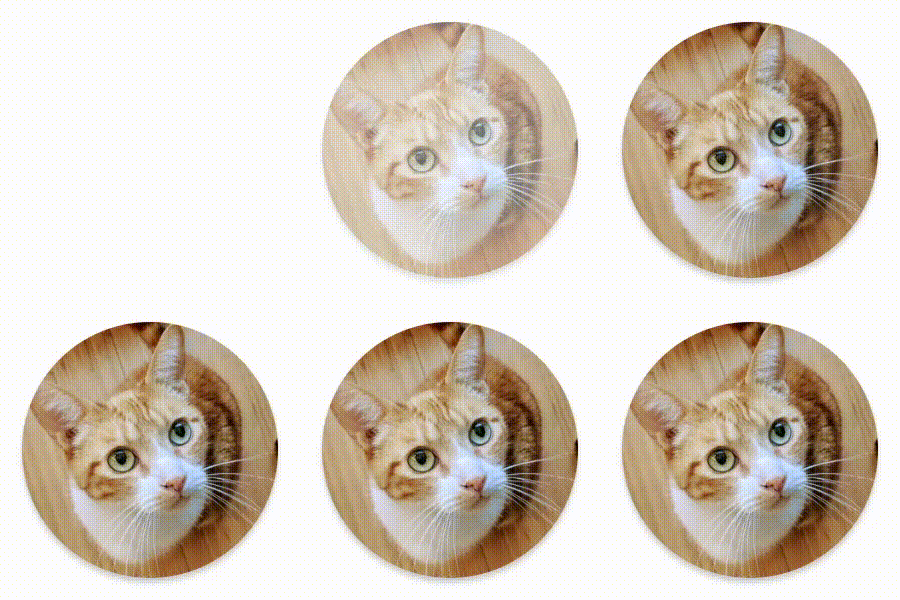

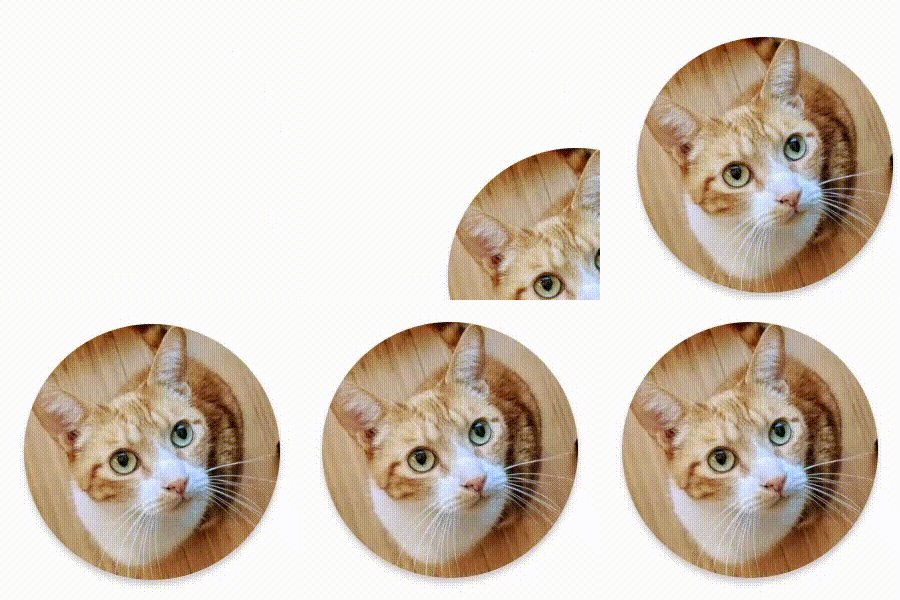

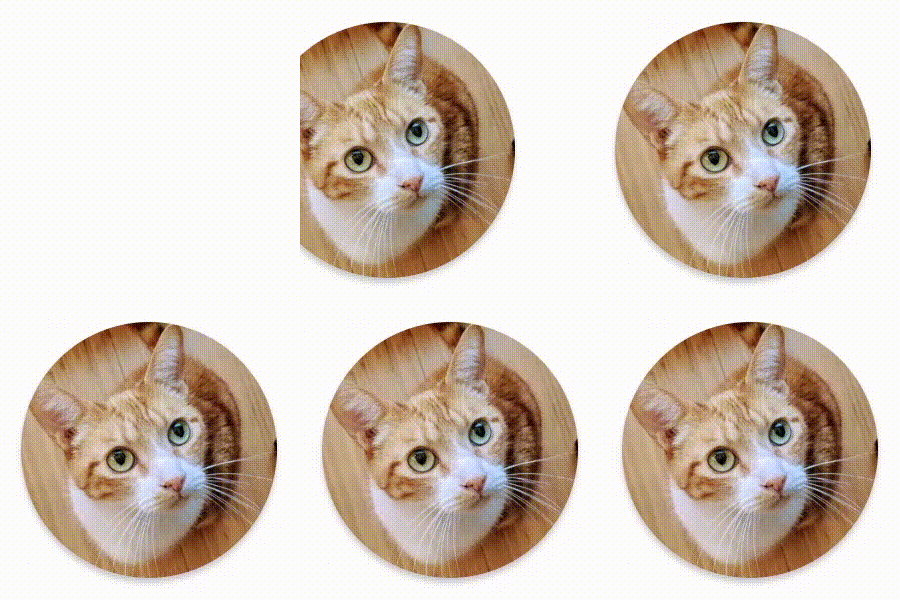

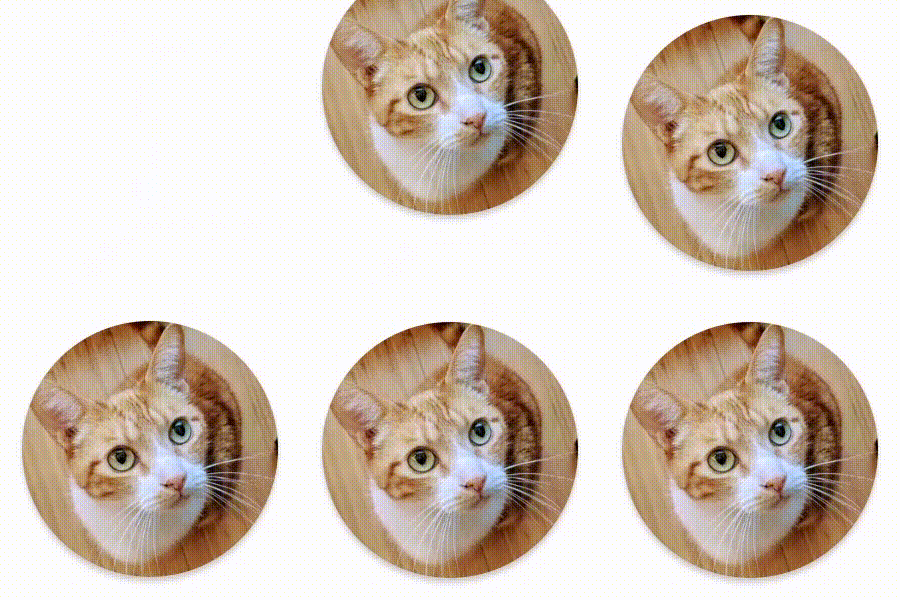

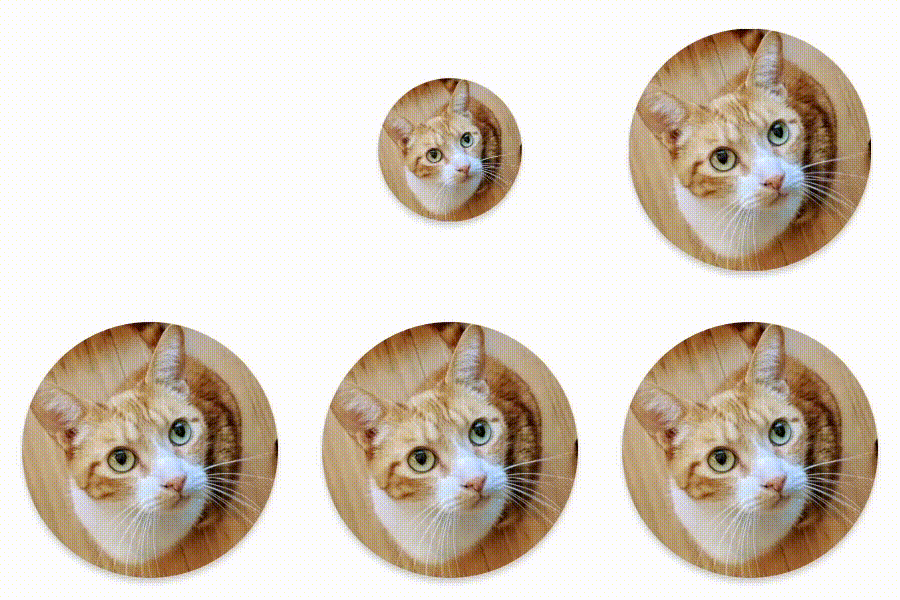

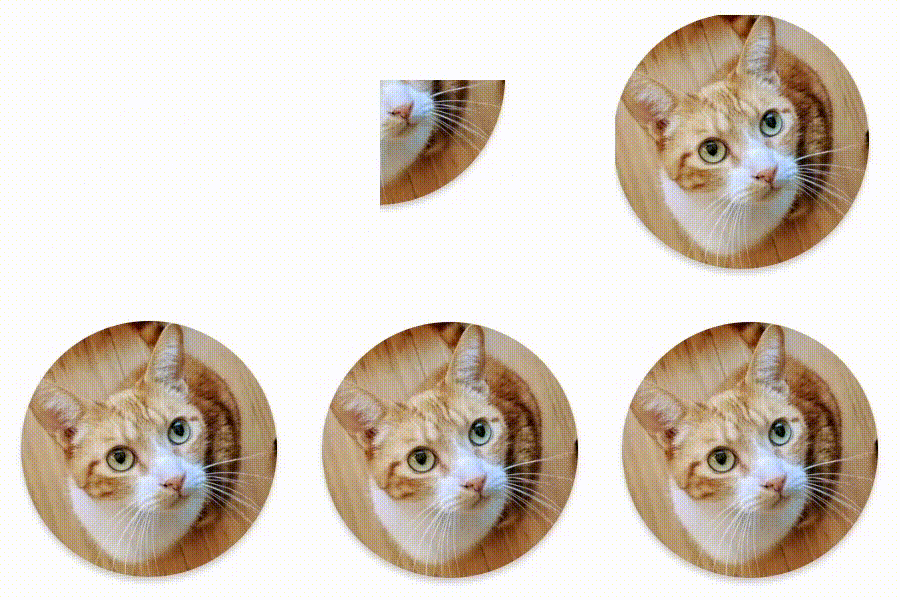

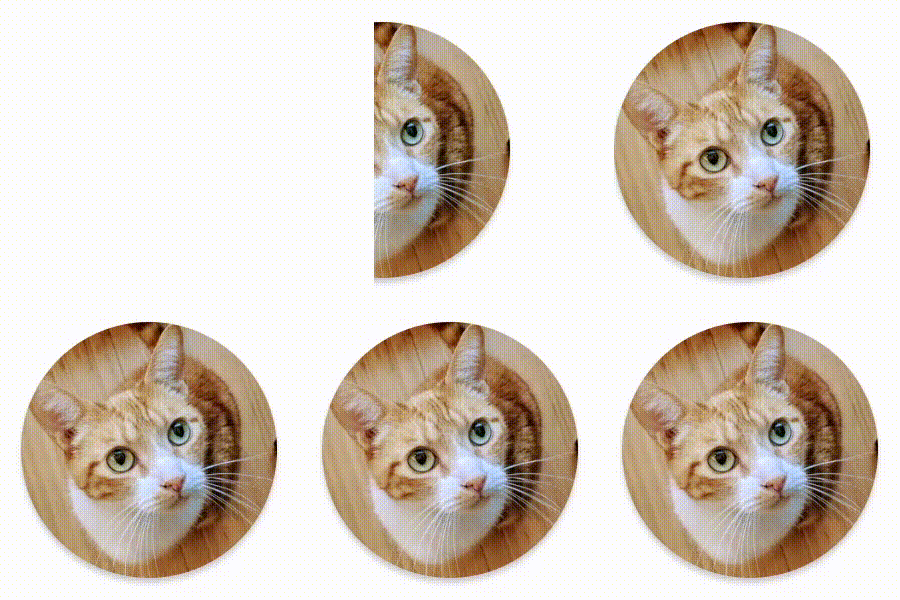

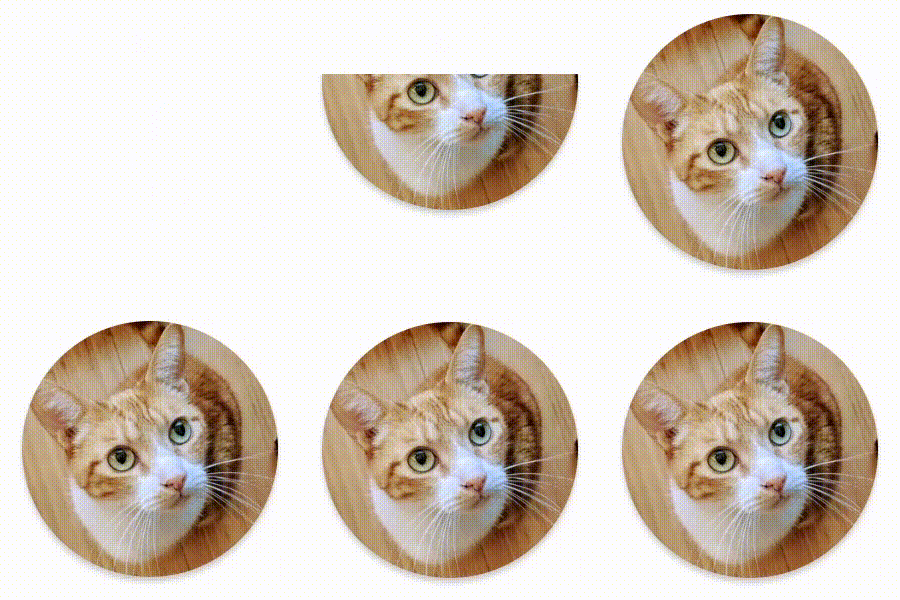

ב-AnimatedVisibility יש גם גרסה שמקבלת ארגומנט MutableTransitionState. כך אפשר להפעיל אנימציה ברגע שהרכיב הקומפוזבילי AnimatedVisibility נוסף לעץ הקומפוזיציה. הוא גם שימושי כדי לבדוק את מצב האנימציה.
// Create a MutableTransitionState<Boolean> for the AnimatedVisibility. val state = remember { MutableTransitionState(false).apply { // Start the animation immediately. targetState = true } } Column { AnimatedVisibility(visibleState = state) { Text(text = "Hello, world!") } // Use the MutableTransitionState to know the current animation state // of the AnimatedVisibility. Text( text = when { state.isIdle && state.currentState -> "Visible" !state.isIdle && state.currentState -> "Disappearing" state.isIdle && !state.currentState -> "Invisible" else -> "Appearing" } ) }
הנפשה של כניסה ויציאה של ילדים
תוכן בתוך AnimatedVisibility (צאצאים ישירים או עקיפים) יכול להשתמש ב-modifier
animateEnterExit
כדי לציין התנהגות אנימציה שונה לכל אחד מהם. האפקט החזותי של כל אחד מהרכיבים האלה הוא שילוב של האנימציות שצוינו ברכיב ה-Composable של AnimatedVisibility והאנימציות של הכניסה והיציאה של הרכיב עצמו.
var visible by remember { mutableStateOf(true) } AnimatedVisibility( visible = visible, enter = fadeIn(), exit = fadeOut() ) { // Fade in/out the background and the foreground. Box( Modifier .fillMaxSize() .background(Color.DarkGray) ) { Box( Modifier .align(Alignment.Center) .animateEnterExit( // Slide in/out the inner box. enter = slideInVertically(), exit = slideOutVertically() ) .sizeIn(minWidth = 256.dp, minHeight = 64.dp) .background(Color.Red) ) { // Content of the notification… } } }
במקרים מסוימים, יכול להיות שתרצו ש-AnimatedVisibility לא יחיל אנימציות בכלל, כדי שלכל אחד מהילדים יהיו אנימציות ייחודיות משלו שנוצרו על ידי animateEnterExit. כדי לעשות את זה, מציינים את EnterTransition.None ו-ExitTransition.None ב-composable של AnimatedVisibility.
הוספת אנימציה בהתאמה אישית
אם רוצים להוסיף אפקטים של אנימציה בהתאמה אישית מעבר לאנימציות המובנות של הכניסה והיציאה, צריך לגשת למכונה הבסיסית של Transition באמצעות המאפיין transition בתוך פונקציית הלמבדה של התוכן של AnimatedVisibility. כל מצבי האנימציה שנוספו למופע של Transition יפעלו בו-זמנית עם אנימציות הכניסה והיציאה של AnimatedVisibility. AnimatedVisibility ממתין עד שכל האנימציות ב-Transition יסתיימו לפני הסרת התוכן שלו.
אם אנימציות היציאה נוצרו בנפרד מ-Transition (למשל באמצעות animate*AsState), AnimatedVisibility לא יוכל להביא אותן בחשבון, ולכן יכול להיות שהוא יסיר את התוכן הניתן ליצירה לפני שהן יסתיימו.
var visible by remember { mutableStateOf(true) } AnimatedVisibility( visible = visible, enter = fadeIn(), exit = fadeOut() ) { // this: AnimatedVisibilityScope // Use AnimatedVisibilityScope#transition to add a custom animation // to the AnimatedVisibility. val background by transition.animateColor(label = "color") { state -> if (state == EnterExitState.Visible) Color.Blue else Color.Gray } Box( modifier = Modifier .size(128.dp) .background(background) ) }
מידע נוסף על שימוש ב-Transition לניהול אנימציות זמין במאמר הוספת אנימציה למספר מאפיינים בו-זמנית באמצעות מעבר.
הנפשה על סמך מצב היעד
הרכיב הניתן לקומפוזיציה AnimatedContent מוסיף אנימציה לתוכן שלו כשהוא משתנה בהתאם לערך הדינמי של היעד.
Row { var count by remember { mutableIntStateOf(0) } Button(onClick = { count++ }) { Text("Add") } AnimatedContent( targetState = count, label = "animated content" ) { targetCount -> // Make sure to use `targetCount`, not `count`. Text(text = "Count: $targetCount") } }
כברירת מחדל, התוכן הראשוני נעלם בהדרגה ואז תוכן היעד מופיע בהדרגה (ההתנהגות הזו נקראת מעבר הדרגתי).
כדי להתאים אישית את התנהגות האנימציה, אפשר לציין אובייקט ContentTransform בפרמטר transitionSpec. אפשר ליצור מופע של ContentTransform על ידי שילוב של אובייקט EnterTransition עם אובייקט ExitTransition באמצעות הפונקציה togetherWith. אפשר להחיל את SizeTransform על האובייקט ContentTransform על ידי צירוף שלו באמצעות הפונקציה using.
AnimatedContent( targetState = count, transitionSpec = { // Compare the incoming number with the previous number. if (targetState > initialState) { // If the target number is larger, it slides up and fades in // while the initial (smaller) number slides up and fades out. slideInVertically { height -> height } + fadeIn() togetherWith slideOutVertically { height -> -height } + fadeOut() } else { // If the target number is smaller, it slides down and fades in // while the initial number slides down and fades out. slideInVertically { height -> -height } + fadeIn() togetherWith slideOutVertically { height -> height } + fadeOut() }.using( // Disable clipping since the faded slide-in/out should // be displayed out of bounds. SizeTransform(clip = false) ) }, label = "animated content" ) { targetCount -> Text(text = "$targetCount") }
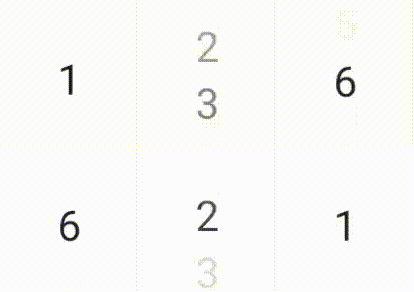
EnterTransition מגדיר איך תוכן היעד אמור להופיע, ו-ExitTransition מגדיר איך התוכן הראשוני אמור להיעלם. בנוסף לכל הפונקציות של EnterTransition ו-ExitTransition שזמינות ב-AnimatedVisibility, ב-AnimatedContent יש גם את slideIntoContainer ו-slideOutOfContainer.
אלה חלופות נוחות ל-slideInHorizontally/Vertically ול-slideOutHorizontally/Vertically שמחשבות את מרחק ההזזה על סמך הגדלים של התוכן הראשוני ותוכן היעד של התוכן AnimatedContent.
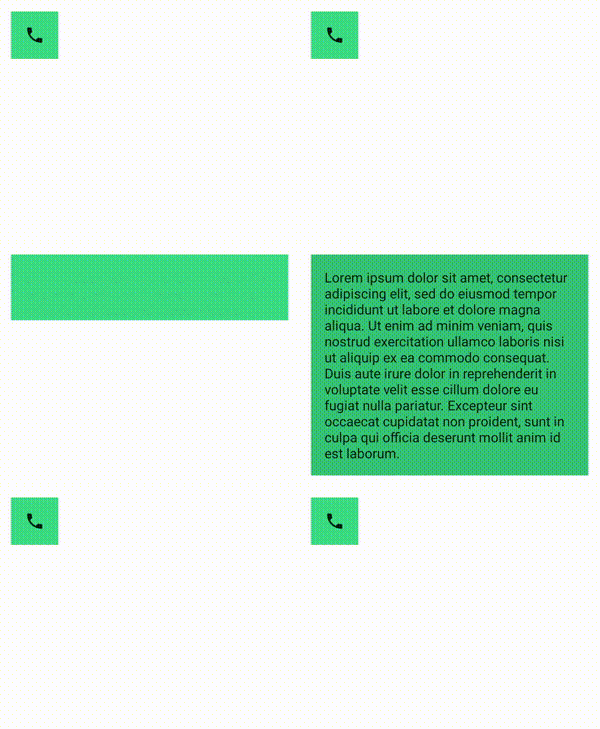
SizeTransform מגדיר איך הגודל צריך להשתנות באנימציה בין התוכן הראשוני לתוכן היעד. יש לכם גישה גם לגודל הראשוני וגם לגודל היעד כשאתם יוצרים את האנימציה. המאפיין SizeTransform גם קובע אם התוכן צריך להיחתך לגודל הרכיב במהלך אנימציות.
var expanded by remember { mutableStateOf(false) } Surface( color = MaterialTheme.colorScheme.primary, onClick = { expanded = !expanded } ) { AnimatedContent( targetState = expanded, transitionSpec = { fadeIn(animationSpec = tween(150, 150)) togetherWith fadeOut(animationSpec = tween(150)) using SizeTransform { initialSize, targetSize -> if (targetState) { keyframes { // Expand horizontally first. IntSize(targetSize.width, initialSize.height) at 150 durationMillis = 300 } } else { keyframes { // Shrink vertically first. IntSize(initialSize.width, targetSize.height) at 150 durationMillis = 300 } } } }, label = "size transform" ) { targetExpanded -> if (targetExpanded) { Expanded() } else { ContentIcon() } } }
הוספת אנימציה למעברי כניסה ויציאה של רכיבי צאצא
בדומה ל-AnimatedVisibility, המשתנה animateEnterExit זמין בתוך פונקציית הלמבדה של התוכן של AnimatedContent. אפשר להשתמש בזה כדי להחיל את EnterTransition ו-ExitTransition על כל אחד מהצאצאים הישירים או העקיפים בנפרד.
הוספת אנימציה בהתאמה אישית
בדומה ל-AnimatedVisibility, השדה transition זמין בתוך פונקציית הלמבדה של התוכן ב-AnimatedContent. אפשר להשתמש בזה כדי ליצור אפקט אנימציה בהתאמה אישית שפועל בו-זמנית עם המעבר AnimatedContent. פרטים נוספים זמינים במאמר updateTransition.
אנימציה בין שתי פריסות
Crossfade יוצר אנימציה בין שני פריסות עם אנימציית מעבר הדרגתי. החלפת הערך שמועבר לפרמטר targetState מחליפה את התוכן באמצעות אנימציית מעבר הדרגתי.
var currentPage by remember { mutableStateOf("A") } Crossfade(targetState = currentPage, label = "cross fade") { screen -> when (screen) { "A" -> Text("Page A") "B" -> Text("Page B") } }
משני אנימציה מובנים
ב-Compose יש משתני שינוי שמאפשרים להוסיף אנימציה לשינויים ספציפיים ישירות ברכיבים הניתנים ליצירה.
אנימציה של שינויים בגודל של רכיבים קומפוזביליים
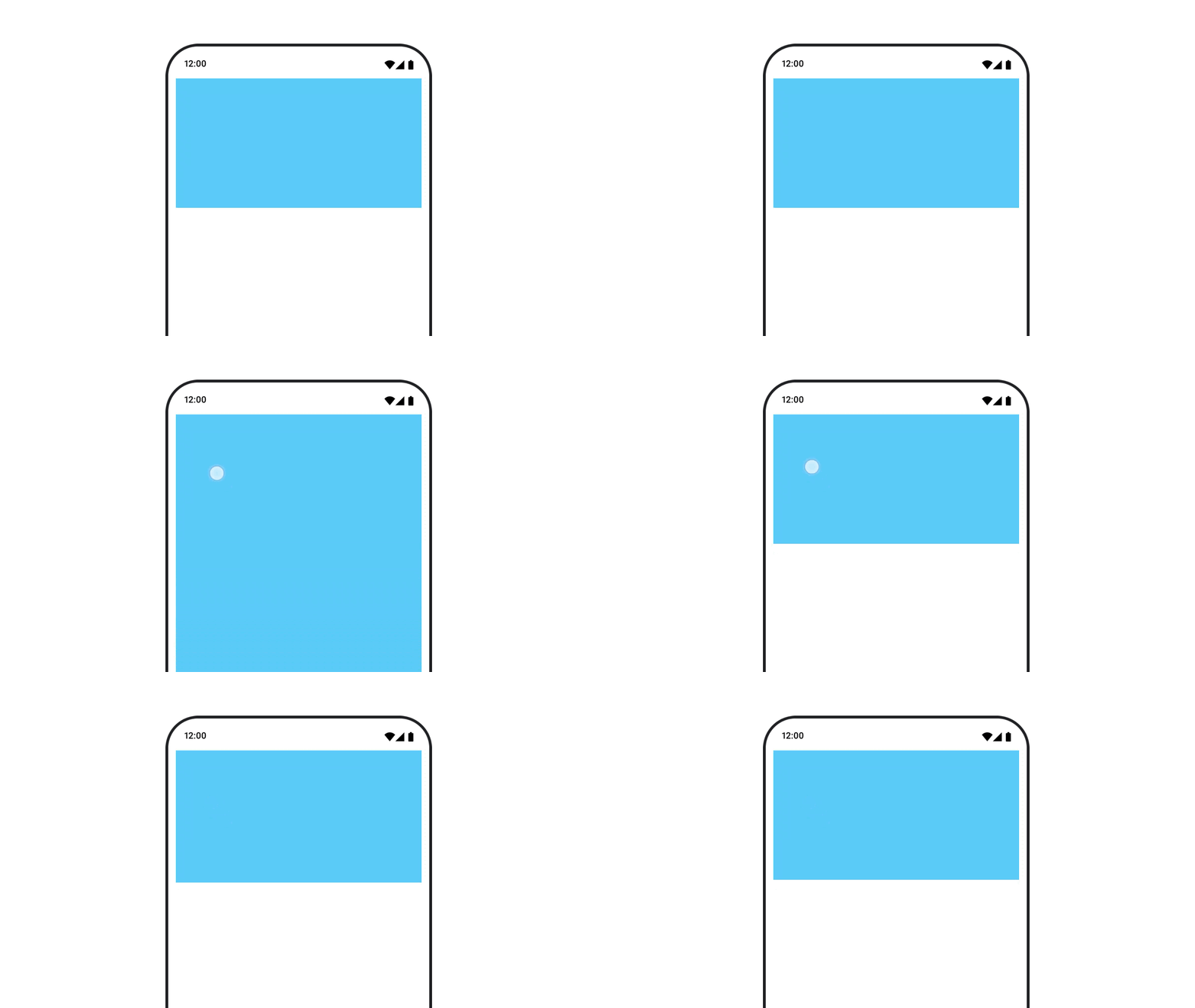
המשתנה animateContentSize יוצר אנימציה של שינוי גודל.
var expanded by remember { mutableStateOf(false) } Box( modifier = Modifier .background(colorBlue) .animateContentSize() .height(if (expanded) 400.dp else 200.dp) .fillMaxWidth() .clickable( interactionSource = remember { MutableInteractionSource() }, indication = null ) { expanded = !expanded } ) { }
אנימציות של פריטים ברשימה
אם אתם רוצים להוסיף אנימציה לשינוי הסדר של פריטים ברשימה או בפריסה מסוג Lazy, עיינו במסמכי התיעוד בנושא אנימציה של פריטים בפריסה מסוג Lazy.
מומלץ בשבילך
- הערה: טקסט הקישור מוצג כש-JavaScript מושבת
- אנימציות מבוססות-ערך
- אנימציות ב-Compose
- תמיכה בכלי אנימציה {:#tooling}