

基本通知通常包含标题、一行文本以及用户可以执行的响应操作。如需提供更多信息,您可以应用本文档介绍的多个通知模板之一来创建大型展开式通知。
首先,使用
创建通知中介绍的所有基本内容创建通知。然后,使用一个样式对象调用 setStyle(),并提供与每个模板相对应的信息(如以下示例所示)。
添加大图片
如需在通知中添加图片,请向 setStyle() 传递
NotificationCompat.BigPictureStyle 的实例。
var notification = NotificationCompat.Builder(context, CHANNEL_ID) .setSmallIcon(com.example.compose.snippets.R.drawable.ic_logo) .setContentTitle("Title") .setContentText("Content text") .setStyle( NotificationCompat.BigPictureStyle() .bigPicture(bitmapImage) ) .build()
如需使该图片仅在通知
收起时显示为缩略图(如下图所示),请调用
setLargeIcon()
并向其传递图片。然后,调用
BigPictureStyle.bigLargeIcon()
并向其传递 null,这样大图标就会在通知
展开时消失:
notification = NotificationCompat.Builder(context, CHANNEL_ID) .setSmallIcon(R.drawable.ic_logo) .setContentTitle("Title") .setContentText("Content text") .setLargeIcon(Icon.createWithResource(context, R.drawable.dog)) .setStyle( NotificationCompat.BigPictureStyle() .bigPicture(bitmapImage) .bigLargeIcon(null as Bitmap?) ) .build()
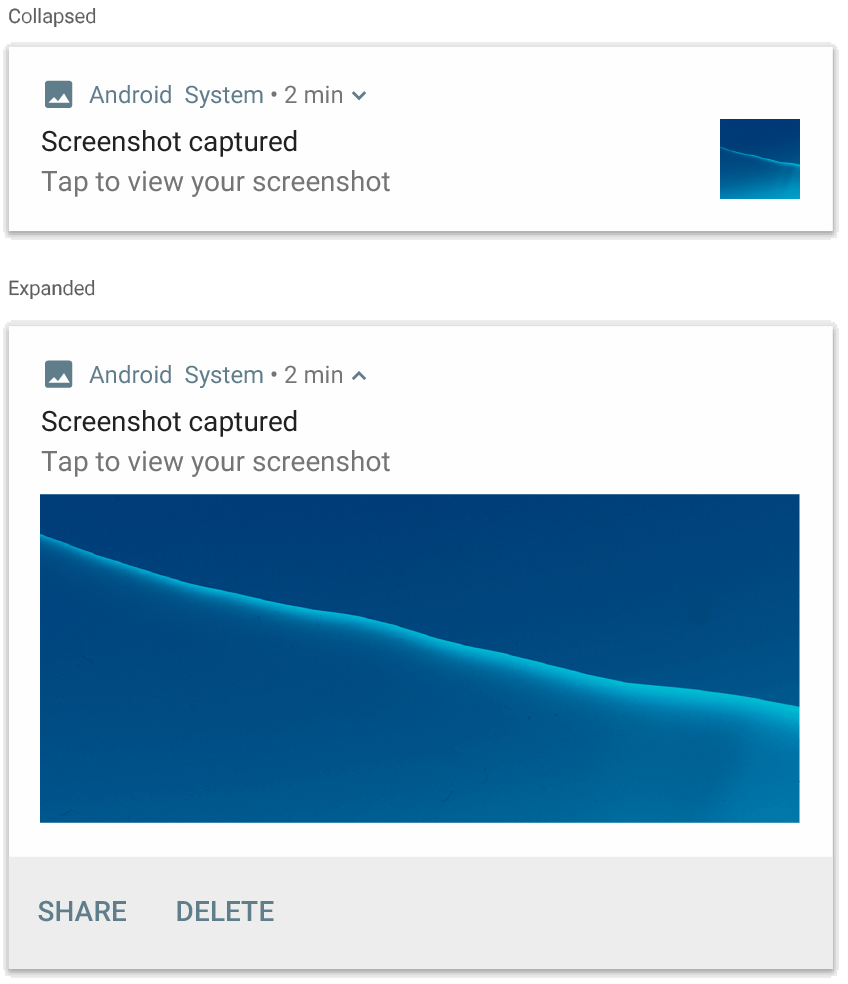
NotificationCompat.BigPictureStyle的通知。
添加一大段文本
应用 NotificationCompat.BigTextStyle,以在通知的展开
内容区域显示文本:
notification = NotificationCompat.Builder(context, CHANNEL_ID) .setSmallIcon(R.drawable.ic_logo) .setContentTitle("Sender name") .setContentText("Email subject") .setLargeIcon(Icon.createWithResource(context, R.drawable.dog)) .setStyle( NotificationCompat.BigTextStyle() .bigText(someVeryLongMessage) ) .build()
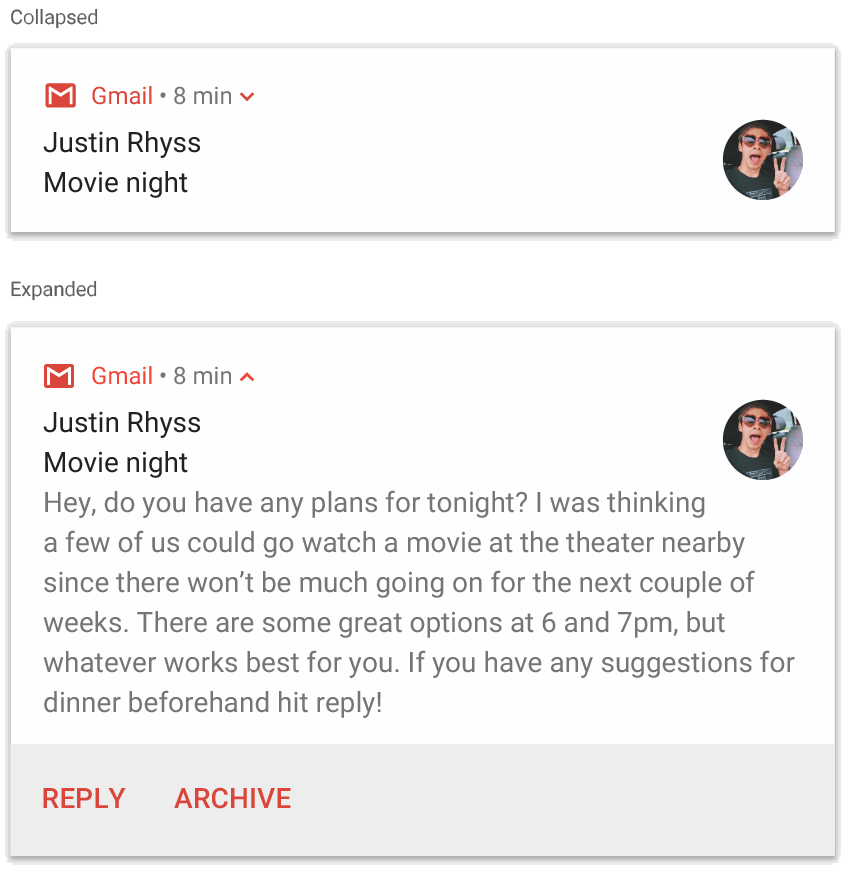
NotificationCompat.BigTextStyle的通知。
创建收件箱样式的通知
如果您想添加
多个简短摘要行(例如收到的电子邮件中的摘要),请对通知应用NotificationCompat.InboxStyle。这样,您就可以添加多条内容文本,并且每条文本均截断为一行,而不是显示为
NotificationCompat.BigTextStyle 提供的一个连续文本行。
如需添加新行,请调用 addLine() 最多六次,如以下
示例所示。如果您添加的行数超过六行,则只会显示前六行。
notification = NotificationCompat.Builder(context, CHANNEL_ID) .setSmallIcon(R.drawable.mail) .setContentTitle("5 New mails from Frank") .setContentText("Check them out") .setLargeIcon(bitmapImage) .setStyle( NotificationCompat.InboxStyle() .addLine("Re: Planning") .addLine("Delivery on its way") .addLine("Follow-up") ) .build()
结果如下图所示:
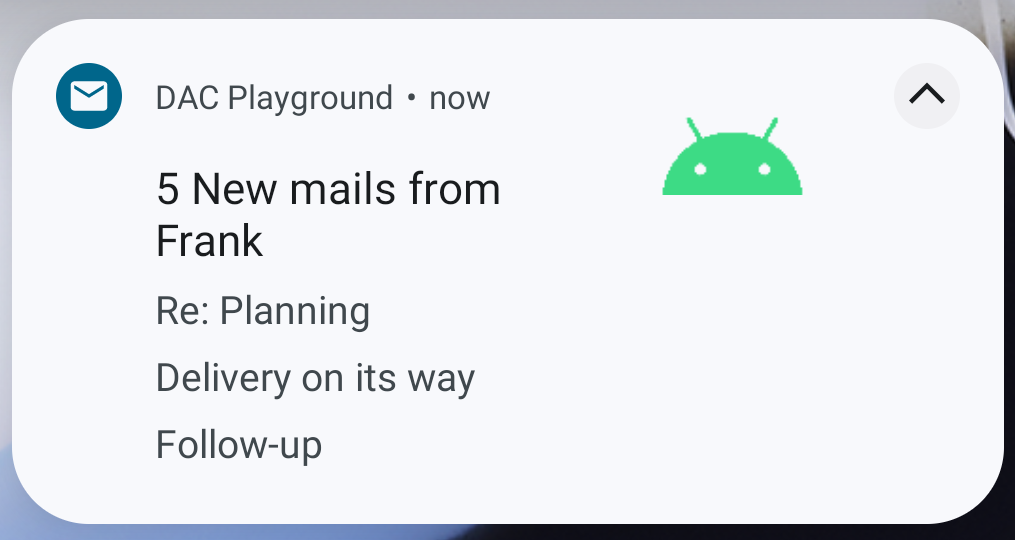
在通知中显示对话
应用 NotificationCompat.MessagingStyle 可显示任意人数之间依序发送的消息
。这是即时通讯应用的理想之选,因为它通过单独处理发送人姓名和消息文本为每条消息提供一致的布局,而且每条消息可以在多行中显示。
如需添加新消息,请调用 addMessage(),并传入消息文本、
接收时间和发送人姓名。您还可以将此信息作为
NotificationCompat.MessagingStyle.Message对象传递,如以下
示例所示:
val message1 = NotificationCompat.MessagingStyle.Message( messages[0].text, messages[0].time, messages[0].sender ) val message2 = NotificationCompat.MessagingStyle.Message( messages[1].text, messages[1].time, messages[1].sender ) notification = NotificationCompat.Builder(context, CHANNEL_ID) .setSmallIcon(R.drawable.ic_logo) .setStyle( NotificationCompat.MessagingStyle(Person.Builder().setName("Me").build()) .addMessage(message1) .addMessage(message2) ) .build()
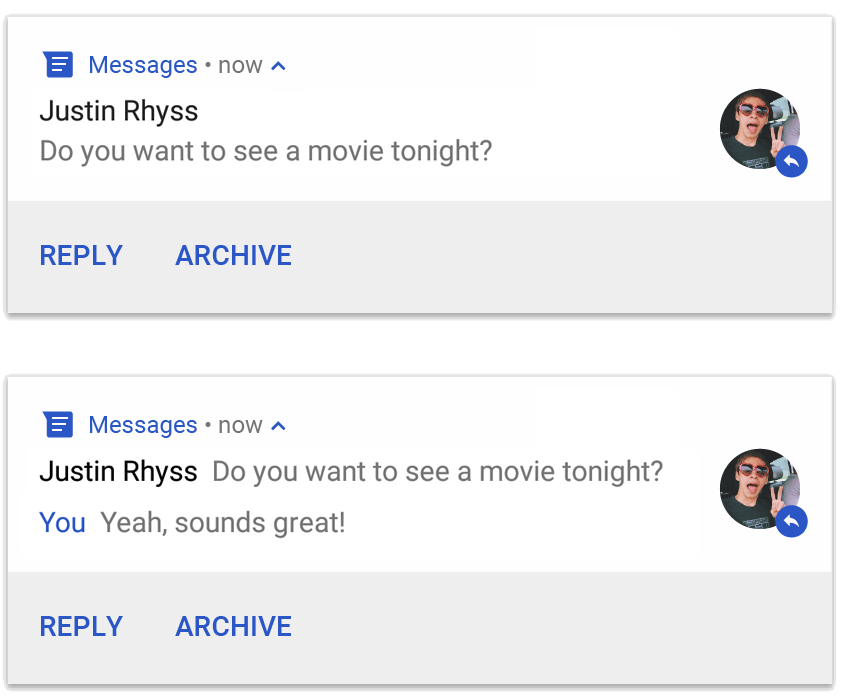
NotificationCompat.MessagingStyle.
的通知。使用 NotificationCompat.MessagingStyle 时,系统会忽略提供给
setContentTitle() 和 setContentText() 的任何值。
您可以调用 setConversationTitle() 以添加显示在
会话上方的标题。这可能是用户创建的群组名称,也可能是会话参与者的列表(如果没有具体名称)。不要为一对一聊天设置会话标题,因为如果有此字段,系统会将其当做表明会话是群组的提示。
此样式仅适用于搭载 Android 7.0(API 级别 24)及更高版本的设备。
如前所述,使用兼容性内容库 (NotificationCompat) 时,采用 MessagingStyle 的通知会自动回退到支持的扩展通知样式。
在为聊天会话创建此类通知时,添加直接 回复操作。
使用媒体控件创建通知
应用 MediaStyleNotificationHelper.MediaStyle 可显示媒体播放
控件和曲目信息。
在构造函数中指定关联的 MediaSession。这样,Android 就可以显示有关媒体的正确信息。
调用 addAction() 最多五次,以显示最多五个图标按钮。
调用 setLargeIcon() 可设置专辑封面。
与其他通知样式不同,MediaStyle 还允许您通过指定三个操作按钮(这些操作按钮也应在收起的视图中显示)修改收起尺寸的内容视图。为此,请向
setShowActionsInCompactView() 提供操作按钮索引。
以下示例展示了如何创建包含媒体控件的通知:
notification = NotificationCompat.Builder(context, CHANNEL_ID) // Show controls on lock screen even when user hides sensitive content. .setVisibility(NotificationCompat.VISIBILITY_PUBLIC) .setSmallIcon(com.example.compose.snippets.R.drawable.play) // Add media control buttons that invoke intents in your media service .addAction(R.drawable.previous, "Previous", null /* Add valid intent */) // #0 .addAction(R.drawable.pause, "Pause", null /* Add valid intent */) // #1 .addAction(R.drawable.next, "Next", null /* Add valid intent */) // #2 // Apply the media style template. .setStyle(MediaStyleNotificationHelper.MediaStyle(mediaSession) .setShowActionsInCompactView(1 /* #1: pause button */)) .setContentTitle("Wonderful music") .setContentText("My Awesome Band") .setLargeIcon(bitmapImage) .build()
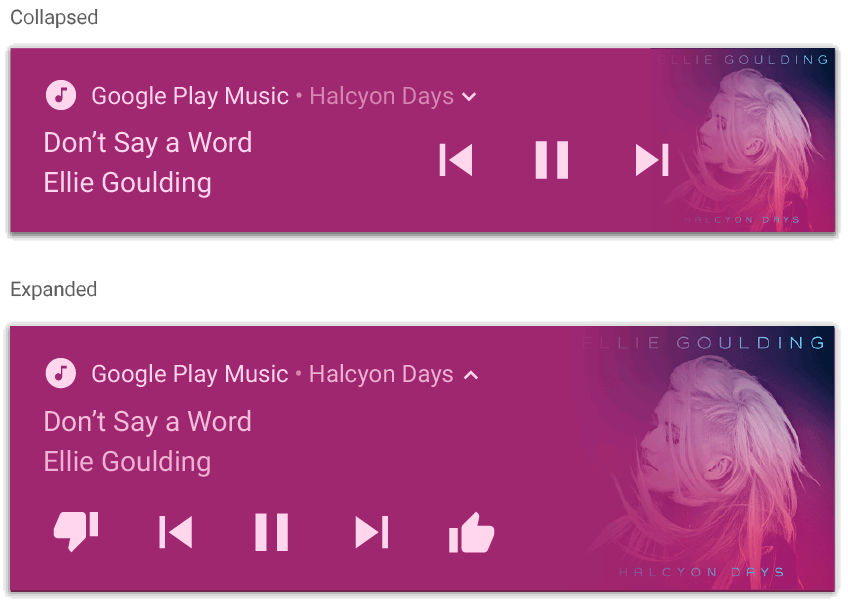
MediaStyleNotificationHelper.MediaStyle.
的通知。其他资源
如需详细了解 MediaStyle 和展开式通知,请参阅以下参考资料。