

本文档介绍了如何将现有游戏从游戏 v1 SDK迁移到游戏 v2 SDK。
准备工作
您可以使用任何首选 IDE(例如 Android Studio)来迁移游戏。 在迁移到游戏 v2 之前,请完成以下步骤:
- 下载并安装 Android Studio
- 您的游戏必须使用游戏 v1 SDK。
- 您可以将游戏升级为使用游戏 v1 SDK,即
com.google.android.gms:play-services-games:24.0.0。您不应升级到com.google.android.gms:play-services-games:25.0.0,因为游戏 v1 API 已被移除。
更新依赖项
在模块的
build.gradle文件中,在模块级依赖项中找到以下代码行。implementation "com.google.android.gms:play-services-games:+"将其替换为以下代码:
implementation "com.google.android.gms:play-services-games-v2:version"更新依赖项后,请确保完成本文档中的所有步骤。
定义项目 ID
如需将 Play 游戏服务 SDK 项目 ID 添加到应用,请按以下步骤操作:
在
AndroidManifest.xml文件中,将以下<meta-data>元素和属性添加到<application>元素:<manifest> <application> <meta-data android:name="com.google.android.gms.games.APP_ID" android:value="@string/game_services_project_id"/> </application> </manifest>使用游戏的游戏服务项目 ID 作为值来定义字符串资源引用
@string/game_services_project_id。您可以在 Google Play 管理中心的配置 页面中的游戏名称下找到游戏服务项目 ID。在
res/values/strings.xml文件中,添加字符串资源引用,并将项目 ID 设置为值。例如:<!-- res/values/strings.xml --> <resources> <!-- Replace 0000000000 with your game’s project id. Example value shown above. --> <string translatable="false" name="game_services_project_id"> 0000000000 </string> </resources>
迁移途径
游戏的正确迁移途径取决于游戏如何实现 Play 游戏服务 v1 以及如何处理玩家身份。为确保顺利过渡并防止玩家数据丢失,请找出最符合您现有设置的场景,然后按照相应的步骤操作。
选项 1:适用于 IGA 绑定到 Play 游戏服务玩家 ID 的游戏
此场景适用于以下游戏:将 Play 游戏服务 Player ID 用作玩家的游戏内账号 (IGA) 的唯一标识符,并且之前未请求或存储 OpenID。主要挑战在于将现有 IGA 关联到主要标识符 (OpenID),同时不会丢失与玩家进度的连接。
迁移流程包括以下步骤:
- 游戏启动时,Play 游戏服务 v2 SDK 会自动以静默方式对平台进行身份验证。
显示一个登录界面,其中包含使用 Google 账号登录 按钮, 以替换 Google Play 按钮。 如需查看示例,请参阅 CredManBridge.java。
CredManBridge.java
package com.wickedcube.trivialkart; import android.accounts.Account; import android.content.Context; import android.util.Log; import android.os.CancellationSignal; import androidx.credentials.CredentialManager; import androidx.credentials.GetCredentialRequest; import androidx.credentials.GetCredentialResponse; import androidx.credentials.exceptions.GetCredentialException; import androidx.credentials.exceptions.NoCredentialException; import com.google.android.libraries.identity.googleid.GetGoogleIdOption; import com.google.android.libraries.identity.googleid.GoogleIdTokenCredential; import com.google.android.gms.auth.api.identity.AuthorizationClient; import com.google.android.gms.auth.api.identity.AuthorizationRequest; import com.google.android.gms.auth.api.identity.AuthorizationResult; import com.google.android.gms.common.api.ApiException; import com.google.android.gms.auth.api.identity.Identity; import com.google.android.gms.common.api.Scope; import com.unity3d.player.UnityPlayer; import java.util.Collections; import java.util.List; import java.util.concurrent.Executor; import java.util.concurrent.Executors;public class CredManBridge {
// --- MODE 1: SILENT SIGN-IN (Called on Awake) --- // Tries to auto-select an authorized account. If it fails, it does NOT show UI. public static void signInSilent(Context context, String webClientId) { CredentialManager credentialManager = CredentialManager.create(context); CancellationSignal cancellationSignal = new CancellationSignal(); Executor executor = Executors.newSingleThreadExecutor();
Log.d("CredMan", "Attempting Silent Sign-In..."); GetGoogleIdOption silentOption = new GetGoogleIdOption.Builder() .setFilterByAuthorizedAccounts(true) // Strict: Only authorized accounts .setServerClientId(webClientId) .setAutoSelectEnabled(true) // Auto-select if possible .build(); GetCredentialRequest silentRequest = new GetCredentialRequest.Builder() .addCredentialOption(silentOption) .build(); credentialManager.getCredentialAsync( context, silentRequest, cancellationSignal, executor, new androidx.credentials.CredentialManagerCallback<GetCredentialResponse, GetCredentialException>() { @Override public void onResult(GetCredentialResponse result) { Log.d("CredMan", "Silent Sign-In Successful!"); handleSignInResult(context, result, webClientId); } @Override public void onError(GetCredentialException e) { // Send a specific error code so Unity knows to just stay on the Start Screen Log.d("CredMan", "Silent sign-in failed. Keeping UI hidden."); UnityPlayer.UnitySendMessage("AuthManager", "OnSignInError", "SilentFailed"); } } );}
// --- MODE 2: INTERACTIVE SIGN-IN (Called on Button Click) --- // Forces the Account Selection / "Add Account" sheet to appear. public static void signInInteractive(Context context, String webClientId) { CredentialManager credentialManager = CredentialManager.create(context); CancellationSignal cancellationSignal = new CancellationSignal(); Executor executor = Executors.newSingleThreadExecutor();
Log.d("CredMan", "Starting Interactive Sign-In...");

GetGoogleIdOption interactiveOption = new GetGoogleIdOption.Builder()
    .setFilterByAuthorizedAccounts(false) // Show ALL accounts (and "Add Account")
    .setServerClientId(webClientId)
    .setAutoSelectEnabled(false)          // Force the UI to show
    .build();

GetCredentialRequest interactiveRequest = new GetCredentialRequest.Builder()
    .addCredentialOption(interactiveOption)
    .build();

credentialManager.getCredentialAsync(
    context,
    interactiveRequest,
    cancellationSignal,
    executor,
    new androidx.credentials.CredentialManagerCallback<GetCredentialResponse, GetCredentialException>() {
        @Override
        public void onResult(GetCredentialResponse result) {
            Log.d("CredMan", "Interactive Sign-In Successful!");
            handleSignInResult(context, result, webClientId);
        }

        @Override
        public void onError(GetCredentialException e) {
            Log.e("CredMan", "Interactive Sign-In Canceled or Failed", e);
            UnityPlayer.UnitySendMessage("AuthManager", "OnSignInError", "Canceled");
        }
    }
);
}
private static void handleSignInResult(Context context, GetCredentialResponse result, String webClientId) { try { GoogleIdTokenCredential credential = GoogleIdTokenCredential.createFrom(result.getCredential().getData()); String email = credential.getId();
    Account account = new Account(email, "com.google");
    // Requesting GAMES_LITE scope to check for pre-existing V1 grants
    List<Scope> requestedScopes = Collections.singletonList(new Scope("https://www.googleapis.com/auth/games_lite"));

    AuthorizationRequest authRequest = new AuthorizationRequest.Builder()
        .setRequestedScopes(requestedScopes)
        .setAccount(account)
        .requestOfflineAccess(webClientId)
        .build();

    AuthorizationClient authClient = Identity.getAuthorizationClient(context);

    authClient.authorize(authRequest)
        .addOnSuccessListener(authorizationResult -> {
            if (authorizationResult.getServerAuthCode() != null) {
                // CASE 1: RETURNING USER (Success)
                // The user has already granted GAMES_LITE in the past.
                // We got the code directly without showing UI.
                Log.i("CredMan", "PGS v1: Existing grant found. Returning user detected. Auth Code retrieved.");
                UnityPlayer.UnitySendMessage("AuthManager", "OnSignInSuccess", authorizationResult.getServerAuthCode());
            }
            else if (authorizationResult.hasResolution()) {
                // CASE 2: NEW USER (PendingIntent)
                // The user has NOT granted GAMES_LITE before. The API returned a PendingIntent
                // (authorizationResult.getPendingIntent()) to show the consent screen.
                // As per your flow, we DISCARD this intent and do not show UI.
                Log.i("CredMan", "PGS v1: No existing grant (PendingIntent returned). This is a NEW user or they revoked access.");
                Log.i("CredMan", "PGS v1: Discarding PendingIntent. Proceeding as New User.");

                // Notify Unity that this is a "New User" so it can trigger V2 logic instead of failing
                UnityPlayer.UnitySendMessage("AuthManager", "OnSignInError", "NewUser_NoGrant");
            }
            else {
                // Edge Case: No code and no resolution?
                Log.e("CredMan", "PGS v1: Authorization success but no Auth Code or Resolution returned.");
                UnityPlayer.UnitySendMessage("AuthManager", "OnSignInError", "No Auth Code returned");
            }
        })
        .addOnFailureListener(e -> {
            // CASE 3: GENERIC FAILURE
            Log.e("CredMan", "PGS v1: Authorization failed completely.", e);
            UnityPlayer.UnitySendMessage("AuthManager", "OnSignInError", "Authorization Failed: " + e.getMessage());
        });

} catch (Exception e) {
    UnityPlayer.UnitySendMessage("AuthManager", "OnSignInError", "Parsing Error: " + e.getMessage());
}
} }
当玩家点按使用 Google 账号登录 按钮并选择 Google 账号时,检索两个不同的标识符:
OpenID,它是用于绑定 IGA 的主要标识符。- Play 游戏服务
Player ID,通过使用GAMES_LITE范围检索,以在后端系统中查找玩家的 IGA 并执行绑定。 如需了解详情,请参阅 检索Player ID。
在后续游戏启动中,通过使用 Google 账号登录 流程访问 IGA,而无需游戏使用
Player ID作为主要标识符。
检索 Player ID
您可以使用游戏客户端实现执行第 3 步。
- 调用 Android Credential Manager API,以使用 Google 账号让用户登录。
- 用户完成“使用 Google 账号登录”流程并选择 Google 账号后,接收包含 ID 令牌和电子邮件地址的结果对象。
- 根据电子邮件地址构建账号对象。
- 使用
GAMES_LITE范围和账号调用 Authorization API。 - 如果账号对
GAMES_LITE范围具有预先存在的授权,Authorization API 会直接在响应对象中返回令牌:- 使用响应令牌调用 Play 游戏服务服务器,并检索 Play 游戏服务
Player ID。 - 验证 Play 游戏服务
Player ID是否与游戏内账号相关联。- 这表示用户是 Play 游戏服务 v1 的回访用户。
- 将新的 gaia ID 与之前的 Play 游戏服务 v1 账号相关联。
- 使用响应令牌调用 Play 游戏服务服务器,并检索 Play 游戏服务
- 如果账号对
GAMES_LITE范围没有预先存在的授权,Authorization API 会返回PendingIntent:- 这表示用户没有 Play 游戏服务 v1 中的现有账号。
- 安全地舍弃
PendingIntent,而不显示任何界面。
选项 2:适用于已将 IGA 绑定到 OpenID 的游戏
此组中的开发者拥有最直接的迁移途径。如果游戏的游戏内账号已主要绑定到 OpenID,您只需按照步骤中所述,执行从 v1 到 v2 的标准技术 SDK 迁移。
从已废弃的 Google 登录迁移
将 GoogleSignInClient
类替换为 GamesSignInClient
类。
Java
找到包含 GoogleSignInClient 类的文件。
import com.google.android.gms.auth.api.signin.GoogleSignIn;
import com.google.android.gms.auth.api.signin.GoogleSignInClient;
import com.google.android.gms.auth.api.signin.GoogleSignInOptions;

// ... existing code

@Override
public void onCreate(@Nullable Bundle bundle) {
    super.onCreate(bundle);

    // ... existing code

    GoogleSignInOptions signInOption =
        new GoogleSignInOptions.Builder(GoogleSignInOptions.DEFAULT_GAMES_SIGN_IN).build();

    // Client used to sign in to Google services
    GoogleSignInClient googleSignInClient =
        GoogleSignIn.getClient(this, signInOptions);
}
然后更新为以下代码:
import com.google.android.gms.games.PlayGamesSdk;
import com.google.android.gms.games.PlayGames;
import com.google.android.gms.games.GamesSignInClient;

// ... existing code

@Override
public void onCreate(){
    super.onCreate();
    PlayGamesSdk.initialize(this);
    // Client used to sign in to Google services
    GamesSignInClient gamesSignInClient =
        PlayGames.getGamesSignInClient(getActivity());
}
Kotlin
找到包含 GoogleSignInClient 类的文件。
import com.google.android.gms.auth.api.signin.GoogleSignIn
import com.google.android.gms.auth.api.signin.GoogleSignInClient
import com.google.android.gms.auth.api.signin.GoogleSignInOptions

// ... existing code

val signInOptions = GoogleSignInOptions.DEFAULT_GAMES_SIGN_IN

// ... existing code

override fun onCreate(savedInstanceState: Bundle?) {
    super.onCreate(savedInstanceState)
    val googleSignInClient: GoogleSignInClient =
        GoogleSignIn.getClient(this, signInOptions)
}
然后更新为以下代码:
import com.google.android.gms.games.PlayGames
import com.google.android.gms.games.PlayGamesSdk
import com.google.android.gms.games.GamesSignInClient

// ... existing code

override fun onCreate(savedInstanceState: Bundle?) {
    super.onCreate(savedInstanceState)
    PlayGamesSdk.initialize(this)
    // client used to sign in to Google services
    val gamesSignInClient: GamesSignInClient =
        PlayGames.getGamesSignInClient(this)
}
更新 GoogleSignIn 代码
GoogleSignIn API
在游戏 v2 SDK 中不受支持。将 GoogleSignIn API
代码替换为 GamesSignInClient API,如以下示例所示。
如需请求服务器端访问令牌,请使用
GamesSignInClient.requestServerSideAccess() 方法。
如需了解详情,请参阅
更新服务器端访问类。
Java
找到包含 GoogleSignIn 类的文件。
// Request code used when invoking an external activity.
private static final int RC_SIGN_IN = 9001;

private boolean isSignedIn() {
    GoogleSignInAccount account = GoogleSignIn.getLastSignedInAccount(this);
    GoogleSignInOptions signInOptions =
    GoogleSignInOptions.DEFAULT_GAMES_SIGN_IN;
    return GoogleSignIn.hasPermissions(account, signInOptions.getScopeArray());
}

private void signInSilently() {
    GoogleSignInOptions signInOptions =
        GoogleSignInOptions.DEFAULT_GAMES_SIGN_IN;
    GoogleSignInClient signInClient = GoogleSignIn.getClient(this, signInOptions);
    signInClient
        .silentSignIn()
        .addOnCompleteListener(
            this,
            task -> {
            if (task.isSuccessful()) {
                // The signed-in account is stored in the task's result.
                GoogleSignInAccount signedInAccount = task.getResult();
                showSignInPopup();
            } else {
                // Perform interactive sign in.
                startSignInIntent();
            }
        });
}

private void startSignInIntent() {
    GoogleSignInClient signInClient = GoogleSignIn.getClient(this,
        GoogleSignInOptions.DEFAULT_GAMES_SIGN_IN);
    Intent intent = signInClient.getSignInIntent();
    startActivityForResult(intent, RC_SIGN_IN);
}

@Override
protected void onActivityResult(int requestCode, int resultCode, Intent data) {
    super.onActivityResult(requestCode, resultCode, data);
    if (requestCode == RC_SIGN_IN) {
        GoogleSignInResult result =
        Auth.GoogleSignInApi.getSignInResultFromIntent(data);
        if (result.isSuccess()) {
            // The signed-in account is stored in the result.
            GoogleSignInAccount signedInAccount = result.getSignInAccount();
            showSignInPopup();
        } else {
            String message = result.getStatus().getStatusMessage();
            if (message == null || message.isEmpty()) {
                message = getString(R.string.signin_other_error);
        }
        new AlertDialog.Builder(this).setMessage(message)
            .setNeutralButton(android.R.string.ok, null).show();
        }
    }
}

private void showSignInPopup() {
Games.getGamesClient(requireContext(), signedInAccount)
    .setViewForPopups(contentView)
    .addOnCompleteListener(
        task -> {
            if (task.isSuccessful()) {
                logger.atInfo().log("SignIn successful");
            } else {
                logger.atInfo().log("SignIn failed");
            }
        });
  }
然后更新为以下代码:
private void signInSilently() {
    gamesSignInClient.isAuthenticated().addOnCompleteListener(isAuthenticatedTask -> {
    boolean isAuthenticated =
        (isAuthenticatedTask.isSuccessful() &&
            isAuthenticatedTask.getResult().isAuthenticated());
        if (isAuthenticated) {
            // Continue with Play Games Services
        } else {
            // If authentication fails, either disable Play Games Services
            // integration or
            // display a login button to prompt players to sign in.
            // Use`gamesSignInClient.signIn()` when the login button is clicked.
        }
    });
}

@Override
protected void onResume() {
    super.onResume();
    // When the activity is inactive, the signed-in user's state can change;
    // therefore, silently sign in when the app resumes.
    signInSilently();
}
Kotlin
找到包含 GoogleSignIn 类的文件。
// Request codes we use when invoking an external activity.
private val RC_SIGN_IN = 9001

// ... existing code

private fun isSignedIn(): Boolean {
    val account = GoogleSignIn.getLastSignedInAccount(this)
    val signInOptions = GoogleSignInOptions.DEFAULT_GAMES_SIGN_IN
    return GoogleSignIn.hasPermissions(account, *signInOptions.scopeArray)
}

private fun signInSilently() {
    val signInOptions = GoogleSignInOptions.DEFAULT_GAMES_SIGN_IN
    val signInClient = GoogleSignIn.getClient(this, signInOptions)
    signInClient.silentSignIn().addOnCompleteListener(this) { task ->
        if (task.isSuccessful) {
            // The signed-in account is stored in the task's result.
            val signedInAccount = task.result
            // Pass the account to showSignInPopup.
            showSignInPopup(signedInAccount)
        } else {
            // Perform interactive sign in.
            startSignInIntent()
        }
    }
}

private fun startSignInIntent() {
    val signInClient = GoogleSignIn.getClient(this, GoogleSignInOptions.DEFAULT_GAMES_SIGN_IN)
    val intent = signInClient.signInIntent
    startActivityForResult(intent, RC_SIGN_IN)
}

override fun onActivityResult(requestCode: Int, resultCode: Int, data: Intent?) {
    super.onActivityResult(requestCode, resultCode, data)
    if (requestCode == RC_SIGN_IN) {
        val result = Auth.GoogleSignInApi.getSignInResultFromIntent(data)
        if (result.isSuccess) {
            // The signed-in account is stored in the result.
            val signedInAccount = result.signInAccount
            showSignInPopup(signedInAccount) // Pass the account to showSignInPopup.
        } else {
            var message = result.status.statusMessage
            if (message == null || message.isEmpty()) {
                message = getString(R.string.signin_other_error)
        }
        AlertDialog.Builder(this)
            .setMessage(message)
            .setNeutralButton(android.R.string.ok, null)
            .show()
        }
    }
}

private fun showSignInPopup(signedInAccount: GoogleSignInAccount) {
    // Add signedInAccount parameter.
    Games.getGamesClient(this, signedInAccount)
        .setViewForPopups(contentView) // Assuming contentView is defined.
        .addOnCompleteListener { task ->
        if (task.isSuccessful) {
            logger.atInfo().log("SignIn successful")
        } else {
            logger.atInfo().log("SignIn failed")
        }
    }
}
然后更新为以下代码:
private fun signInSilently() {
    gamesSignInClient.isAuthenticated.addOnCompleteListener { isAuthenticatedTask ->
        val isAuthenticated = isAuthenticatedTask.isSuccessful &&
        isAuthenticatedTask.result.isAuthenticated
        if (isAuthenticated) {
            // Continue with Play Games Services
        } else {
            // To handle a user who is not signed in, either disable Play Games Services integration
            // or display a login button. Selecting this button calls `gamesSignInClient.signIn()`.
        }
    }
}

override fun onResume() {
    super.onResume()
    // Since the state of the signed in user can change when the activity is
    // not active it is recommended to try and sign in silently from when the
    // app resumes.
    signInSilently()
}
添加 GamesSignInClient 代码
如果玩家已成功通过身份验证,请从游戏中移除 Play 游戏服务登录按钮。如果用户在游戏启动时选择不进行身份验证,
请继续显示一个带有 Play 游戏服务图标的按钮,
并使用
GamesSignInClient.signIn()启动登录流程。
Java
private void startSignInIntent() {
    gamesSignInClient
        .signIn()
        .addOnCompleteListener( task -> {
            if (task.isSuccessful() && task.getResult().isAuthenticated()) {
                // sign in successful
            } else {
                // sign in failed
            }
        });
  }
Kotlin
private fun startSignInIntent() {
    gamesSignInClient
        .signIn()
        .addOnCompleteListener { task ->
            if (task.isSuccessful && task.result.isAuthenticated) {
                // sign in successful
            } else {
                // sign in failed
            }
        }
  }
移除退出代码
移除 GoogleSignInClient.signOut 的代码。
移除以下示例中显示的代码:
Java
// ... existing code

private void signOut() {
    GoogleSignInClient signInClient = GoogleSignIn.getClient(this,
    GoogleSignInOptions.DEFAULT_GAMES_SIGN_IN);
    signInClient.signOut().addOnCompleteListener(this,
    new OnCompleteListener() {
        @Override
        public void onComplete(@NonNull Task task) {
           // At this point, the user is signed out.
        }
    });
}
Kotlin
// ... existing code

private fun signOut() {
    val signInClient = GoogleSignIn.getClient(this, GoogleSignInOptions.DEFAULT_GAMES_SIGN_IN)
    signInClient.signOut().addOnCompleteListener(this) {
    // At this point, the user is signed out.
    }
}
检查是否成功通过身份验证
添加以下代码,以检查您是否已自动通过身份验证,并添加自定义逻辑(如果有)。
Java
private void checkIfAutomaticallySignedIn() {
gamesSignInClient.isAuthenticated().addOnCompleteListener(isAuthenticatedTask -> {
boolean isAuthenticated =
    (isAuthenticatedTask.isSuccessful() &&
    isAuthenticatedTask.getResult().isAuthenticated());

    if (isAuthenticated) {
        // Continue with Play Games Services
        // If your game requires specific actions upon successful sign-in,
        // you can add your custom logic here.
        // For example, fetching player data or updating UI elements.
    } else {
        // Show a login button to ask  players to sign-in. Clicking it should
        // call GamesSignInClient.signIn().
        }
    });
}
Kotlin
private void checkIfAutomaticallySignedIn() {
gamesSignInClient.isAuthenticated()
    .addOnCompleteListener { task ->
    val isAuthenticated = task.isSuccessful && task.result?.isAuthenticated ?: false

        if (isAuthenticated) {
            // Continue with Play Games Services
        } else {
            // Disable your integration or show a login button
        }
    }
}
更新客户端类名称和方法
迁移到游戏 v2 时,用于获取客户端类名称的方法会有所不同。
请使用相应的
PlayGames.getxxxClient()
方法,而不是
Games.getxxxClient()
方法。
例如,对于
LeaderboardsClient
,请使用 PlayGames.getLeaderboardsClient(),而不是
Games.getLeaderboardsClient() 方法。
移除与 GamesClient 和 GamesMetadataClient 类相关的任何代码,因为我们在游戏 v2 中没有任何替换类。
Java
找到 LeaderboardsClient 的代码。
import com.google.android.gms.games.LeaderboardsClient;
import com.google.android.gms.games.Games;

@Override
public void onCreate(@Nullable Bundle bundle) {
    super.onCreate(bundle);
        // Get the leaderboards client using Play Games services.
    LeaderboardsClient leaderboardsClient = Games.getLeaderboardsClient(this,
        GoogleSignIn.getLastSignedInAccount(this));
}
然后更新为以下代码:
import com.google.android.gms.games.LeaderboardsClient;
import com.google.android.gms.games.PlayGames;

 @Override
public void onCreate(@Nullable Bundle bundle) {
    super.onCreate(bundle);
        // Get the leaderboards client using Play Games services.
        LeaderboardsClient leaderboardsClient = PlayGames.getLeaderboardsClient(getActivity());
}
Kotlin
找到 LeaderboardsClient 的代码。
import com.google.android.gms.games.LeaderboardsClient
import com.google.android.gms.games.Games
// Initialize the variables.
private lateinit var leaderboardsClient: LeaderboardsClient

override fun onCreate(savedInstanceState: Bundle?) {
    super.onCreate(savedInstanceState)
    leaderboardsClient = Games.getLeaderboardsClient(this,
        GoogleSignIn.getLastSignedInAccount(this))
}
然后更新为以下代码:
import com.google.android.gms.games.LeaderboardsClient
import com.google.android.gms.games.PlayGames
    // Initialize the variables.
private lateinit var leaderboardsClient: LeaderboardsClient

override fun onCreate(savedInstanceState: Bundle?) {
    super.onCreate(savedInstanceState)
    leaderboardsClient = PlayGames.getLeaderboardsClient(this)
}同样,请对以下客户端使用相应的方法:AchievementsClient、EventsClient、GamesSignInClient、PlayerStatsClient、RecallClient、SnapshotsClient 或 PlayersClient。
更新服务器端访问类
如需请求服务器端访问令牌,请使用
GamesSignInClient.requestServerSideAccess()
方法,而不是
GoogleSignInAccount.getServerAuthCode()
方法。
如需了解详情,请参阅 发送服务器授权代码。
以下示例展示了如何请求服务器端访问令牌。
Java
找到 GoogleSignInOptions 类的代码。
    private static final int RC_SIGN_IN = 9001;
    private GoogleSignInClient googleSignInClient;

    private void startSignInForAuthCode() {
        /** Client ID for your backend server. */
        String webClientId = getString(R.string.webclient_id);
        GoogleSignInOptions signInOption = new GoogleSignInOptions.Builder(GoogleSignInOptions.DEFAULT_GAMES_SIGN_IN)
            .requestServerAuthCode(webClientId)
            .build();

        GoogleSignInClient signInClient = GoogleSignIn.getClient(this, signInOption);
        Intent intent = signInClient.getSignInIntent();
        startActivityForResult(intent, RC_SIGN_IN);
    }

    /** Auth code to send to backend server */
    private String mServerAuthCode;

    @Override
    protected void onActivityResult(int requestCode, int resultCode, Intent data) {
        super.onActivityResult(requestCode, resultCode, data);
        if (requestCode == RC_SIGN_IN) {
            GoogleSignInResult result = Auth.GoogleSignInApi.getSignInResultFromIntent(data);
        if (result.isSuccess()) {
            mServerAuthCode = result.getSignInAccount().getServerAuthCode();
        } else {
            String message = result.getStatus().getStatusMessage();
            if (message == null || message.isEmpty()) {
                message = getString(R.string.signin_other_error);
            }
            new AlertDialog.Builder(this).setMessage(message)
                .setNeutralButton(android.R.string.ok, null).show();
        }
      }
    }
然后更新为以下代码:
  private void startRequestServerSideAccess() {
      GamesSignInClient gamesSignInClient = PlayGames.getGamesSignInClient(this);
      gamesSignInClient
          .requestServerSideAccess(OAUTH_2_WEB_CLIENT_ID,
           /* forceRefreshToken= */ false, /* additional AuthScope */ scopes)
          .addOnCompleteListener(task -> {
              if (task.isSuccessful()) {
                  AuthResponse authresp = task.getResult();
                  // Send the authorization code as a string and a
                  // list of the granted AuthScopes that were granted by the
                  // user. Exchange for an access token.
                  // Verify the player with Play Games Services REST APIs.
              } else {
                // Authentication code retrieval failed.
              }
        });
  }
Kotlin
找到 GoogleSignInOptions 类的代码。
  // ... existing code

  private val RC_SIGN_IN = 9001
  private lateinit var googleSignInClient: GoogleSignInClient

  // Auth code to send to backend server.
  private var mServerAuthCode: String? = null

  private fun startSignInForAuthCode() {
      // Client ID for your backend server.
      val webClientId = getString(R.string.webclient_id)

      val signInOption = GoogleSignInOptions.Builder(GoogleSignInOptions.DEFAULT_GAMES_SIGN_IN)
          .requestServerAuthCode(webClientId)
          .build()

      googleSignInClient = GoogleSignIn.getClient(this, signInOption)
      val intent = googleSignInClient.signInIntent
      startActivityForResult(intent, RC_SIGN_IN)
  }

  override fun onActivityResult(requestCode: Int, resultCode: Int, data: Intent?) {
      super.onActivityResult(requestCode, resultCode, data)
      if (requestCode == RC_SIGN_IN) {
          val result = Auth.GoogleSignInApi.getSignInResultFromIntent(data)
          if (result.isSuccess) {
              mServerAuthCode = result.signInAccount.serverAuthCode
          } else {
              var message = result.status.statusMessage
              if (message == null || message.isEmpty()) {
                  message = getString(R.string.signin_other_error)
              }
              AlertDialog.Builder(this).setMessage(message)
                  .setNeutralButton(android.R.string.ok, null).show()
            }
        }
  }
然后更新为以下代码:
  private void startRequestServerSideAccess() {
  GamesSignInClient gamesSignInClient = PlayGames.getGamesSignInClient(this);
      gamesSignInClient
          .requestServerSideAccess(OAUTH_2_WEB_CLIENT_ID, /* forceRefreshToken= */ false,
          /* additional AuthScope */ scopes)
          .addOnCompleteListener(task -> {
              if (task.isSuccessful()) {
                  AuthResponse authresp = task.getResult();
                  // Send the authorization code as a string and a
                  // list of the granted AuthScopes that were granted by the
                  // user. Exchange for an access token.
                  // Verify the player with Play Games Services REST APIs.
              } else {
                // Authentication code retrieval failed.
              }
        });
  }
从 GoogleApiClient 迁移
对于较旧的现有集成,您的游戏可能依赖于 Play 游戏服务 SDK 的 GoogleApiClient API 变体。此 API 已于 2017 年底被
废弃
,取而代之的是 "无连接" 客户端。
如需迁移,您可以将 GoogleApiClient 类替换为“无连接”等效项。
下表列出了从游戏 v1 到游戏 v2 的常见类映射:
| 游戏 v2(当前) | 游戏 v1(旧版) |
|---|---|
| com.google.android.gms.games.AchievementsClient | com.google.android.gms.games.achievement.Achievements |
| com.google.android.gms.games.LeaderboardsClient | com.google.android.gms.games.leaderboard.Leaderboard |
| com.google.android.gms.games.SnapshotsClient | com.google.android.gms.games.snapshot.Snapshots |
| com.google.android.gms.games.PlayerStatsClient | com.google.android.gms.games.stats.PlayerStats |
| com.google.android.gms.games.PlayersClient | com.google.android.gms.games.Players |
| com.google.android.gms.games.GamesClientStatusCodes | com.google.android.gms.games.GamesStatusCodes |
构建并运行游戏
如需在 Android Studio 中构建和运行, 请参阅 构建和运行应用。
测试游戏
通过测试确保游戏按设计运行。您执行的测试取决于游戏的功能。
以下是要运行的常见测试列表。
成功登录 。
自动登录功能正常运行。用户应在启动游戏后登录 Play 游戏服务。
系统会显示欢迎弹出式窗口。
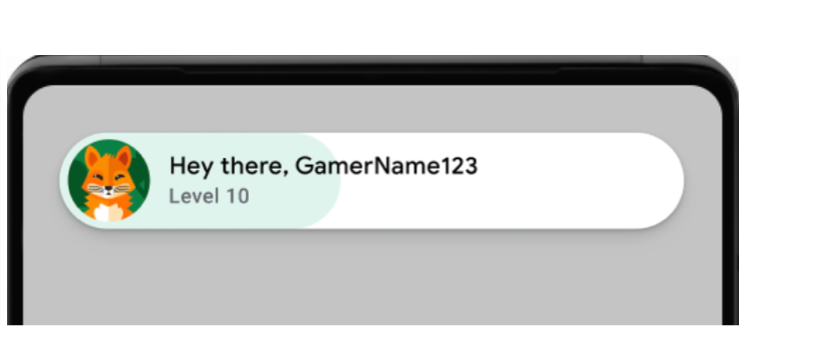
欢迎弹出式窗口示例(点击可放大)。 系统会显示成功的日志消息。在终端运行以下命令:
adb logcat | grep com.google.android.
以下示例展示了成功的日志消息:
[
确保界面组件的一致性 。
在 Play 游戏服务用户界面 (UI) 中,弹出式窗口、排行榜和成就可在各种屏幕尺寸和屏幕方向上正确且一致地显示。
Play 游戏服务界面中未显示退出选项。
确保您可以成功检索玩家 ID,并且服务器端功能(如果适用)按预期运行。
如果游戏使用服务器端身份验证,请彻底测试
requestServerSideAccess流程。确保服务器收到授权代码,并且可以将其换成访问令牌。 针对网络错误、无效client ID场景测试成功和失败场景。
如果您的游戏使用了以下任何功能,请对其进行测试,以确保它们与迁移前的工作方式相同:
- 排行榜:提交得分并查看排行榜。检查玩家姓名和得分的排名和显示是否正确。
- 成就:解锁成就并验证它们是否已正确记录 并显示在 Play 游戏界面中。
- 游戏存档:如果游戏使用游戏存档,请确保保存和加载游戏进度能够顺利进行。这一点对于在多台设备上以及应用更新后进行测试尤为重要。
迁移后的任务
迁移到游戏 v2 后,请完成以下步骤。
发布游戏
构建 APK 并将其发布到 Play 管理中心。
- 在 Android Studio 菜单中,依次选择 Build > Build Bundles(s) / APK(s) > Build APK(s)。
- 发布游戏。 如需了解详情,请参阅 通过 Play 管理中心发布专用应用。