
Model Context Protocol (MCP) is an open standard that enables developers to build secure, two-way connections between AI assistants and data sources or tools.
Integrating Unity's MCP server with Google's Antigravity allows an AI agent in the IDE to interact directly with the Unity Editor. This enables the agent to seamlessly execute editor operations—such as capturing the active scene view—to streamline your game development workflow.
Setup Unity MCP for Antigravity IDE
- Install Antigravity IDE.
- Install Unity's AI Assistant package following Unity's official documentation.
- Open the Project Settings window and go to AI > Unity MCP Server.
Go to Integrations > Gemini, click Configure, and confirm that the indicator turns green and the status changes to Configured.
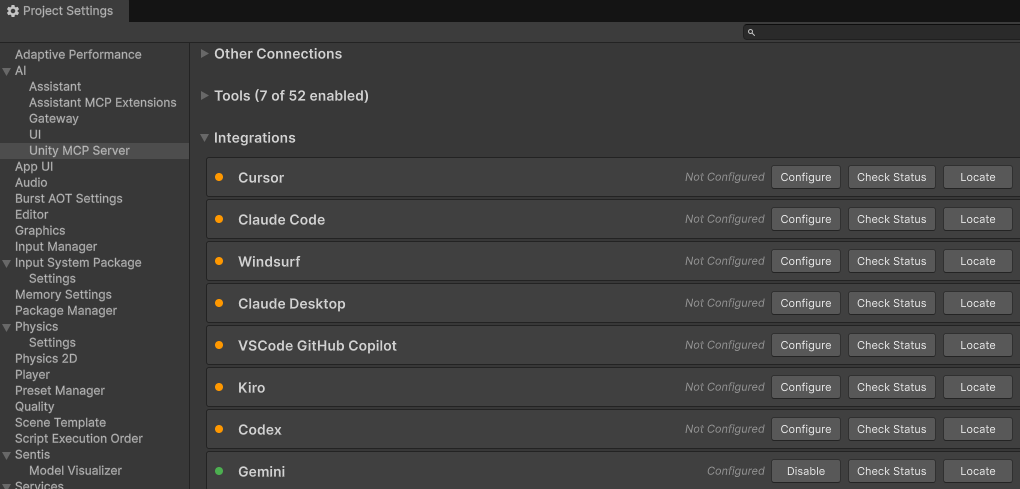
Figure 1. Gemini integration configured successfully in the Unity MCP settings. Ensure that the Unity Bridge status is Running.
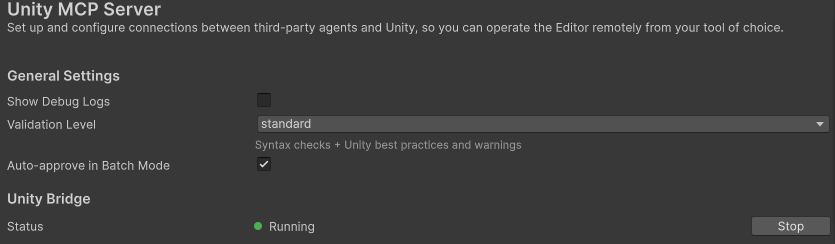
Figure 2. Ensuring the Unity Bridge status is Running. Go to Tools and select the tools that you need for your workflow.
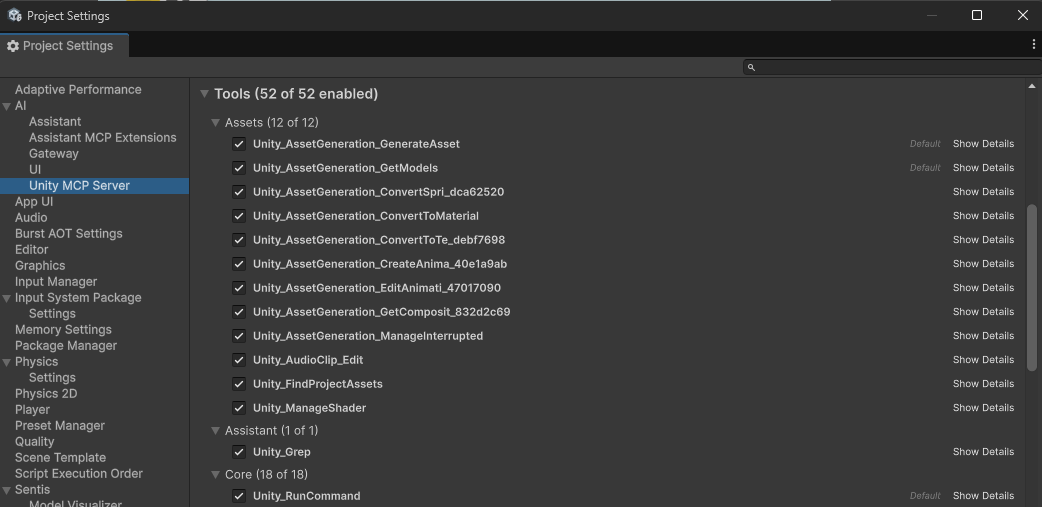
Figure 3. Selecting the tools to enable for the Unity MCP server. Go to Integrations and click the copy button under Example Configuration to copy the configuration text.
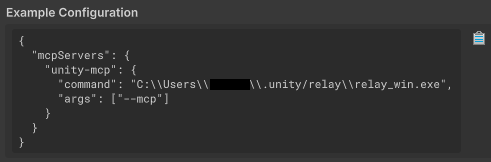
Figure 4. Copying the Example Configuration from Unity's MCP settings. Go to Integrations > Gemini > Locate to open the destination folder, then paste the configuration copied in the previous step into
settings.jsonand save the file.Open the Antigravity IDE, go to the Agent window, click the three-dot menu, select MCP Servers > Manage MCP Servers, open the Manage MCPs tab, click Refresh, and confirm that unity-mcp is configured.
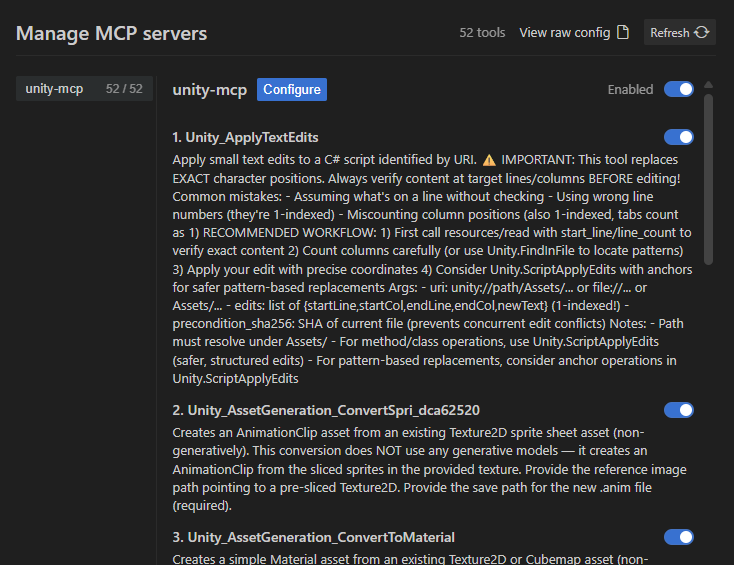
Figure 5. Verifying unity-mcp is configured in the Antigravity IDE Manage MCPs window.
Example Usage
The following is an example of using Gemini within the Antigravity IDE to play a Unity scene and seek feedback on its visuals.
In the Antigravity IDE, open the Agent window and enter a prompt to request feedback on your scene's visuals.
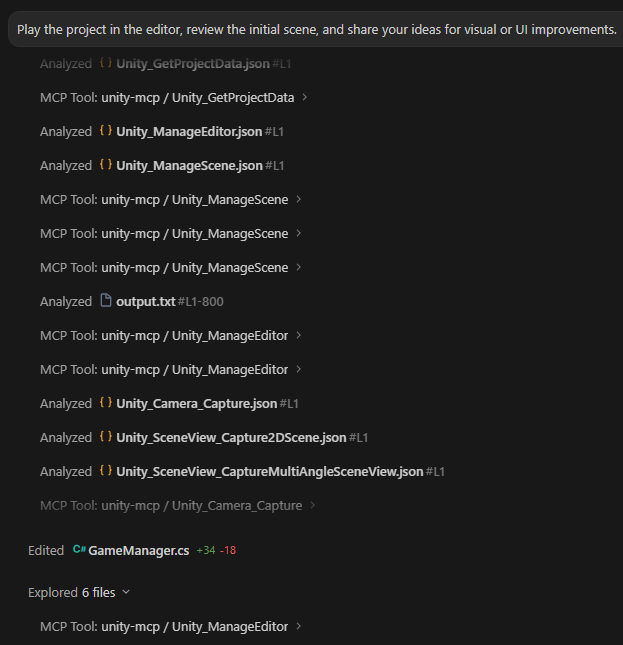
Figure 6. Querying the AI agent to request feedback on the active Unity scene. The AI agent executes the tools to capture the scene, analyze the graphics, and output the report.
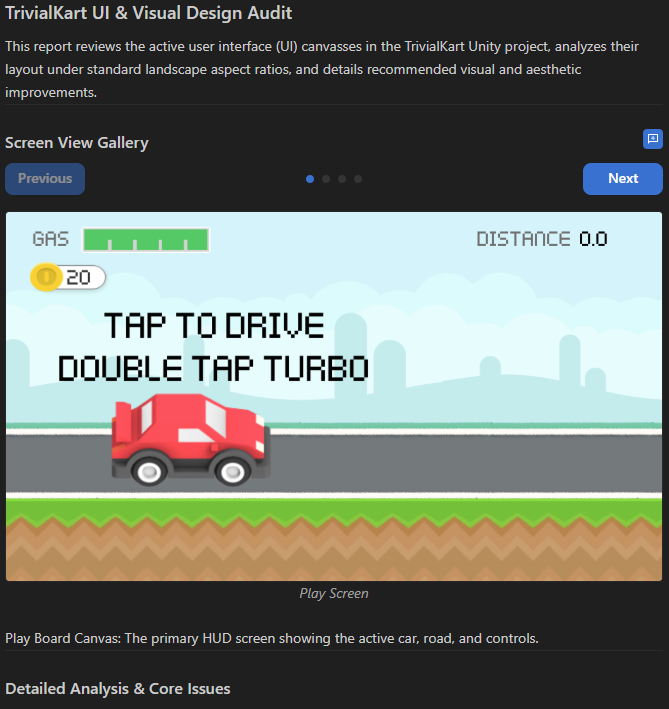
Figure 7. Visual audit report generated by the agent based on the scene's visuals.