

W tym dokumencie opisujemy, jak przeprowadzić migrację istniejących gier z pakietu SDK do gier w wersji 1 do pakietu SDK do gier w wersji 2.
Zanim zaczniesz
Do migracji gry możesz użyć dowolnego preferowanego IDE, np. Android Studio. Zanim przejdziesz na pakiet SDK do gier w wersji 2, wykonaj te czynności:
- Pobierz i zainstaluj Android Studio.
- Twoja gra musi korzystać z pakietu SDK do gier w wersji 1.
- Możesz uaktualnić grę, aby korzystała z pakietu SDK do gier w wersji 1 do
com.google.android.gms:play-services-games:24.0.0. Nie należy uaktualniać docom.google.android.gms:play-services-games:25.0.0, ponieważ interfejs API do gier w wersji 1 został usunięty.
Aktualizowanie zależności
W pliku
build.gradlemodułu znajdź ten wiersz w zależnościach na poziomie modułu.implementation "com.google.android.gms:play-services-games:+"Zastąp go tym kodem:
implementation "com.google.android.gms:play-services-games-v2:version"Po zaktualizowaniu zależności wykonaj wszystkie czynności opisane w tym dokumencie.
Definiowanie identyfikatora projektu
Aby dodać do aplikacji identyfikator projektu pakietu SDK usług gier Play, wykonaj te czynności:
W pliku
AndroidManifest.xmldodaj te elementy i atrybuty<meta-data>do elementu<application>:<manifest> <application> <meta-data android:name="com.google.android.gms.games.APP_ID" android:value="@string/game_services_project_id"/> </application> </manifest>Zdefiniuj odwołanie do zasobu tekstowego
@string/game_services_project_id, używając jako wartości identyfikatora projektu usług gier. Identyfikator projektu usług gier znajdziesz w Konsoli Google Play na stronie Konfiguracja pod nazwą gry.W pliku
res/values/strings.xmldodaj odwołanie do zasobu tekstowego i ustaw jako wartość identyfikator projektu. Przykład:<!-- res/values/strings.xml --> <resources> <!-- Replace 0000000000 with your game’s project id. Example value shown above. --> <string translatable="false" name="game_services_project_id"> 0000000000 </string> </resources>
Ścieżki migracji
Prawidłowa ścieżka migracji dla Twojej gry zależy od tego, jak implementuje ona usługi gier Play w wersji 1 i jak obsługuje tożsamość gracza. Aby zapewnić płynne przejście i zapobiec utracie danych gracza, określ scenariusz, który najlepiej pasuje do Twojej obecnej konfiguracji, i wykonaj odpowiednie czynności.
Opcja 1. W przypadku gier, w których konto w grze jest powiązane z identyfikatorem gracza w usługach gier Play
Ten scenariusz dotyczy gier, które używały identyfikatora Player ID usług gier Play jako jedynego identyfikatora konta w grze i nie prosiły wcześniej o OpenID ani go nie przechowywały. Głównym wyzwaniem jest powiązanie istniejącego konta w grze z identyfikatorem podstawowym (OpenID) bez utraty połączenia z postępami gracza.
Proces migracji obejmuje te kroki:
- Gdy gra się uruchamia, pakiet SDK usług gier Play w wersji 2 automatycznie i bez interakcji z użytkownikiem uwierzytelnia platformę.
Wyświetl ekran logowania z przyciskiem Zaloguj się przez Google zamiast przycisku Google Play. Przykład znajdziesz w pliku CredManBridge.java.
CredManBridge.java
package com.wickedcube.trivialkart; import android.accounts.Account; import android.content.Context; import android.util.Log; import android.os.CancellationSignal; import androidx.credentials.CredentialManager; import androidx.credentials.GetCredentialRequest; import androidx.credentials.GetCredentialResponse; import androidx.credentials.exceptions.GetCredentialException; import androidx.credentials.exceptions.NoCredentialException; import com.google.android.libraries.identity.googleid.GetGoogleIdOption; import com.google.android.libraries.identity.googleid.GoogleIdTokenCredential; import com.google.android.gms.auth.api.identity.AuthorizationClient; import com.google.android.gms.auth.api.identity.AuthorizationRequest; import com.google.android.gms.auth.api.identity.AuthorizationResult; import com.google.android.gms.common.api.ApiException; import com.google.android.gms.auth.api.identity.Identity; import com.google.android.gms.common.api.Scope; import com.unity3d.player.UnityPlayer; import java.util.Collections; import java.util.List; import java.util.concurrent.Executor; import java.util.concurrent.Executors;public class CredManBridge {
// --- MODE 1: SILENT SIGN-IN (Called on Awake) --- // Tries to auto-select an authorized account. If it fails, it does NOT show UI. public static void signInSilent(Context context, String webClientId) { CredentialManager credentialManager = CredentialManager.create(context); CancellationSignal cancellationSignal = new CancellationSignal(); Executor executor = Executors.newSingleThreadExecutor();
Log.d("CredMan", "Attempting Silent Sign-In..."); GetGoogleIdOption silentOption = new GetGoogleIdOption.Builder() .setFilterByAuthorizedAccounts(true) // Strict: Only authorized accounts .setServerClientId(webClientId) .setAutoSelectEnabled(true) // Auto-select if possible .build(); GetCredentialRequest silentRequest = new GetCredentialRequest.Builder() .addCredentialOption(silentOption) .build(); credentialManager.getCredentialAsync( context, silentRequest, cancellationSignal, executor, new androidx.credentials.CredentialManagerCallback<GetCredentialResponse, GetCredentialException>() { @Override public void onResult(GetCredentialResponse result) { Log.d("CredMan", "Silent Sign-In Successful!"); handleSignInResult(context, result, webClientId); } @Override public void onError(GetCredentialException e) { // Send a specific error code so Unity knows to just stay on the Start Screen Log.d("CredMan", "Silent sign-in failed. Keeping UI hidden."); UnityPlayer.UnitySendMessage("AuthManager", "OnSignInError", "SilentFailed"); } } );}
// --- MODE 2: INTERACTIVE SIGN-IN (Called on Button Click) --- // Forces the Account Selection / "Add Account" sheet to appear. public static void signInInteractive(Context context, String webClientId) { CredentialManager credentialManager = CredentialManager.create(context); CancellationSignal cancellationSignal = new CancellationSignal(); Executor executor = Executors.newSingleThreadExecutor();
Log.d("CredMan", "Starting Interactive Sign-In...");

GetGoogleIdOption interactiveOption = new GetGoogleIdOption.Builder()
    .setFilterByAuthorizedAccounts(false) // Show ALL accounts (and "Add Account")
    .setServerClientId(webClientId)
    .setAutoSelectEnabled(false)          // Force the UI to show
    .build();

GetCredentialRequest interactiveRequest = new GetCredentialRequest.Builder()
    .addCredentialOption(interactiveOption)
    .build();

credentialManager.getCredentialAsync(
    context,
    interactiveRequest,
    cancellationSignal,
    executor,
    new androidx.credentials.CredentialManagerCallback<GetCredentialResponse, GetCredentialException>() {
        @Override
        public void onResult(GetCredentialResponse result) {
            Log.d("CredMan", "Interactive Sign-In Successful!");
            handleSignInResult(context, result, webClientId);
        }

        @Override
        public void onError(GetCredentialException e) {
            Log.e("CredMan", "Interactive Sign-In Canceled or Failed", e);
            UnityPlayer.UnitySendMessage("AuthManager", "OnSignInError", "Canceled");
        }
    }
);
}
private static void handleSignInResult(Context context, GetCredentialResponse result, String webClientId) { try { GoogleIdTokenCredential credential = GoogleIdTokenCredential.createFrom(result.getCredential().getData()); String email = credential.getId();
    Account account = new Account(email, "com.google");
    // Requesting GAMES_LITE scope to check for pre-existing V1 grants
    List<Scope> requestedScopes = Collections.singletonList(new Scope("https://www.googleapis.com/auth/games_lite"));

    AuthorizationRequest authRequest = new AuthorizationRequest.Builder()
        .setRequestedScopes(requestedScopes)
        .setAccount(account)
        .requestOfflineAccess(webClientId)
        .build();

    AuthorizationClient authClient = Identity.getAuthorizationClient(context);

    authClient.authorize(authRequest)
        .addOnSuccessListener(authorizationResult -> {
            if (authorizationResult.getServerAuthCode() != null) {
                // CASE 1: RETURNING USER (Success)
                // The user has already granted GAMES_LITE in the past.
                // We got the code directly without showing UI.
                Log.i("CredMan", "PGS v1: Existing grant found. Returning user detected. Auth Code retrieved.");
                UnityPlayer.UnitySendMessage("AuthManager", "OnSignInSuccess", authorizationResult.getServerAuthCode());
            }
            else if (authorizationResult.hasResolution()) {
                // CASE 2: NEW USER (PendingIntent)
                // The user has NOT granted GAMES_LITE before. The API returned a PendingIntent
                // (authorizationResult.getPendingIntent()) to show the consent screen.
                // As per your flow, we DISCARD this intent and do not show UI.
                Log.i("CredMan", "PGS v1: No existing grant (PendingIntent returned). This is a NEW user or they revoked access.");
                Log.i("CredMan", "PGS v1: Discarding PendingIntent. Proceeding as New User.");

                // Notify Unity that this is a "New User" so it can trigger V2 logic instead of failing
                UnityPlayer.UnitySendMessage("AuthManager", "OnSignInError", "NewUser_NoGrant");
            }
            else {
                // Edge Case: No code and no resolution?
                Log.e("CredMan", "PGS v1: Authorization success but no Auth Code or Resolution returned.");
                UnityPlayer.UnitySendMessage("AuthManager", "OnSignInError", "No Auth Code returned");
            }
        })
        .addOnFailureListener(e -> {
            // CASE 3: GENERIC FAILURE
            Log.e("CredMan", "PGS v1: Authorization failed completely.", e);
            UnityPlayer.UnitySendMessage("AuthManager", "OnSignInError", "Authorization Failed: " + e.getMessage());
        });

} catch (Exception e) {
    UnityPlayer.UnitySendMessage("AuthManager", "OnSignInError", "Parsing Error: " + e.getMessage());
}
} }
Gdy gracz kliknie przycisk Zaloguj się przez Google i wybierze konto Google, pobierz 2 różne identyfikatory:
OpenID, który jest podstawowym identyfikatorem do powiązania konta w grze.Player IDusług gier Play, który jest pobierany za pomocą zakresuGAMES_LITE, aby wyszukać konto w grze w systemie backendowym i wykonać powiązanie. Więcej informacji znajdziesz w sekcji PobieraniePlayer ID.
Przy kolejnych uruchomieniach gry uzyskaj dostęp do konta w grze za pomocą procesu Zaloguj się przez Google bez konieczności używania identyfikatora
Player IDjako identyfikatora podstawowego.
Pobieranie identyfikatora Player ID
Krok 3 możesz wykonać za pomocą implementacji po stronie klienta gry.
- Wywołaj interfejs Android Credential Manager API, aby zalogować użytkownika za pomocą konta Google.
- Gdy użytkownik zakończy proces Zaloguj się przez Google i wybierze konto Google, otrzymasz obiekt wyniku zawierający token identyfikatora i adres e-mail.
- Utwórz obiekt Account na podstawie adresu e-mail.
- Wywołaj interfejs Authorization API z zakresem
GAMES_LITEi kontem. - Jeśli konto ma już przyznane uprawnienia w zakresie
GAMES_LITE, interfejs Authorization API zwraca token bezpośrednio w obiekcie odpowiedzi:- Użyj tokena odpowiedzi, aby wywołać serwery usług gier Play i pobrać usługi gier Play
Player ID. - Sprawdź, czy identyfikator
Player IDusług gier Play jest powiązany z kontem w grze.- Oznacza to powracającego użytkownika z usług Gier Play w wersji 1.
- Połącz nowy identyfikator Gaia z poprzednim kontem usług gier Play w wersji 1.
- Użyj tokena odpowiedzi, aby wywołać serwery usług gier Play i pobrać usługi gier Play
- Jeśli konto nie ma już przyznanych uprawnień w zakresie
GAMES_LITE, interfejs Authorization API zwracaPendingIntent:- Oznacza to, że użytkownik nie ma konta w usługach gier Play w wersji 1.
- Bezpiecznie odrzuć
PendingIntentbez wyświetlania interfejsu.
Opcja 2. W przypadku gier, które już wiążą konto w grze z OpenID
Deweloperzy w tej grupie mają najprostszą ścieżkę migracji. Jeśli konto w grze jest już powiązane głównie z OpenID, musisz tylko przeprowadzić standardową techniczną migrację pakietu SDK z wersji 1 do wersji 2 zgodnie z instrukcjami.
Migracja z wycofanego logowania przez Google
Zastąp klasę GoogleSignInClient
klasą GamesSignInClient
klasą.
Java
Znajdź pliki z klasą GoogleSignInClient.
import com.google.android.gms.auth.api.signin.GoogleSignIn;
import com.google.android.gms.auth.api.signin.GoogleSignInClient;
import com.google.android.gms.auth.api.signin.GoogleSignInOptions;

// ... existing code

@Override
public void onCreate(@Nullable Bundle bundle) {
    super.onCreate(bundle);

    // ... existing code

    GoogleSignInOptions signInOption =
        new GoogleSignInOptions.Builder(GoogleSignInOptions.DEFAULT_GAMES_SIGN_IN).build();

    // Client used to sign in to Google services
    GoogleSignInClient googleSignInClient =
        GoogleSignIn.getClient(this, signInOptions);
}
Zaktualizuj je do tej postaci:
import com.google.android.gms.games.PlayGamesSdk;
import com.google.android.gms.games.PlayGames;
import com.google.android.gms.games.GamesSignInClient;

// ... existing code

@Override
public void onCreate(){
    super.onCreate();
    PlayGamesSdk.initialize(this);
    // Client used to sign in to Google services
    GamesSignInClient gamesSignInClient =
        PlayGames.getGamesSignInClient(getActivity());
}
Kotlin
Znajdź pliki z klasą GoogleSignInClient.
import com.google.android.gms.auth.api.signin.GoogleSignIn
import com.google.android.gms.auth.api.signin.GoogleSignInClient
import com.google.android.gms.auth.api.signin.GoogleSignInOptions

// ... existing code

val signInOptions = GoogleSignInOptions.DEFAULT_GAMES_SIGN_IN

// ... existing code

override fun onCreate(savedInstanceState: Bundle?) {
    super.onCreate(savedInstanceState)
    val googleSignInClient: GoogleSignInClient =
        GoogleSignIn.getClient(this, signInOptions)
}
Zaktualizuj je do tej postaci:
import com.google.android.gms.games.PlayGames
import com.google.android.gms.games.PlayGamesSdk
import com.google.android.gms.games.GamesSignInClient

// ... existing code

override fun onCreate(savedInstanceState: Bundle?) {
    super.onCreate(savedInstanceState)
    PlayGamesSdk.initialize(this)
    // client used to sign in to Google services
    val gamesSignInClient: GamesSignInClient =
        PlayGames.getGamesSignInClient(this)
}
Aktualizowanie kodu GoogleSignIn
GoogleSignIn Interfejs API
nie jest obsługiwany w pakiecie SDK do gier w wersji 2. Zastąp kod interfejsu API GoogleSignIn interfejsem API GamesSignInClient, jak pokazano w tym przykładzie.
Aby poprosić o token dostępu po stronie serwera, użyj metody
GamesSignInClient.requestServerSideAccess().
Więcej informacji znajdziesz w sekcji
Aktualizowanie klas dostępu po stronie serwera.
Java
Znajdź pliki z klasą GoogleSignIn.
// Request code used when invoking an external activity.
private static final int RC_SIGN_IN = 9001;

private boolean isSignedIn() {
    GoogleSignInAccount account = GoogleSignIn.getLastSignedInAccount(this);
    GoogleSignInOptions signInOptions =
    GoogleSignInOptions.DEFAULT_GAMES_SIGN_IN;
    return GoogleSignIn.hasPermissions(account, signInOptions.getScopeArray());
}

private void signInSilently() {
    GoogleSignInOptions signInOptions =
        GoogleSignInOptions.DEFAULT_GAMES_SIGN_IN;
    GoogleSignInClient signInClient = GoogleSignIn.getClient(this, signInOptions);
    signInClient
        .silentSignIn()
        .addOnCompleteListener(
            this,
            task -> {
            if (task.isSuccessful()) {
                // The signed-in account is stored in the task's result.
                GoogleSignInAccount signedInAccount = task.getResult();
                showSignInPopup();
            } else {
                // Perform interactive sign in.
                startSignInIntent();
            }
        });
}

private void startSignInIntent() {
    GoogleSignInClient signInClient = GoogleSignIn.getClient(this,
        GoogleSignInOptions.DEFAULT_GAMES_SIGN_IN);
    Intent intent = signInClient.getSignInIntent();
    startActivityForResult(intent, RC_SIGN_IN);
}

@Override
protected void onActivityResult(int requestCode, int resultCode, Intent data) {
    super.onActivityResult(requestCode, resultCode, data);
    if (requestCode == RC_SIGN_IN) {
        GoogleSignInResult result =
        Auth.GoogleSignInApi.getSignInResultFromIntent(data);
        if (result.isSuccess()) {
            // The signed-in account is stored in the result.
            GoogleSignInAccount signedInAccount = result.getSignInAccount();
            showSignInPopup();
        } else {
            String message = result.getStatus().getStatusMessage();
            if (message == null || message.isEmpty()) {
                message = getString(R.string.signin_other_error);
        }
        new AlertDialog.Builder(this).setMessage(message)
            .setNeutralButton(android.R.string.ok, null).show();
        }
    }
}

private void showSignInPopup() {
Games.getGamesClient(requireContext(), signedInAccount)
    .setViewForPopups(contentView)
    .addOnCompleteListener(
        task -> {
            if (task.isSuccessful()) {
                logger.atInfo().log("SignIn successful");
            } else {
                logger.atInfo().log("SignIn failed");
            }
        });
  }
Zaktualizuj je do tej postaci:
private void signInSilently() {
    gamesSignInClient.isAuthenticated().addOnCompleteListener(isAuthenticatedTask -> {
    boolean isAuthenticated =
        (isAuthenticatedTask.isSuccessful() &&
            isAuthenticatedTask.getResult().isAuthenticated());
        if (isAuthenticated) {
            // Continue with Play Games Services
        } else {
            // If authentication fails, either disable Play Games Services
            // integration or
            // display a login button to prompt players to sign in.
            // Use`gamesSignInClient.signIn()` when the login button is clicked.
        }
    });
}

@Override
protected void onResume() {
    super.onResume();
    // When the activity is inactive, the signed-in user's state can change;
    // therefore, silently sign in when the app resumes.
    signInSilently();
}
Kotlin
Znajdź pliki z klasą GoogleSignIn.
// Request codes we use when invoking an external activity.
private val RC_SIGN_IN = 9001

// ... existing code

private fun isSignedIn(): Boolean {
    val account = GoogleSignIn.getLastSignedInAccount(this)
    val signInOptions = GoogleSignInOptions.DEFAULT_GAMES_SIGN_IN
    return GoogleSignIn.hasPermissions(account, *signInOptions.scopeArray)
}

private fun signInSilently() {
    val signInOptions = GoogleSignInOptions.DEFAULT_GAMES_SIGN_IN
    val signInClient = GoogleSignIn.getClient(this, signInOptions)
    signInClient.silentSignIn().addOnCompleteListener(this) { task ->
        if (task.isSuccessful) {
            // The signed-in account is stored in the task's result.
            val signedInAccount = task.result
            // Pass the account to showSignInPopup.
            showSignInPopup(signedInAccount)
        } else {
            // Perform interactive sign in.
            startSignInIntent()
        }
    }
}

private fun startSignInIntent() {
    val signInClient = GoogleSignIn.getClient(this, GoogleSignInOptions.DEFAULT_GAMES_SIGN_IN)
    val intent = signInClient.signInIntent
    startActivityForResult(intent, RC_SIGN_IN)
}

override fun onActivityResult(requestCode: Int, resultCode: Int, data: Intent?) {
    super.onActivityResult(requestCode, resultCode, data)
    if (requestCode == RC_SIGN_IN) {
        val result = Auth.GoogleSignInApi.getSignInResultFromIntent(data)
        if (result.isSuccess) {
            // The signed-in account is stored in the result.
            val signedInAccount = result.signInAccount
            showSignInPopup(signedInAccount) // Pass the account to showSignInPopup.
        } else {
            var message = result.status.statusMessage
            if (message == null || message.isEmpty()) {
                message = getString(R.string.signin_other_error)
        }
        AlertDialog.Builder(this)
            .setMessage(message)
            .setNeutralButton(android.R.string.ok, null)
            .show()
        }
    }
}

private fun showSignInPopup(signedInAccount: GoogleSignInAccount) {
    // Add signedInAccount parameter.
    Games.getGamesClient(this, signedInAccount)
        .setViewForPopups(contentView) // Assuming contentView is defined.
        .addOnCompleteListener { task ->
        if (task.isSuccessful) {
            logger.atInfo().log("SignIn successful")
        } else {
            logger.atInfo().log("SignIn failed")
        }
    }
}
Zaktualizuj je do tej postaci:
private fun signInSilently() {
    gamesSignInClient.isAuthenticated.addOnCompleteListener { isAuthenticatedTask ->
        val isAuthenticated = isAuthenticatedTask.isSuccessful &&
        isAuthenticatedTask.result.isAuthenticated
        if (isAuthenticated) {
            // Continue with Play Games Services
        } else {
            // To handle a user who is not signed in, either disable Play Games Services integration
            // or display a login button. Selecting this button calls `gamesSignInClient.signIn()`.
        }
    }
}

override fun onResume() {
    super.onResume()
    // Since the state of the signed in user can change when the activity is
    // not active it is recommended to try and sign in silently from when the
    // app resumes.
    signInSilently()
}
Dodawanie kodu GamesSignInClient
Jeśli uwierzytelnianie gracza się powiedzie, usuń z gry przycisk logowania się w usługach gier Play. Jeśli użytkownik nie uwierzytelni się podczas uruchamiania gry,
nadal wyświetlaj przycisk z ikoną usług gier Play,
i rozpocznij proces logowania za pomocą
GamesSignInClient.signIn().
Java
private void startSignInIntent() {
    gamesSignInClient
        .signIn()
        .addOnCompleteListener( task -> {
            if (task.isSuccessful() && task.getResult().isAuthenticated()) {
                // sign in successful
            } else {
                // sign in failed
            }
        });
  }
Kotlin
private fun startSignInIntent() {
    gamesSignInClient
        .signIn()
        .addOnCompleteListener { task ->
            if (task.isSuccessful && task.result.isAuthenticated) {
                // sign in successful
            } else {
                // sign in failed
            }
        }
  }
Usuwanie kodu wylogowania
Usuń kod GoogleSignInClient.signOut.
Usuń kod pokazany w tym przykładzie:
Java
// ... existing code

private void signOut() {
    GoogleSignInClient signInClient = GoogleSignIn.getClient(this,
    GoogleSignInOptions.DEFAULT_GAMES_SIGN_IN);
    signInClient.signOut().addOnCompleteListener(this,
    new OnCompleteListener() {
        @Override
        public void onComplete(@NonNull Task task) {
           // At this point, the user is signed out.
        }
    });
}
Kotlin
// ... existing code

private fun signOut() {
    val signInClient = GoogleSignIn.getClient(this, GoogleSignInOptions.DEFAULT_GAMES_SIGN_IN)
    signInClient.signOut().addOnCompleteListener(this) {
    // At this point, the user is signed out.
    }
}
Sprawdzanie, czy uwierzytelnianie się powiodło
Dodaj ten kod, aby sprawdzić, czy uwierzytelnianie automatyczne się powiodło, i dodaj niestandardową logikę, jeśli jest dostępna.
Java
private void checkIfAutomaticallySignedIn() {
gamesSignInClient.isAuthenticated().addOnCompleteListener(isAuthenticatedTask -> {
boolean isAuthenticated =
    (isAuthenticatedTask.isSuccessful() &&
    isAuthenticatedTask.getResult().isAuthenticated());

    if (isAuthenticated) {
        // Continue with Play Games Services
        // If your game requires specific actions upon successful sign-in,
        // you can add your custom logic here.
        // For example, fetching player data or updating UI elements.
    } else {
        // Show a login button to ask  players to sign-in. Clicking it should
        // call GamesSignInClient.signIn().
        }
    });
}
Kotlin
private void checkIfAutomaticallySignedIn() {
gamesSignInClient.isAuthenticated()
    .addOnCompleteListener { task ->
    val isAuthenticated = task.isSuccessful && task.result?.isAuthenticated ?: false

        if (isAuthenticated) {
            // Continue with Play Games Services
        } else {
            // Disable your integration or show a login button
        }
    }
}
Aktualizowanie nazw klas i metod klienta
Podczas migracji do pakietu SDK do gier w wersji 2 metody używane do pobierania nazw klas klienta są inne.
Zamiast metod
Games.getxxxClient()
używaj odpowiednich metod
PlayGames.getxxxClient().
Na przykład w przypadku
LeaderboardsClient
użyj PlayGames.getLeaderboardsClient() zamiast metody
Games.getLeaderboardsClient().
Usuń cały kod związany z klasami GamesClient i GamesMetadataClient, ponieważ w pakiecie SDK do gier w wersji 2 nie mamy klas zastępczych.
Java
Znajdź kod LeaderboardsClient.
import com.google.android.gms.games.LeaderboardsClient;
import com.google.android.gms.games.Games;

@Override
public void onCreate(@Nullable Bundle bundle) {
    super.onCreate(bundle);
        // Get the leaderboards client using Play Games services.
    LeaderboardsClient leaderboardsClient = Games.getLeaderboardsClient(this,
        GoogleSignIn.getLastSignedInAccount(this));
}
Zaktualizuj go do tej postaci:
import com.google.android.gms.games.LeaderboardsClient;
import com.google.android.gms.games.PlayGames;

 @Override
public void onCreate(@Nullable Bundle bundle) {
    super.onCreate(bundle);
        // Get the leaderboards client using Play Games services.
        LeaderboardsClient leaderboardsClient = PlayGames.getLeaderboardsClient(getActivity());
}
Kotlin
Znajdź kod LeaderboardsClient.
import com.google.android.gms.games.LeaderboardsClient
import com.google.android.gms.games.Games
// Initialize the variables.
private lateinit var leaderboardsClient: LeaderboardsClient

override fun onCreate(savedInstanceState: Bundle?) {
    super.onCreate(savedInstanceState)
    leaderboardsClient = Games.getLeaderboardsClient(this,
        GoogleSignIn.getLastSignedInAccount(this))
}
Zaktualizuj go do tej postaci:
import com.google.android.gms.games.LeaderboardsClient
import com.google.android.gms.games.PlayGames
    // Initialize the variables.
private lateinit var leaderboardsClient: LeaderboardsClient

override fun onCreate(savedInstanceState: Bundle?) {
    super.onCreate(savedInstanceState)
    leaderboardsClient = PlayGames.getLeaderboardsClient(this)
}
Podobnie użyj odpowiednich metod w przypadku tych klientów: AchievementsClient, EventsClient, GamesSignInClient, PlayerStatsClient, RecallClient, SnapshotsClient lub PlayersClient.
Aktualizowanie klas dostępu po stronie serwera
Aby poprosić o token dostępu po stronie serwera, użyj metody
GamesSignInClient.requestServerSideAccess()
zamiast metody
GoogleSignInAccount.getServerAuthCode().
Więcej informacji znajdziesz w sekcji Wysyłanie kodu autoryzacji serwera.
Ten przykład pokazuje, jak poprosić o token dostępu po stronie serwera.
Java
Znajdź kod klasy GoogleSignInOptions.
    private static final int RC_SIGN_IN = 9001;
    private GoogleSignInClient googleSignInClient;

    private void startSignInForAuthCode() {
        /** Client ID for your backend server. */
        String webClientId = getString(R.string.webclient_id);
        GoogleSignInOptions signInOption = new GoogleSignInOptions.Builder(GoogleSignInOptions.DEFAULT_GAMES_SIGN_IN)
            .requestServerAuthCode(webClientId)
            .build();

        GoogleSignInClient signInClient = GoogleSignIn.getClient(this, signInOption);
        Intent intent = signInClient.getSignInIntent();
        startActivityForResult(intent, RC_SIGN_IN);
    }

    /** Auth code to send to backend server */
    private String mServerAuthCode;

    @Override
    protected void onActivityResult(int requestCode, int resultCode, Intent data) {
        super.onActivityResult(requestCode, resultCode, data);
        if (requestCode == RC_SIGN_IN) {
            GoogleSignInResult result = Auth.GoogleSignInApi.getSignInResultFromIntent(data);
        if (result.isSuccess()) {
            mServerAuthCode = result.getSignInAccount().getServerAuthCode();
        } else {
            String message = result.getStatus().getStatusMessage();
            if (message == null || message.isEmpty()) {
                message = getString(R.string.signin_other_error);
            }
            new AlertDialog.Builder(this).setMessage(message)
                .setNeutralButton(android.R.string.ok, null).show();
        }
      }
    }
Zaktualizuj go do tej postaci:
  private void startRequestServerSideAccess() {
      GamesSignInClient gamesSignInClient = PlayGames.getGamesSignInClient(this);
      gamesSignInClient
          .requestServerSideAccess(OAUTH_2_WEB_CLIENT_ID,
           /* forceRefreshToken= */ false, /* additional AuthScope */ scopes)
          .addOnCompleteListener(task -> {
              if (task.isSuccessful()) {
                  AuthResponse authresp = task.getResult();
                  // Send the authorization code as a string and a
                  // list of the granted AuthScopes that were granted by the
                  // user. Exchange for an access token.
                  // Verify the player with Play Games Services REST APIs.
              } else {
                // Authentication code retrieval failed.
              }
        });
  }
Kotlin
Znajdź kod klasy GoogleSignInOptions.
  // ... existing code

  private val RC_SIGN_IN = 9001
  private lateinit var googleSignInClient: GoogleSignInClient

  // Auth code to send to backend server.
  private var mServerAuthCode: String? = null

  private fun startSignInForAuthCode() {
      // Client ID for your backend server.
      val webClientId = getString(R.string.webclient_id)

      val signInOption = GoogleSignInOptions.Builder(GoogleSignInOptions.DEFAULT_GAMES_SIGN_IN)
          .requestServerAuthCode(webClientId)
          .build()

      googleSignInClient = GoogleSignIn.getClient(this, signInOption)
      val intent = googleSignInClient.signInIntent
      startActivityForResult(intent, RC_SIGN_IN)
  }

  override fun onActivityResult(requestCode: Int, resultCode: Int, data: Intent?) {
      super.onActivityResult(requestCode, resultCode, data)
      if (requestCode == RC_SIGN_IN) {
          val result = Auth.GoogleSignInApi.getSignInResultFromIntent(data)
          if (result.isSuccess) {
              mServerAuthCode = result.signInAccount.serverAuthCode
          } else {
              var message = result.status.statusMessage
              if (message == null || message.isEmpty()) {
                  message = getString(R.string.signin_other_error)
              }
              AlertDialog.Builder(this).setMessage(message)
                  .setNeutralButton(android.R.string.ok, null).show()
            }
        }
  }
Zaktualizuj go do tej postaci:
  private void startRequestServerSideAccess() {
  GamesSignInClient gamesSignInClient = PlayGames.getGamesSignInClient(this);
      gamesSignInClient
          .requestServerSideAccess(OAUTH_2_WEB_CLIENT_ID, /* forceRefreshToken= */ false,
          /* additional AuthScope */ scopes)
          .addOnCompleteListener(task -> {
              if (task.isSuccessful()) {
                  AuthResponse authresp = task.getResult();
                  // Send the authorization code as a string and a
                  // list of the granted AuthScopes that were granted by the
                  // user. Exchange for an access token.
                  // Verify the player with Play Games Services REST APIs.
              } else {
                // Authentication code retrieval failed.
              }
        });
  }
Migracja z GoogleApiClient
W przypadku starszych integracji Twoja gra może zależeć od wariantu interfejsu API GoogleApiClient pakietu SDK usług gier Play. Został on
wycofany pod koniec 2017 roku
i zastąpiony przez klientów "bez połączenia".
Aby przeprowadzić migrację, możesz zastąpić klasę GoogleApiClient jej odpowiednikiem „bez połączenia”.
W tej tabeli znajdziesz typowe mapowania klas z pakietu SDK do gier w wersji 1 do pakietu SDK do gier w wersji 2:
| Pakiet SDK do gier w wersji 2 (obecna) | Pakiet SDK do gier w wersji 1 (starsza wersja) |
|---|---|
| com.google.android.gms.games.AchievementsClient | com.google.android.gms.games.achievement.Achievements |
| com.google.android.gms.games.LeaderboardsClient | com.google.android.gms.games.leaderboard.Leaderboard |
| com.google.android.gms.games.SnapshotsClient | com.google.android.gms.games.snapshot.Snapshots |
| com.google.android.gms.games.PlayerStatsClient | com.google.android.gms.games.stats.PlayerStats |
| com.google.android.gms.games.PlayersClient | com.google.android.gms.games.Players |
| com.google.android.gms.games.GamesClientStatusCodes | com.google.android.gms.games.GamesStatusCodes |
Kompilowanie i uruchamianie gry
Aby skompilować i uruchomić grę w Android Studio, przeczytaj artykuł Tworzenie i uruchamianie aplikacji.
Testowanie gry
Przetestuj grę, aby upewnić się, że działa zgodnie z założeniami. Testy, które wykonujesz, zależą od funkcji gry.
Oto lista typowych testów do przeprowadzenia.
Pomyślne logowanie.
Logowanie automatyczne działa. Po uruchomieniu gry użytkownik powinien być zalogowany w usługach gier Play.
Wyświetla się wyskakujące okienko powitalne.
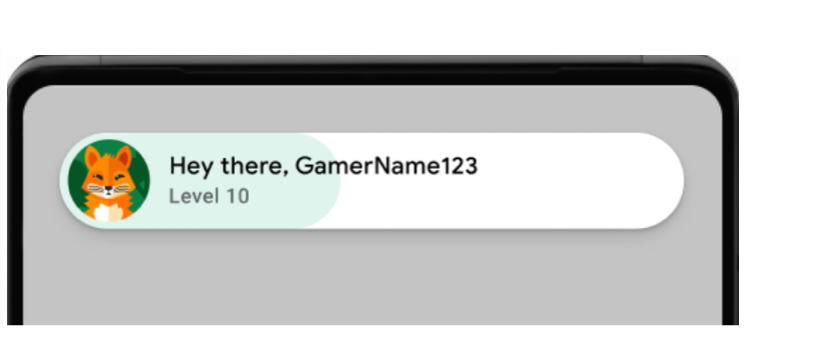
Przykładowe wyskakujące okienko powitalne (kliknij, aby powiększyć). Wyświetlają się komunikaty dziennika informujące o powodzeniu. Uruchom w terminalu to polecenie:
adb logcat | grep com.google.android.
W tym przykładzie pokazano komunikat logu informujący o powodzeniu:
[
Zapewnij spójność komponentów interfejsu.
Wyskakujące okienka, tabele wyników i osiągnięcia wyświetlają się prawidłowo i spójnie w różnych rozmiarach i orientacjach ekranu w interfejsie usług gier Play.
Opcja wylogowania nie jest widoczna w interfejsie usług gier Play.
Upewnij się, że możesz prawidłowo pobrać identyfikator gracza, a jeśli to możliwe, funkcje po stronie serwera działają zgodnie z oczekiwaniami.
Jeśli gra korzysta z uwierzytelniania po stronie serwera, dokładnie przetestuj proces
requestServerSideAccess. Upewnij się, że serwer otrzymuje kod autoryzacji i może go wymienić na token dostępu. Przetestuj scenariusze powodzenia i niepowodzenia w przypadku błędów sieci i nieprawidłowych scenariuszyclient ID.
Jeśli Twoja gra korzystała z którejś z tych funkcji, przetestuj je, aby upewnić się, że działają tak samo jak przed migracją:
- Tabele wyników: przesyłaj wyniki i wyświetlaj tabele wyników. Sprawdź, czy ranking jest prawidłowy oraz czy nazwy graczy i wyniki są wyświetlane prawidłowo.
- Osiągnięcia: odblokowuj osiągnięcia i sprawdzaj, czy są prawidłowo rejestrowane i wyświetlane w interfejsie usług gier Play.
- Zapisane gry: jeśli gra korzysta z zapisanych gier, upewnij się, że zapisywanie i wczytywanie postępów w grze działa bez zarzutu. Jest to szczególnie ważne w przypadku testowania na wielu urządzeniach i po aktualizacjach aplikacji.
Zadania po migracji
Po przejściu na pakiet SDK do gier w wersji 2 wykonaj te czynności.
Publikowanie gry
Utwórz pliki APK i opublikuj grę w Konsoli Play.
- W menu Android Studio wybierz Build > Build Bundles(s) / APK(s) > Build APK(s) (Utwórz > Utwórz pakiety / pliki APK > Utwórz pliki APK).
- Opublikuj swoją grę. Więcej informacji znajdziesz w artykule Publikowanie prywatnych aplikacji przy użyciu Konsoli Play.